
WinCC Confirm the entry of a process value
This is an example presented in the Siemens forum, where the goal is to confirm a process value of an input field before changing it with an Ok! button. There are several ways to do this, but I have proposed the following.
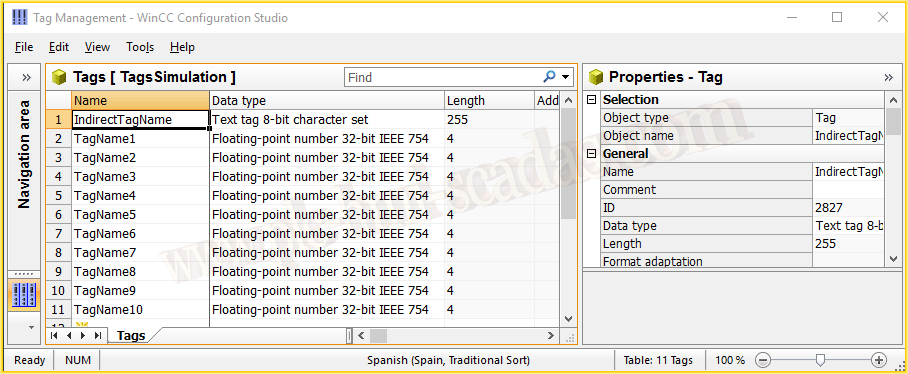
First of all, we will consider that the variables we want to confirm are the following, which would already be declared in our project: TagName1, TagName2 ...
What we have created is an internal variable of the type Text tag (String).
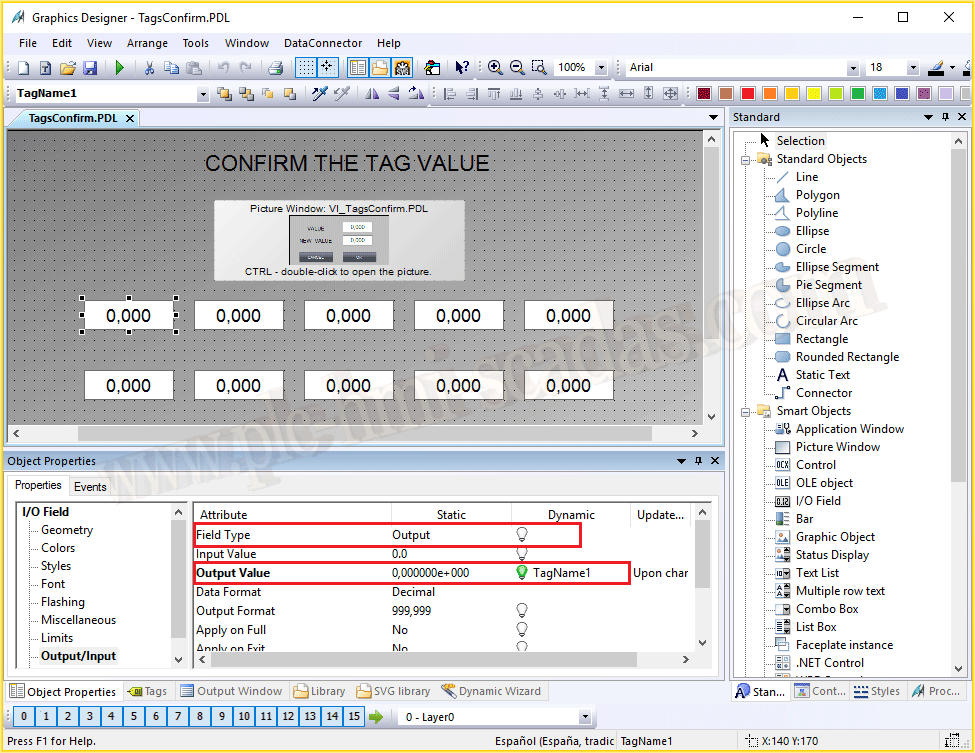
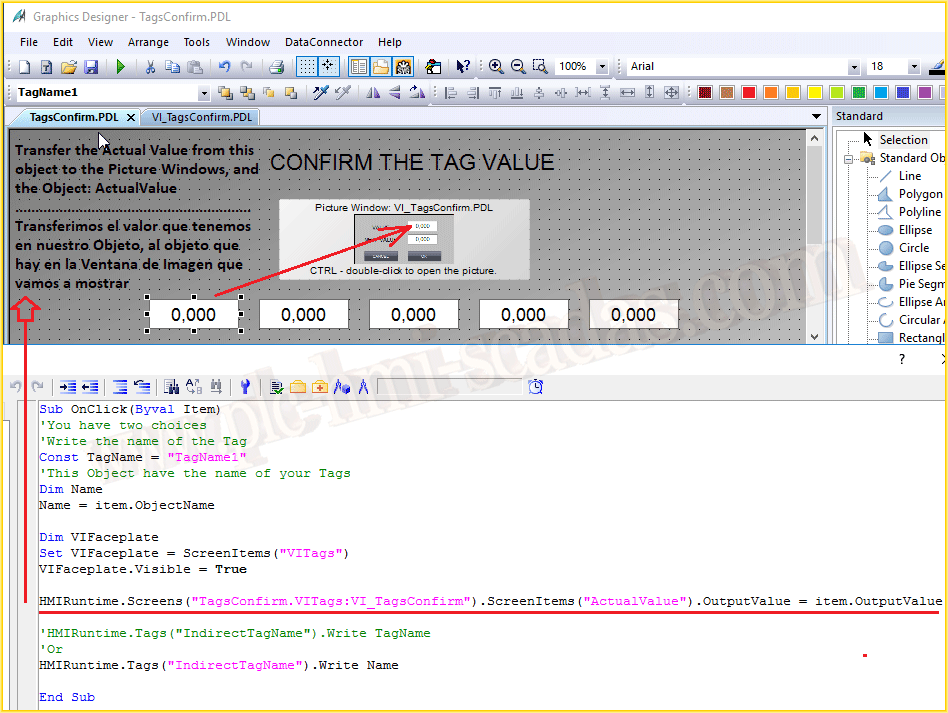
We will use this screen as an example, where we have a series of Input and Output fields, all of which are linked to their variables, but we have changed one of their properties so that it is only an output.
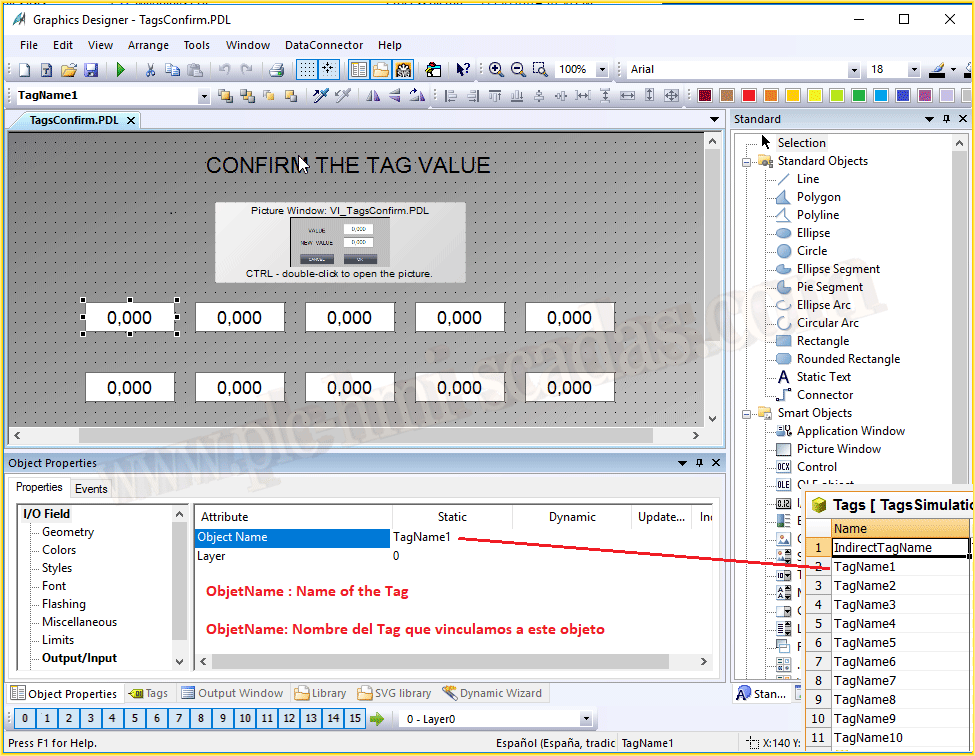
In turn, each of the objects has the same name as the Tag they are linked to.
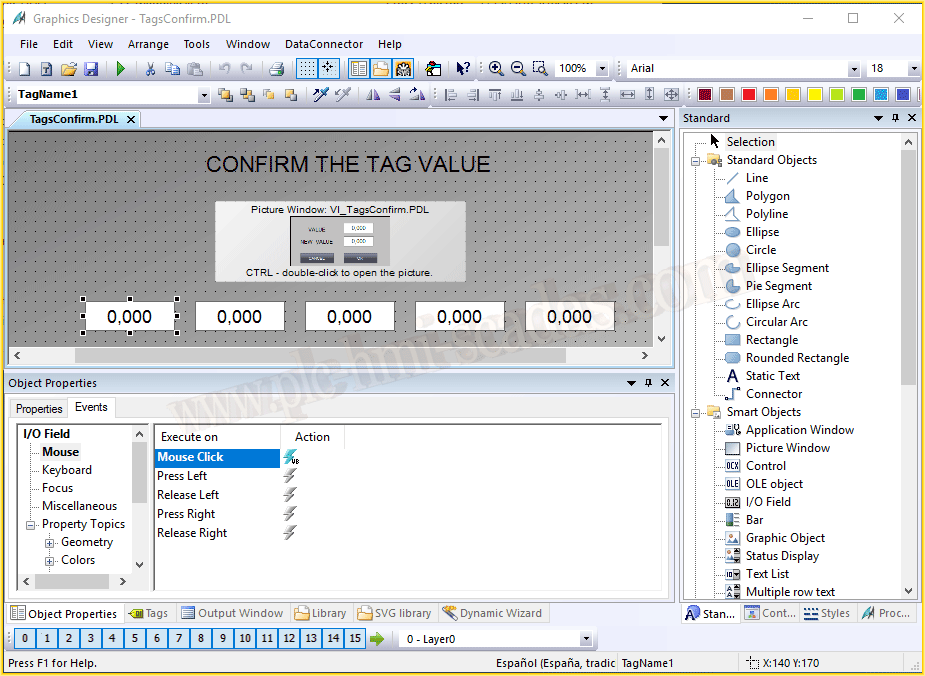
And each of the input and output fields has an associated event, which if we have configured the previous steps will serve the same event for all objects; we just need to copy and paste it into all of them, or program a macro in VBA for all fields.
If we have not named the object the same as the variable name, we can declare a constant and assign the name of the variable that we want to change the value of. There would be two possible options; the easiest is the first, as it helps us avoid mistakes.
On the other hand, we have an image window that we will see now, and what we do is make it visible, the second step.
Once we have it visible, we can access its objects, and now we will transfer the current value of the input and output field to another field called ActualValue.
And finally, we will save in the internal variable of type String that we declared at the beginning the name of the variable that we are going to manipulate.
For that reason, this code is the same in all Input and Output fields.
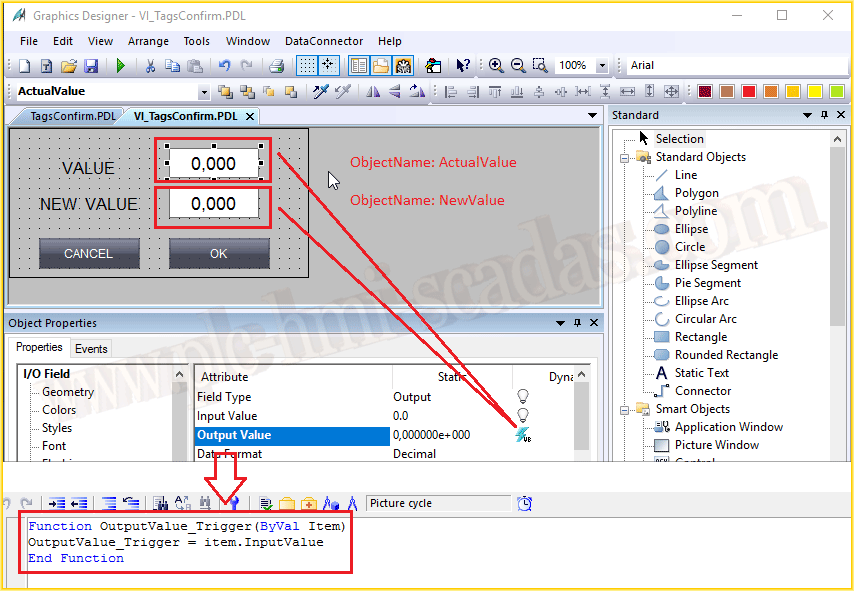
The previous image window has a pdl, with two input and output fields, the first of which is ActualValue, which is an output only, and the new value field is input and output, where we will write the process value we want to assign.
Both objects do not have any variable associated; they have assigned in the Output Value property the following code in VBScript: OutputValue_Trigger = item.InputValue, which means that any value we enter is the value that we will display; the trigger for this property is the window cycle; if left by default, there will be a warning that it is not advisable.
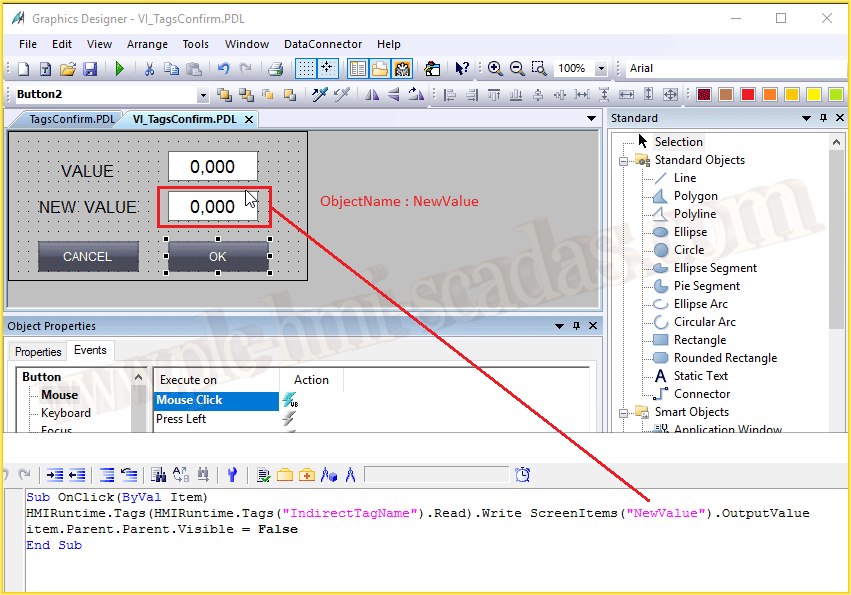
And finally, the confirm button transfers the value we have entered in the NewValue object to the variable we have stored in the internal variable; once the value is transferred, we close the window.
The cancel button would have the code to close the window without transferring the value.
With that, we have it working correctly.
A short demonstration video on YouTube.
March 8, 2018
"Gratitude in silence serves no one." Gladys Bronwyn Stern