
WinCC Debugger VBScript
In this article, we will explain step by step how we can debug our scripts in the Microsoft Visual Studio debugger. As a first step, we proceed with its installation, following these steps.
By default, once WinCC is installed, the Microsoft Visual Studio 2008 Debugger is available. If there is no version installed, we proceed to install it from the directory shown in the following image.
C:\VS 2008 Shell Redist\Integrated Mode\vside.enu
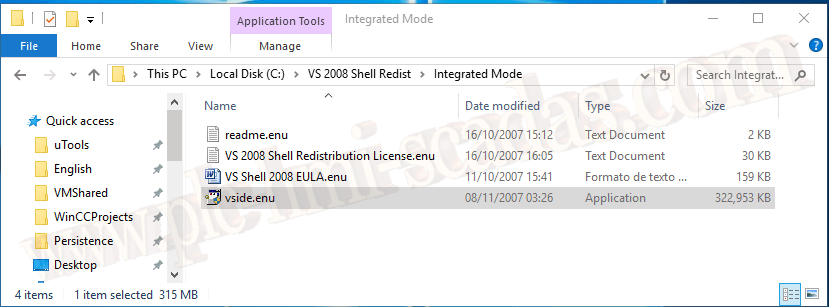
We start the executable and follow the wizard.
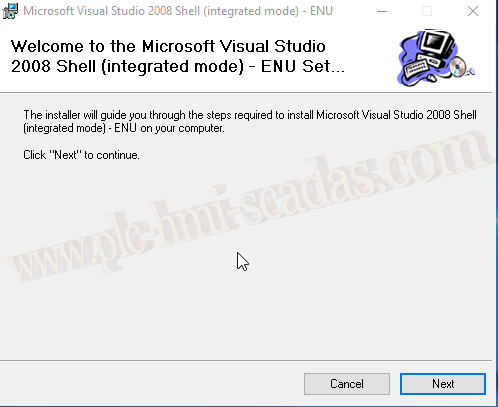
Here you can see the Visual Studio extension that we are going to install, we proceed with next and finish the wizard.

Once installed, and with our WinCC project in Runtime, we proceed to create a new file
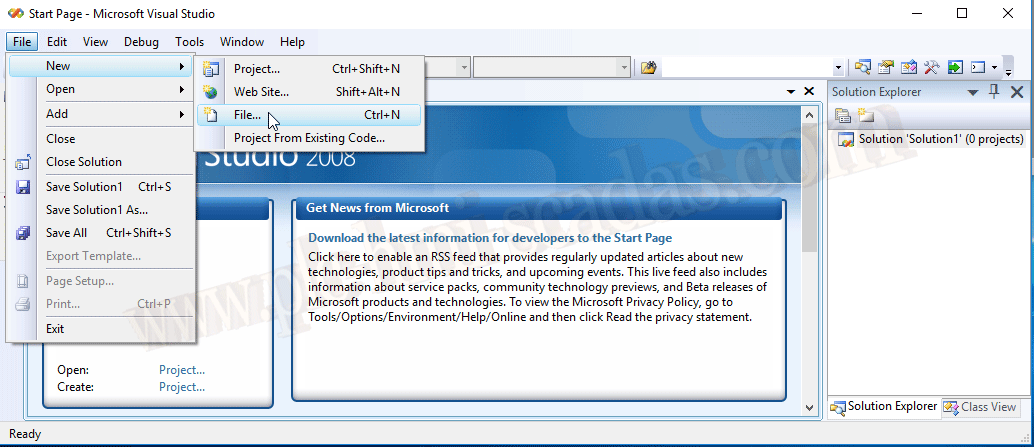
And within the category, we select Script and Windows Script Host

A WindowsScriptX.wsf file is automatically created for us
The next step is to attach the process we are interested in, for this Tools-> Attach to Process...
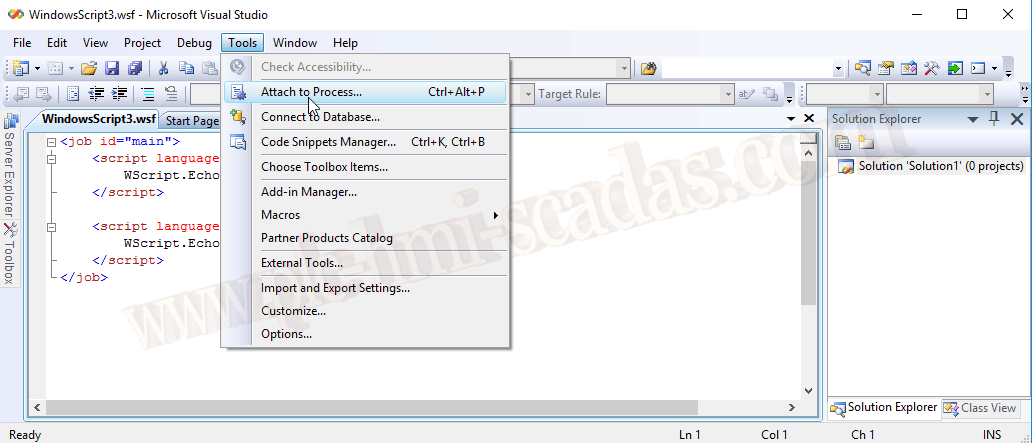
A list of all running processes appears, and we will select pdlRt.exe because I am going to debug a script that I have on a screen. We can also add the process that refers to Global Script and VBScript.

On the right side, the PDLRT process is attached along with the screen that is in Runtime at that moment, since the script is on a Button, I select screen_Events, because the script executes on the button press event. If the script were in the Global Script, we can add the process gscrt.exe and debug it in the same way.

The file opens with all the scripts on that screen, we look for the code we are interested in and set a Breakpoint. To set a breakpoint, we double-click on the left side, where the red dot is :-), but on the line of code that interests us. Normally always on the first line if we want to see the result of the operations
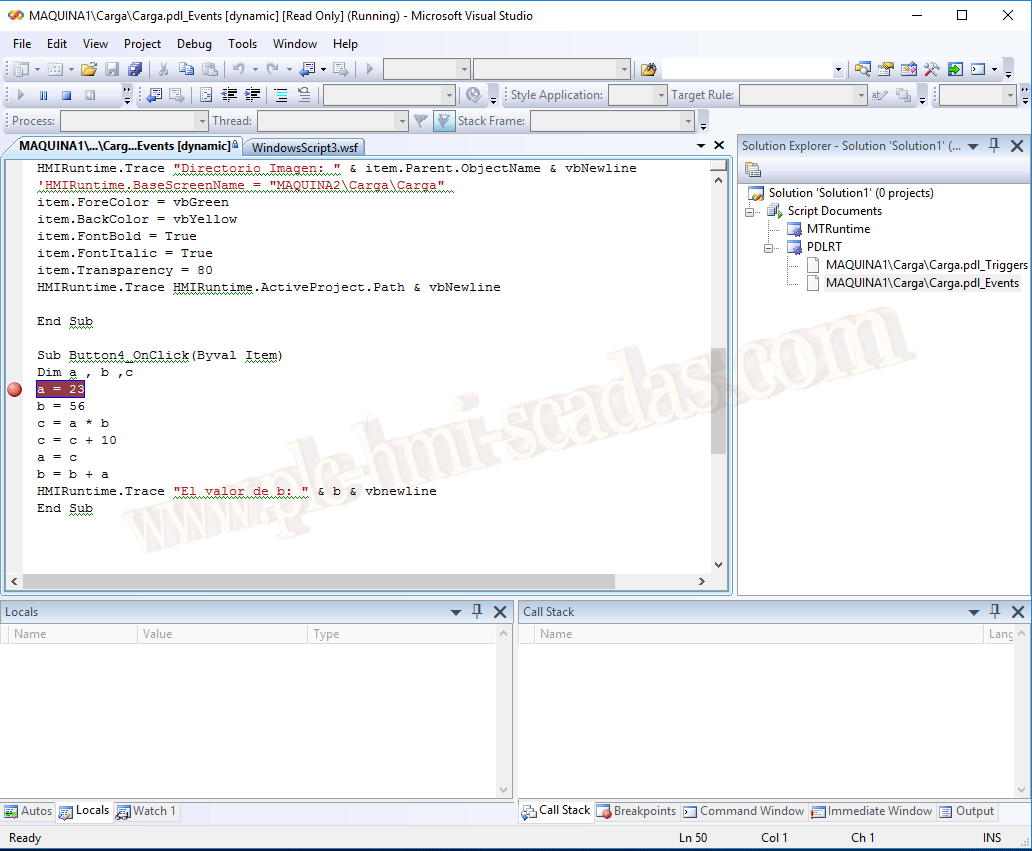
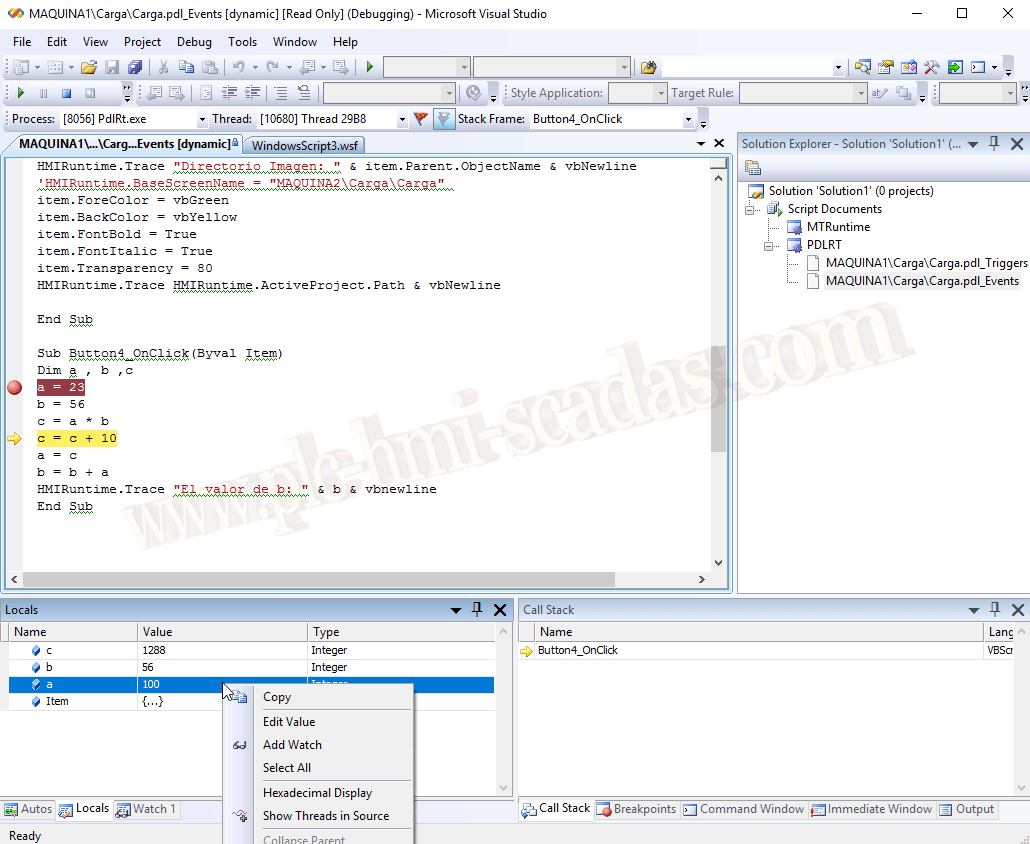
Once we have set our BreakPoint, we click the button on the WinCC screen and the debugger stops at the relevant line. We then proceed to go line by line by pressing the F11 key
While in Runtime, we can modify some value to perform tests and debug...
Conclusion: This is how we debug all the scripts we are interested in but with the VBScript language. It is not applicable for debugging scripts in ANSI C. To debug these scripts and all in general, we will use the APDIAG.exe tool, more information here.
31-01-2019