
WinCC Events Screen (Graphics Designer)
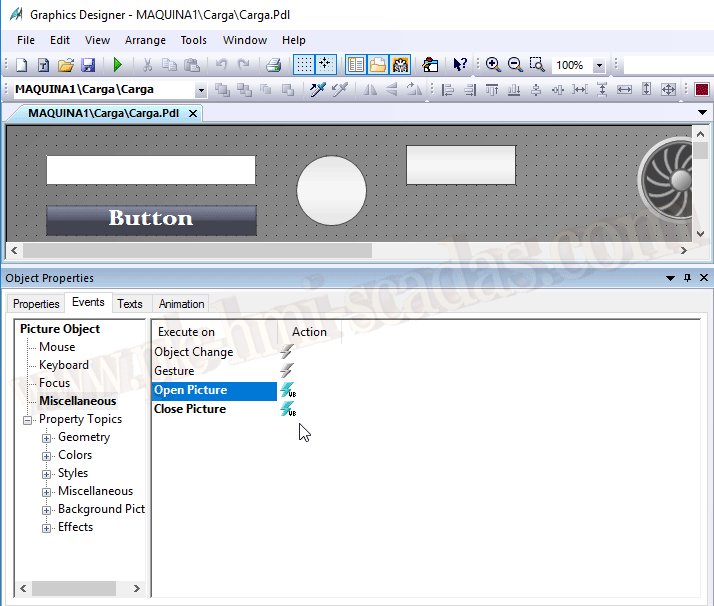
As we have already seen, in this new version of WinCC 7.5, the Close Picture event has been included, so we now have the Open Picture - Close Picture, and I will explain how I implement the While Running.
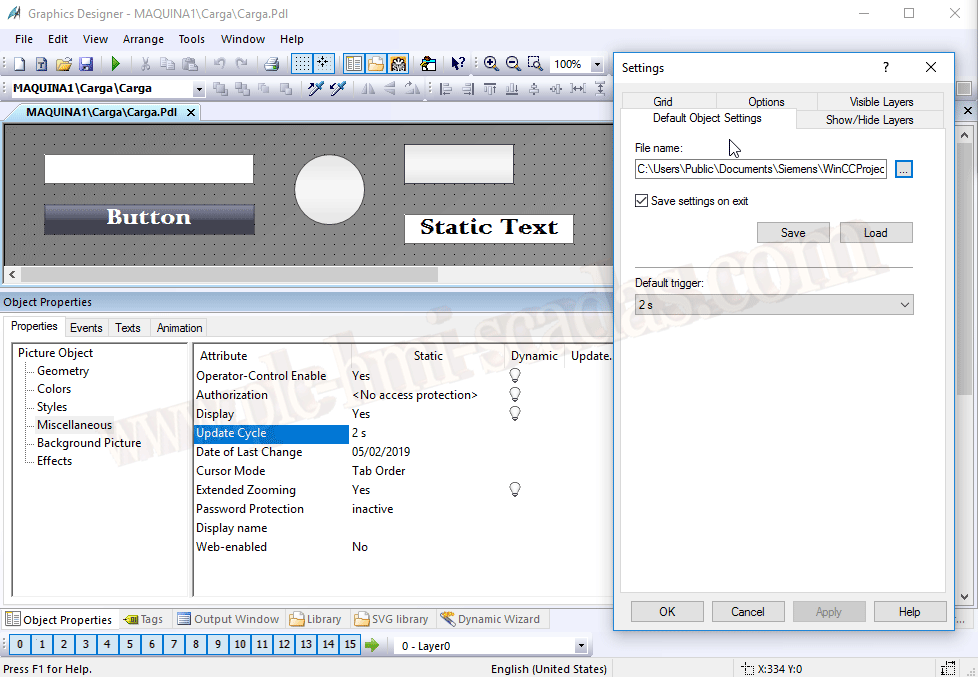
To begin and clarify concepts, by default the trigger is set to 2 seconds; this parameter can be changed in the settings of the Graphics Designer, but if it is not changed, that is the default value after the installation of WinCC.
On a screen, within the properties of Miscellaneous, there is the Update Cycle property, which as we mentioned is set to 2 seconds, the default value if we have not changed it; the following image illustrates this.
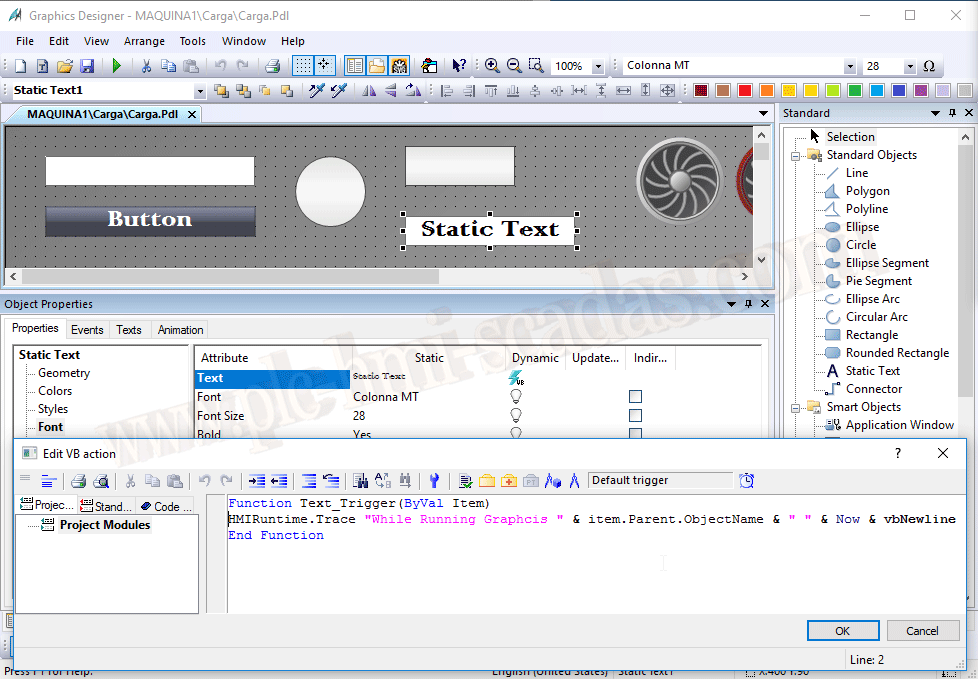
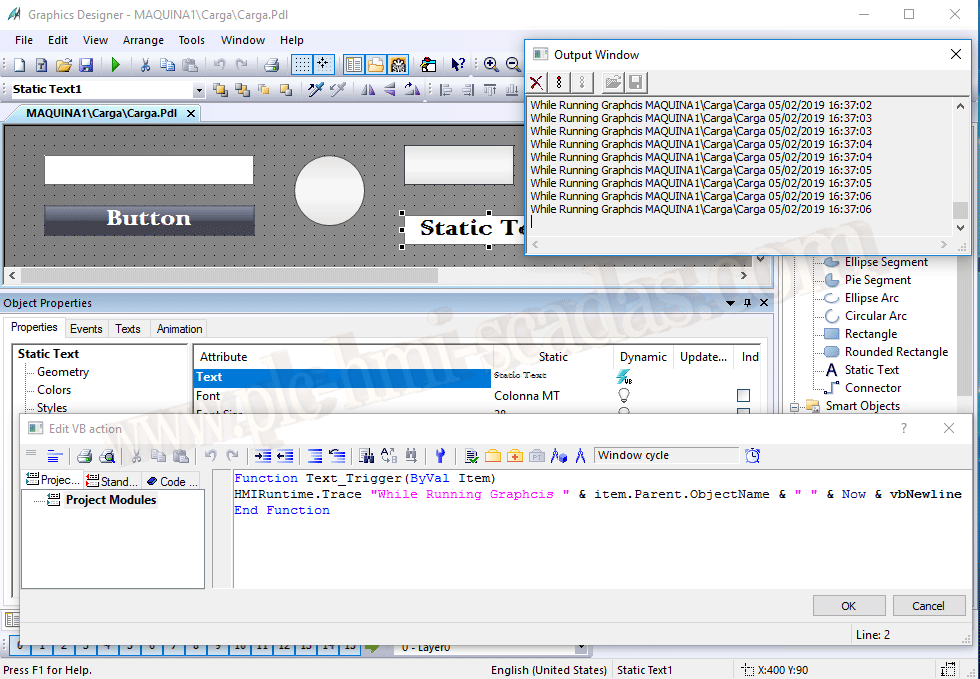
To implement the While Running, we just need to insert an object; I like to use a text object to write While Running and make it invisible at runtime.
Within the text property or any other property, this does not matter, we will write our VBScript code; as an example, we will show the screen we are on and the current date. Any default property is executed with the Default trigger.
When saving the screen with all the changes, we already have a performance warning on screen xxx of object xxx and property xxx.

What we are going to do is the following: we will change the update time to the time that interests us for refreshing, or we will create a specific trigger for our time.
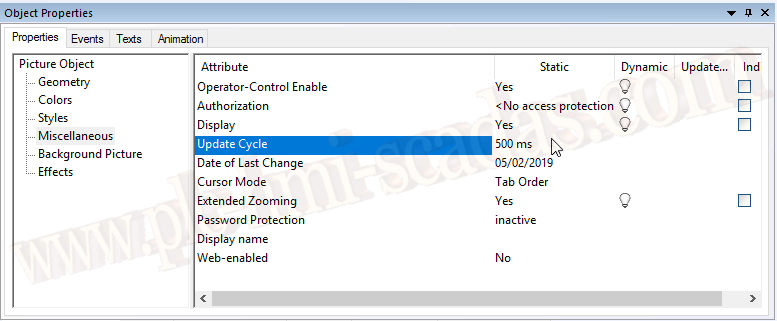
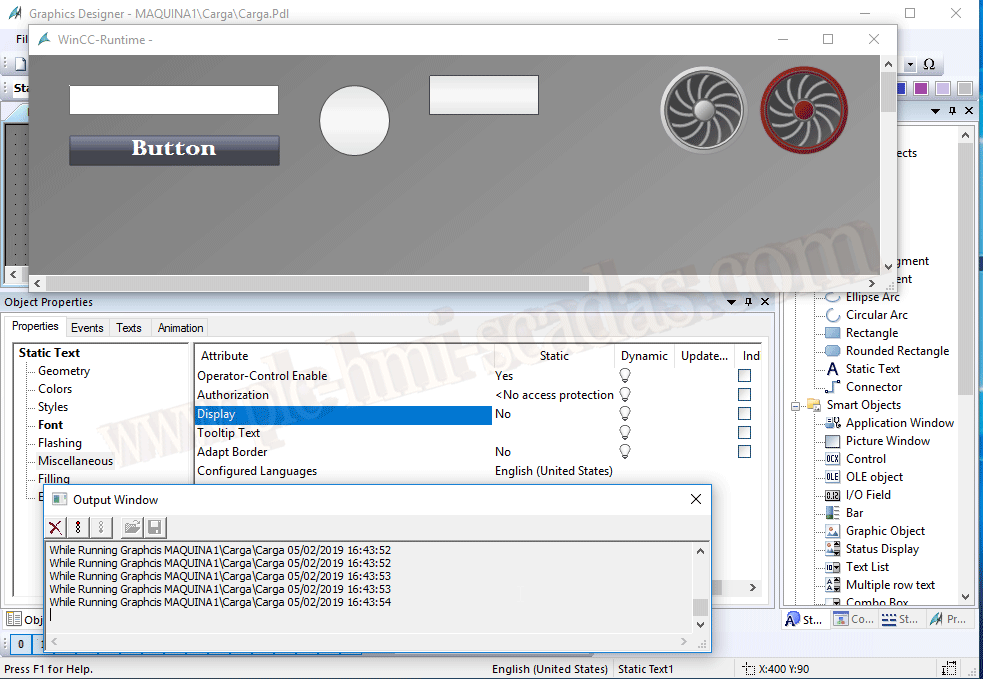
Subsequently, we change the trigger to Windows Cycle so that it executes according to the time we just defined; this avoids the warning, and I assume this would be a more correct way to do it. If we run the Runtime, while we are on this screen, all our code will execute every x time.
05-02-2019