
WinCC LogOn / LogOut
In this tutorial, we will see several ways to log in to our WinCC, assuming that we have created user groups, users, and assigned the corresponding permissions to each of them, just as we have used the properties corresponding to the permissions in the created screens (pdl) to change variable values, open screens, etc...
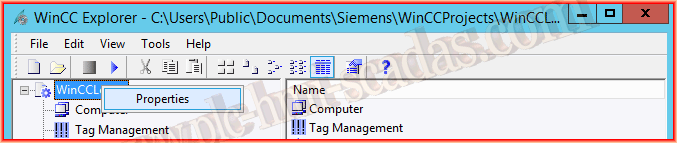
Well, the first and simplest method is as follows, right-click on the name of our project and select properties.
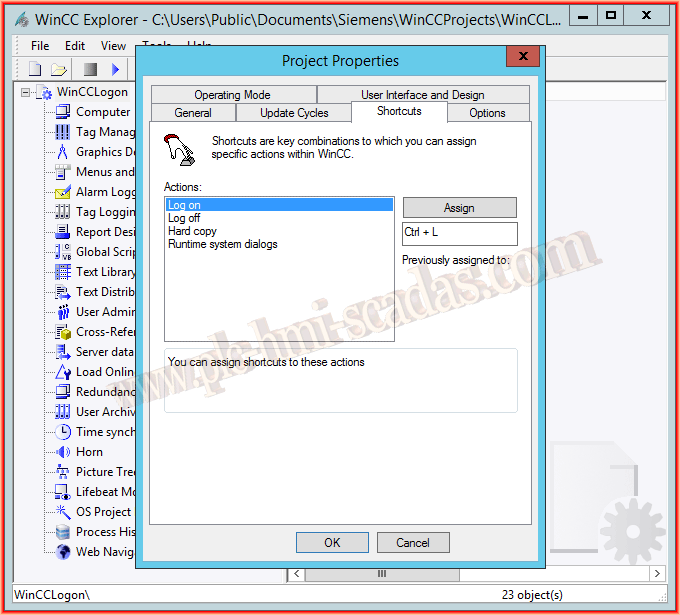
The following properties dialog opens, and if we go to the Shortcuts tab, we have 4 available actions. We can assign a key combination to each of them; for the Log on function, I assigned Ctrl+L and then clicked the Assign button, and that's it.
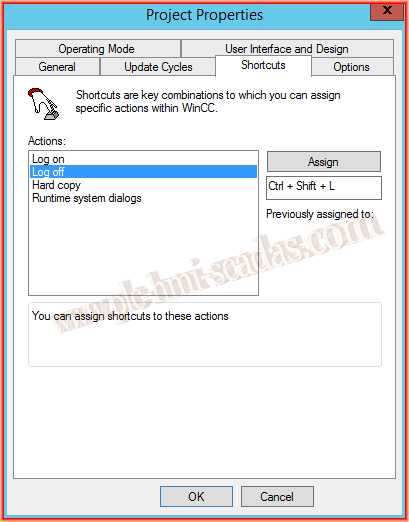
To log off, we do exactly the same, and in my case, I assigned it as shown in the image, Ctrl + Shift + L.
Once we are in Runtime and use this type of key combination or the log in one, the window will appear for that. When we log off, we will be logged out and will not see any window.
It is always advisable to use the internal variables we have to know which user is logged in at all times.
If for any reason we have disabled the use of key combinations, we will move on to the code that will perform the same functions as described.
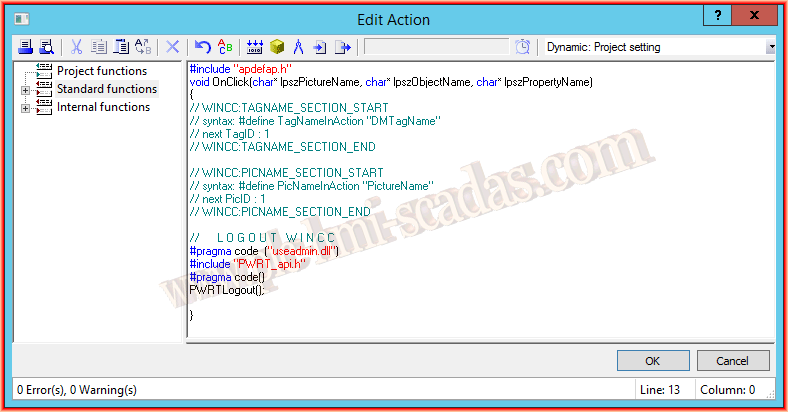
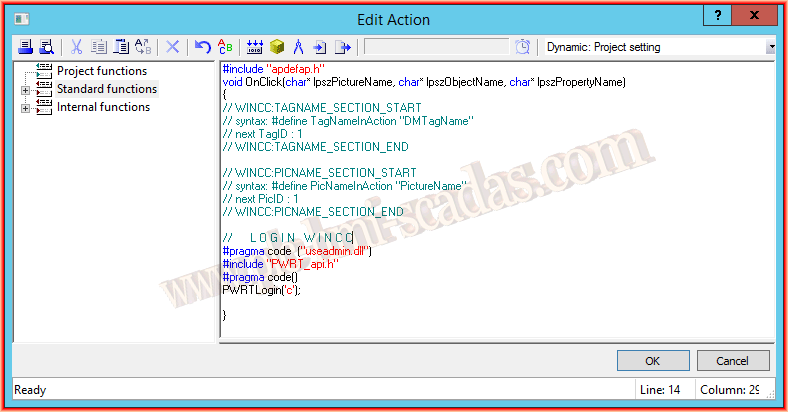
We will use C code, and the code we will use is the following, which we will use in a button, here I explained a method to have these functions in the menu.
LogOff Function
LogOn Function
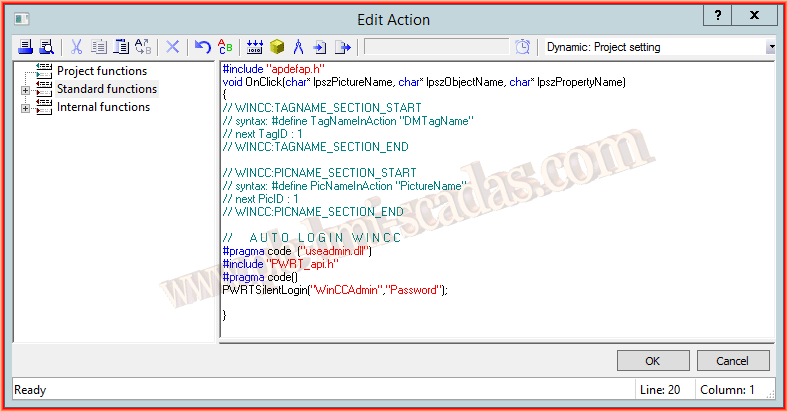
Auto LogOn Function
June 13, 2016