
WinCC MQTT Publisher


Among the new features of the latest version of WinCC 7.5, there was the Cloud Connector option, directly related to Industry 4.0. Well, today we will see an example, and this way I respond to a suggestion :-)
To avoid creating an account on Amazon Web Services (MQTT) or Microsoft Azure (MQTT), I will use the other alternative, which is a Generic Broker, and one of the most mentioned or the most popular is Mosquitto.
Therefore, the first thing I did was install Mosquitto, you can download it here.
Once installed, you need to restart for the service to start.
After restarting, to check the operation, we will execute the command sc query mosquitto, as shown in the following image.

Our Broker is now up and running.
Now let's look at the variables we are interested in publishing; for the example, I have selected these two and set the acquisition cycle to trigger every time the variable value changes.

The next step will be the configuration in WinCC; we run the Cloud Connector.
As we mentioned earlier, we will select a generic MQTT service provider. The broker address, since I installed it on the same machine, is 127.0.0.1 - Localhost or the IP address of the computer.
By default, the port is 1883.
Station name, we leave it as WinCC by default, and later we will see the importance of this name.

We check the connection, and it is established correctly. We have configured the WinCC part.
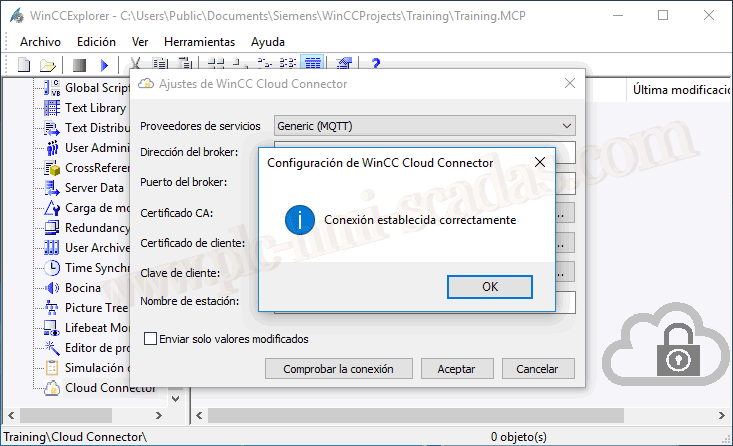
Finally, we will configure the service to start automatically with the Runtime startup (Cloud Connector).

We start the Runtime and will perform the first checks.

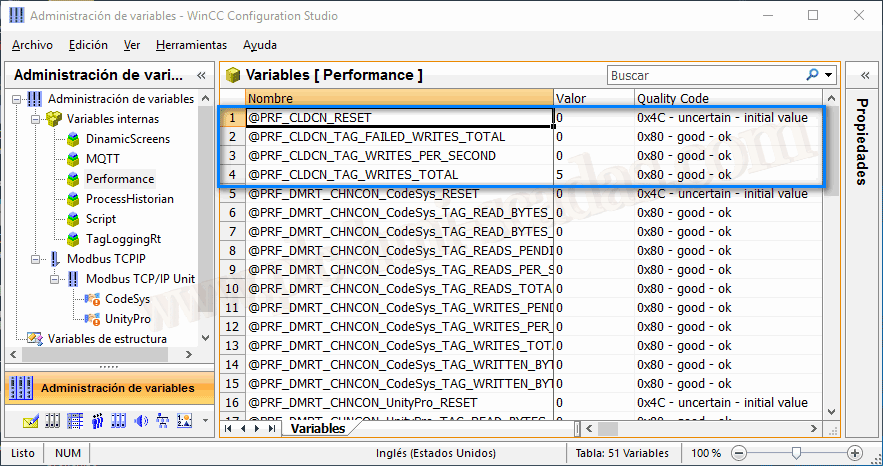
The first thing we will review is the System variables related to the Cloud Connector, which are the following.
If we observe that all variables have a quality code of 0x4C - uncertain - initial value, we need to ensure that the service is running.
The service is the following CCCloudConnect that is running, and everything is functioning perfectly.

Now we need a client to subscribe and observe the operation and values of the variables we are interested in.
As a client, we will use a Google Chrome extension, which you can install (MQTTLens).

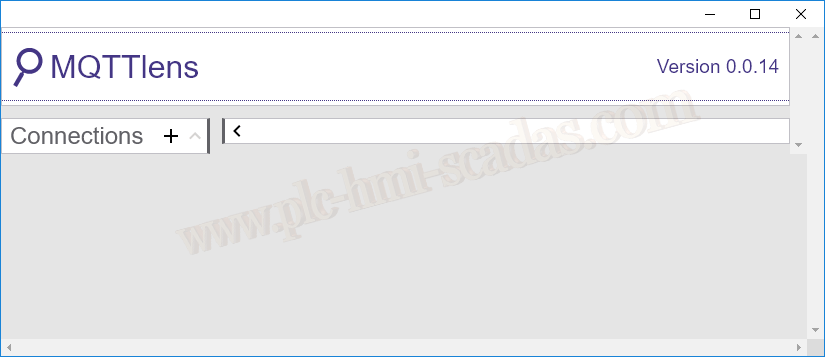
Once added, we will run it, and this is the environment we will find.
We will create a new connection to our Broker.
As parameters to define, being in local mode and without a username or password, simply defining the address and the port will be enough.

We have created the connection and are connected; otherwise, it would be in play mode and red.
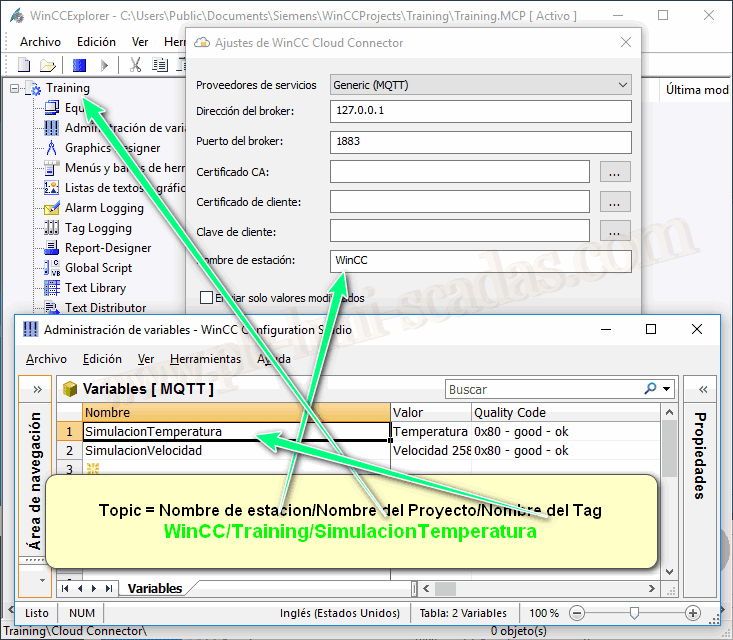
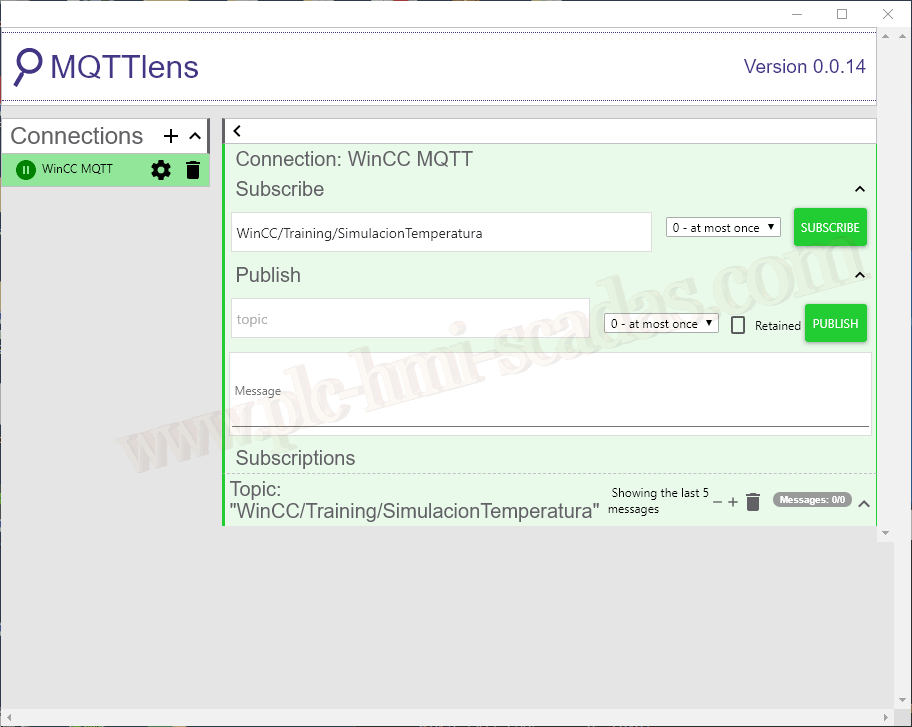
Now we need to subscribe to the topic we are interested in; to define the topic, observe how it is defined:

A picture is worth a thousand words; I think it is quite clear.
Topic = Station Name \ WinCC Project Name \ Variable Name
We subscribe now and wait, as we will not receive any notification until the variable changes.
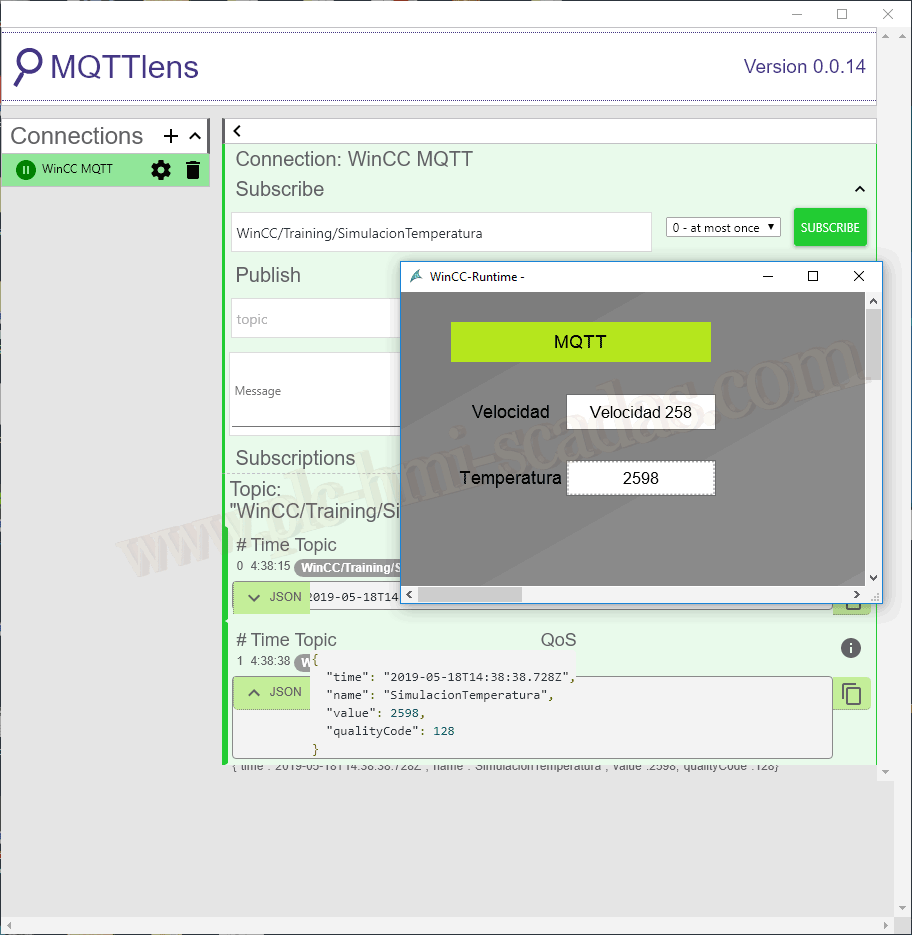
And once we change the value, we receive the notification.
IMPORTANT: WinCC does not allow receiving values from the broker.

18-05-2019