
WinCC Redundancy
In this practice, we will take a step further, and once we have configured our project, whether Single-User or Multi-User, we will configure the Redundancy, which means that we will have another Server on the network, and when the Active Server fails, the passive one will become the Main Server.
It is important to mention that for this type of functionality, the Operating System must be a Server, either Windows Server 2003 or Windows Server 2008; I have used this for the practice.
We will take this step once we have finished our project, to avoid making modifications and loading projects, etc...
The following animation illustrates the process; we have our Server and the clients, and when the Active Server goes down, the redundant Server that remains passive becomes the Main Server until the same thing happens again.
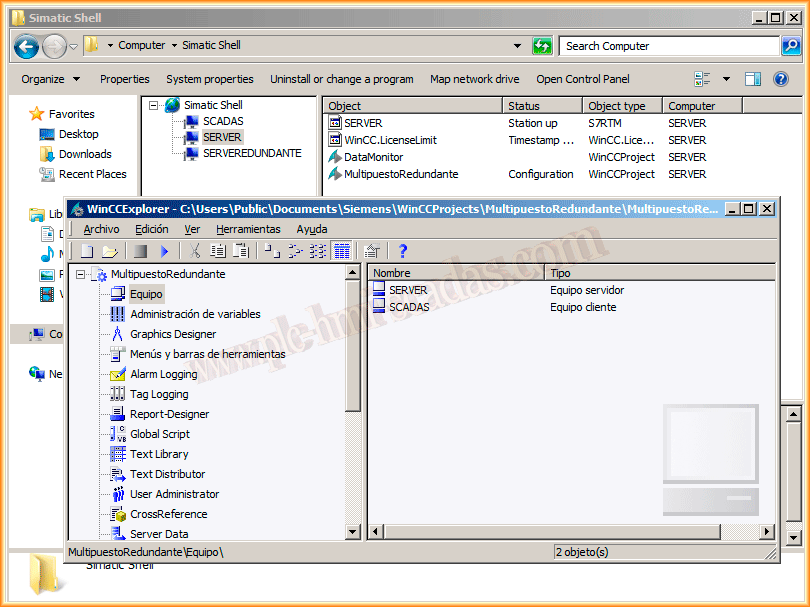
Considering that we already have our project finished, and we have our Redundant Server on the Network and ready to load the project, we will proceed to its configuration. A good tool is the Simatic Shell, where we can check that all the devices are on the Network.
This first project is the one we have configured on the Server, and we have our Client on the Scadas PC. Another useful information is that all devices must have the same version of WinCC.
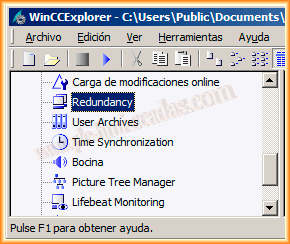
Within the applications that make up WinCC, we have the Redundancy, as this is the one we will use, since by default this option is not active. The first thing we do is activate the CheckBox at the end, and once enabled, we can configure according to our interest. Since this is the Main Server, I check the CheckBox, Default Master, and search the Network for the Redundant Server.

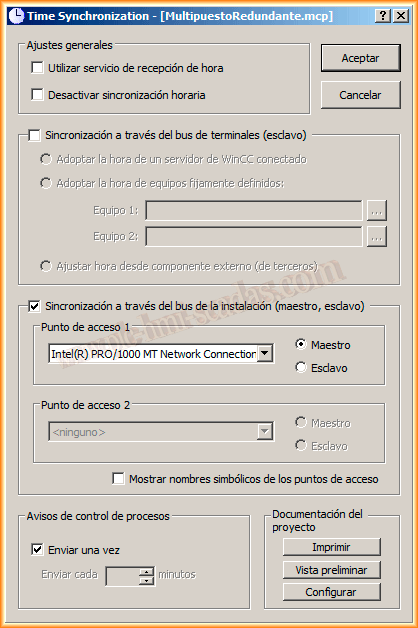
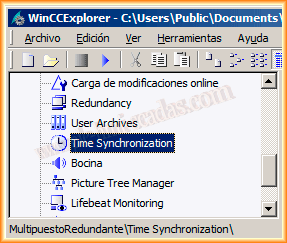
Another option to use is the Time Synchronization; once started, we configure according to our System and interest. Here I recommend reading the manual. For this practice, what has been done is sufficient.
With these steps, we have completed the necessary changes. The next step is to transfer this project to the Redundant Server; for this, we will use the tool provided by WinCC Project Duplicator, where we select the project we are going to duplicate and the path where we are going to save it. I have previously shared the General Directory WinCCProjects for the Administrator user, so I can save it directly on the Server.
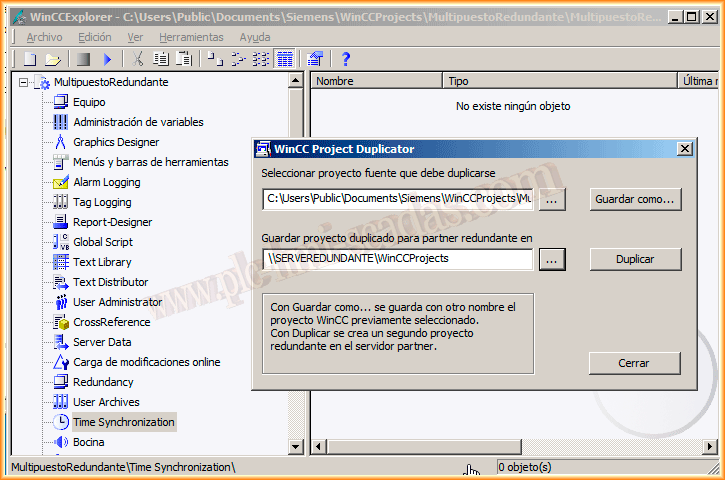
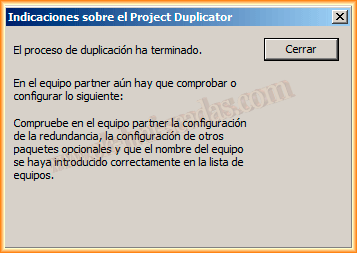
Once these steps have been completed and the project duplicated, a pop-up window appears to verify that everything is correct.
What I have regenerated in the Server Data is the *pck file, where we can now observe that the physical device and the redundant device are correctly displayed.

Now I go to the Redundant Server and check that the device name is correct, the Redundancy configuration is correct, and on this device, I also run the Server Data again to regenerate the *.pck file.
In case of making modifications on the Main or Master Server, all modified files must be loaded onto the Redundant Server; the project must be identical on both devices.

With these steps, we are ready to start our system and conduct the corresponding tests to observe the operation. Since we are on the Redundant Server, we will start the project; at the end of the image, we can see which Server or Client corresponds to the Runtime. Just like the use of the internal variables @ServerName and @RM_SERVER_NAME.
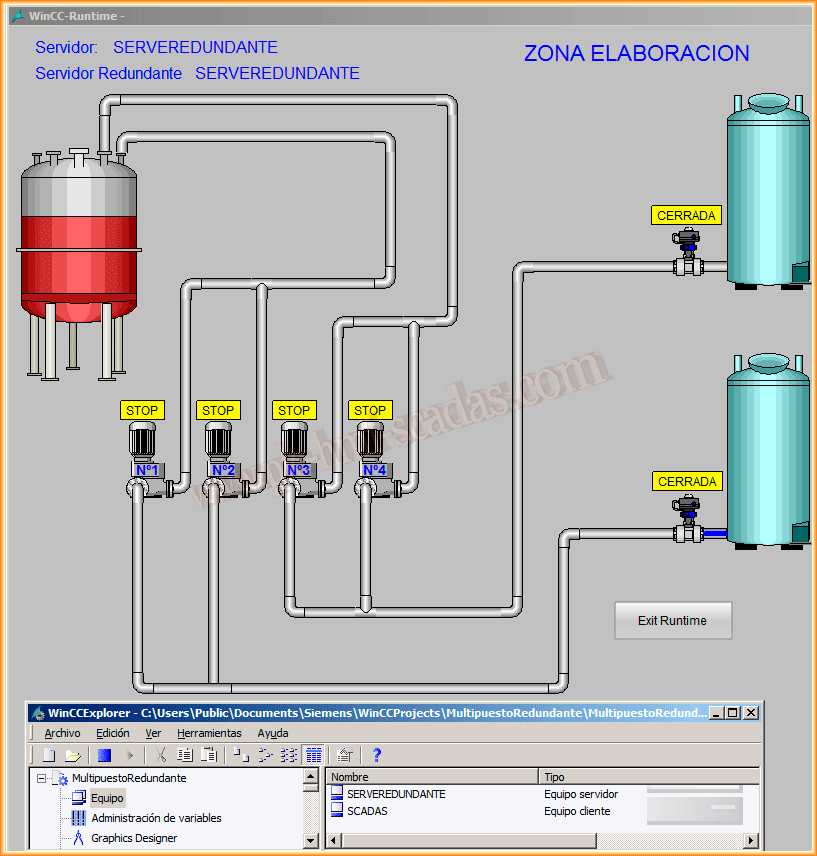
Now we will switch to the Main Server and start it; as can be seen, the application is exactly the same, with the exception of the names of the Server and the Redundant Server. From this moment on, we have both servers running, and as we have configured, this is the Main Server.
Now we will start our Client.

Once the project is started on the Client, with both Servers Active, we can see that we are referencing the Main Server.
To verify that our system works correctly, we will force a failure; the most practical way will be to turn off the project's Runtime or turn off the Server unexpectedly to see how the system reacts...

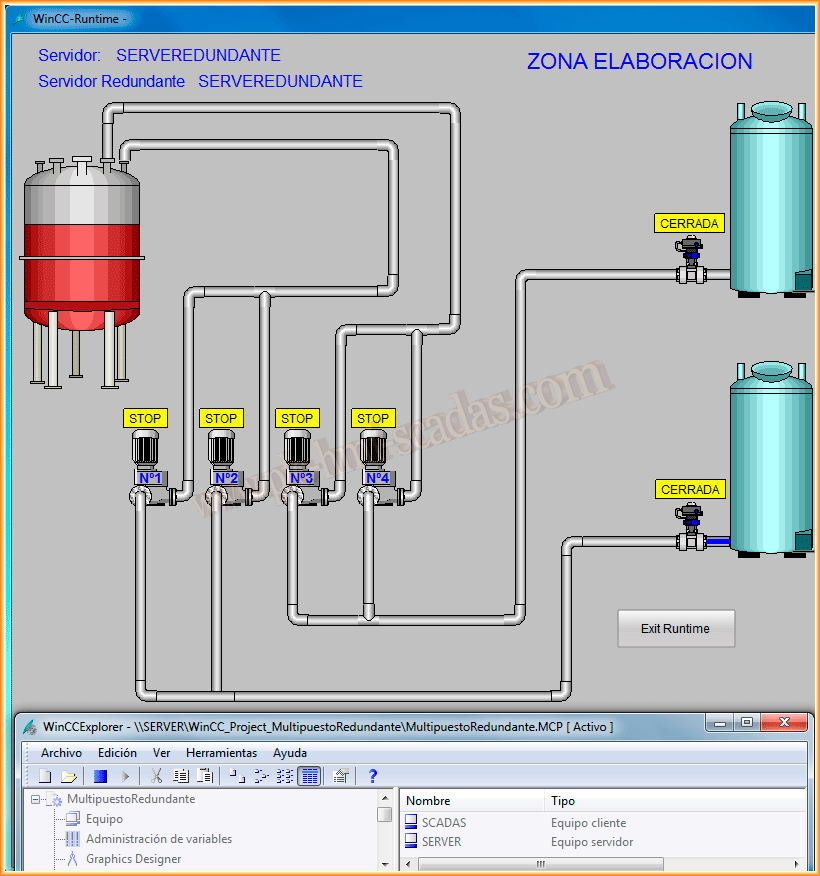
The operation is correct!!! We have automatically switched to the Redundant Server, and as can be seen in the following image, we can see that the Main Server is out of service.
March 29, 2014
If you liked it or found it useful... Share it....