
WinCC Server not available
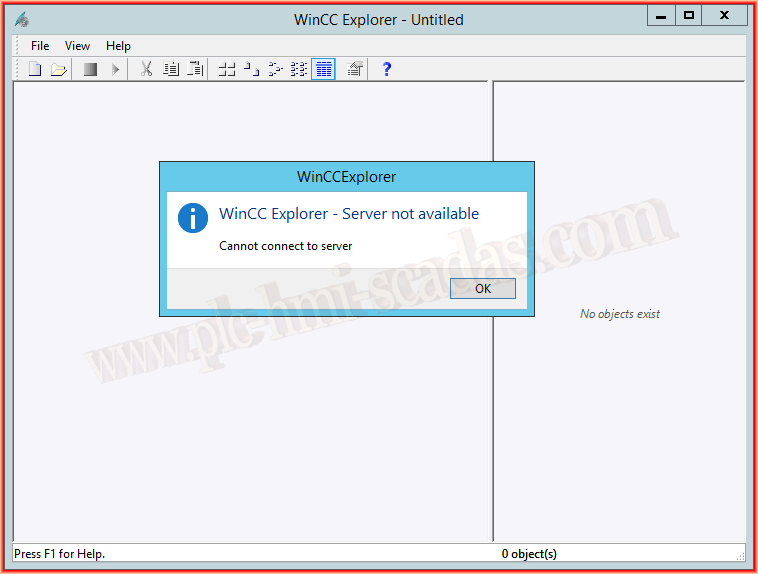
We are going to see a possible error, I say possible because there are more reasons that can cause this same warning message to appear when opening WinCC and our project, we get the message WinCC Explorer - Server not available, as can be seen in the following image.
The first thing we need to do, and the easiest, is to check that the SQL Server (WINCC) service is running. By default, when the installation is done, it is configured to do so, but if you use the same PC for the installation of other programs, or for other reasons, this may happen.
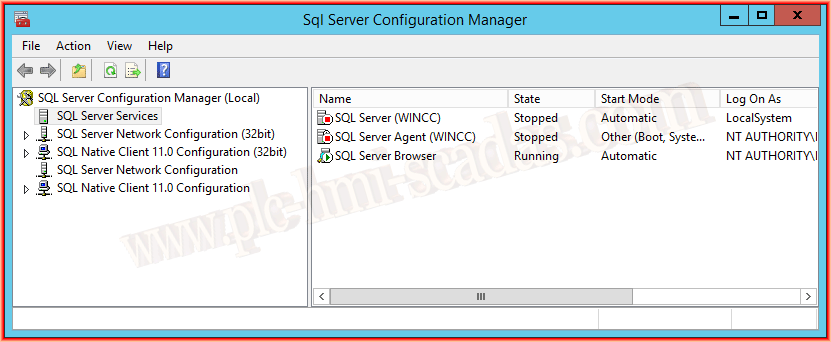
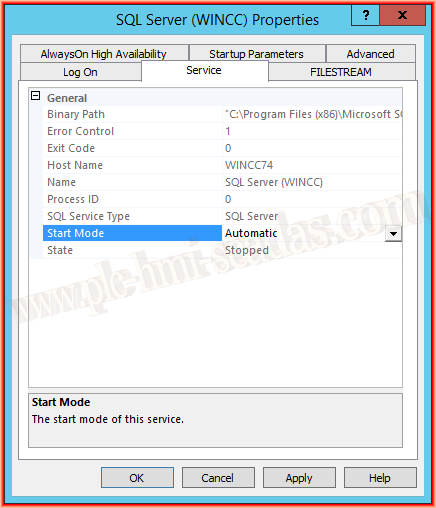
If the startup type is set to Manual, we change it to Automatic. We go to the properties of SQL Server and in the Service tab, we change the Start Mode from Manual to Automatic. We restart the PC.
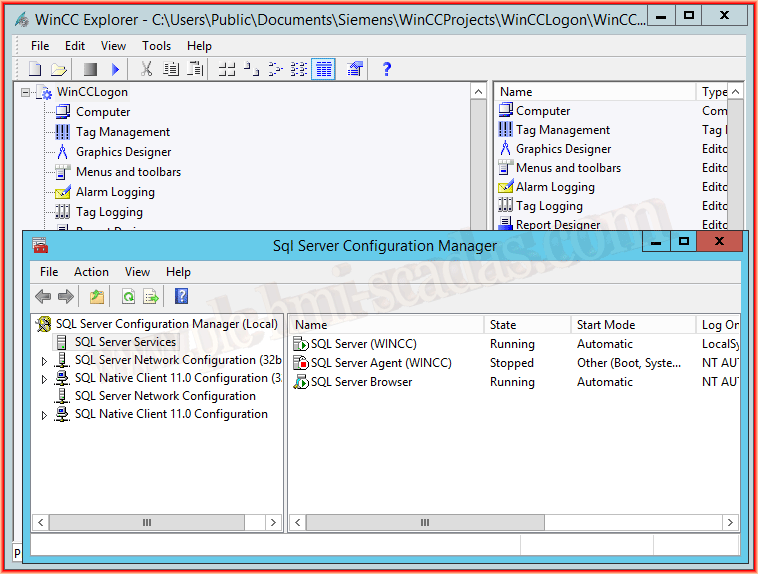
And it's fixed, WinCC and the project we are using now open correctly.
September 3, 2017
"Gratitude in silence serves no one." Gladys Bronwyn Stern