
WinCC Driver Allen Bradley-Ethernet IP
In the following practice, we will see how to configure the Allen Bradley-Ethernet IP Driver, with the significant difference that we do not have any ControlLogix - CompactLogix, we are going to innovate and create the link with SoftLogix. Initially, there is no reference in the manual that mentions this, so the best approach was to try it out, and the results have been satisfactory. All the configuration is done as if it were a ControlLogix - CompactLogix.
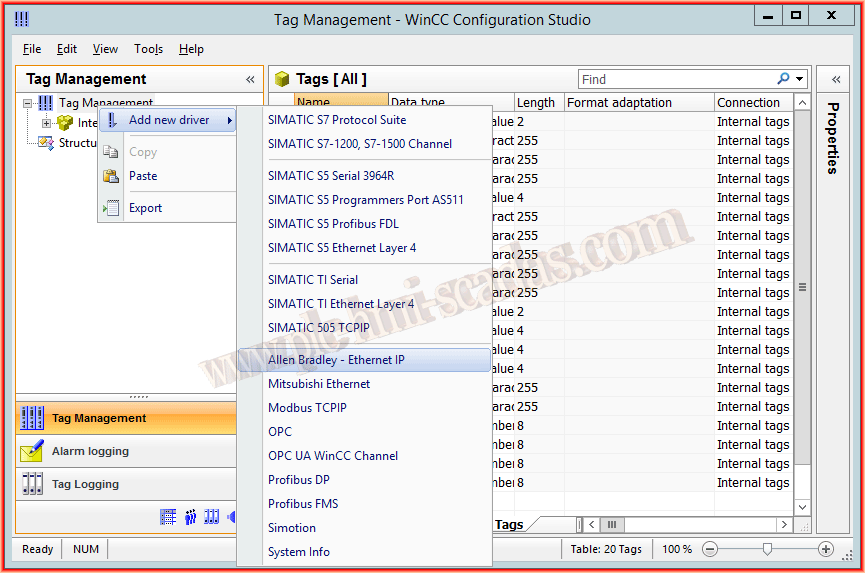
The first step is to add a new Driver --> Allen Bradley-Ethernet IP
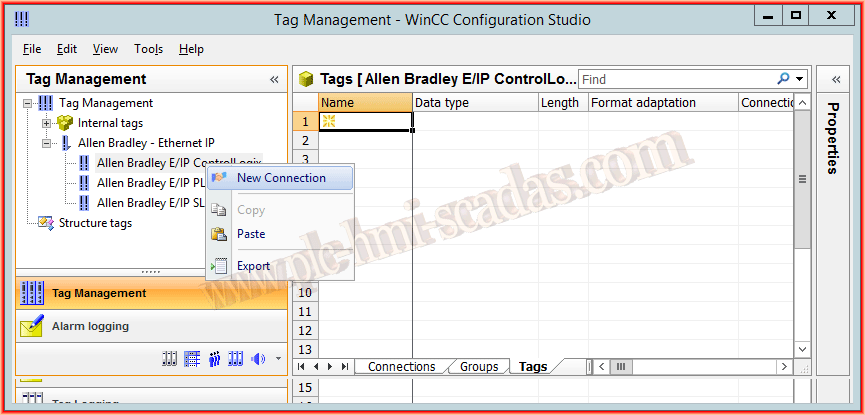
Once the Driver is added, we will add a new connection to Allen Bradley E/IP ControlLogix, since we have mentioned that we will treat SoftLogix as a ControlLogix, we will name it SoftLogix, and once added, we right-click on it to view the connection parameters.

The parameters we need to provide are as follows:
IP Address: The IP address of our network card, it goes without saying that it must be on the same network as where we have WinCC.
Communication Path: Here we will define, first the Rack number, in my case by default it is 1, then the Slot where our CPU is located, as shown in the following image, number 2, with that it is composed (1,2)


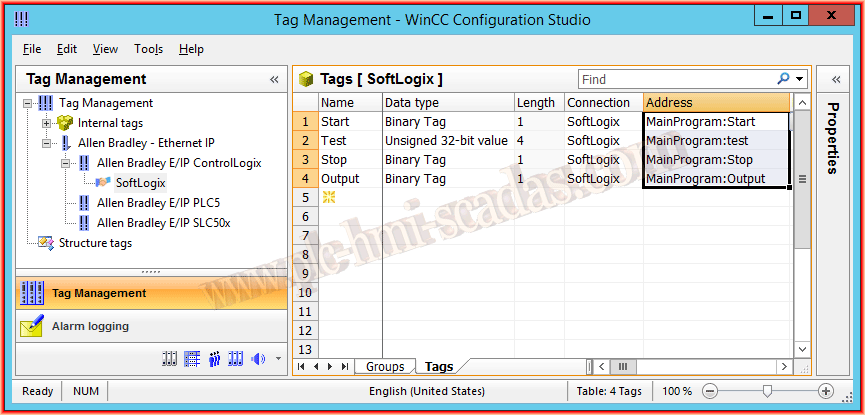
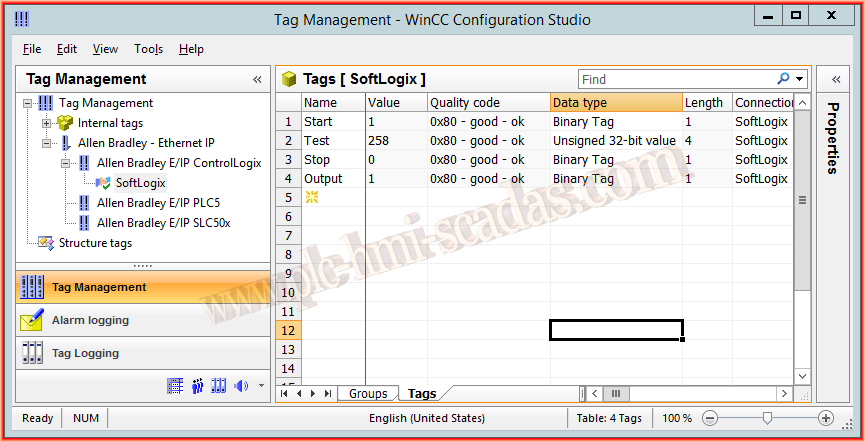
The next step is to add the variables, here the only thing to highlight is the addressing, consult the manual for other possible examples, but in my case as the variables are all created in the MainProgram: it is this followed by a colon and the name of the variables, as shown in the following image.
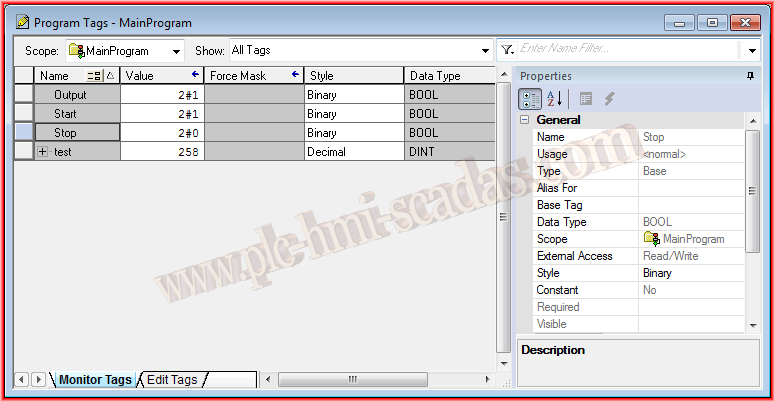
Here we have the program of our RSLogix5000, as you can see the following variables are in the MainProgram scope
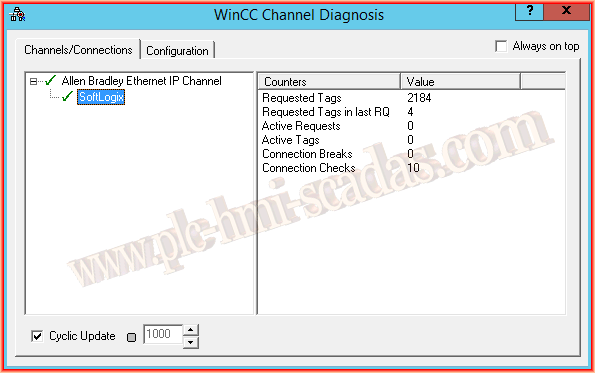
Once we put it in Runtime, we will be able to verify that the communication is perfect, by default the Value and Quality code columns are hidden, we show them and check...
July 26, 2016