
"Visual Basic Application" Macro AddIn in Graphic Designer WinCC
This practice is a summary of the information extracted from the Siemens Manual, regarding the procedure to insert a new Macro AddIn in our Graphic Designer.
But since there is always someone starting anew, I will briefly explain the different programming languages used in WinCC.
Visual Basic Script "VBScript" and C --> They are used in the execution of our Project, that is, when the Runtime is running.
Visual Basic Application "VBA" --> It is used in the development of our application and in the scope of Graphic Designer, which means that when developing our screens/images, just like in Microsoft Excel, we use Macros to automate.
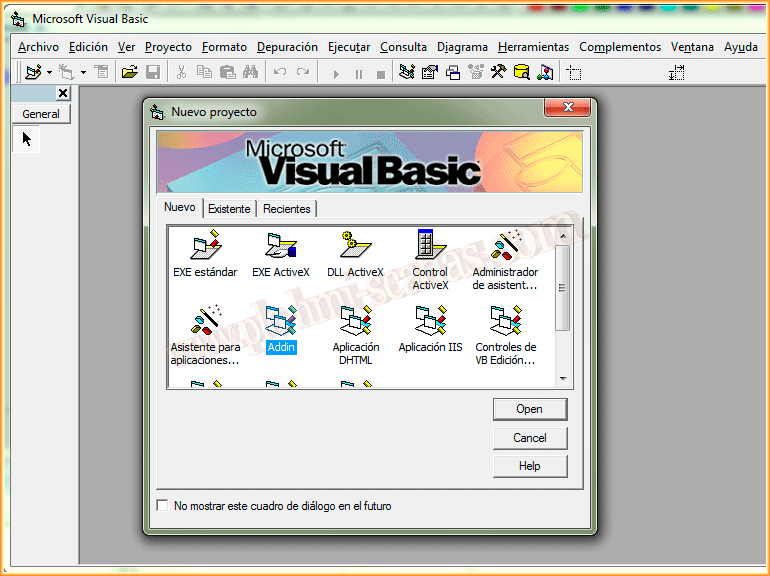
With that brief introduction, we proceed to the steps to follow, first of all, we run Visual Basic and create a new Addin project.
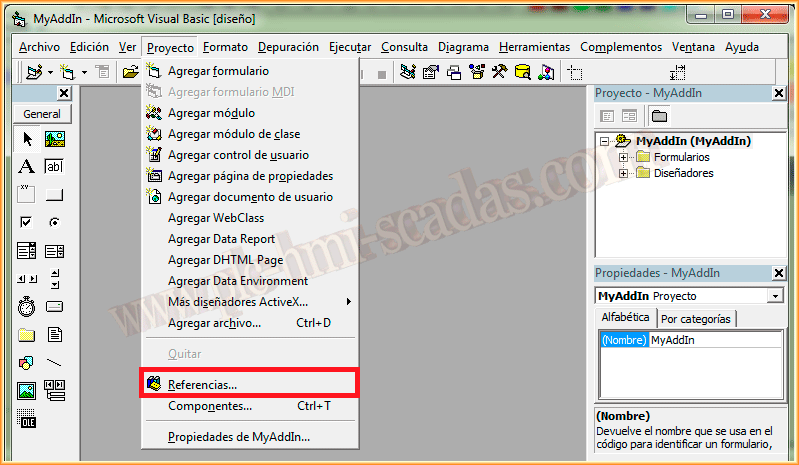
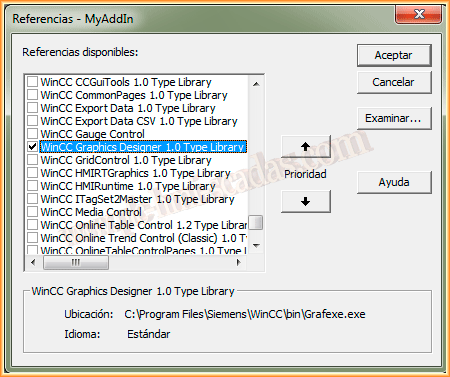
The next step is to add the WinCC Graphics Designer references to our project, for this we go to Project --> References and in the pop-up window that appears, we add it.
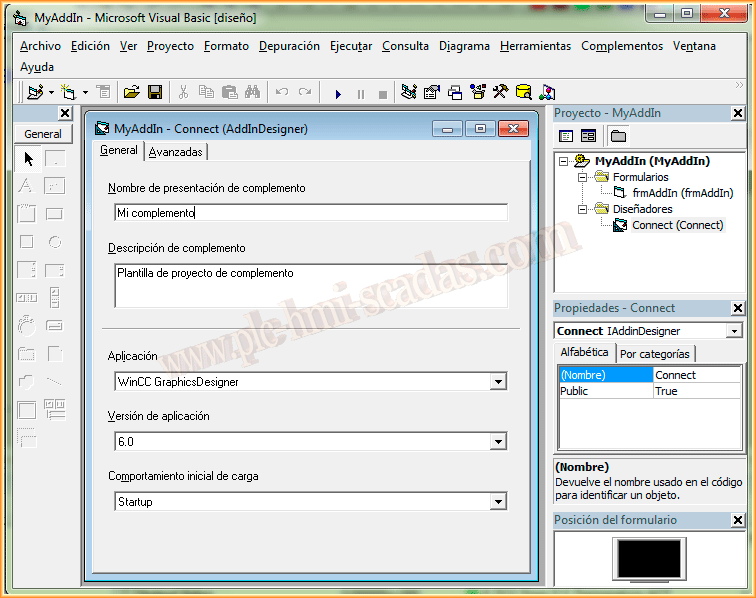
The next thing we are going to configure is the Connection, within the directory of our Project, in Designers we double-click and the following configuration screen appears, where the most important parameters are to select the application and when we are going to execute it, in this case, it will execute our program and load the AddIn we have created when starting.
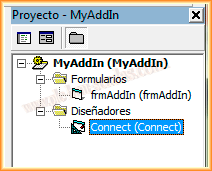
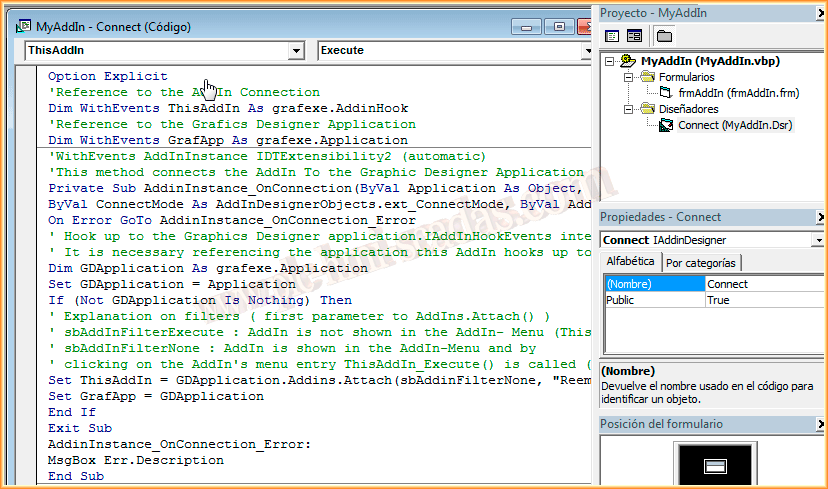
The source code for creating the Macro can be extracted from the WinCC manual and modified according to the macro we are interested in creating, the code will go inside Designers Connect.
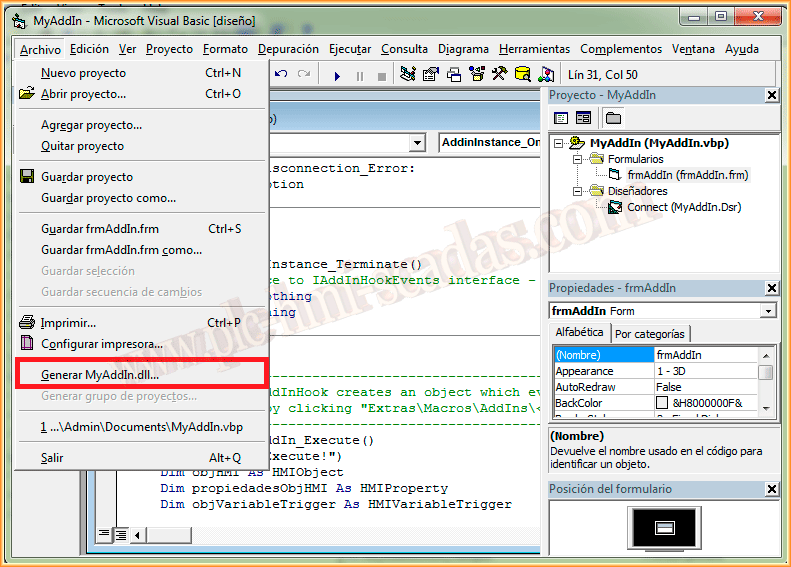
And assuming we have already defined what our Macro will do, we will proceed to generate our *.dll
File --> Generate Name.dll
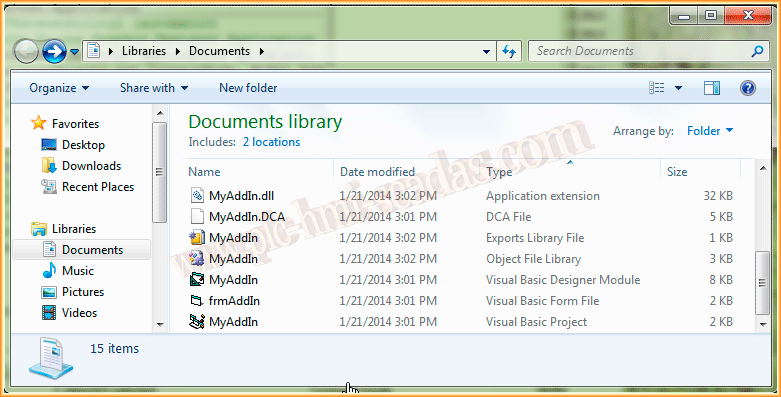
In the directory where we created our project, we already have our file "MyAddIn.dll", the next step is to copy that file to the directory C:\Windows\System32.
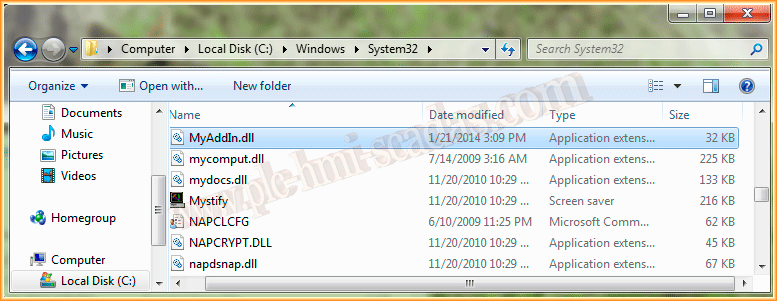
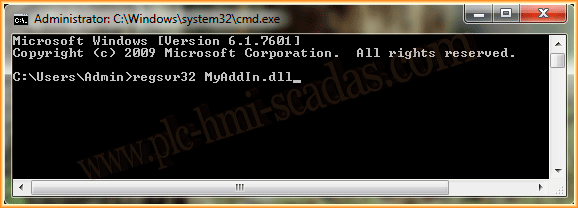
At this step, we can now register our *.dll, we run the command console "cmd" and with the command regsvr32 name of the file *.dll we register it and we can check it.
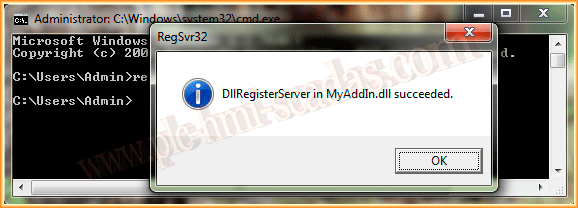
We start WinCC and at the same time the Graphics Designer, we go to Tools --> Macros --> AddIns and our Macro appears and is ready to use and automate tasks...
