
WinCC Create WPF Controls
We have already seen the creation of ActiveX Controls, creation of .Net Controls, and in this article, we will see the creation of WPF Controls. First, the definition of the acronym WPF according to Microsoft Windows Presentation Foundation provides developers with a unified programming model for building rich Windows smart client user experiences that incorporate UI, media, and documents and I recommend the link for information and already developed projects, with which we can familiarize ourselves and learn. In fact, the following practice is based on an Image Viewer, and taking advantage of the fact that I wanted to visualize images in my SCADA, here is the development followed.
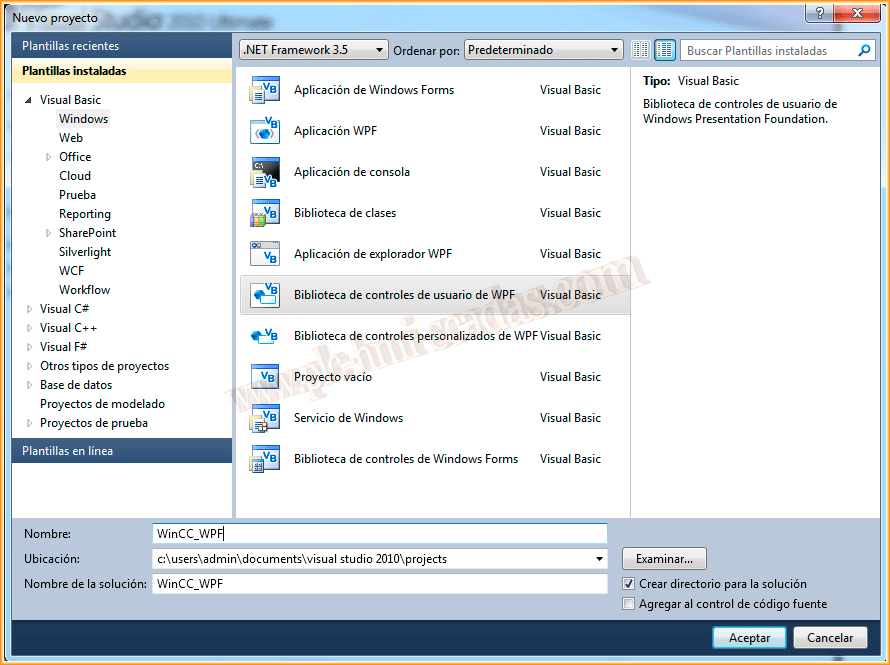
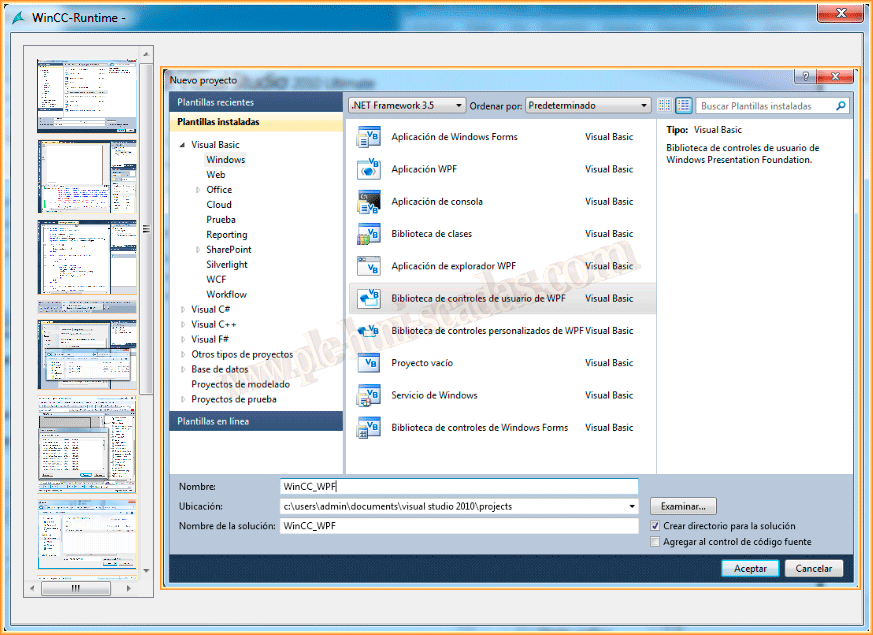
The first thing we do is create a new project, with the .Net Framework 3.5 and select WPF User Control Library.
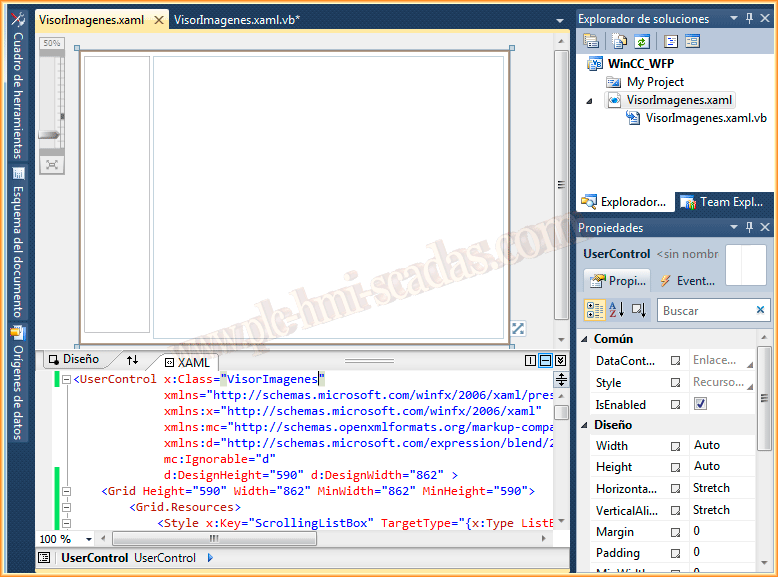
Making a comparison with Visual Basic.Net, in this type of projects, we have a *.xaml file where we will develop the graphical environment and it is based on XML markup language for the configuration of the objects, that is, to configure properties, define setters, etc...
On the other hand, we have the *xaml.vb file in which we will develop our programming code, in this case developed in Visual Basic.net although it could be C++.
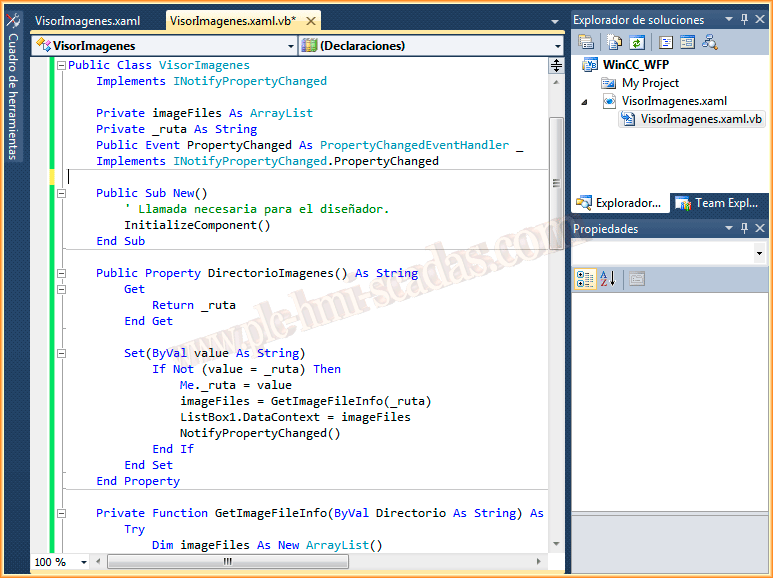
If we switch to the *.xaml.vb file, we will create the corresponding code for our objects, defining properties, functions, procedures, etc...
In this object, I have created the property DirectoryImages, which will be the variable or static text that will reference the directory of interest.
Considering that we have already implemented our control, we proceed as in the previous practice, to generate the solution, build, for the creation of our *.dll.
To know the location of our *.dll, we go to the project properties, compile, and once generated, we can go to its directory.


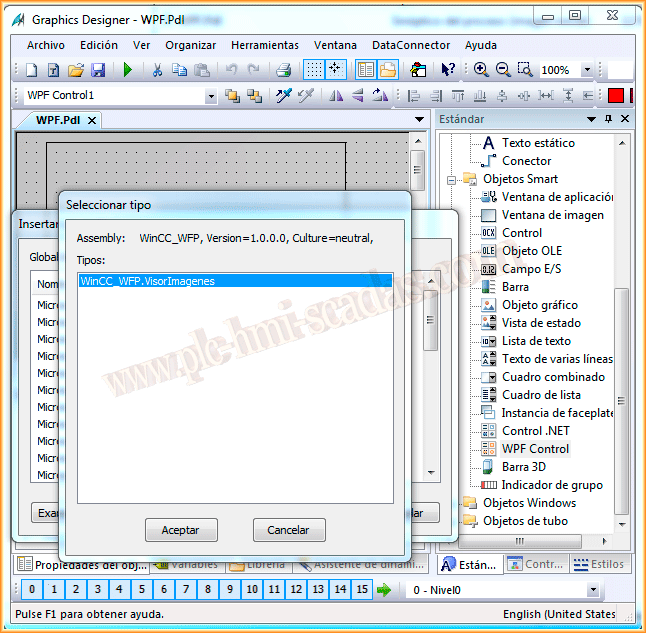
Having generated our Control, we start WinCC and the Graphics Designer, and follow the same procedure. We can insert the control either from Smart Object or from Controls; here we will see the first case, we insert a Smart Object control --> WPF Control, it will show us all our controls and we examine to add the new one.


We can now observe that our Control is displayed, we accept and with that, we have loaded it.
On the right side, we have a ListBox to load the thumbnails of our images, and once we assign the path either statically or by variable, the images in our directory will be loaded.

Here are the images that our Directory currently contains.

And finally, we run the Runtime and check its operation; each time a thumbnail is selected, the image is displayed. With this, we have seen the 3 types of custom controls that we can add to WinCC: ActiveX Controls, .Net Controls, and finally WPF Controls.
February 15, 2014
If you liked it or found it useful, share it ... :-)