
In the following practice
WinCC New WebUX Server V7.3

The latest version of WinCC V7.3 is now available, which includes a feature that cannot be overlooked. The new WebUX Server, to see all its features visit the official page of Siemens.
We can highlight that with this application we can now access from any device, Tablets, SmartPhones, browsers that support HTML 5.
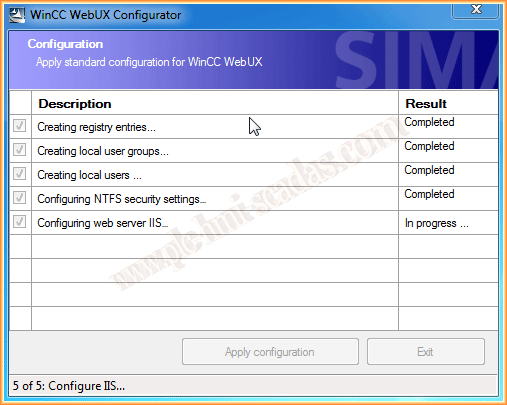
After installation and after restarting the PC, the following configuration pop-up window for WebUX appears.
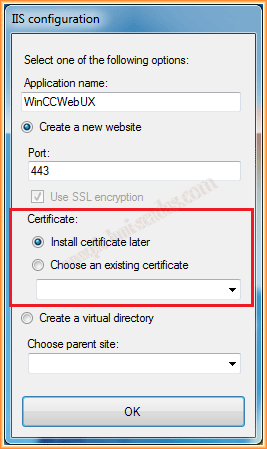
We click Apply configuration, and in the IIS configuration, another pop-up window appears for the configuration of the new Web site, we give or assign the default name, and the port number, by default Https is 443. In the Certificate area, we select Install certificate later. We accept and it will ask for a system restart.
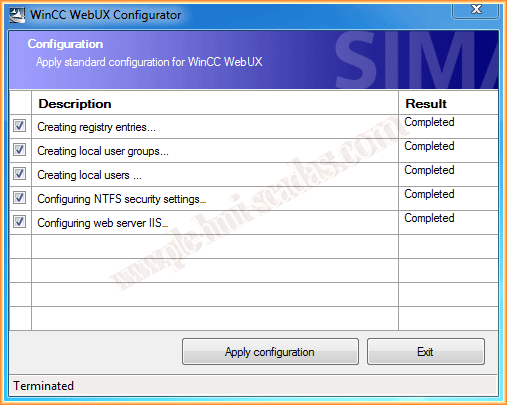
Once restarted, we go to Control Panel / System Tools / Internet Information Services IIE, we will finish the configuration. We click on the name of the PC and within the IIS area, we go to Server Certificates
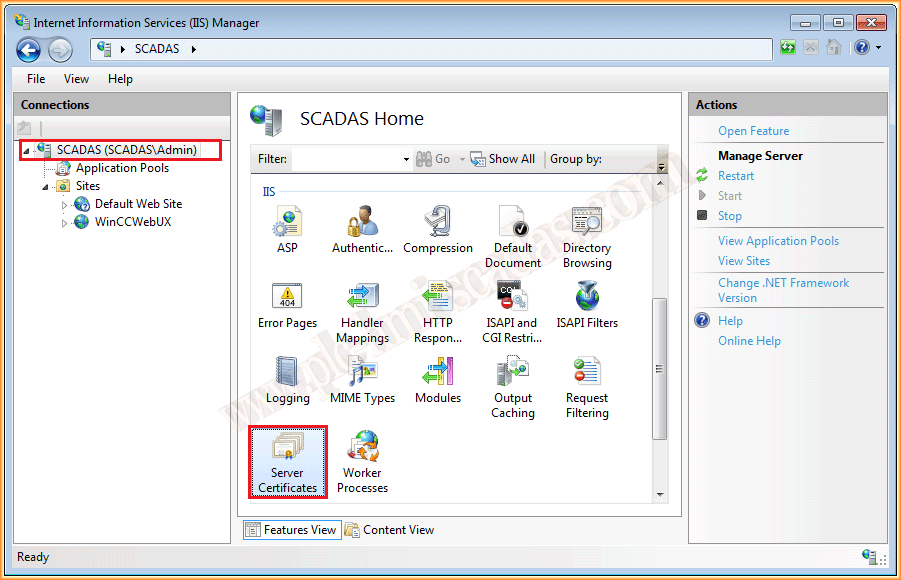
We are going to create a new one, but for that we will use the Create Self-Signed Certificate action, where we assign the name that interests us and follow the wizard for its creation.
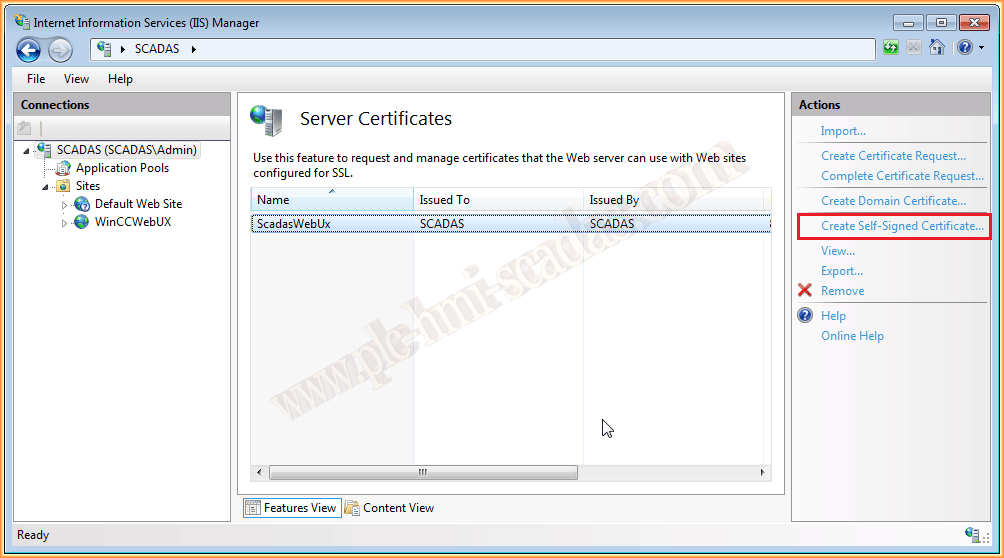
Once the certificate is created, we go to our Web site, and within the actions to Bindings, as shown in the following image.
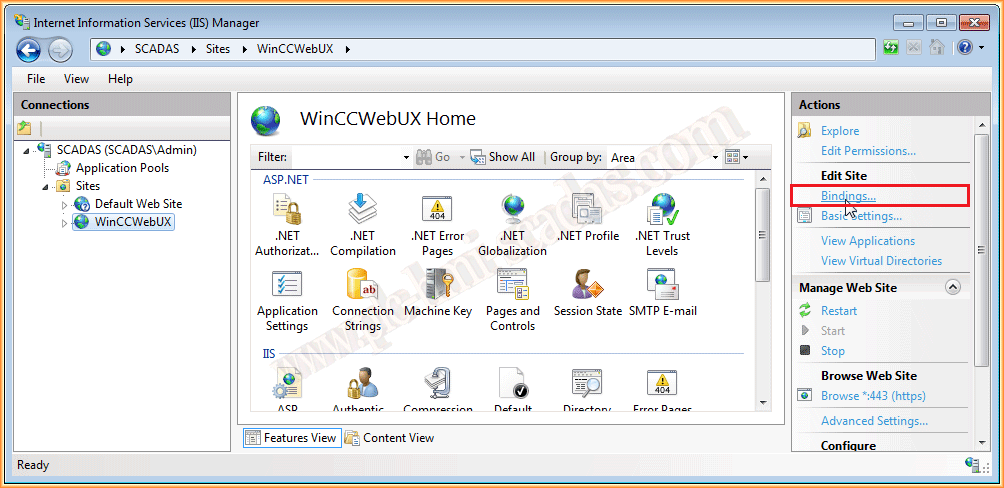
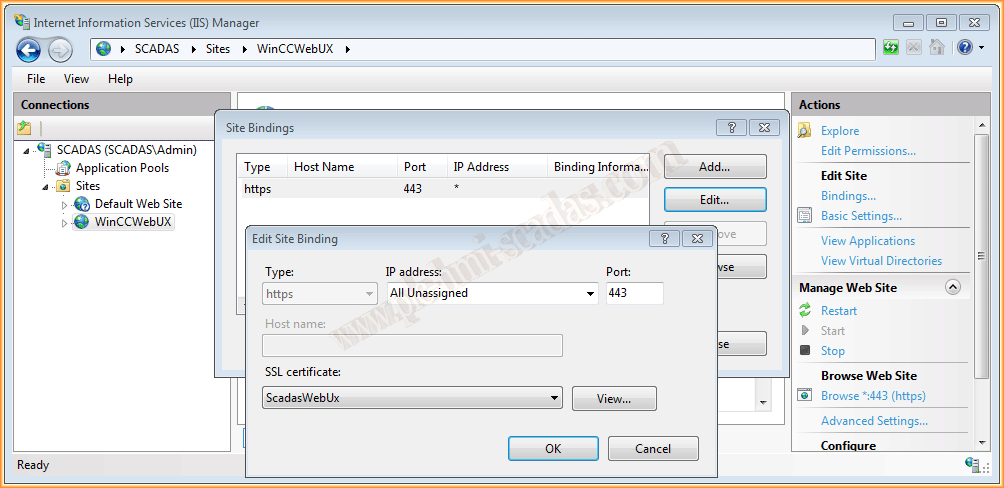
And what we are going to do is edit the site, and add the certificate that we created earlier, for this in SSL certificate, we select ours and Ok. With these steps we have finished configuring our new website.
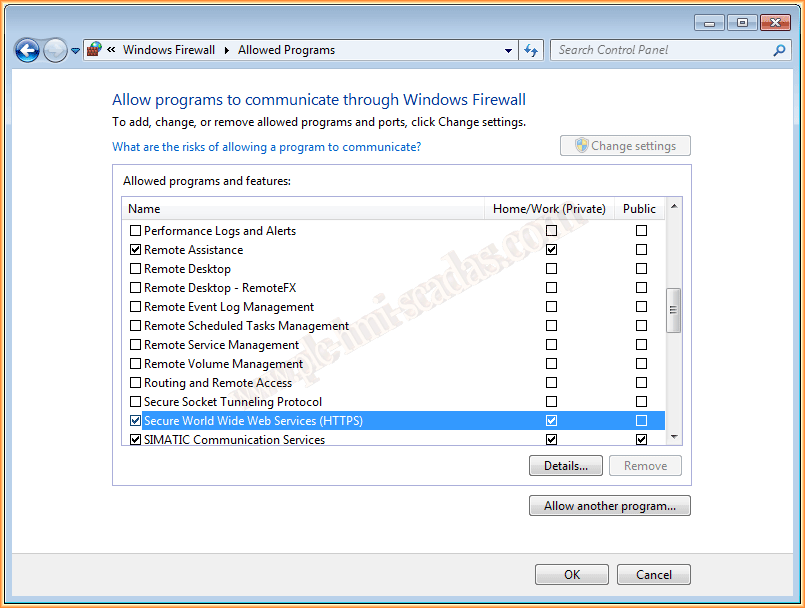
Finally, we will add to the Firewall, the exception for the ports that we will use 443 = HTTPS, if we have used the default configuration, otherwise create a new rule applied to the port.
We can now move on to the images we want to be on the Web Server, it should be noted that among all the objects we can instantiate, there are certain limitations, for example, of the standard objects, the only one that is not supported is the Connector, for more information, consult the manual.
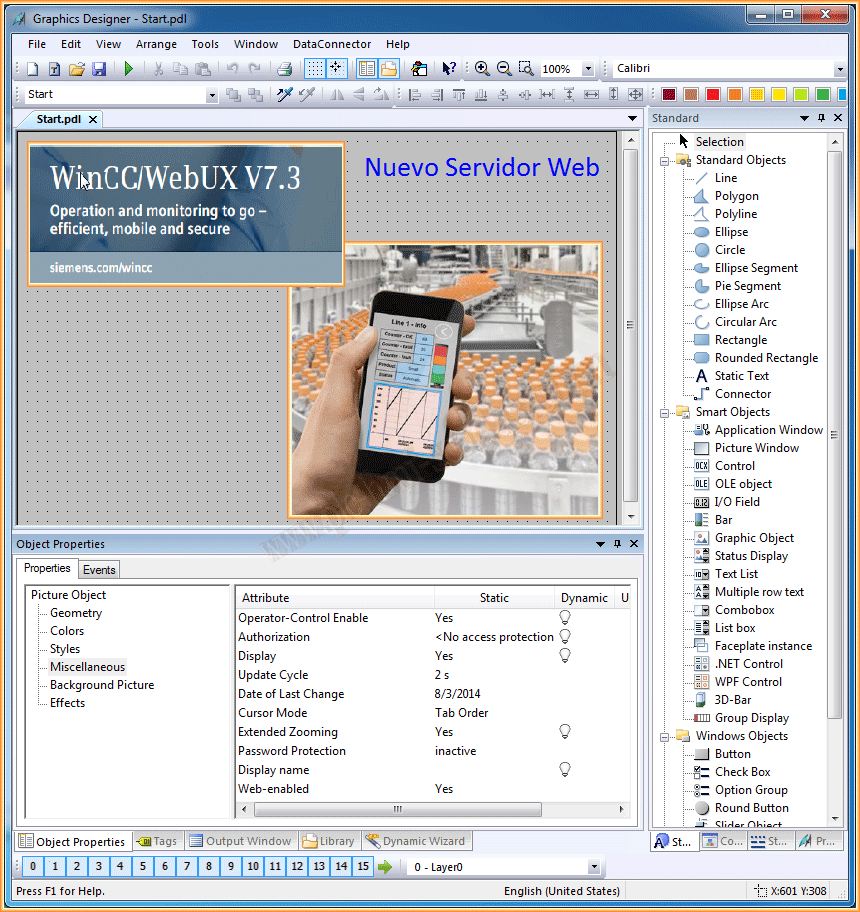
And to enable it, a new property has been included within Miscellaneous -> Web - enable, we set it to yes, and when saving, two files are generated, the normal *.pdl and the *.rdf that will be on the web server.
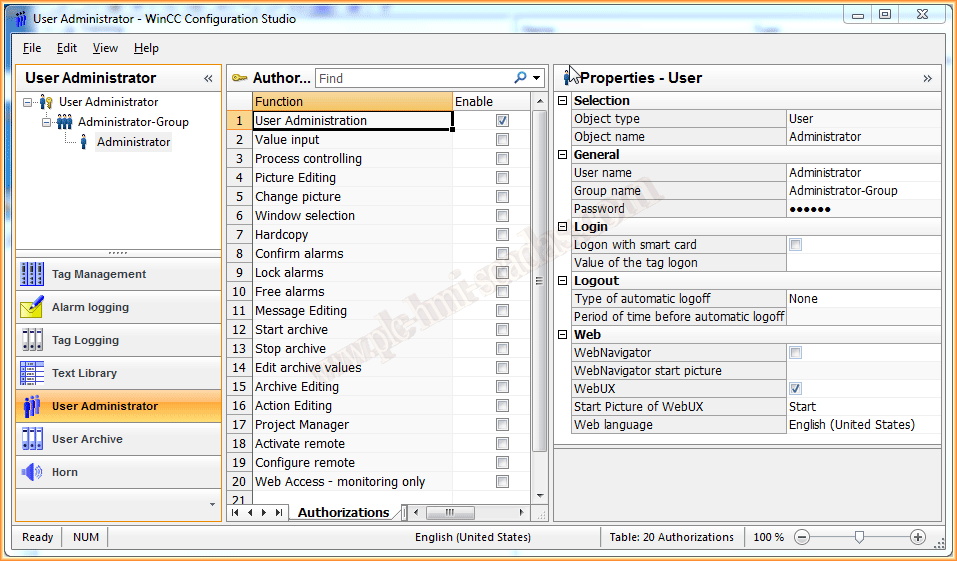
Now we move on to user configuration, and a section dedicated to WebUX has been added within the Web properties, we enable this, with the screen that will be the initial one and that's it.
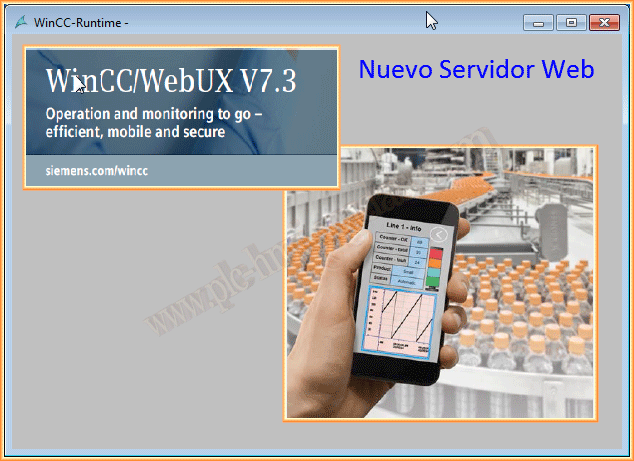
We can now start the Runtime and check its operation.
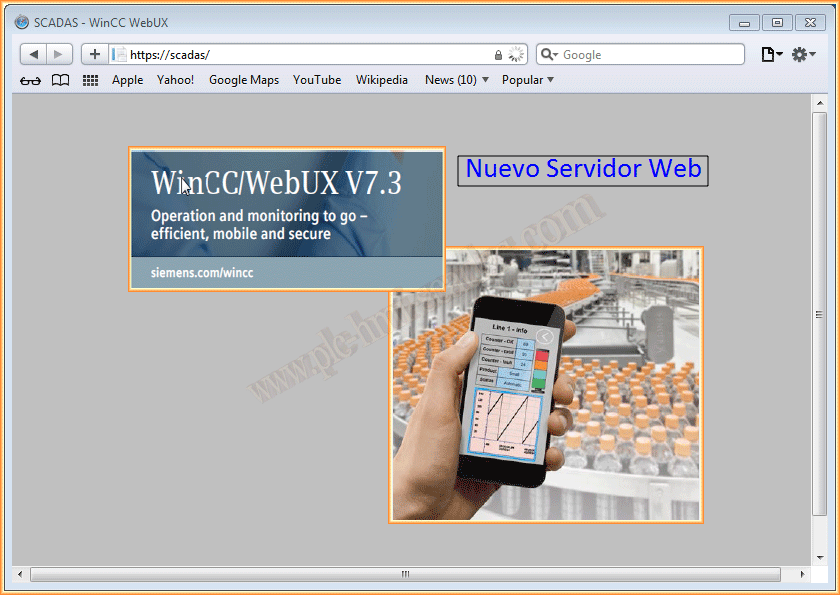
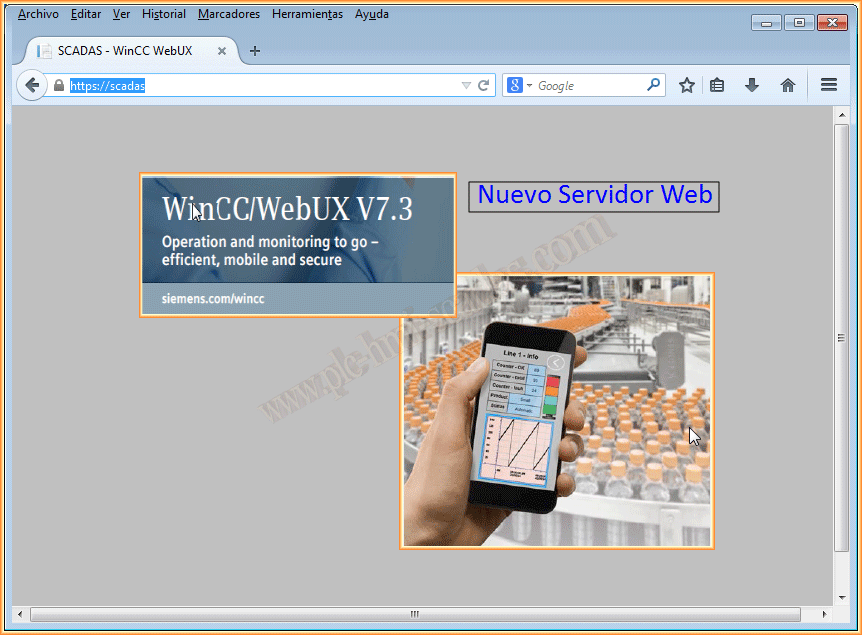
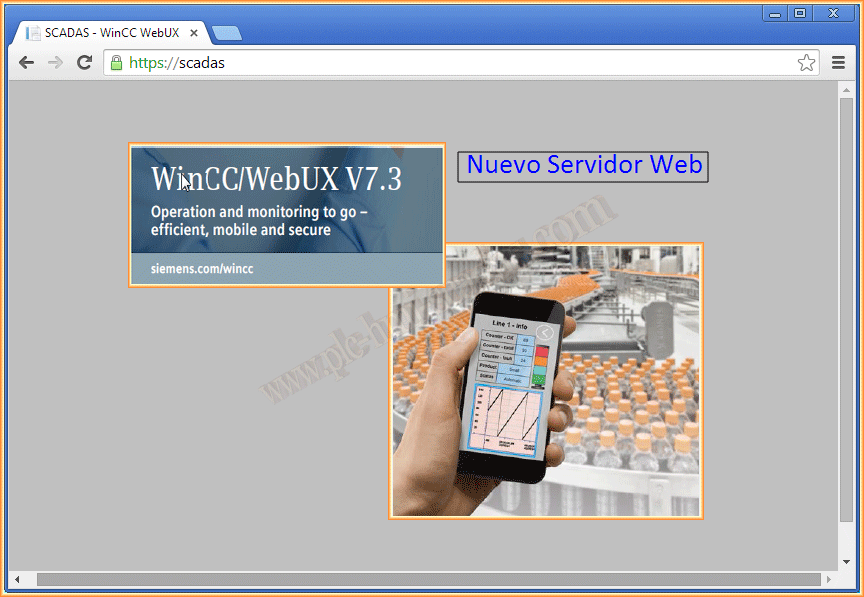
We access from the Web browser, we have to log in with the user we have enabled for this purpose
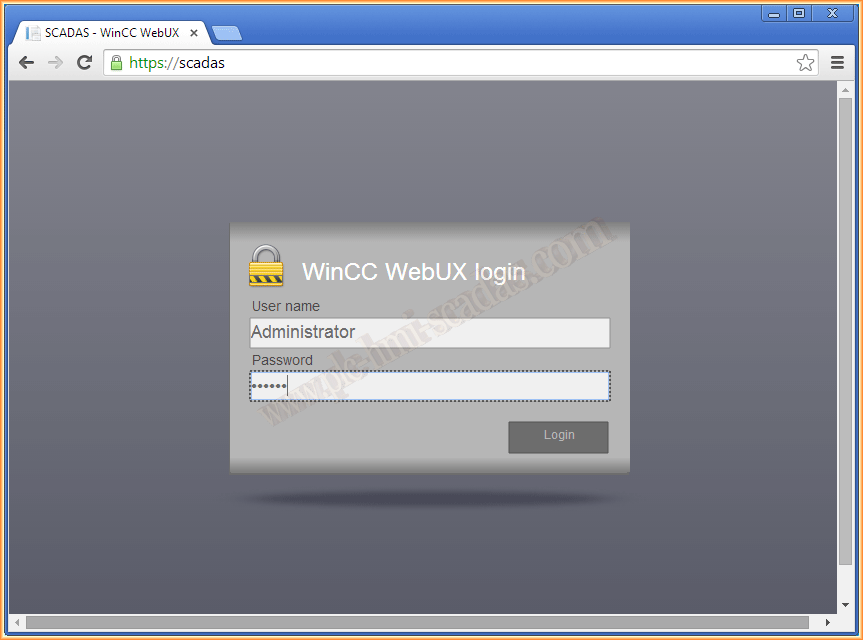
Checked with the browsers Google, Mozilla, Safari, Internet Explorer version 8.0 and above, with this one had security certificate issues.
August 3, 2014
If you liked it or found it useful, share it... :-)