After the introduction, we will move on to the practical part:
We have the following graph and we will perform an automatic export

TIP (1): The TagViewer is our best ally ;-)
I just pressed the button and it shows no error, but no file has been generated either, the reason is that the HistData application is not started, however, if we observe the quality of the variables, they already give us a clue!!! Use the Quality in your application.

Now I am going to start the HistData and once started, if I press the save button again, I do not get any error message but also no file.
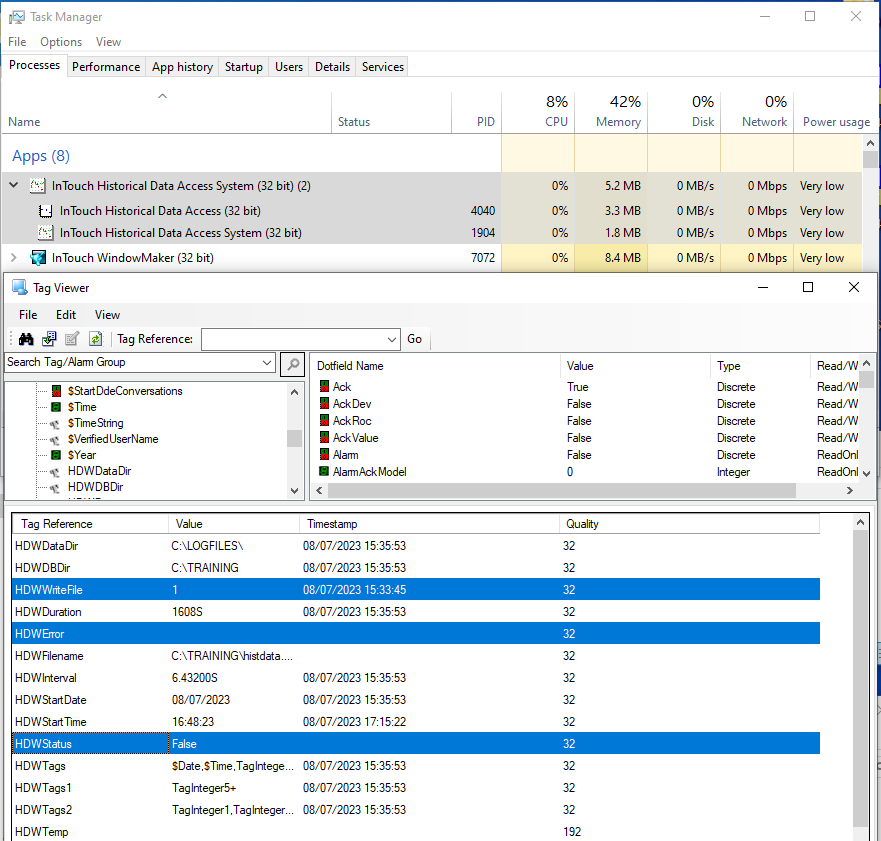
TIP (2): After starting the HistData application and knowing that it is running, you can verify it with the following function InfoAppActive(), if the quality of the variables is not 192, you need to restart the topic or programmatically with the following functions
IOReinitAccessName("AccessName", Default);
IOStartUninitConversations();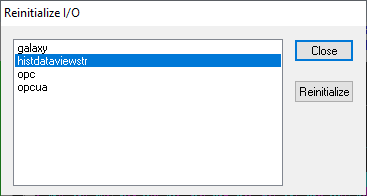
And automatically, the highlighted variables ... are now communicating.
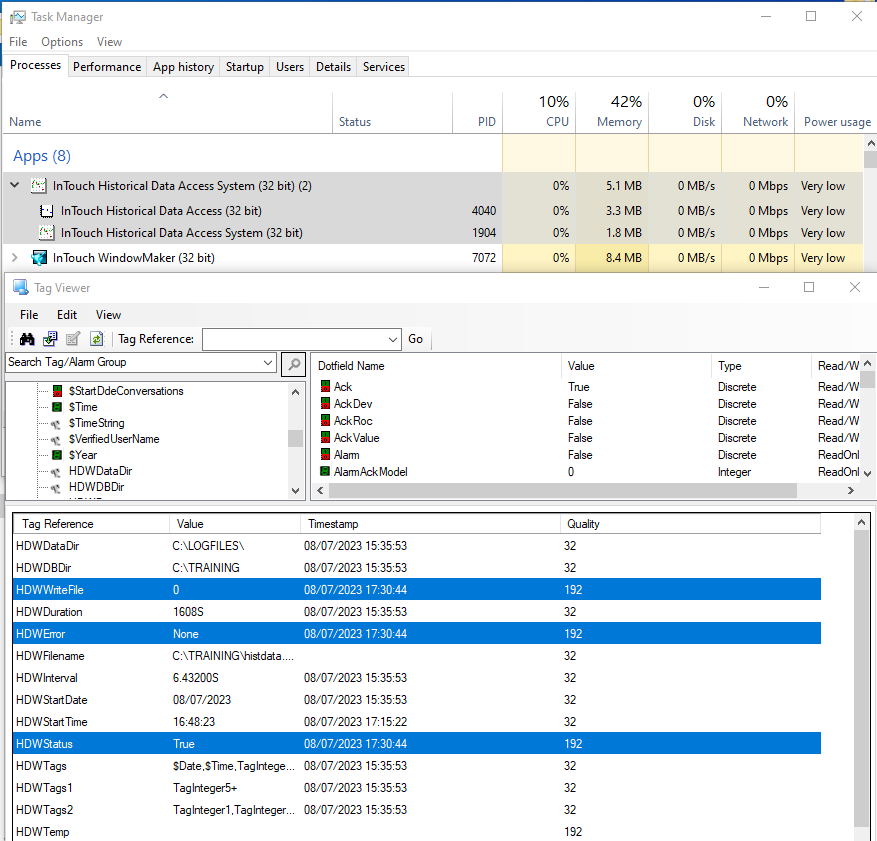
And with the next save, we have what we are looking for... we now have our file, with the 250 records within the time interval that goes from the variable HDWStartDate / HDWStartTime with a duration of HDWDuration and the HDWInterval, all this automatically
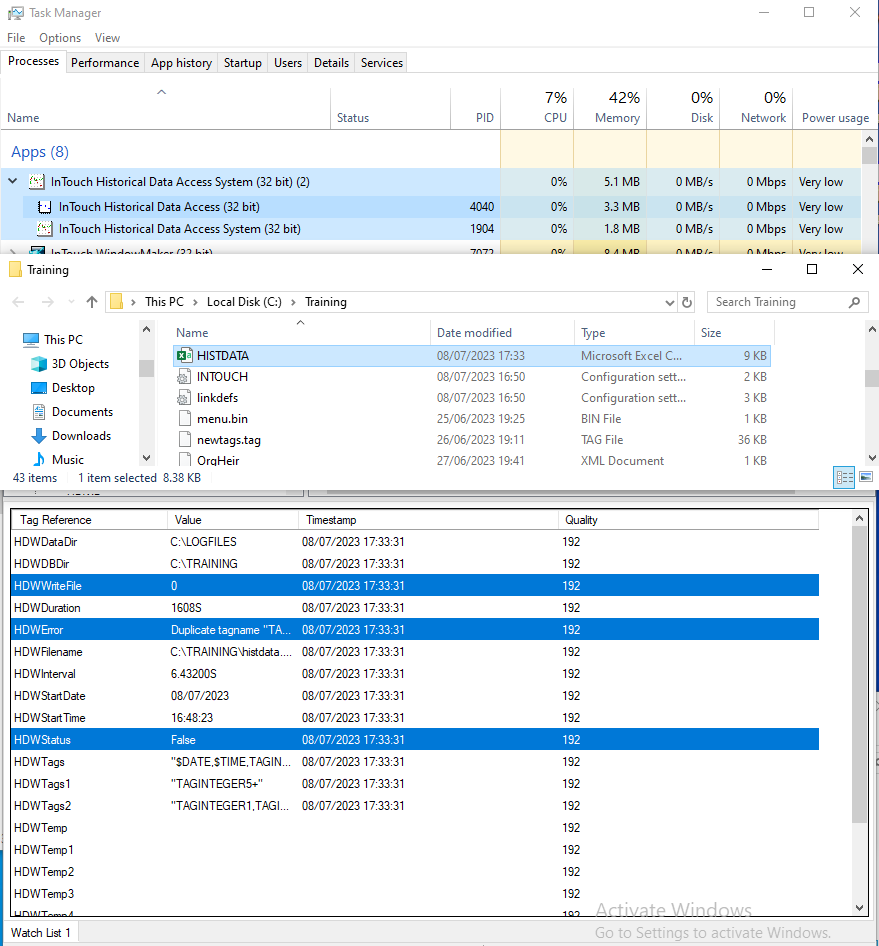
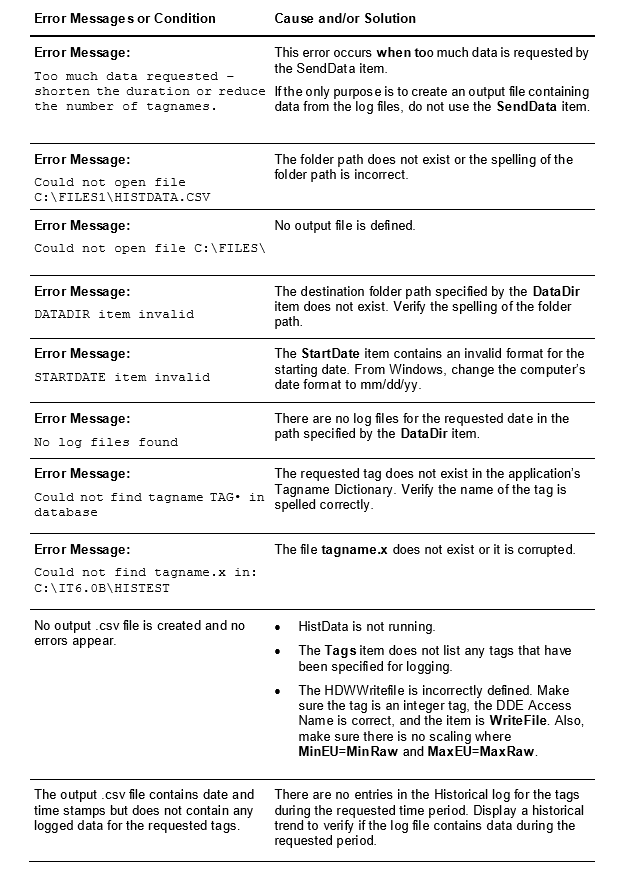
To do it manually, what we would have to do is change the parameters that interest us and directly force the variable HDWWriteFile to 1, which automatically resets to 0 once the transaction is executed.
CONCLUSION: Before exporting data, verify that the HistData is running, that the variable HDWStatus is true and that its quality is 192, and then you can export
The variable HDWError will give you the error information. Example:

Errors collected in the manual: