
In the previous practice we saw how to simulate our PLC project with the Unity Software simulator, now we will see how we can simulate our screen linked to the PLC.
We create a new project in Vijeo Designer and this is the interface that it shows us


1.- The first step will be the configuration of our PLC, for this we go to I/O Manager and add a New controller, a new window will open where we will select Schneider as the manufacturer as shown in the image


And once we have selected the manufacturer, we will select the type of Controller, we select Modbus TCP/IP and assign a name, then we will go to its Configuration on the added device
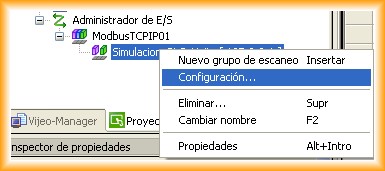
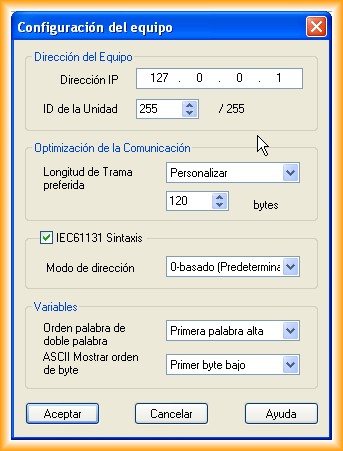

As the IP address we specify 127.0.0.1 which as we mentioned in the previous practice means that the machine is Localhost
We have the option to select IEC61131 to work with its syntax or to work with Modbus syntax, I recommend pressing F1 and reading the help manual when addressing as well as the order of the double words, as the manual specifies depending on the controller which should be the first.
This is what it will look like once the configuration is done
2.- Once our "PLC" Controller is configured, the next step is to configure the variables: We have several options, I have used the linking with the project made in Unity, by linking it I select all the variables I want to add and later I can update and add, image of the linked variables

When wanting to add a new variable if we select new variables the following window will be shown where we will select the variables to add

3.- We just need to create a screen with a button, an Input/Output field and check its operation

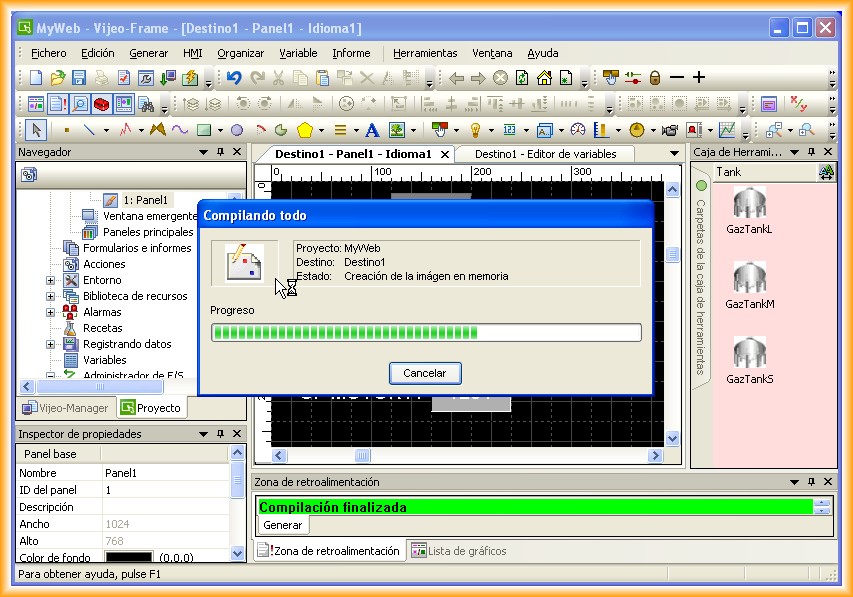
Once this procedure is completed, we need to compile to ensure there are no errors and then we can start the simulation
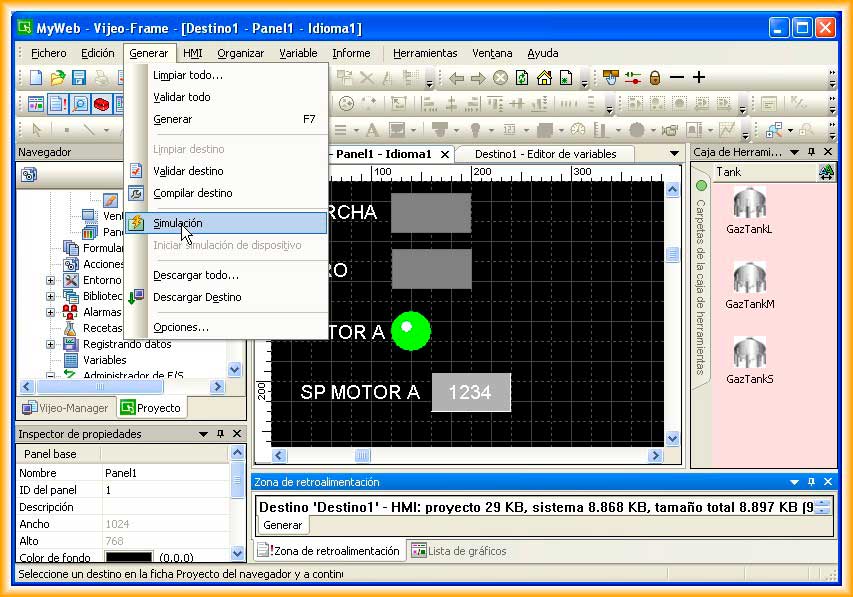
Finally, to check its correct operation we will have our PLC simulator in Run and we can now interact on our screen and observe the results. Update May 18, 2013, I have replaced the images with a video, dedicated to Cesar Manuel. In the following link download the example in Unity and Vijeo Designer
I recommend changing the video quality to 720p HD, otherwise, it does not look very good.
August 9, 2012