
In this practice, we will see how to configure our WinCC Flexible PC Runtime to be a Web Server and have Remote control from the local Network (LAN) or via the Internet (WAN). This is also applicable to TP/MP but not all of them, see technical specifications.
1.- We assume that we have our project already developed, just missing the transfer, we go to Operator Panel Configuration.
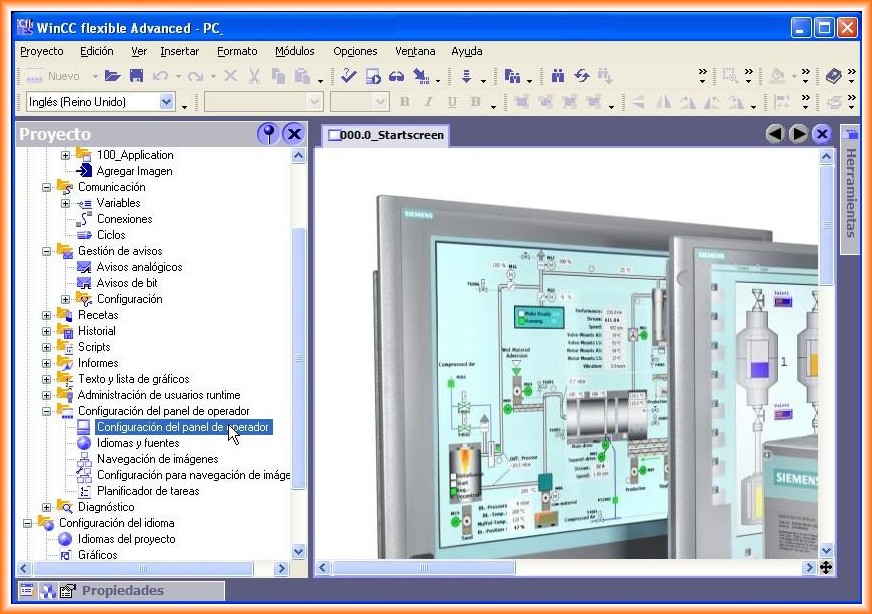
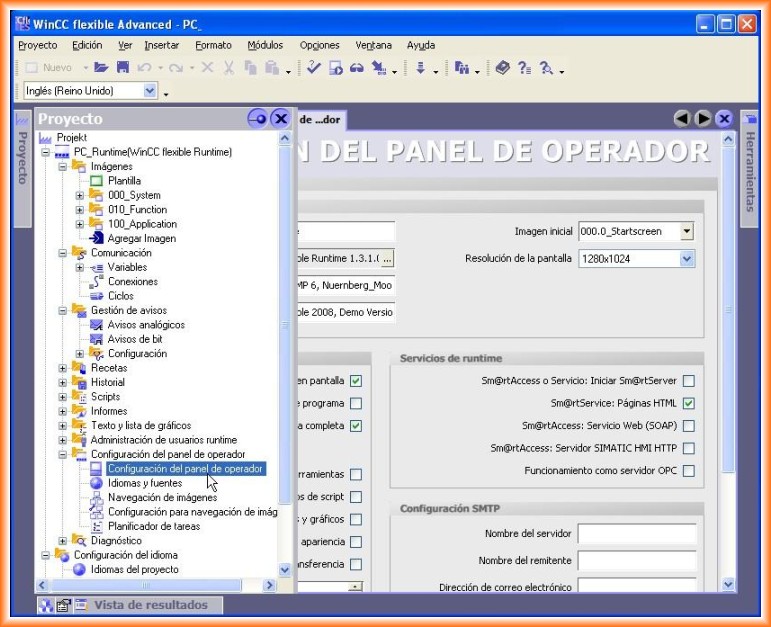
2.- In Runtime Services, we select Sm@rt Service: HTML Pages, as shown in the previous image, which is what we are interested in for this practice, although in future practices we will analyze the other available services.
We can now compile, and if everything is correct, it can be transferred to the Operator Panel, in this case, we will transfer it to a PC Runtime. When compiling, it shows us a message that different licenses are required, depending on how the application has been developed.
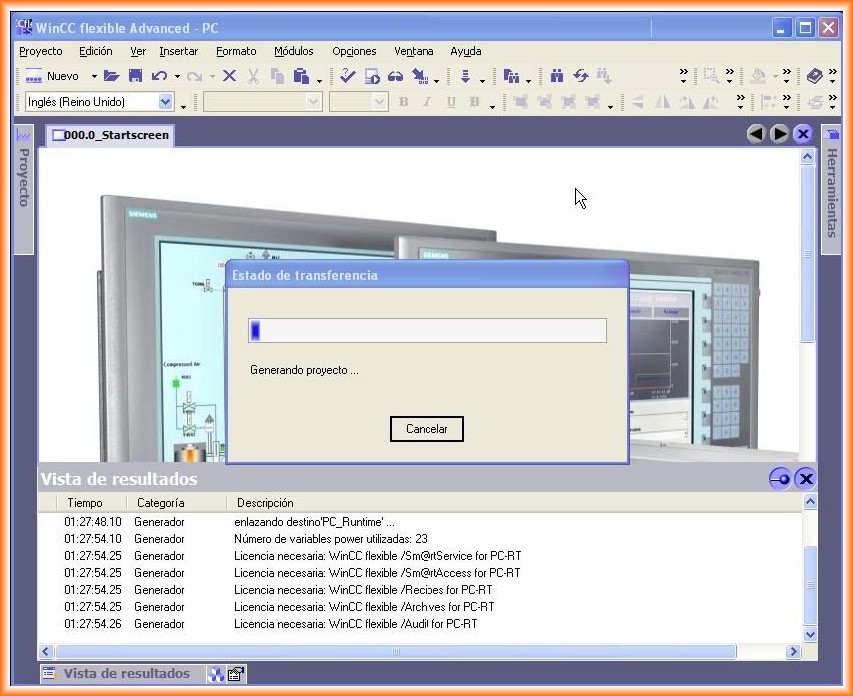
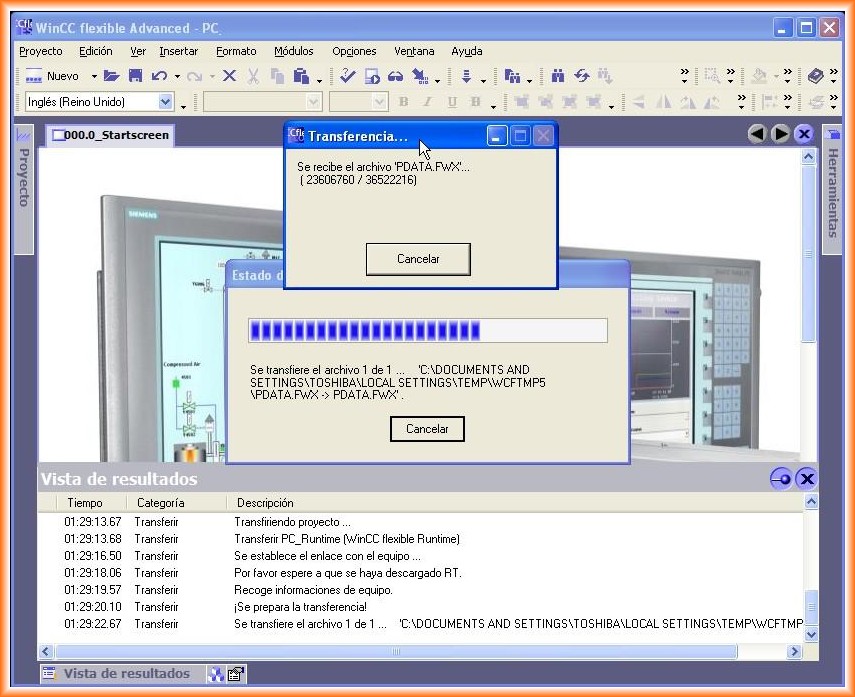
3.- Upon transfer, Runtime automatically starts after the pre-established time period for it to start. You can observe how to transfer here.
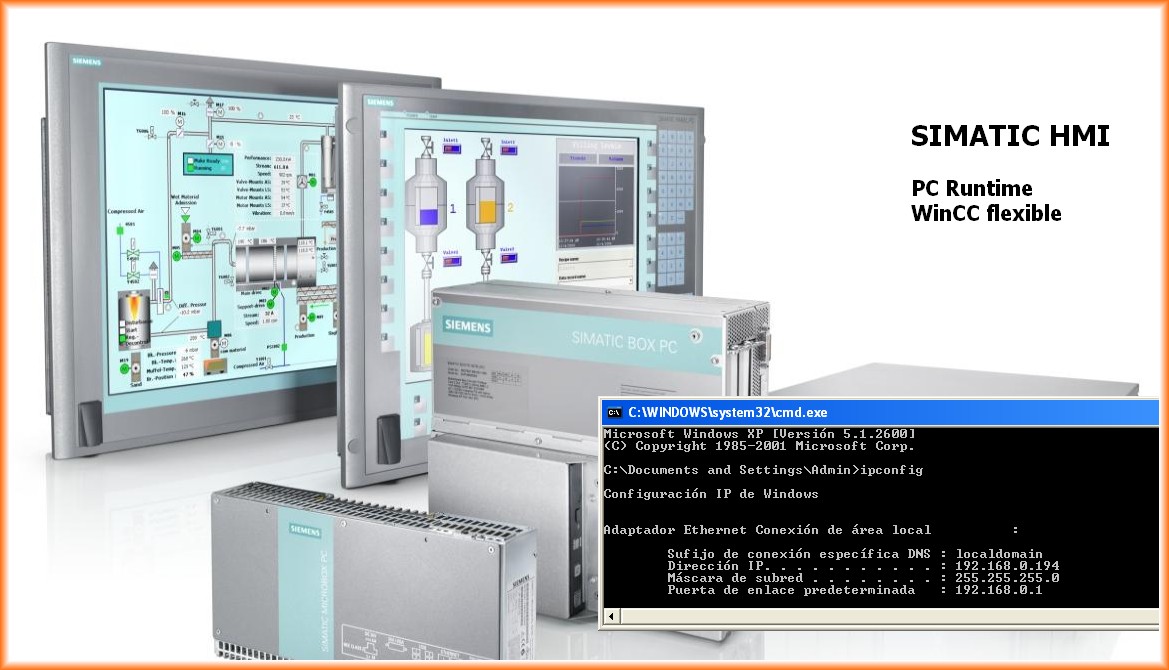
We use the ipconfig command to check the PC's IP address, it is important that this is not dynamic and assigned by the DHCP server of the Router, to later configure the router ports for internet access.
4.- The step I am going to take now can be done beforehand before transferring the project, or following the guideline I am performing.
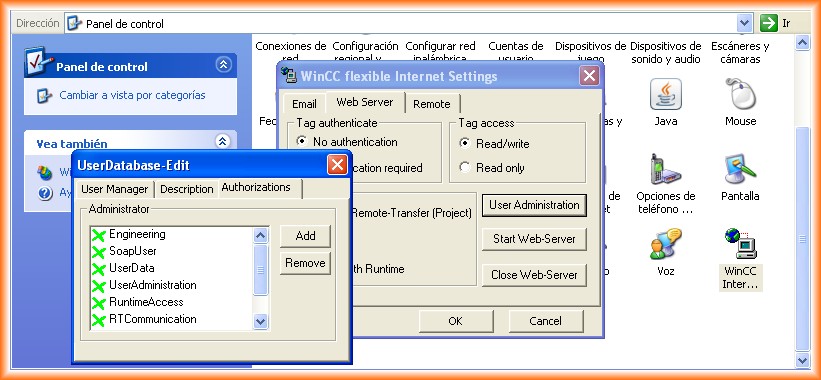
We go to Control Panel -> WinCC Flexible Internet Settings.
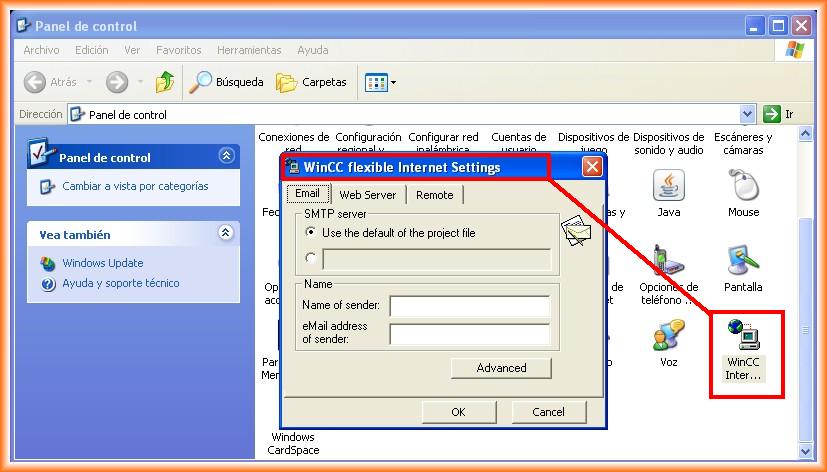
5.- Since we are not going to use email sending at this time, we move to the Web Server tab, here we will configure the users who will have access via Web and the permissions we will assign. The first step is to click on the User Administration button and log in, by default the configured user is Administrator with Password 100
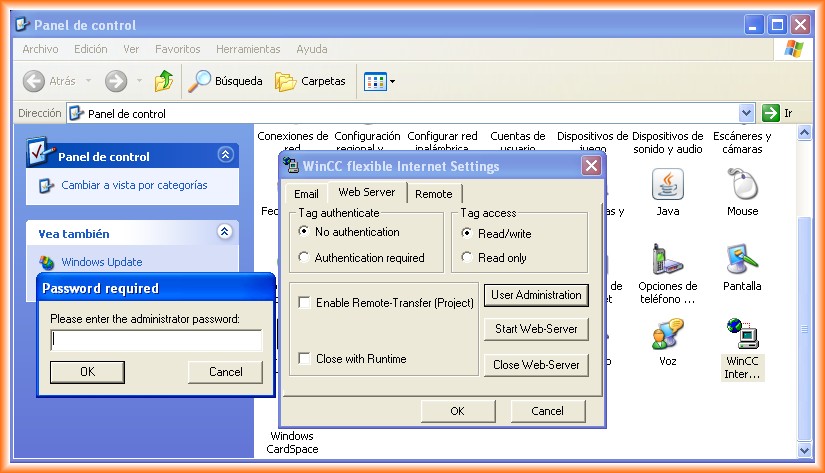
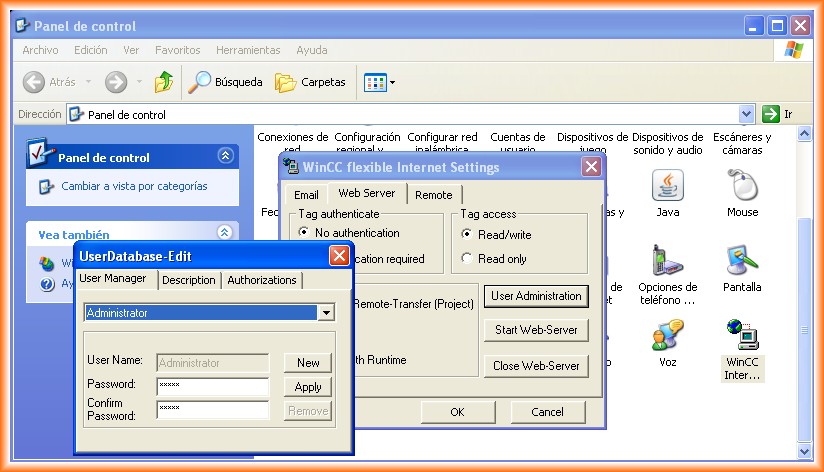
6.- We enter the Password and the following window appears where we will configure and can modify the default password. In the Authorizations tab is where permissions are assigned or restricted to the user we are configuring.
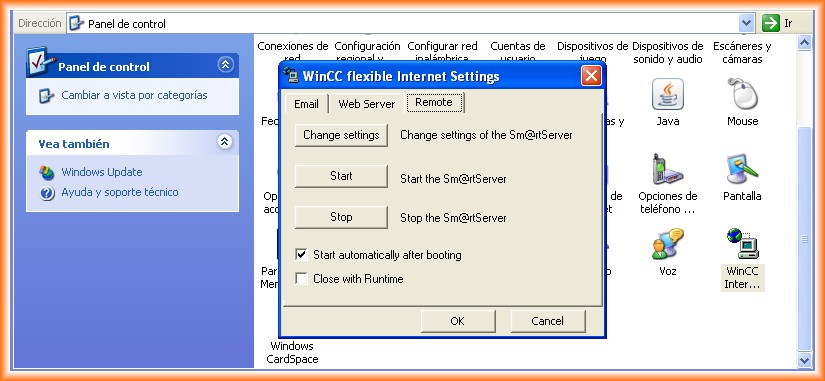
7.- This next step is important, configure in Remote for the service to start automatically. We can also make other changes if we enter the Change settings configuration.
8.- Once these steps are completed, we can run the Runtime and check if we can first access within the same network to the PCRuntime and then access from the Internet.
We open Internet Explorer and type the IP address of the Equipment in question, hence the importance of having a static IP address so that it is always the same. A window appears where we log in with the configured user or users. Once logged in, we access the SIMATIC HMI Miniweb webpage and log in again.
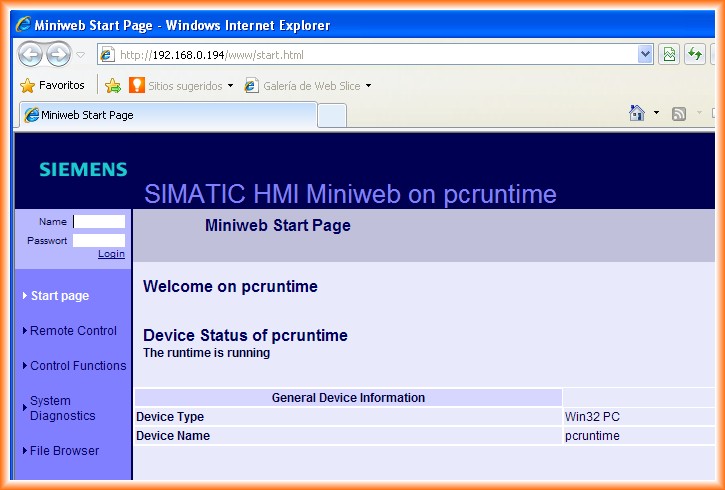
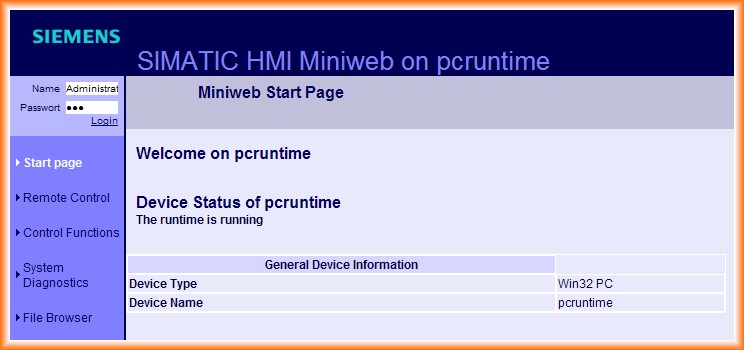
9.- Once logged in, we can see that we have access to different functions, we can start and stop the Runtime, we can see the generated files for the web pages and diagnostics, but the function that interests us at this moment is Remote Control.
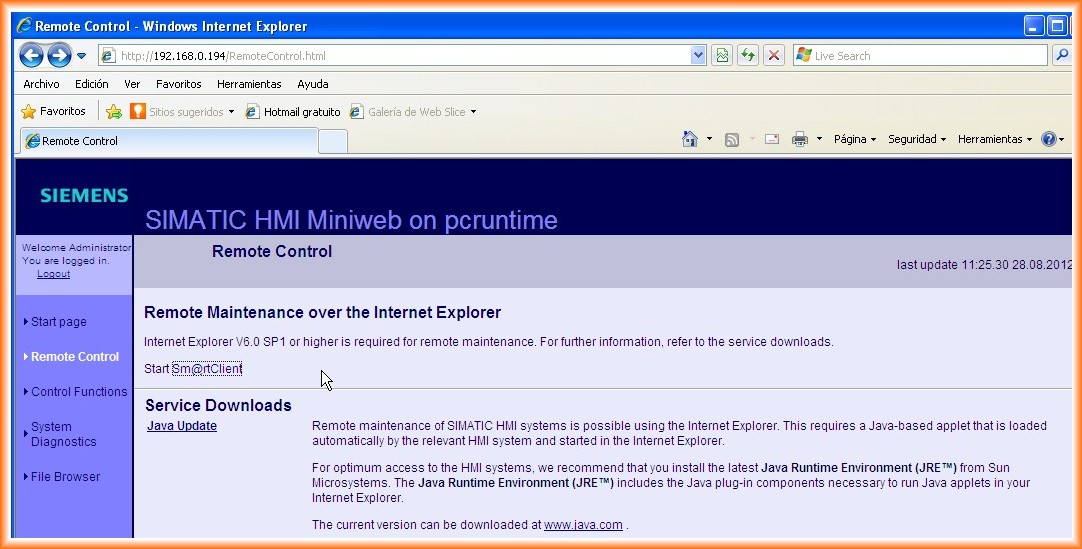
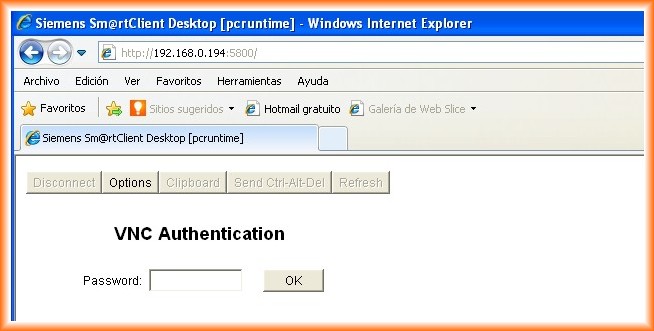
10.- For it to work, a requirement is to have Java Runtime installed, as indicated. If we have it installed, we click on StartSm@rtClient and the following window appears where we enter the Password.
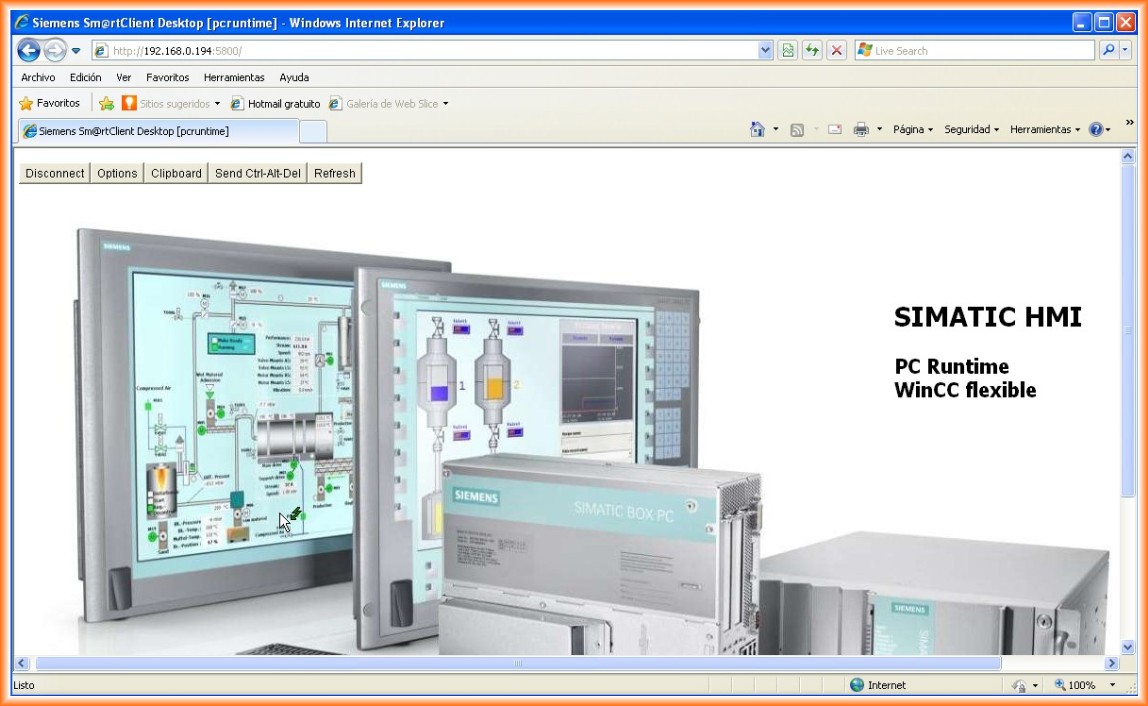
11.- If all steps have been completed correctly, we can remotely access our application via Web as can be observed.
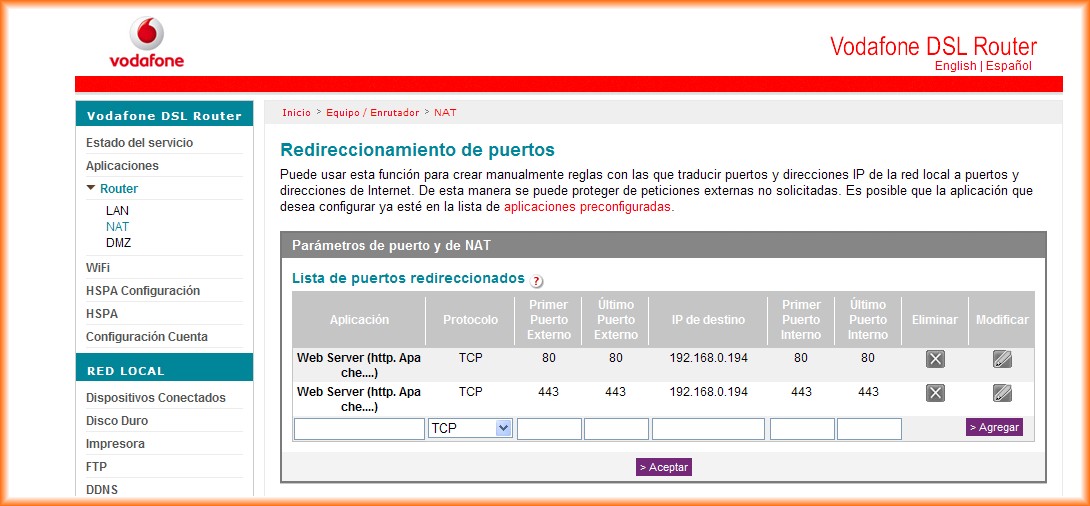
12.- Up to this point, we have accessed from the same Network, but what happens when we want to access from a point outside the Network, through the Internet? Well, there are several important points to follow. The first thing we are going to do is configure the router ports, in this example a Vodafone Router, but it can be any other, the ports are the same, we open the ports to allow traffic.
The next step is the most important, to know if our ISP (Internet Service Provider) assigns us a static or dynamic Public IP, since if it is dynamic, we need to register the IP address with some DNS server. I recommend no-ip.
In my case, since I have a static public IP, I have not performed those steps. To know your Public IP, you can check it on the website whatismyipaddress.com.
Once we know our IP, we will enter that IP in the browser, it will ask us to log in as seen previously, and we will have access from anywhere.
August 29, 2012