
In this practice, we will link CitectScada with Schneider's OPC OFS, we will use the wizard for a quick configuration of I/O devices and follow the steps of the wizard.
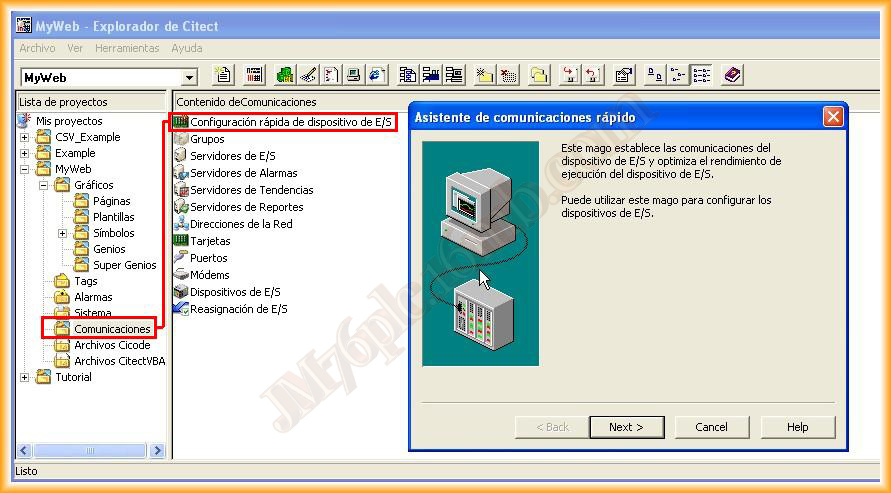
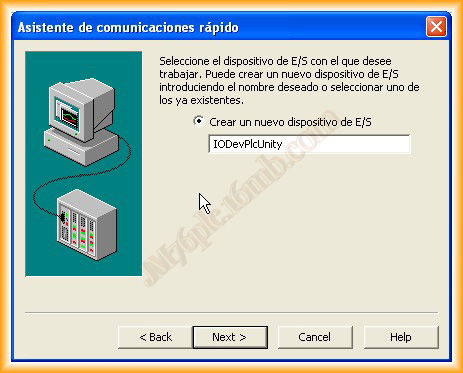
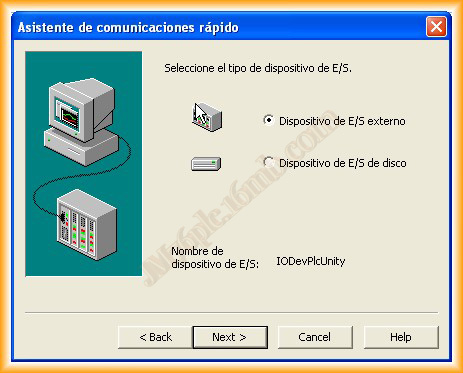
1.- We will assign a symbolic name to the new link we are going to create, select next, and choose that it will be an external I/O device.
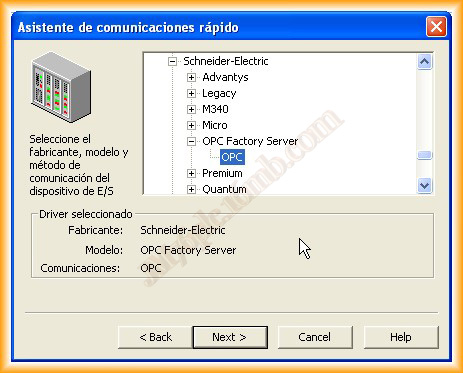
We navigate through the available drivers, and there are several options to select the OPC driver, we look for it within Schneider-Electric.
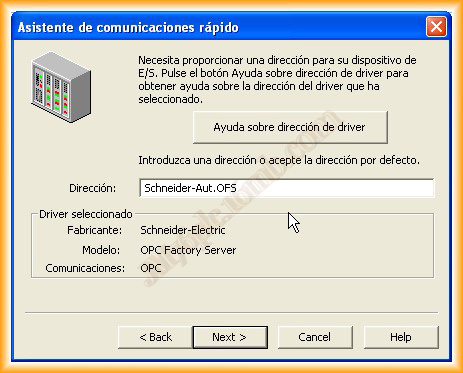
The address we will assign is Schneider-Aut.OFS
We select the option to link devices and click Browse to search for the OPC servers. If when selecting Browse the next image appears blank, where you can see the address Schneider-Aut.OFS.2, we can do start -> run -> OPCENUM and repeat the browse action.
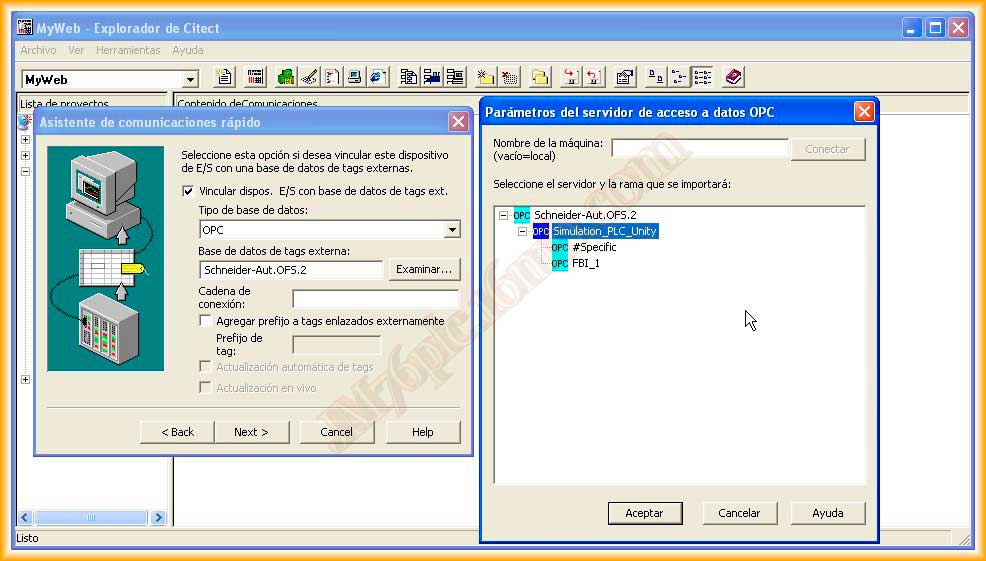
We select the topic that was created in the OPC OFS, its configuration can be observed here, and with these steps, it shows us a summary of the configuration made and we click finish.
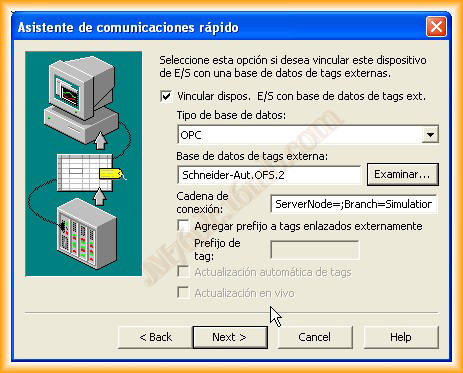
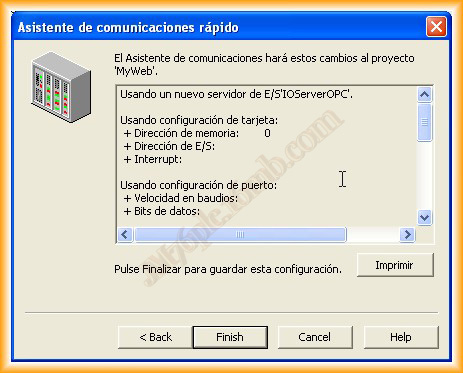
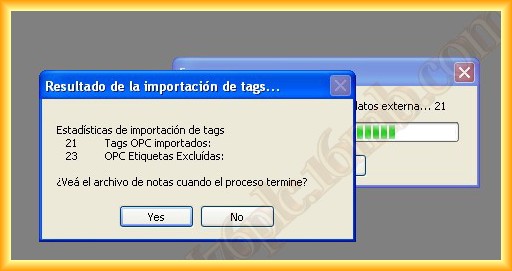
In the configuration, we will import the variables that we have created in the OPC to our project in Citect, we confirm and observe the file that has been generated with the configuration.
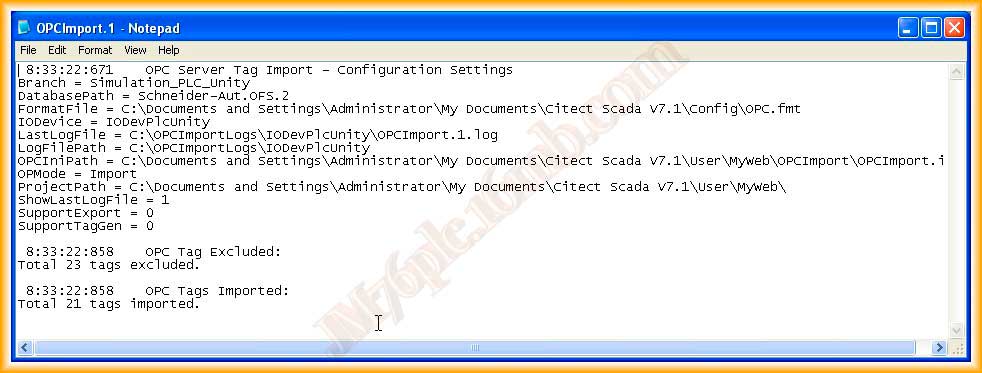
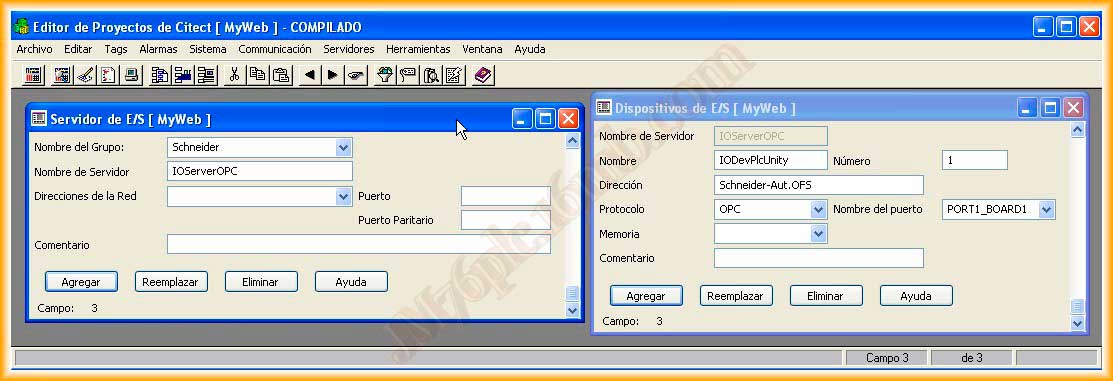
If we select the option of I/O Servers in the project explorer within the Communications directory, we can observe the link that we have created.
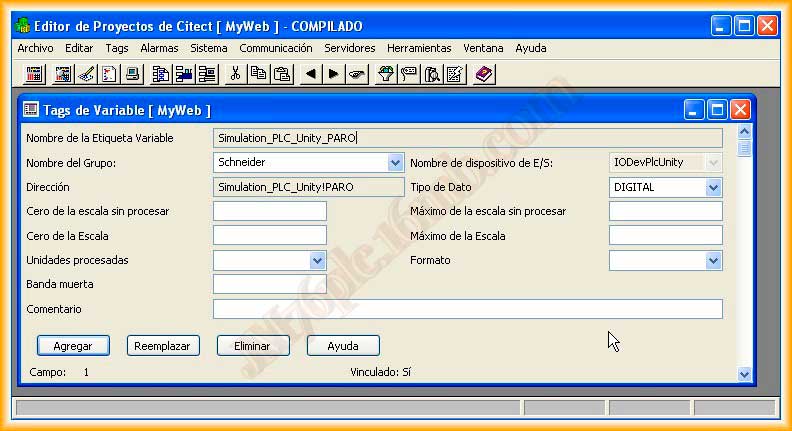
And we can observe the variables within the tags directory, we can now create our screens and assign the corresponding variables.
September 9, 2012