
The following practice is related to the view previously, the following image shows the objective of this new practice, to make use of the Services offered by the new Comfort Panels that operate without any additional licensing compared to the old ones that were usually programmed with WinCC Flexible and the new TIA Portal.
We assume the following situation:
We have an OP/TP/MP or a PC Runtime that is connected to a PLC via Profibus/MPI and we do not have an Ethernet/Profinet port on the PLC, our intention is to add to our plant another OP/TP/MP or another PC Runtime (like this example), but we cannot connect it directly to the PLC since there is no Profibus/MPI port, because within the Services offered by the Siemens HMIs we have the option to configure a Simatic HMI HTTP Link, this type of link is not designed according to its characteristics for mass data exchange and is limited in the types of data that can be used, but within these limitations we are going to test it.

As I mentioned at the beginning, we will continue working on the project that we started for the previous practice, and within the configuration that we had already made we will make the necessary changes:
The first thing we need to do is activate the HTTP Channel Server Service

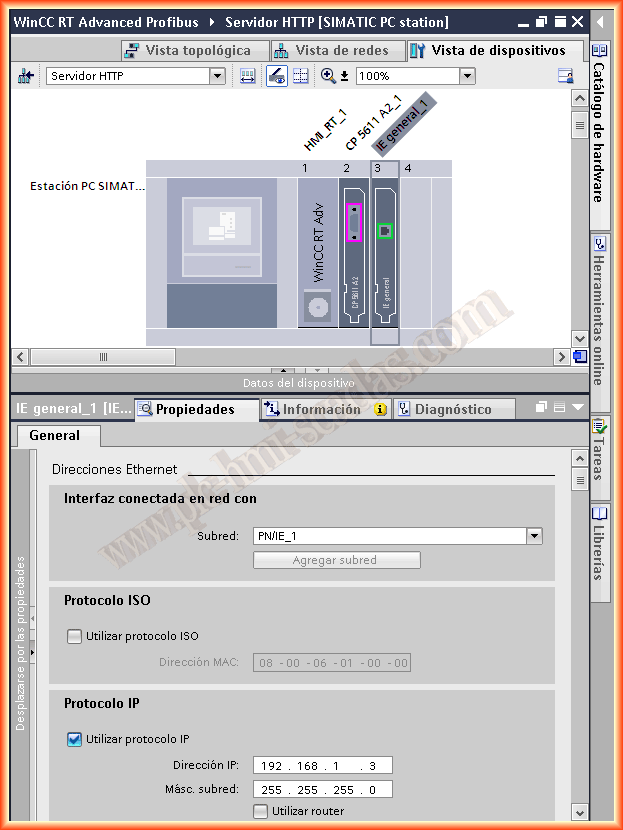
We add to our configuration a Network card, create a new subnet and add our device, assigning the IP address of our machine. If you have doubts about what your IP address is, you can run a command console and execute the command ipconfig

I have added a notification viewer object, to more easily observe if any errors, warnings, etc. occur ... and in its properties Visualization -> I have selected Message Buffer

Once we have finished configuring what will be the HTTP Server, we will add a new device to our project, which will be the HTTP Client, we choose according to the panel we have

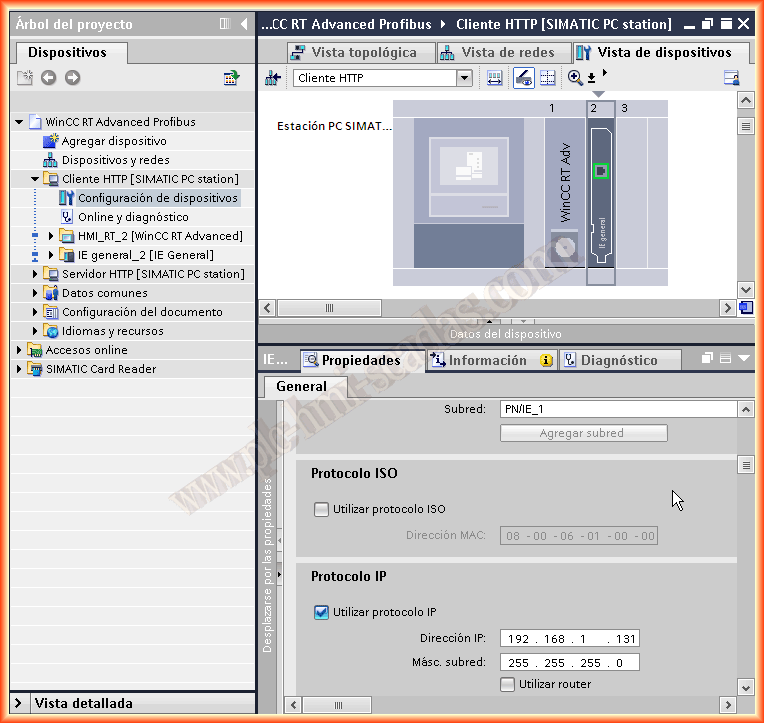
The first thing we will do is add a Network card, we add it to the subnet we have created and assign it the IP address of our device, in my case my other machine has the address 192.168.1.131
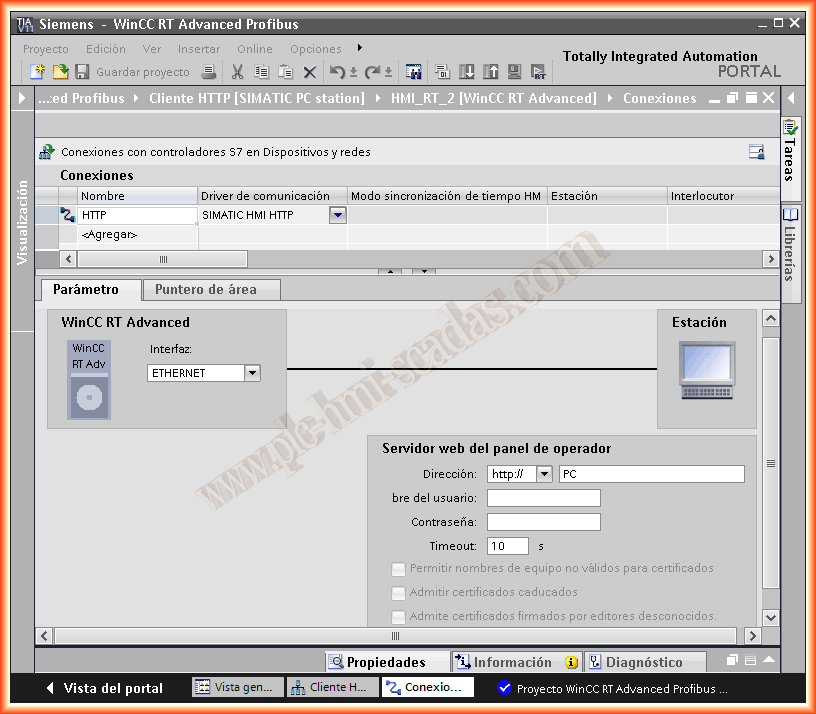
We have already configured the hardware. The next step will be to add a new connection, we assign a name as we are interested and as a communication driver we have to select SIMATIC HMI HTTP, in the parameters we specify the name or IP address of the HTTP Server device, my device had the address 192.168.1.3 and its name is PC, to know the name we can run the command console and use hostname, we can also find it in the properties of the device.
We have now created the connection, now we need to add the variables to configure the images we want. We open the variable editor and start adding considering the following:
We choose the name we want for our variables, I have selected the same name I had in the HTTP Server, but this name is not very important, we select the connection we created earlier and the most important is the address, here we must indicate the same name we had assigned in the HTTP Server, see the following image.

We can now create the images that interest us, we can also copy the image we have in the HTTP Server and update the variables to the new connection, it is important to use the help to know the type of data that is allowed


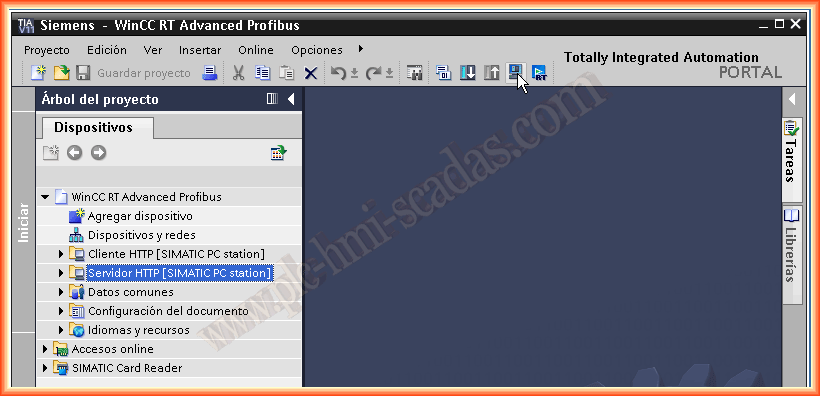
When we have finished, we can now test our project, in the HTTP Server we start the simulation or the runtime, and the HTTP Client we have to load to its corresponding HMI
The following image would be the execution of the HTTP Server, which is the PC that communicates with the S7-315 2DP via Profibus, in the buffer we observe that the connection is established and everything is correct.

On the other hand, we load the project to the HTTP Client, if you have any doubts about transferring the project to a PC Runtime, you can refer to the following practice, it is done with WinCC Flexible, but the procedure is exactly the same

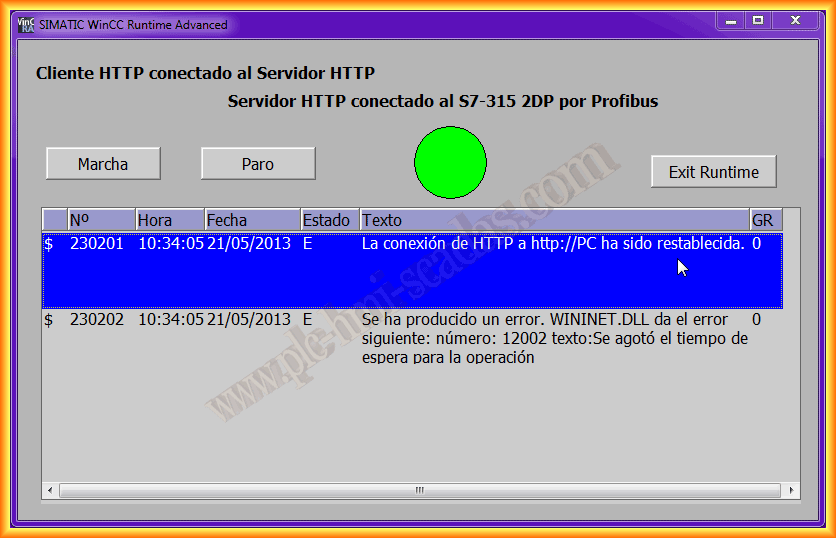
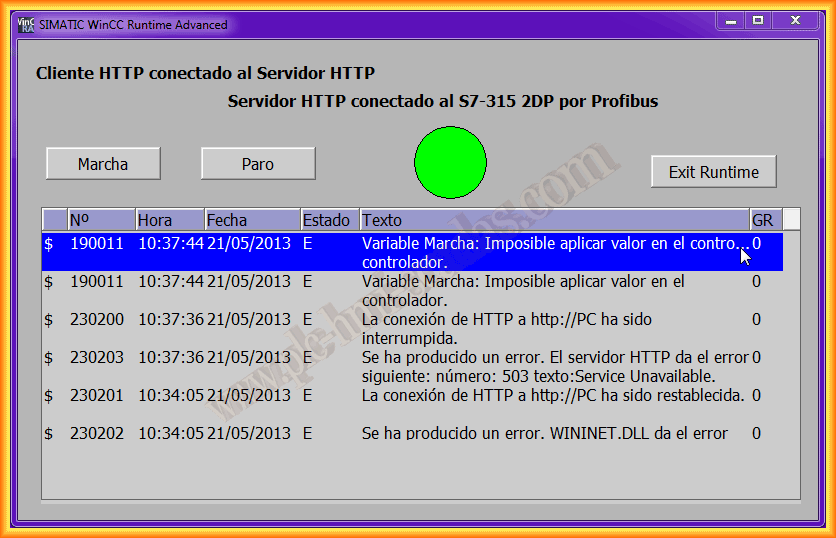
The following images belong to the HTTP Client, for possible failures that may occur, consult the help, perform a search by error number 230201
The first image shows how the communication is established and is correct, the second image shows the errors when disconnecting the HTTP Server and trying to force values to the PLC
While performing the following practice, the only inconvenience I encountered was that I had not configured any Notification Viewer object and in the Client I received error 230203, when I added this object in the Server, I observed the following, this means that if port 80 or 443 is occupied by the PC's "Internet Information Server" services, the communication does not work, for this I stopped these services and that was it!

May 21, 2013
If you liked it or the information was useful to you, share it ...