
Configuration of the I/O Driver ABCLX in Vijeo Citect
In the previous practice, we configured a driver using the wizard to link Vijeo Citect with the Unity Simulator. This time we will proceed to do it manually and configure the ABCLX driver for the Logix5000 controllers, where my intention is to test it with the SoftLogix5800 from Allen Bradley.
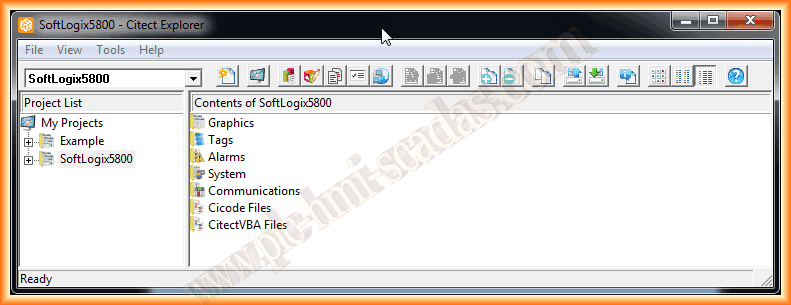
The first thing we have is our project, and we go to the Communications directory.
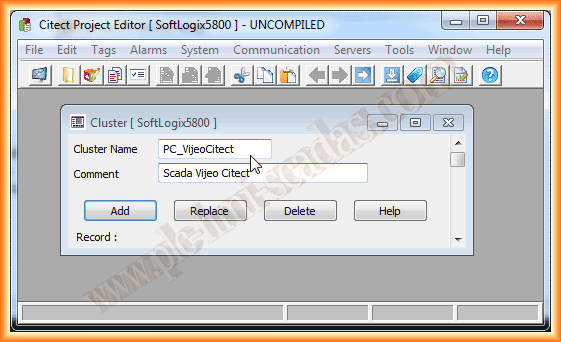
The first step is to define a Cluster, as this is where the IOServers hang from. We give it a name of interest plus a comment; the name cannot contain spaces.
Having defined a Cluster, we proceed to configure an IOServer. Since I am going to use the ABCLX Server, I assign this name and a comment; the other fields are not necessary.

Continuing with the procedure, we are now going to configure a new Boards. I have given it the name Network Card, the driver that will be executed, as we mentioned the ABCLX, and an address, by default 0; the other fields are not mandatory.

And finally, configure a new Ports, which as you can see refers to the Network Card according to my example that corresponds to Board. The name I assigned is RJ45 with a unique Port Number that does not repeat in other Ports we configure. The next parameter to specify would be the most important of all, in Special Opt, we enter the IP address of our controller and the slot number where our CPU is located.

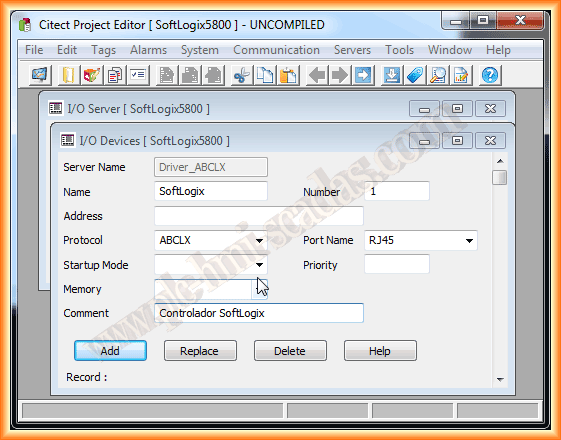
With the previous steps, we had configured our IO Server. Now we need to configure our device, controller; we assign it a name of interest and a unique number, the protocol to be used, and the configured port. With these steps, we have completed the configuration of our PLC.
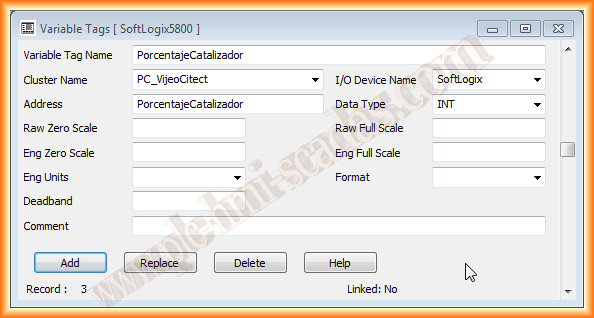
Having configured our Controller, we need to define the variables we will access. Here we must pay attention because if they are misconfigured, compiling will not give us any error, but when visualizing them on our screen, an error "COM" will appear, possibly followed by "BAD".
As we have already discussed, we must differentiate whether they are global or program variables. If they are global variables, as the first one, it is simply its sum in the variable name and in the address.
However, if they are program variables, we must follow the following examples, starting with PROGRAM:ProgramName.VariableName. If you have any doubts, consult the help, where several topics are clarified, including the maximum length of Arrays.
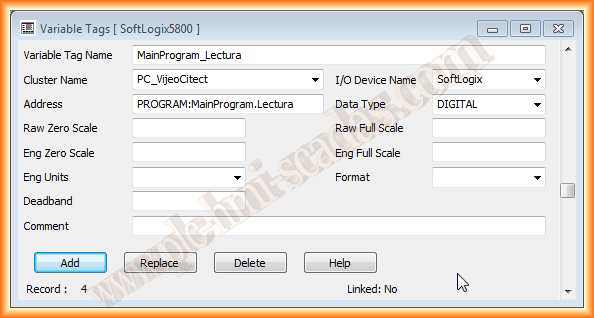
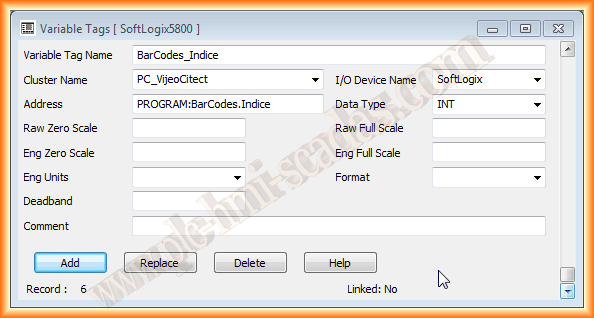
To finish the practice and check that it works correctly, we insert some display numbers objects and configure some of the variables.

We compile our project, and if everything is correct, we run the Runtime and observe how the operation is adequate. We go online with our Controller and change the values to see how they refresh automatically.


June 17, 2013
If you liked or found the information useful, share it...