
Application Example with ArchestrA Graphics
In the first practices of ArchestrA, we already saw a small example of creating a Galaxy and its components, practices 1,2,3 today based on another example we will implement and see other features.
From this point, we will gradually implement more features to our application. Our intention is to acquire and monitor a series of attributes/data from a station, for this example we will assume that our station is a Windmill and they are spread across the national territory and we want to control their operation. The first thing we do is create an Object of type $UserDefined with all the attributes equivalent to all the stations, we will assume the following
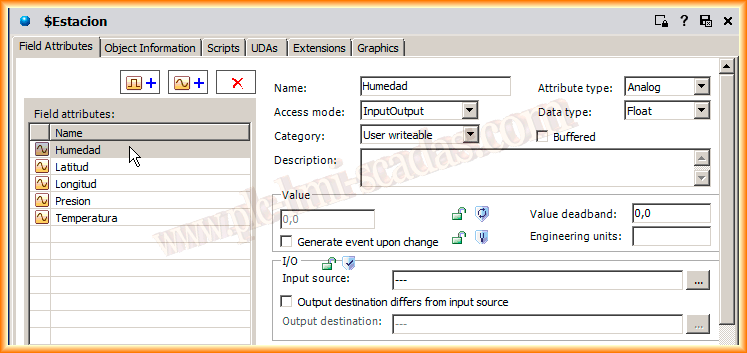
And we will assume that it has the following UDAs (User Defined Attributes) for each Station. If we use Extensions, we can assign a Data source from our Galaxy to these UDAs or we can make changes to these attributes through Scripts, we will see that topic later.

Within the Graphics of our Station Object, I have assigned a symbol, something similar to a windmill, which we will see what we have implemented.
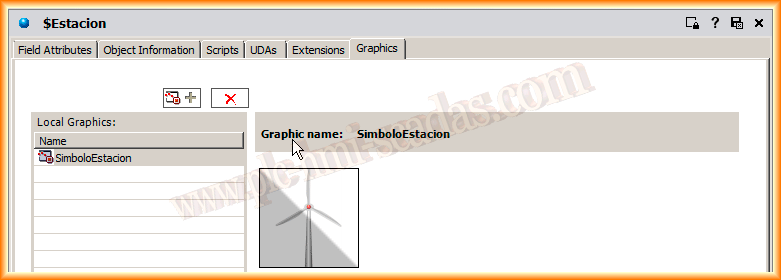
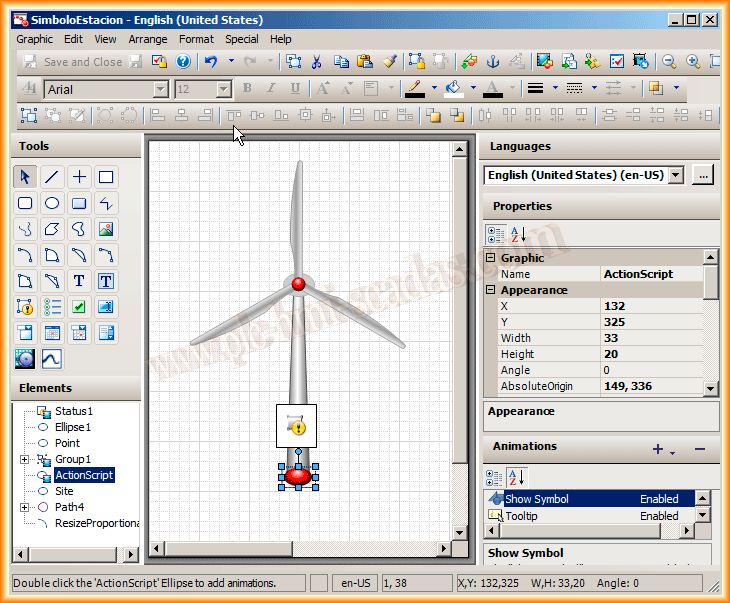
If we edit our symbol, apart from a small rotation animation that I have implemented, we will see what interests us for this example. We want that when we click the mouse at the location of our windmill, it shows us a new symbol and gives us information about that station.
Thus, except for the rotation animation, the animation that interests us is the Show Symbol as can be seen in the image, and the symbol that it will show us will be StationData.
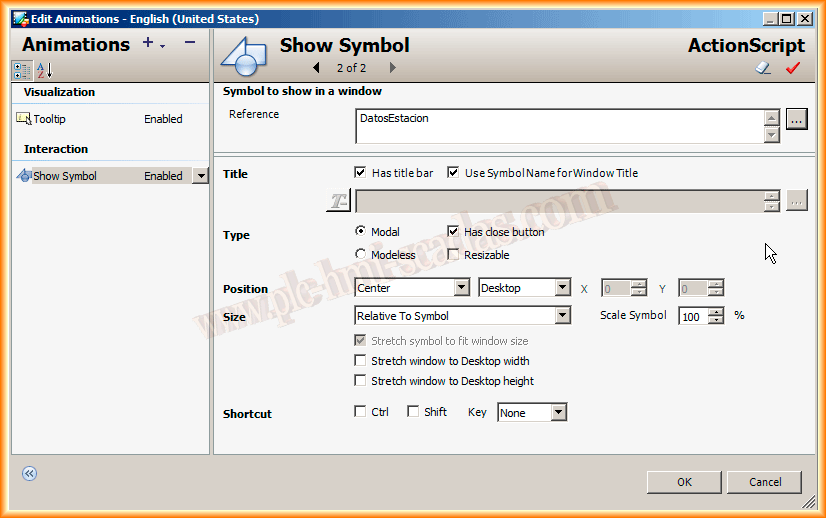
We define the characteristics of the symbol, if we are interested in showing the title and having a close button and its position.
Now, in turn, we will see the StationData Symbol to check what we need to program in it. As already pointed out in the image, it does not have any Custom Properties, nor does it have any configured script.
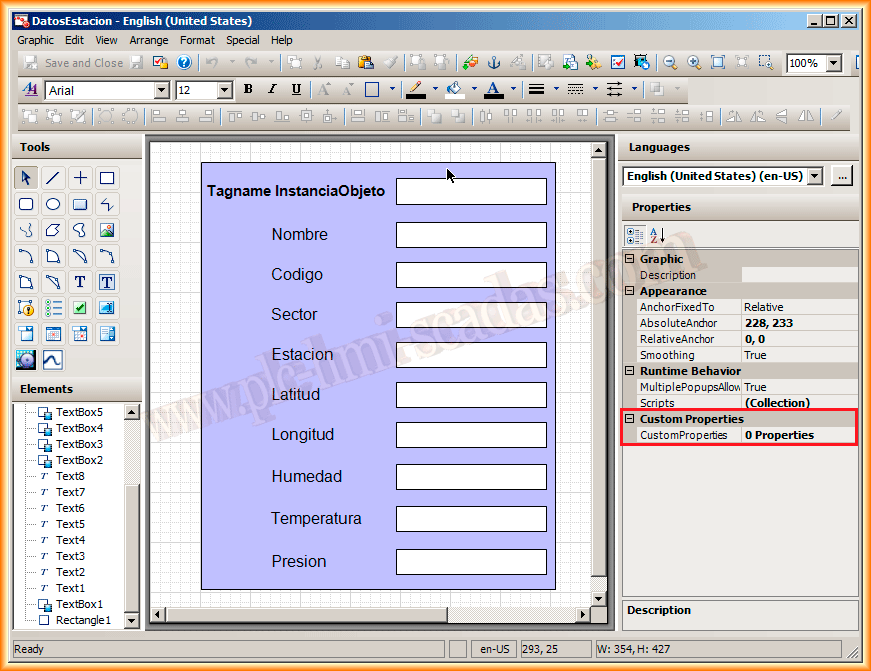
As can be seen, the symbol is created from Text to make Labels and TextBox to display information. Each TextBox has the Value Display animation configured.
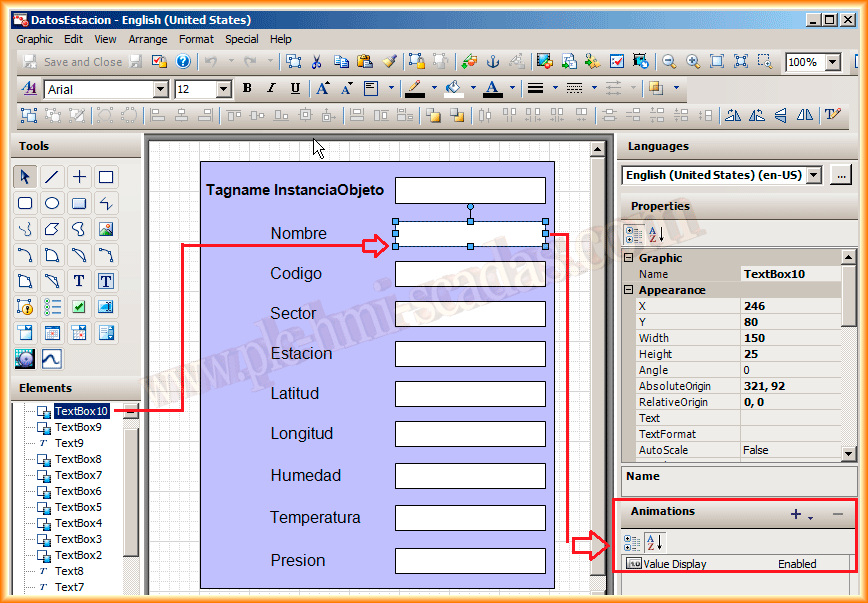
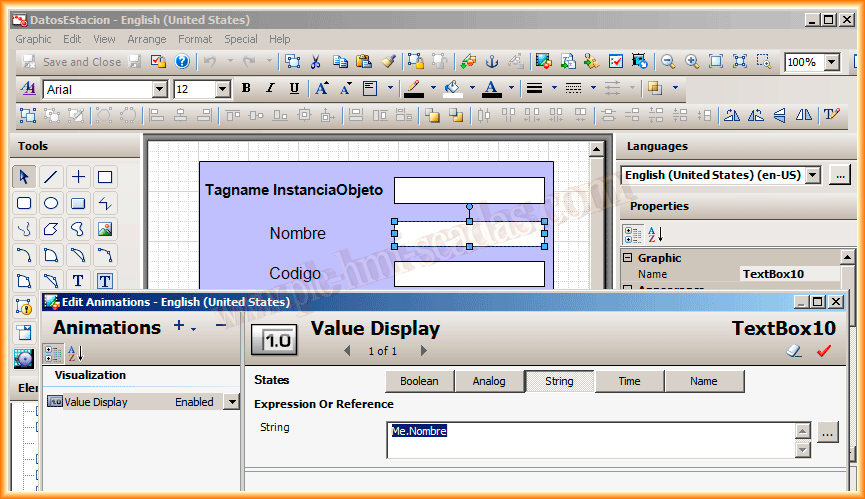
And here comes the interesting part of this practice, we have already seen the attributes that a station has, depending on whether it is of type String or Analog, that will vary in each TextBox. For the rest, the Expression or Reference that we will use is Me.AttributeName, for Name it will be Me.Name, the function of Me is like in Visual Basic, it refers to itself, in the same way we configure all the TextBoxes.
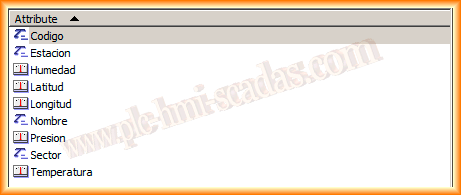
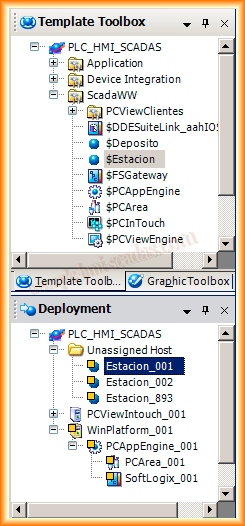
Once we have finished configuring our Station Object, every time we instantiate it, it will inherit all the attributes we have configured. Any change we make at any time in $Station will be inherited and updated in all its children (Instances).
As we instantiate, its name is unique and sequential, although we can change it if we wish.
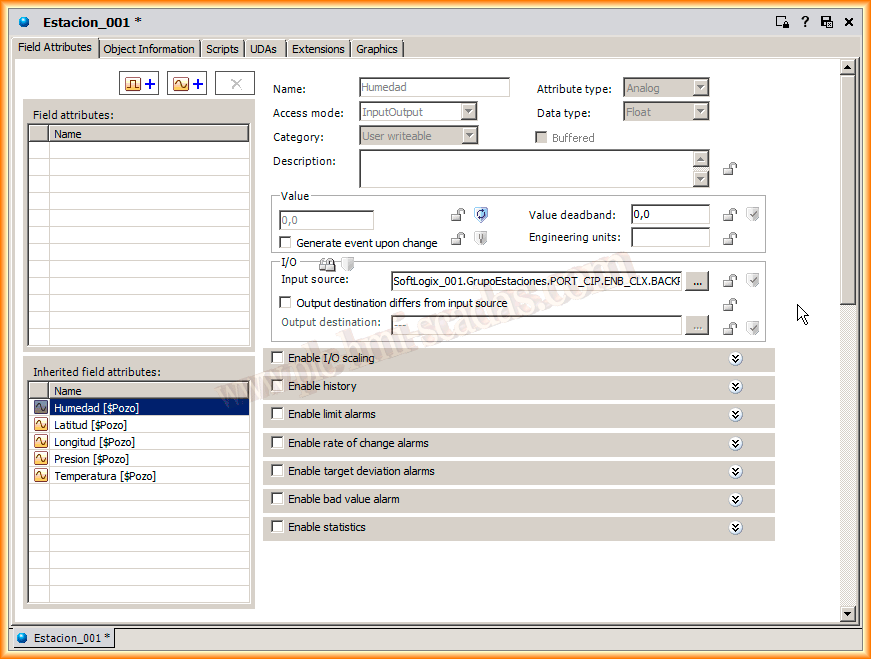
Since the instances we just created have no configuration, we will now configure all the attributes one by one. We will see an example with a single attribute and in the same way, we would have to define all of them and for all instances. Once this is done, we can assign them to our Area.
What we would have to do for each of the attributes is assign the corresponding I/O. We assume that the data is provided by OPCClient, so we assign its corresponding one to each.
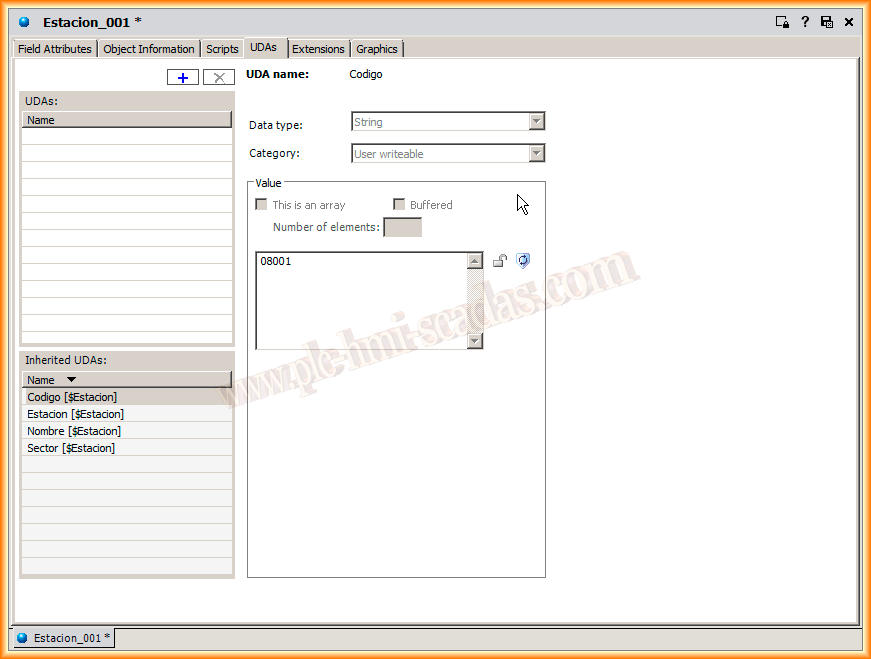
In the same way, we will assign values to the UDAs, assigning each its corresponding value. We would do this with each of the instances we have.
For the example, I have created three instances of $Station, and now in the InTouch application we will insert their corresponding symbols. For each of the stations, we insert its symbol and place it where it belongs.

Finally, we just need to test its operation, and to see it in more detail here is the following demonstration video. I dedicate this practice to Esteban Valles.
August 25, 2013