
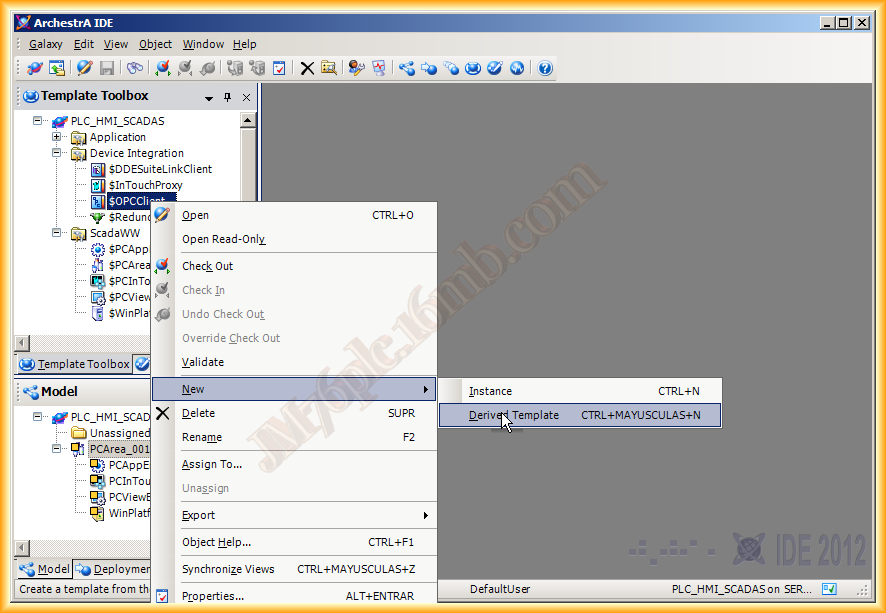
Continuing with the previous practice, I will proceed with the next step, creating a new Derived Template of $OPCClient to configure the communication in our Galaxy. The steps are the same as before, we create it and move it to our directory, and then we edit it or vice versa, we make the necessary configuration and after that, we move it, to keep track of what we are doing
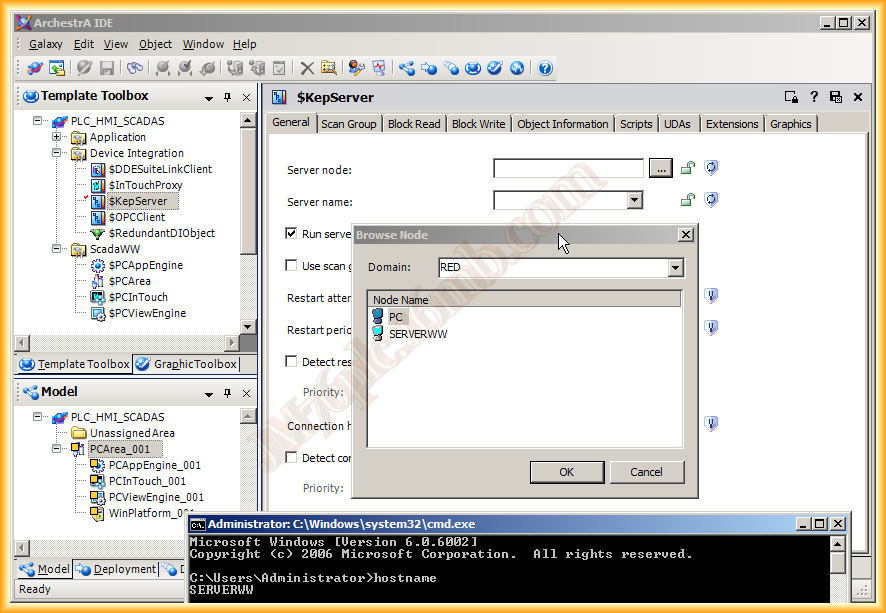
We open the Template we just created, and here we will make the following configuration, in the Server node field: we can leave it blank, and it will be as if the server is on the same PC, it will refer to localhost, however, I will make the application a little more interesting, since the OPC server is installed on another PC, important, for it to work properly, DCOM, Firewall, and Security Policies must be configured on both PCs to do it correctly!!! I have not implemented it here because otherwise, the practice would take too long, if anyone is interested, please leave a comment
Continuing with this, we click on the search icon ... and the following pop-up window appears where we see all the PCs that are on the same network, in this case, the Server is on the PC machine and I am on the SERVERWW Server
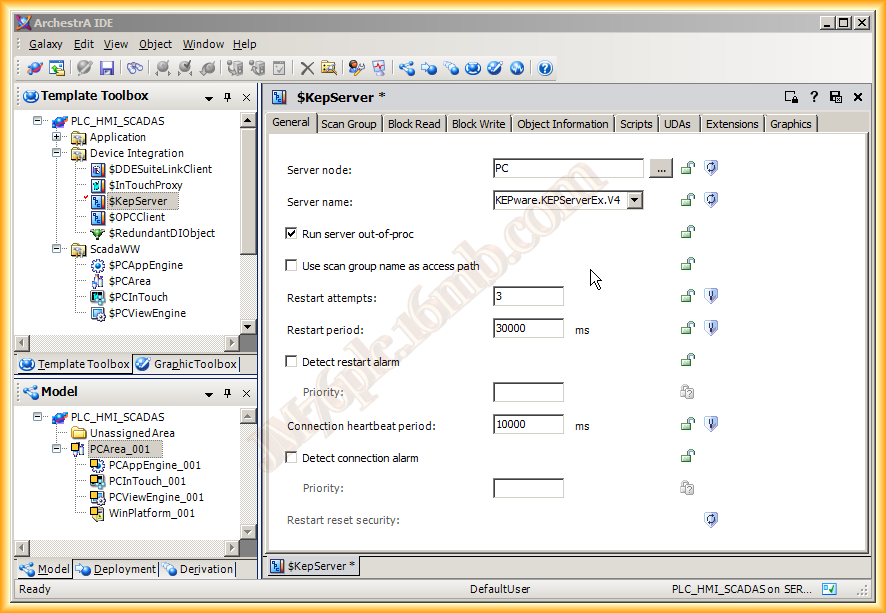
If everything is correct, when clicking on Server name: a list will drop down with all the Servers that are installed, in this example I will take advantage of the KEPServer configuration with the S7-200, we can leave the other fields as default, it is always advisable to take a look at the help, in case we are interested in making any changes
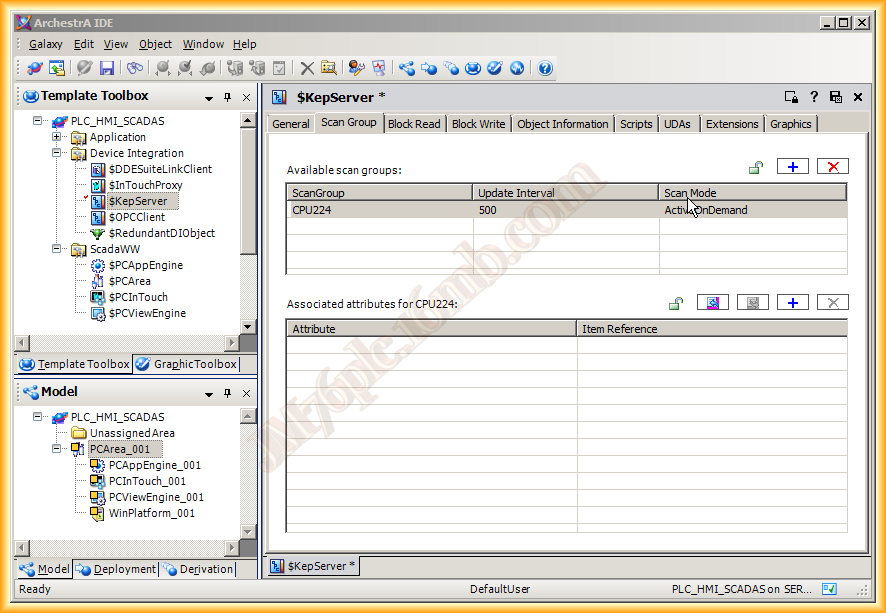
Once the machine where the Server is hosted is configured and selected, the next step is to create a new ScanGroup (Group), we click on the plus sign icon and choose the name we are interested in, then the configuration of the items (Tags) is enabled
Similarly, we click on the plus symbol icon and a pop-up window will open for item search, we select the alias and all the items will appear inside, they can be selected and dragged or selected and added by clicking the green + symbol, confirmed by clicking Ok
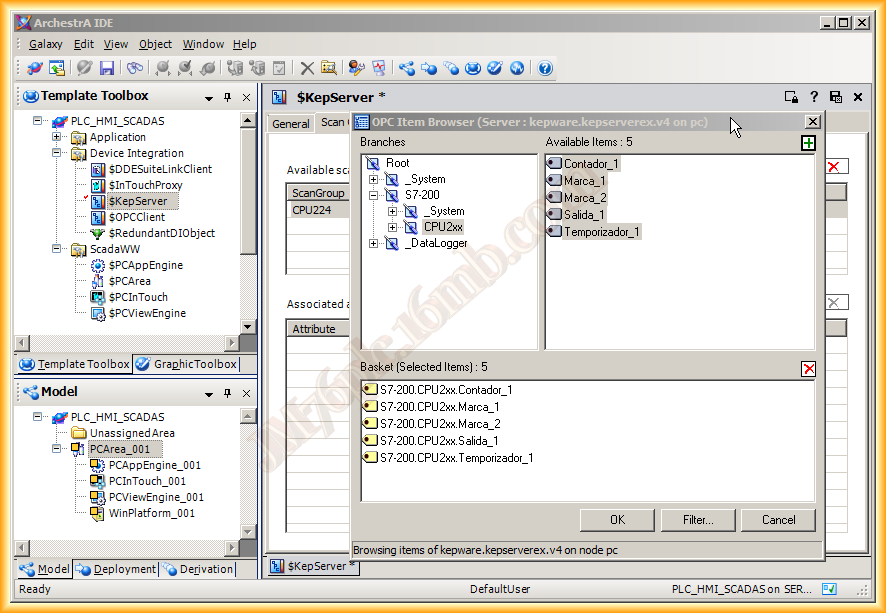
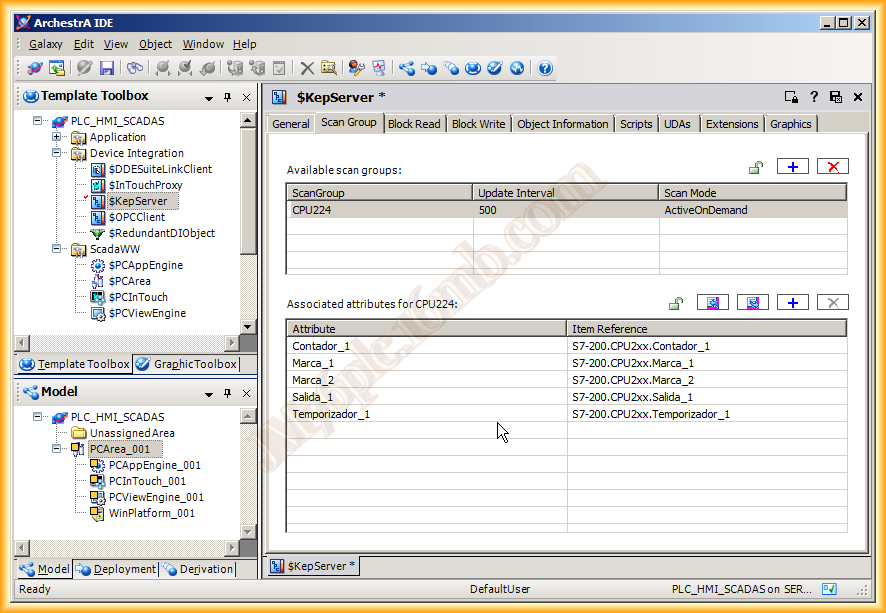
And this is what it should look like, in the Attribute column I have deleted S7-200-CPU2xx because referring to the attribute we are referencing Item Reference as we will see later
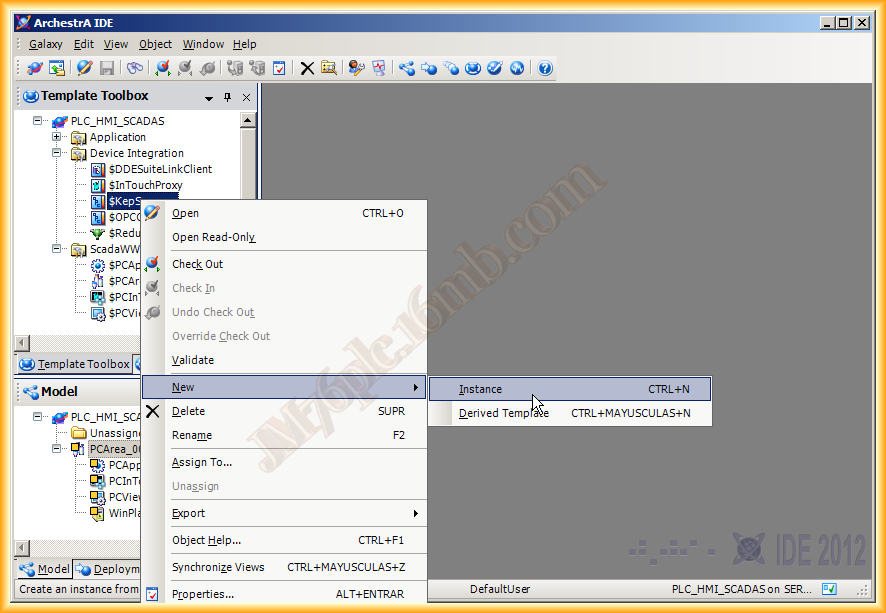
Once finished, we save the changes and close it. It is time to instantiate this object, we do new Instance and the instance is assigned to Unassigned both in Model and Deployment, after that we move it in Model it will remain within the PCArea and in Deployment within the PCAppEngine
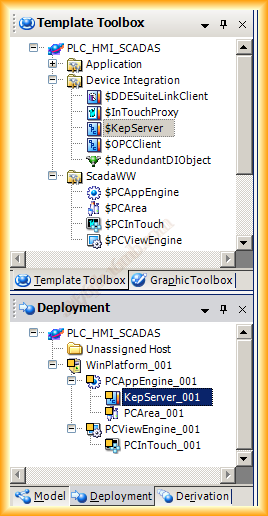
To test that everything we have done so far works correctly, we could do a Deploy of all instances, but initially, we will do it to check the communication with the OPC Server, we select as observed and either Object -> Deploy, by right-clicking we also have the option, or on the Deploy icon in the bar. Well, and what does Deploy mean? We could consider it as the Runtime, activating all services and functionalities
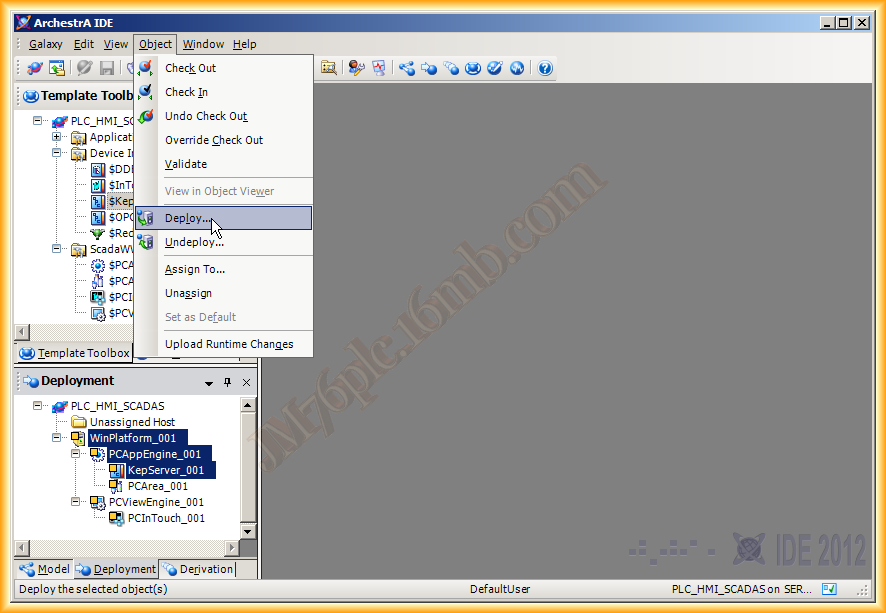
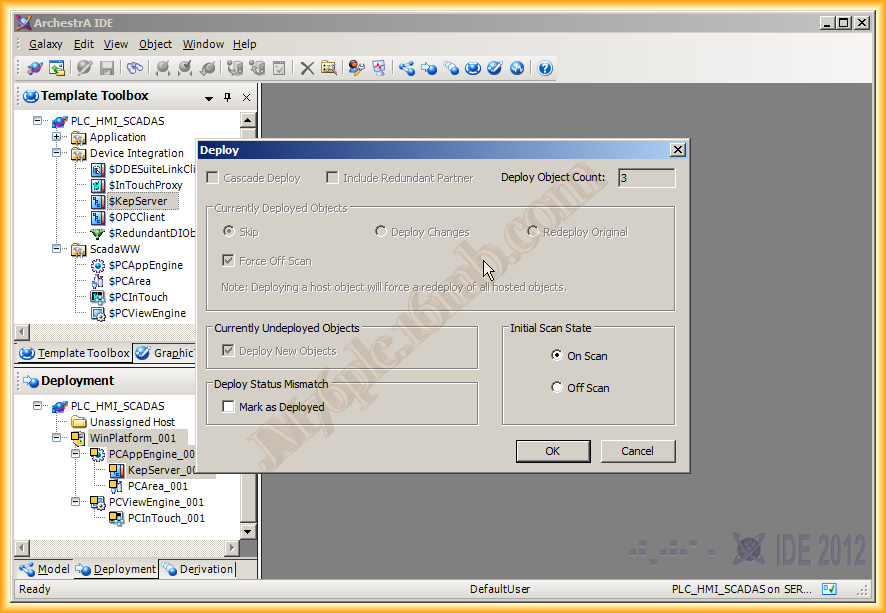
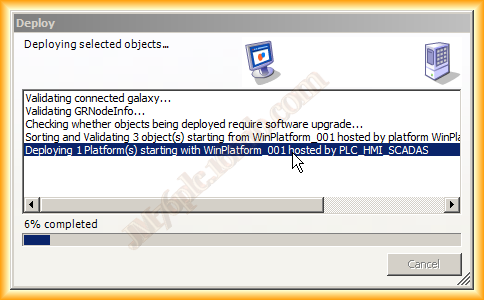
We will see the following window while the process lasts, and it will warn us of errors, warnings, etc ...
Once finished, it can be observed that the icon of the instantiated objects has changed, that means it is correct, with the yellow square that is without having performed the Deploy and others that we will see later. As I am going to check the communication, I have opened its configuration for the next step.
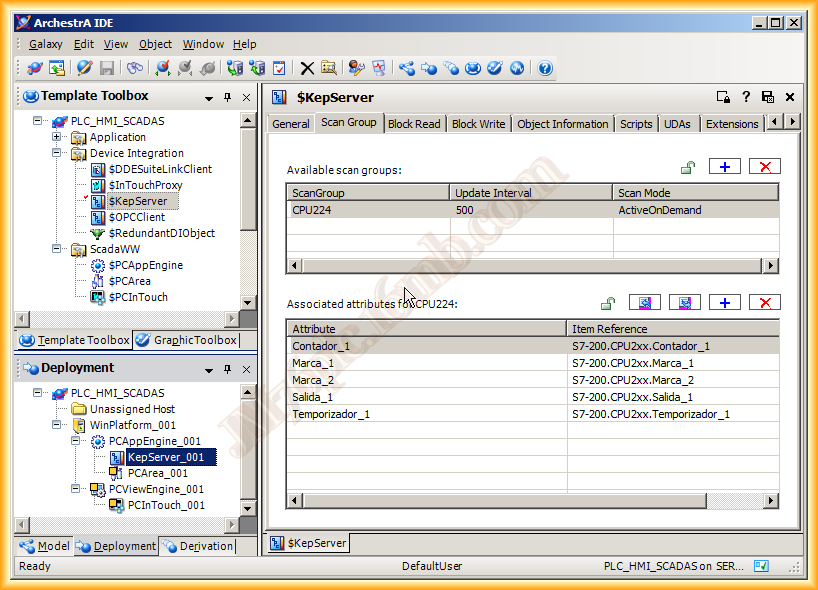
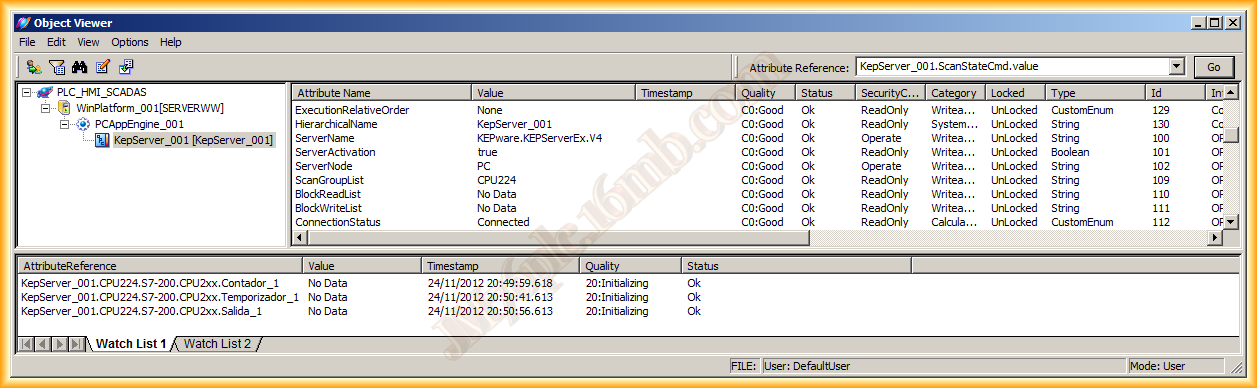
Once the Deploy is done, we can check the status of the objects in the following way, we select an instance, in this case, KepServer_001, right-click and select Object Viewer, the following window appears, to reference any attribute, we enter it in the upper text field and it will be added to the list, for the lower tab, where the Status, Quality, etc. are observed...
With this, we know that the configuration applied so far is correct and everything works perfectly.
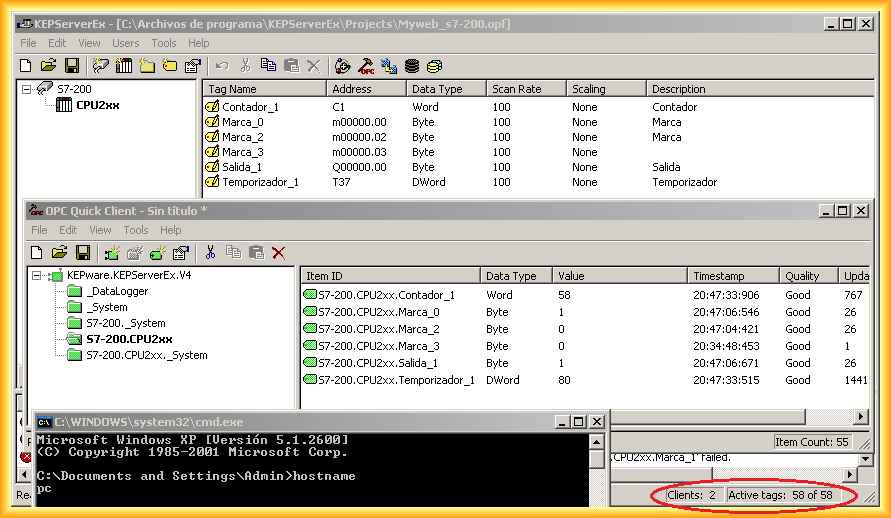
Finally, we go to the PC where the KepServer is installed, we start it and connect with the OPC Client and see that there are two Connected Clients, the OPC Client and the OPC Client from our Galaxy.
In the next practice, we will configure an object with its symbol and run it in Intouch
November 25, 2012