
Upload TwinCAT System Manager Configuration
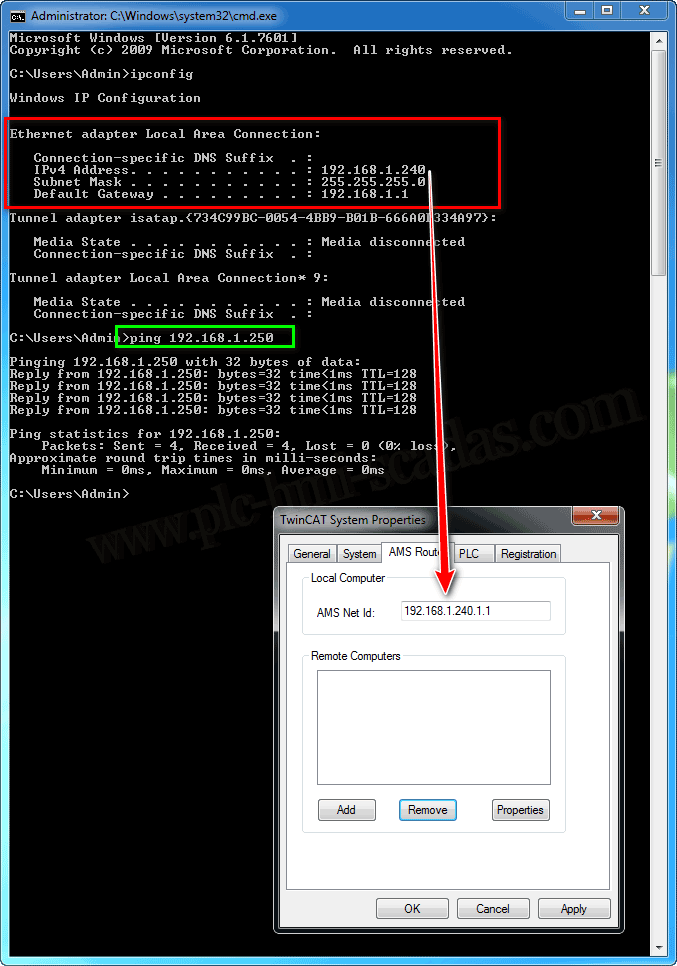
In the following practice, we will consider that we know the IP address of our PLC, for the practice it is 192.168.1.250, the first step is to change our PC to that IP range and if necessary change it in TwinCAT.
In the TwinCAT properties is where we change it and restart the PC.
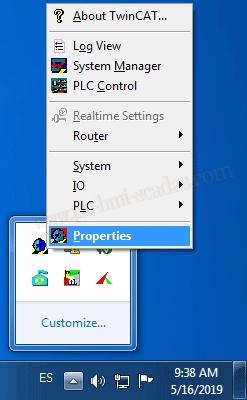
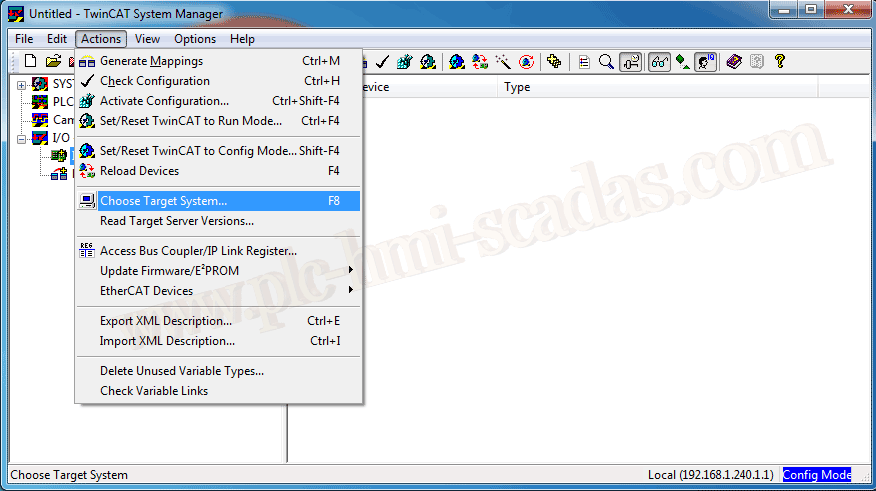
We open a new instance of TwinCAT System Manager, and with the shortcut F8 or in Actions "Choose Target System".
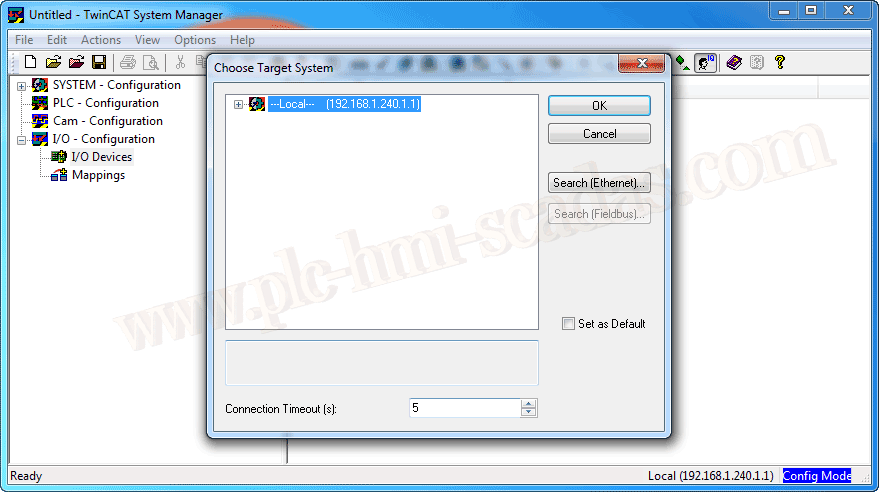
This new window starts for selecting our device, since it is not in local mode, we will search on the network, for this we press Search Ethernet.
A new window opens, where after executing Broadcast, it has found our device, named CX1020, IP address, TwinCAT version, and operating system type.

It is recommended to switch to IP Address, we do this in Address Info by changing the radio button.
INFORMATION: If left by default on Host Name, it may happen that when you enter the password it does not connect.

We can now press the Add Route button and a pop-up window will appear with the username and password.
By default, the password for a CE operating system is a space, with the space bar on the keyboard - for XP it is 1.

If the password is correct, an X will appear in Connected by default; if it does not appear, the connection is not established and we cannot proceed. This would be the case I mentioned earlier when Host Name is selected in the Address Info option.

We confirm with the OK button.
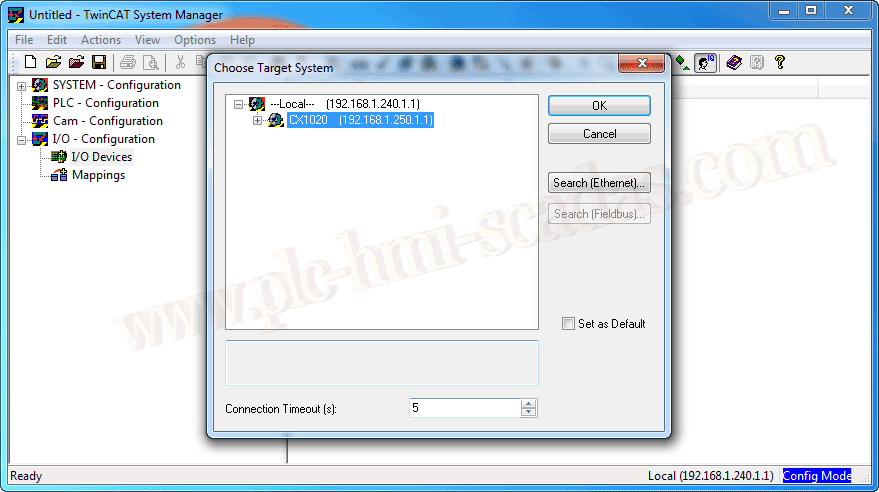
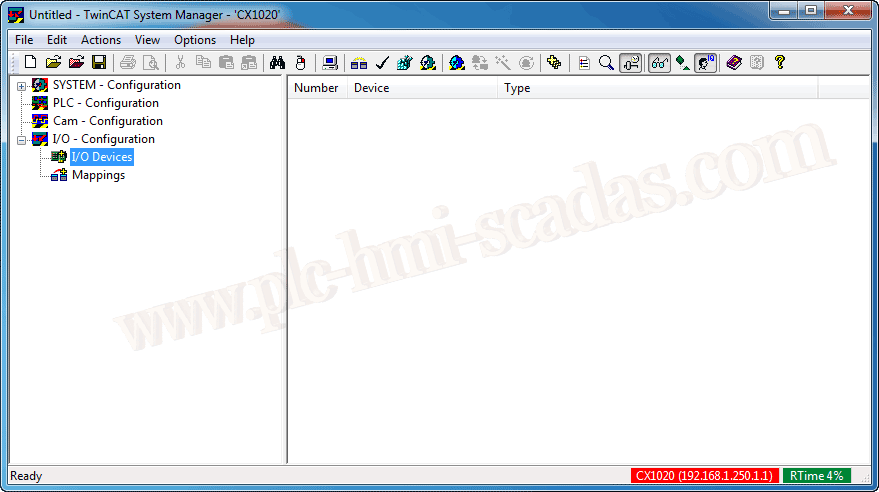
Notice how we are connected and it is in Runtime mode.
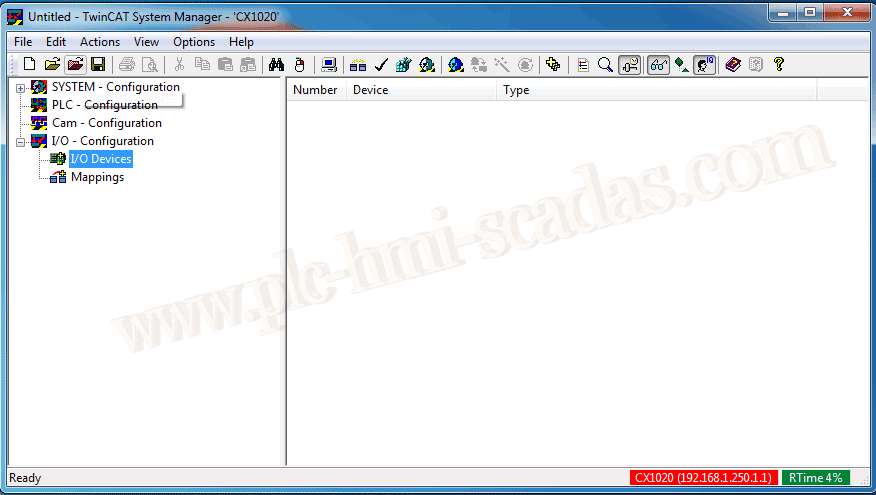
To download the entire configuration, it is as simple as selecting the open icon, but the one that is red.
An information pop-up window will appear, we confirm with Yes.
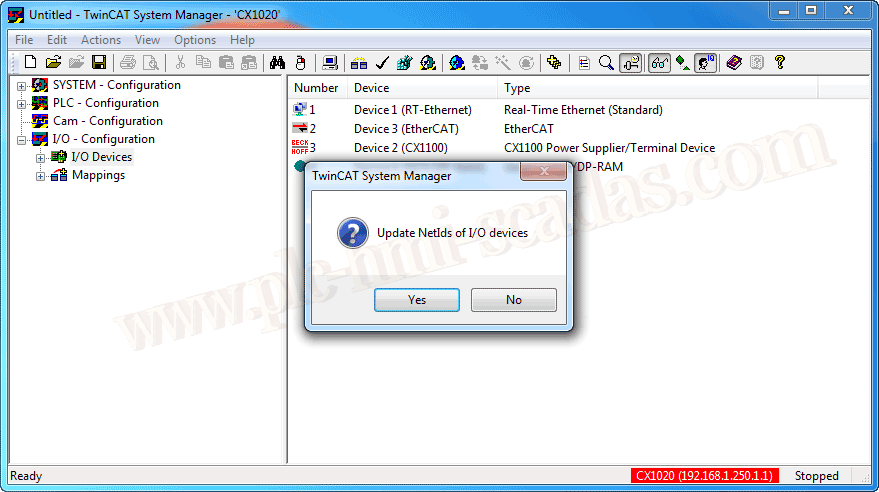
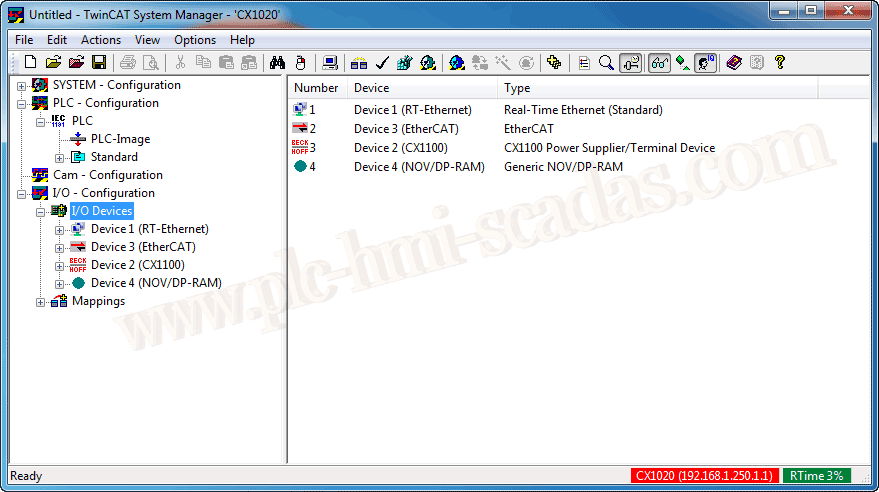
And we have now downloaded all the hardware configuration in a new project, also the PLC program information, but not the PLC project, we will see that here.
16-05-2019