
Cognex Insight Explorer
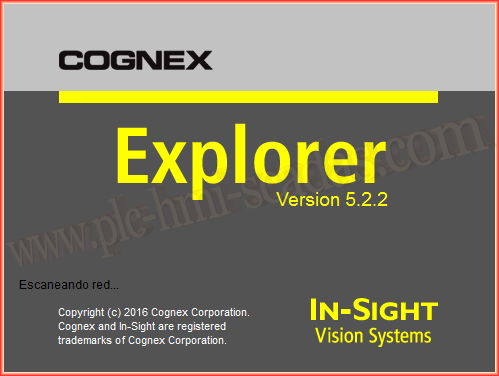
Once the GSD file is installed in our TIA Portal project, we will proceed to configure our camera. To do this, as we mentioned, we will use the Cognex Insight Explorer Software. Once installed and executed, it automatically scans the network to detect all cameras that are Online.
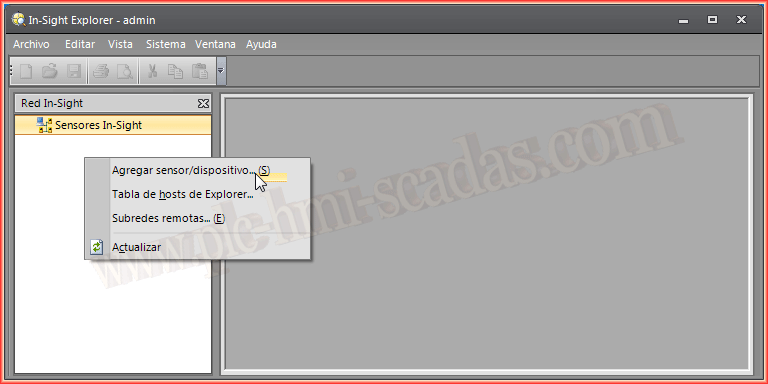
However, if our camera has not been detected, once the software has started, right-clicking brings up a menu, we click on Add sensor/device.
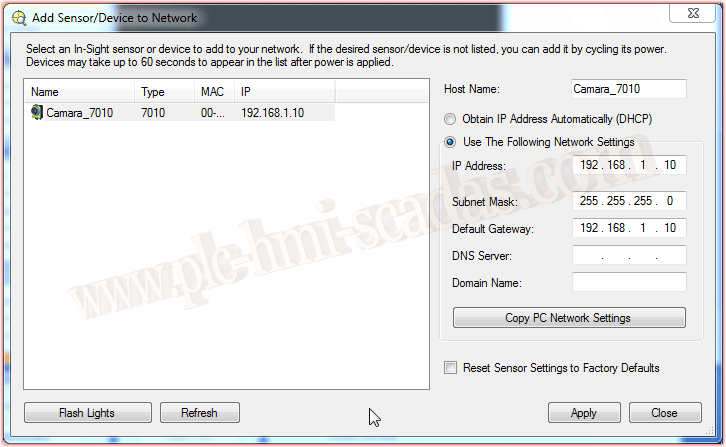
Here it will scan the network, looking for all devices by IP address and MAC address, so if the device is not on our network, we can add and configure it.
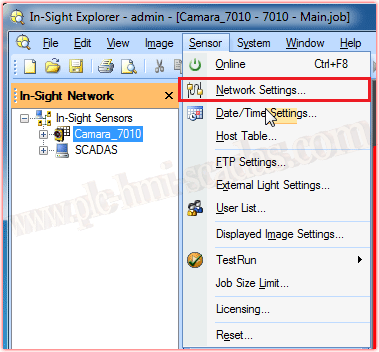
Once we have added our device, we will enable the Profinet protocol. To do this, we click on the menu Sensor --> Network Settings.
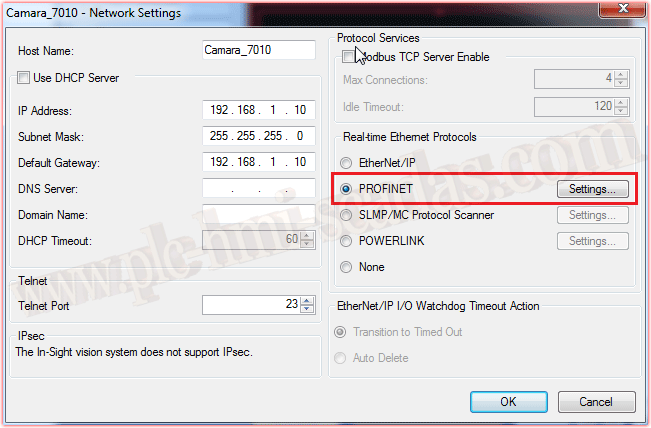
Here we can again change the IP address, Name, and what interests us is enabling the Profinet protocol, we select the Radio Button, because we only enable one Protocol and click on Settings.
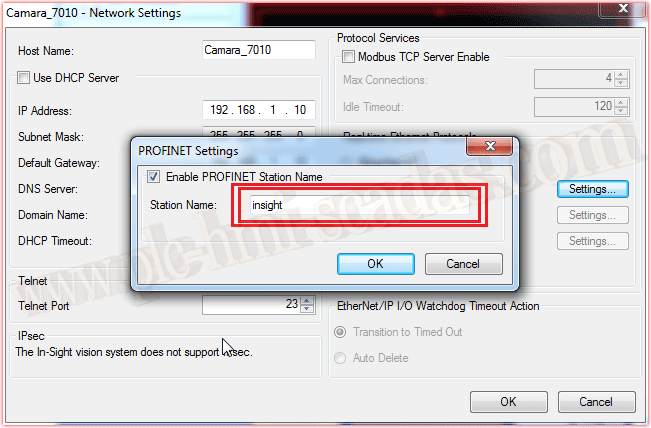
Here we have one of the most important parts that we must keep in mind, it is the name we are going to assign to our device. We already know that in Profinet we must have unique names, very important!!!
We will see it later in the TIA Portal project.
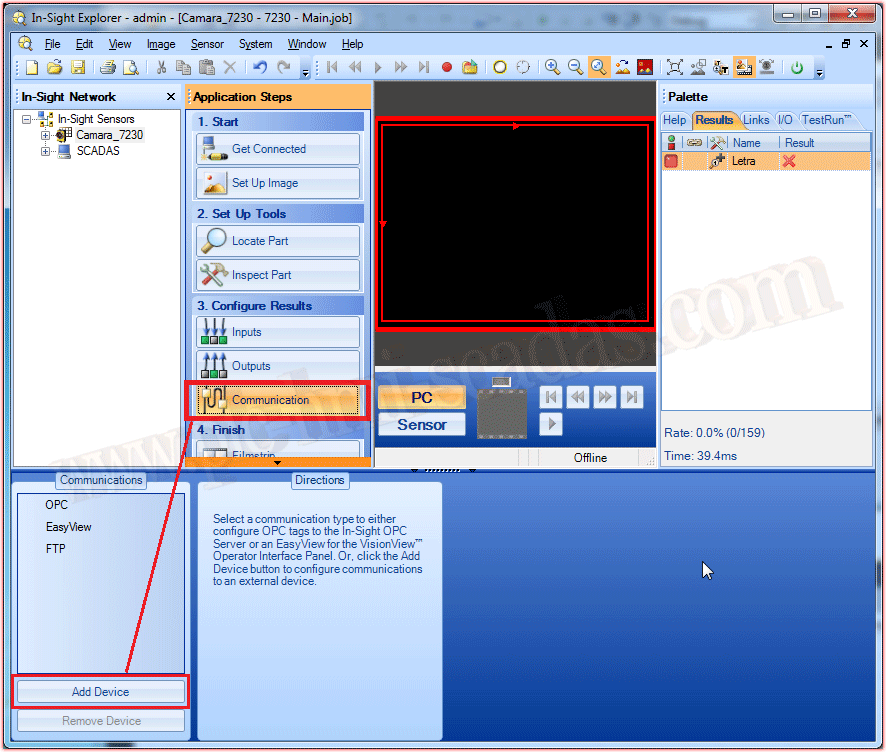
Finally, without going into detail about the job configuration, camera work, we will go to Communication, and we will add a new device as shown in the image.
As we are going to communicate with a Siemens S7-1500 PLC, we add in Device PLC, Manufacturer Siemens, and Protocol Profinet.

Once we have completed these steps, it is the minimum necessary to establish communication via Profinet.
The next two steps are not necessary, but they are to illustrate how we can add more information to the Profinet communication, this is where we will add the information that interests us.


Now finally we will proceed to create the Project in TIA Portal.
February 4, 2018
"Gratitude in silence serves no one." Gladys Bronwyn Stern