
Factory Talk View SE - DataLog Configuration
In the following practice, we will configure a new Data Log in Factory Talk View SE. For this, we assume that we have a project created, and the first step is to add a new Data Log.
The assistant that appears is as follows, and of the two types we can create, we will choose to archive in a Database. To do this, we select ODBC database and click the selected button to add our ODBC Data Source.

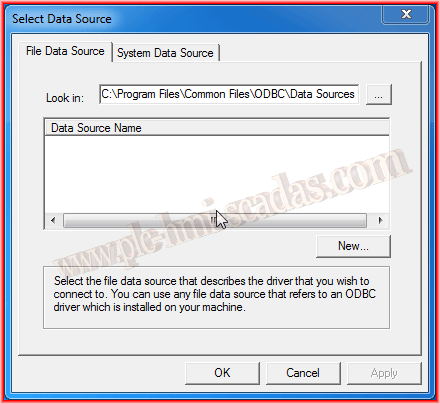
When we click the button, the following assistant starts, which we will go through screen by screen. The first step is to click the New button, then the radio Button System Data Source and click next.

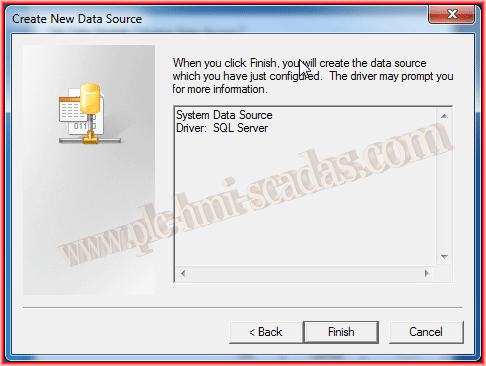
Since we are going to log in to the SQL Server, which is installed by default when we install Factory Talk View, we select SQL Server and next. We can now finish with Finish.

The next step is to define a name and description for our new Data Source and select the Server to which we will connect. Here in this example, we will connect to the instance FTVIEWX64TAGDB, which is the one installed by default when we install Factory Talk View. We can also log to a completely different instance that belongs to the same machine or another remote one.
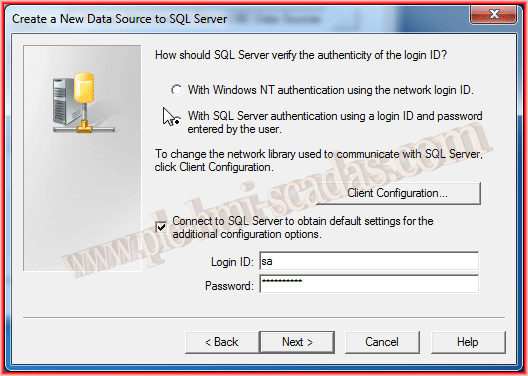
The next step is to define the authentication method. Since we are using the Factory Talk View installation instance, we defined the SQL administrator password during installation, whose user is sa.

The next step is to define the Database where our tables will be created later. I will leave the default configuration and use the master database. If you don't want this one, you need to create a database beforehand and select it by enabling the option change the default database to: and selecting ours. Click next and move on to the next step. Note If you have questions about how to create a new database, consult this article.
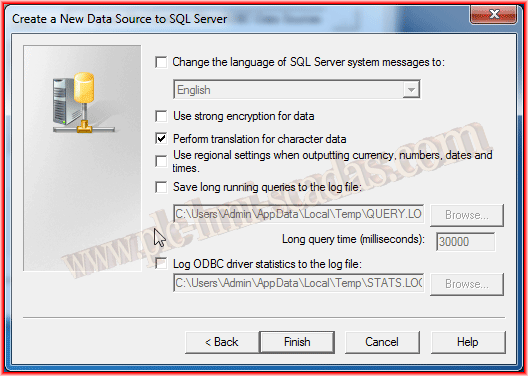
In this step, we leave the default values or adjust according to needs.

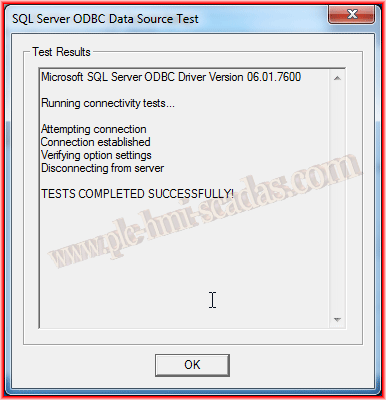
We finish the assistant and review the configuration we have made, just as we can check the connection with test connection and verify that everything is correct.
Therefore, we can move on to the next step.
We have created our Data Source, and we select it in our Data Log configuration.
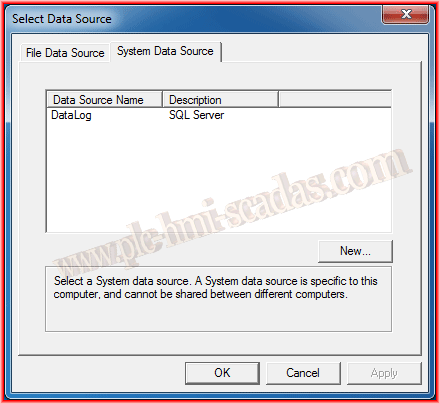
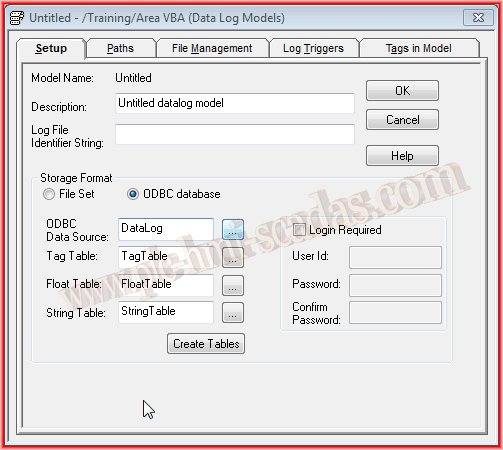
Once the previous step is defined, which is our Data Log, the next step is to create the tables. We do this with the Create Tables button, and a pop-up window will notify us of the result.
In this Setup tab, we only need to assign the description and the identifier, in this example MyDataLog.

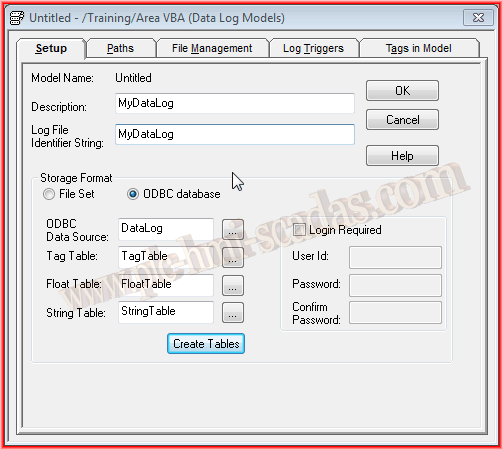
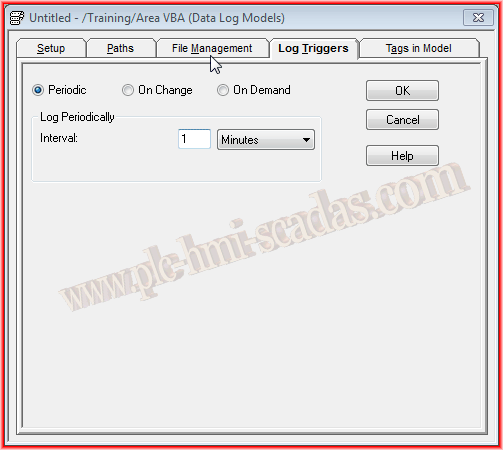
We can now move to the next tab Log Triggers, where we will specify how to perform the logging. As the name indicates, the Triggers are the event trigger for logging. For this practice, I have defined that it will be periodic and every minute.
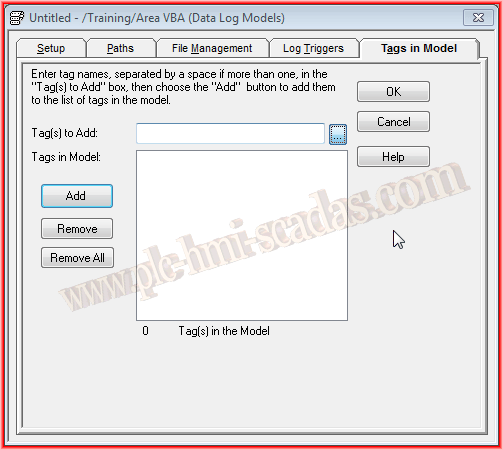
We are finalizing the last details, which are the variables we will add to this Data Log. I will define only one system variable to see the results, and I will only select one variable as can be observed.
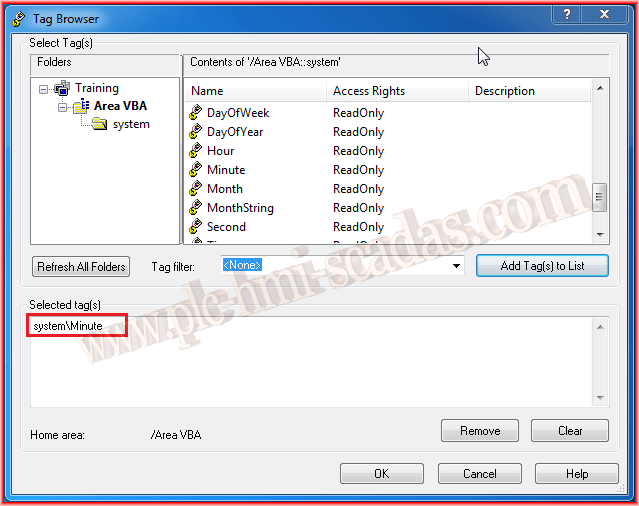
My defined Tag is system\Minute.
Once all the relevant variables are selected, we just need to add them to our configuration. All the tags we are interested in must be selected here.

We have completed the configuration of our first DataLog, so we confirm and assign the name with which we will save it.
Now we are going to create a button to activate and deactivate the logging. For this, we use the command DataLogOn and DataLogOff followed by the name of our configured file.

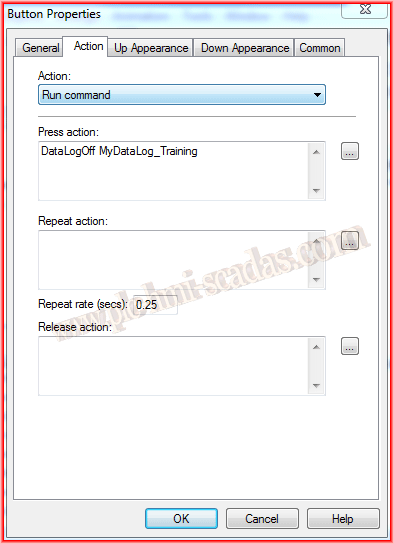
Before connecting to the database to check that everything is correct, I have started and stopped several times with the buttons, as can be seen in the image above.
By default, SQL Management Studio is not installed, which is used to connect to SQL Server and manage it. To avoid installation, we will use the command console.
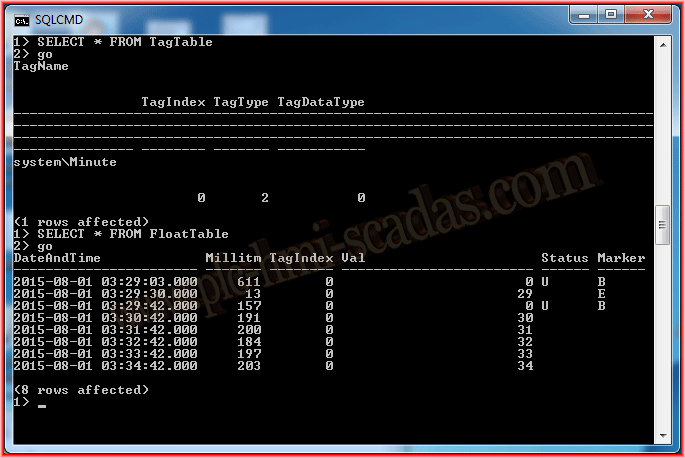
Now we will check that they have been logged in our Database. We connect to our instance with the command sqlcmd -S .\FTVIEWX64TAGDB in the cmd console.
And we can execute the Select Query to extract all the information from each of the three tables that were created. Here, since I only have one variable, it is the one registered in the TagTable, and its values are in the FloatTable as can be observed.
This means that everything has been done correctly and works perfectly.

August 2, 2015
If you liked it or found it useful, share it :-)