
Factory Talk View SE - DataLogs Configuration
To clarify a bit more the creation of a new Database in the configuration of Data Logs, for those who are not familiar with it, I will add the way to do it.
For those who have accessed directly to this part, I recommend reading the previous article
Before creating our DataLogs, if our intention is to log into a database, and we do not have it defined, we will create it, assuming that we do not have SQL Management Studio installed, since it is very intuitive and easy to use, we will do it through sqlcmd, the first step is to connect to the instance that interests us, in this example we continue in the one created by default when installing Factory Talk View.
We open a command console and execute the following command:
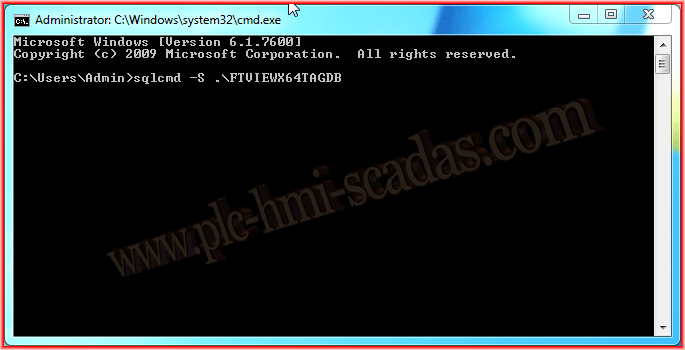
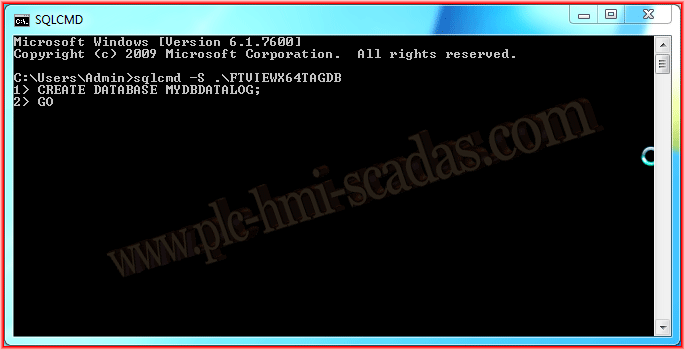
We are now connected, and as we can see in the title of our window, SQLCMD appears, well the next step is the creation of our Database, for this the query we must execute is CREATE DATABASE DatabaseName; in my example the Database will be called MYDBDATALOG, we enter the statement GO and execute
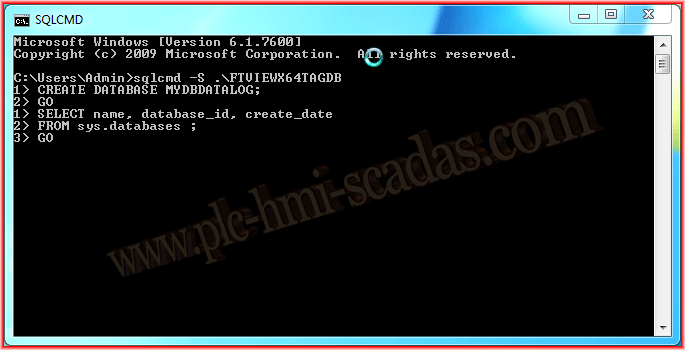
Initially we have created our Database and now we are going to check that this is the case, for this we execute the following Query, which will show us all the Databases that currently exist in our Instance to which we are connected.
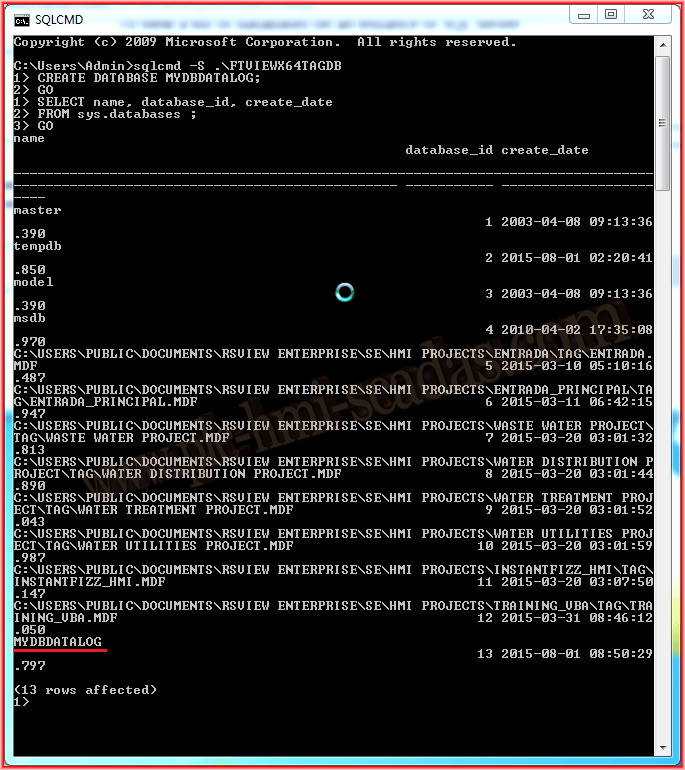
We can see that our Database appears here and the day it was created
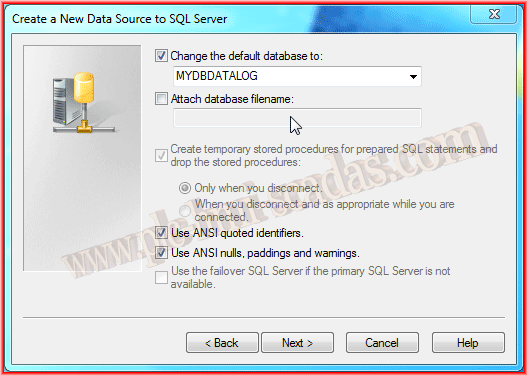
Now if we remember the previous practice, when we were at this step, defining the Database that we are going to use, we used the default one, which is master, well, here is where we are going to switch to ours, as can be seen in the following image.
Otherwise, we can continue with the procedure from the previous practice, and I hope this point has been clarified.

August 2, 2015
If you liked it or found it useful, share it :-)