
Indirect Tags
In the previous practice when we were working with the stations, each station had its corresponding symbol, this time we are going to create a single symbol that will serve for all the stations, so every time we instantiate it, we will have to pass the variables that we are going to use. Today's example is about that, as well as creating a new symbol that will serve to control the stations. The first step is to add a new attribute to the template of my station; this new attribute will be the variable to command the station, to start or stop it.
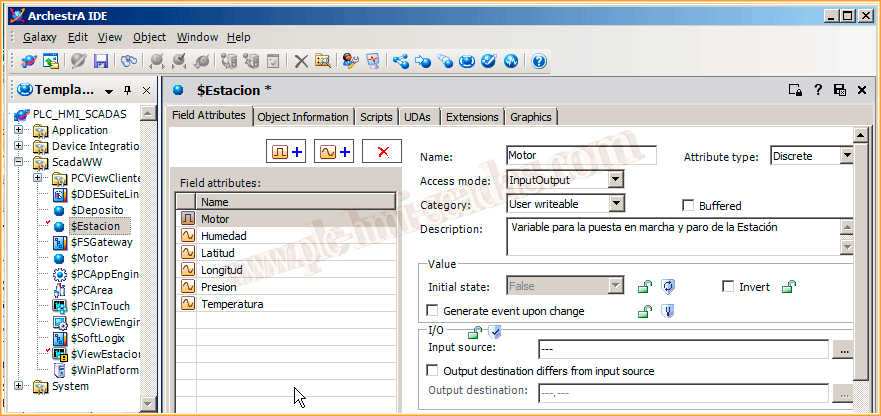
Once the first step is completed, when we instantiate our Station, we can now pass the variables to each of its attributes and to all the instances we have, but in this case, we will focus on the Motor attribute.

We assume that we have created a new symbol (I took advantage of the one I already had) by adding or modifying its attributes and scripts.
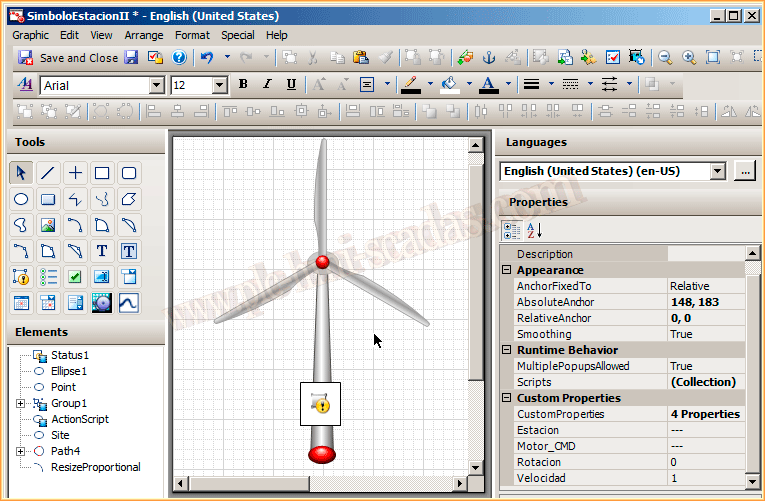
The defined attributes are Station, where we will pass the station to which the Motor corresponds; it is a String type attribute, and the attribute Motor_CMD will be the variable associated with that motor for its command. Rotation and Speed are internal attributes for animation.

We have already seen the attributes of our new Symbol, now let's see the Script it has, which is executed when the symbol is displayed, and it will execute if the variable associated with Motor_CMD is TRUE, and this does the animation of the blades, to see that it is running or stopped.

Now comes one of the most important parts for proper operation, I have defined an Action Script animation, which when the user clicks on the symbol, saves the name of the station in an Intouch variable called Station_Name, of type Memory Message.

And at the same time, it calls the symbol Cmd_motor, which is the symbol to command the motor.

Now, let's analyze the CMD_Motor symbol, which has a TextBox that will display the name of the Station, as it references the Intouch variable Station_Name, and it has two buttons, one to start and another to stop.


These buttons, the code they execute is the following, being a button already embedded from another symbol, so as not to have to open another symbol and see its animation, the code is the same as that of a transparent button, what we do is set an Intouch variable called Motor_cmd to 1, true. This variable must be declared in Intouch as an indirect variable.
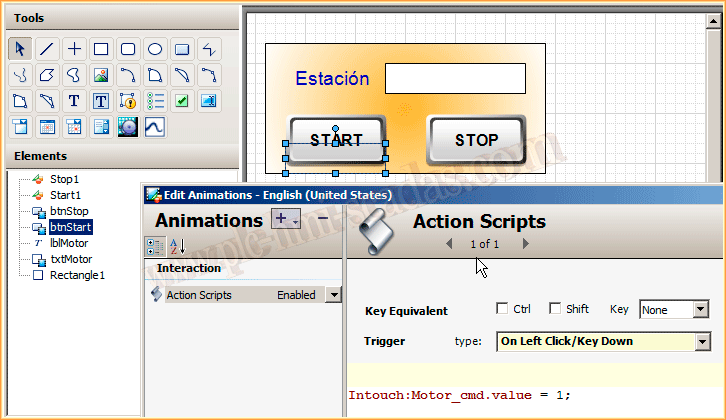
And in the Stop Button, what we do is set this variable to 0, False.

Before making a more detailed explanation of the operation, let's observe the following image, to clarify a concept, when we change the attribute Station_xxx.Motor, what we are doing is writing directly to the variable associated with it, when we configure the instances of the different Stations. In this case, we are writing to the Data served by an OPCClient Instance, which in turn is associated with the DAServer.

Now let's put ourselves in the situation, on the map we have our Stations, Motors, Valves, etc..., when the user clicks on the symbol, we automatically save the name of the Station in the Intouch variable, in Intouch we have defined the following Script that is executed every time the variable Station_Name changes, where we have saved the name, when its value changes, the Script is executed, and here is the most important part of all.
In the indirect variable Motor_cmd.Name we associate Station_XXX with the Motor Attribute, so whatever we do from now on to the variable Motor_cmd is equivalent to doing it directly to Station_XXX.Motor.

The next thing that will happen is the call to the Cmd_Motor symbol, and this symbol will write TRUE or FALSE to the Motor_cmd variable, depending on the button.
Finally, we will see how our symbol would look when we insert it on the Intouch screen.

And here is a small demonstration video of the operation.
September 5, 2013