
Simatic Logon
Here we will see the configuration of Simatic Logon. Once we have installed it, a User Group called Logon_Administrator is automatically created, and all users belonging to this group will have privileges to log in and configure it. By default, when we perform the installation, the user with which we did it, who will be an administrator, already belongs to this User Group.
Instead of logging in locally, I will log in with a Domain user, as we have seen in the following guide. Continuing with this practice, we go to Configure Simatic Logon and the following window appears for us to log in.

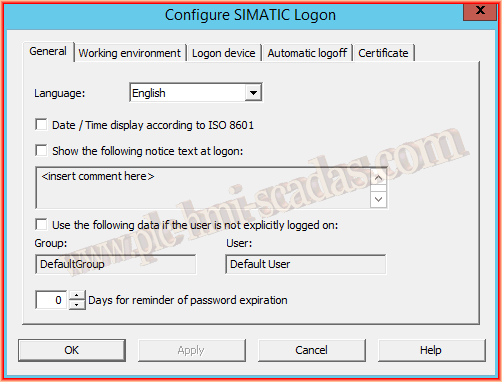
Once logged in, we can make the changes we are interested in; by default, if we do not make any changes, it has the following characteristics.
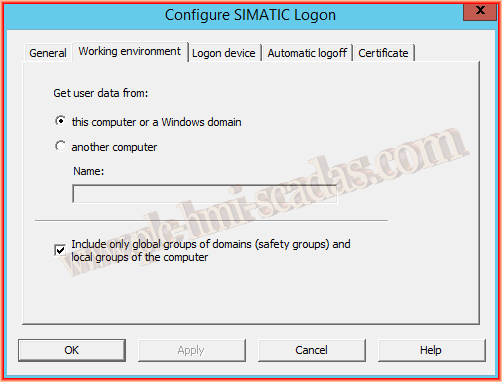
If we are going to work on this PC or in a Domain, we leave the Radio button as is; if we are interested in another machine that is in the same Workgroup, we will select the other option.
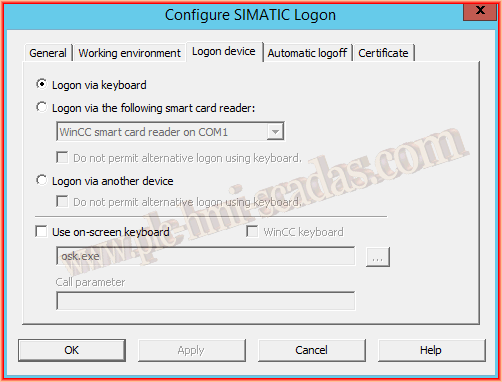
As we are going to log in, in our case using it for WinCC, with the normal keyboard, if we had a ChipCard reader as we had seen, we would select this option, and if we have a touchscreen, we might be interested in using the osk.exe keyboard, which is the default of the operating system.
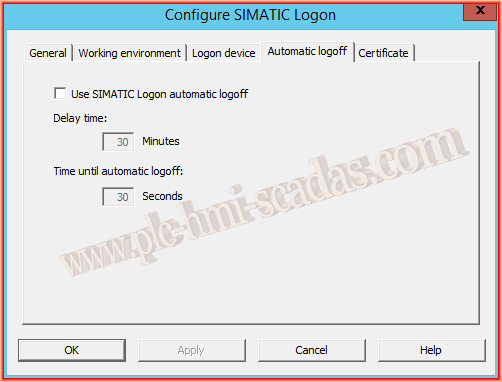
If we are interested in performing a Logoff, we must select this checkbox and specify the time we are interested in.
And finally, specify the certificate and the key in case of the SIMATIC Logon Remote Access service (I have not used it, so I cannot provide more details; you would need to consult the help).

Now we are going to open the Automation License Manager, and we will have to log in with a user that, as we have mentioned earlier, belongs to the Logon Administrator group; otherwise, we will not be able to access.

Once logged in, you can see in the bottom bar which user is logged in; we go to File -> Role Management to manage the Roles.

Here we can already observe the Roles that exist, even create if necessary, and at the bottom, we see the name of the machine and in turn the name of the Domain; in each of them are all the User Groups and Users that are in the Active Directory and in turn in the local PC.

What I am going to do next is copy the Domain User Groups and assign them to the Roles that I am interested in according to the user that has logged in.
To do this, we select at the bottom the User or Group, right-click "Copy," and go to the top, select the Role we are interested in, and in Groups and Users, paste "Insert." We can now save and that's it.
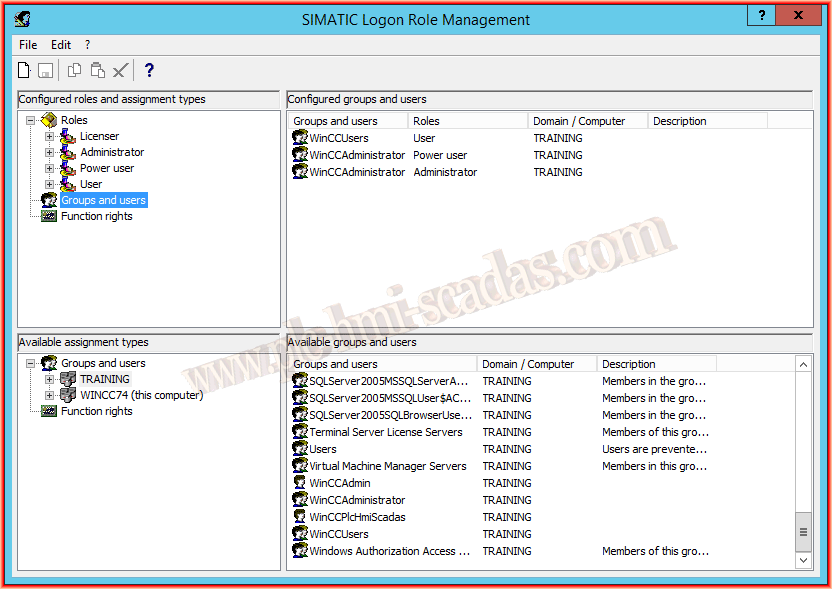
I include the following image, where you can clearly see what roles are available by default and the permissions required, whether they are Licenser, Administrator, Power User, or User.

June 13, 2016