
WinCC Client Project
Finally, we will look at the creation of a Client Project. I recommend first viewing the creation of a Multipoint project, as it is directly related to the Server configuration. In fact, we will use the same Server configuration for this practice.
We will briefly describe some important aspects; this type of project will always be used if there is already a Server in the installation/plant. It may also be the case to use it with multiple Servers and centralize the screens on the Client.
This type of project, instead of sharing the Server project directory, shares the file generated in the Data Server, allowing access to all generated variables, tagLogging, AlarmLogging, and User Archive if configured. Conversely, we will configure the screens ourselves, which can be the same as those on the Server or we can create our own, and each client can have different screens.
We can imagine a plant where one client only accesses the Painting area and another client accesses the assembly area, to give a symbolic example.
The following animation could be the same as that of the Multipoint project; in the client configuration section, we will see these differences that we have previously marked.
The part of configuring the Server is identical to what was seen previously, so I will use the same images and explanation, as these steps are common.
We will consider that we have already created our entire project and we will move on to the configuration part where we will register the clients and the necessary configurations.
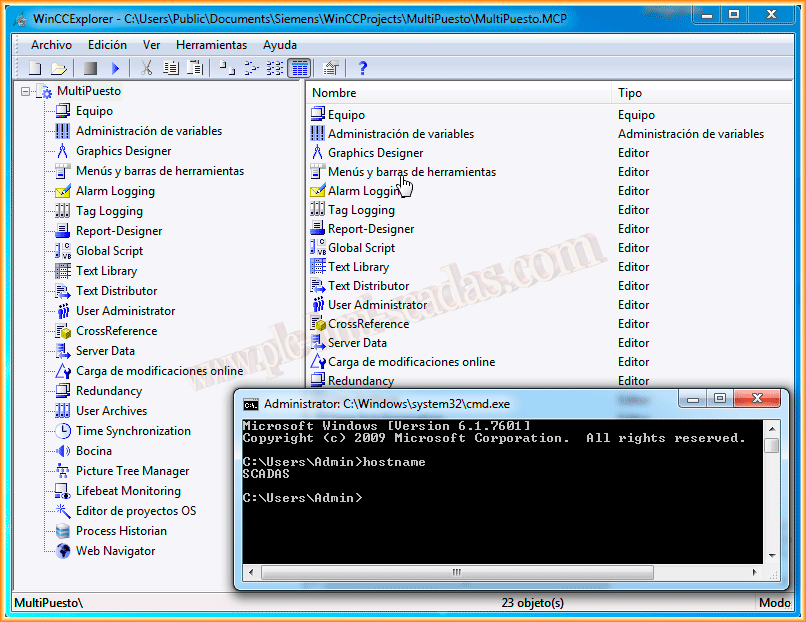
This is our project, which is running on the Server named SCADA.
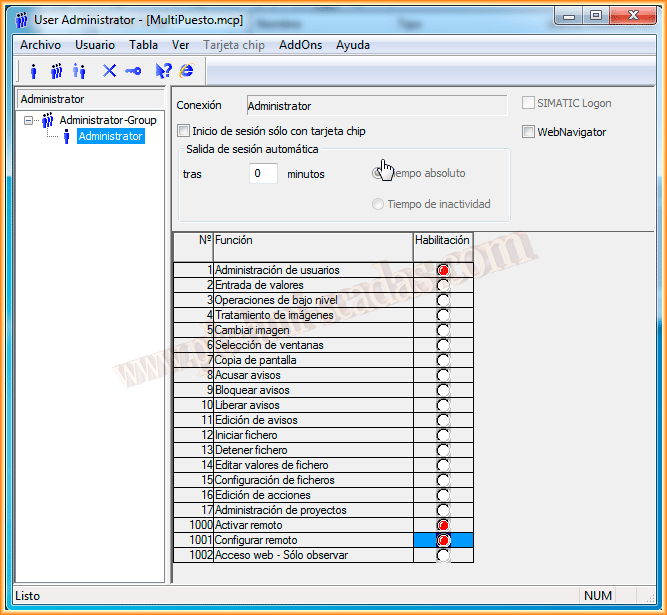
The first thing we will configure, if we haven't done it previously throughout the project, is to assign a password to the Administrator user at a minimum, or create a new user, user group, and we will enable the options, Remote Activate and Remote Configure, with this we will be able to activate from our client.
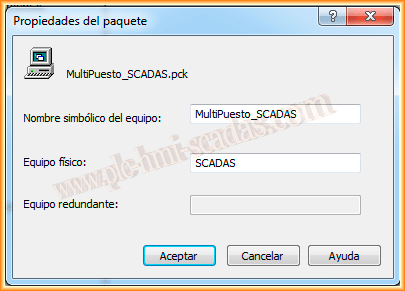
The next step is to register all the clients that will connect to the Server; check the maximum number allowed, depending on the Operating System where the Server is running. For our test, we will configure only one client.


And finally, we will configure the Server Data, necessary for the client to access the Server's data and display them in their respective images.

We start the Server Data and what we are going to do is Create. A pop-up window will appear, where we can change the symbolic name or leave it as default, we accept and if everything has gone correctly, a pop-up window will appear indicating it has been generated.
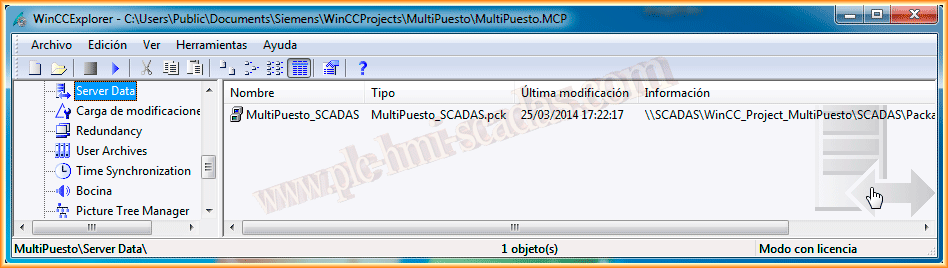
And now the generated *.pck file appears. If we subsequently make changes to our system, we will need to update that file for the clients to be updated.
Up to this point, all the steps taken correspond to the Server; now we will see the Client Project.
Now we move to our Client Project Equipment, which has WinCC installed, and in this case, we will create a new project of the Client type, and the first thing we will observe is the difference between a Single User project and a Multipoint project due to the absence of TagLogging, AlarmLogging, User Archives, and other features that we will see later.
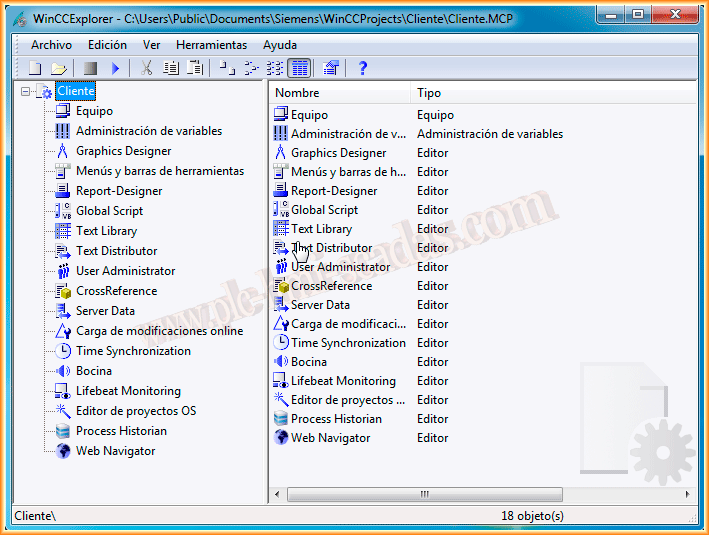
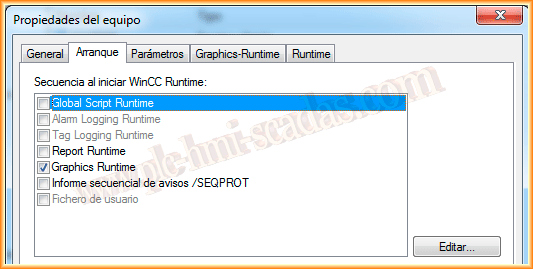
The first thing we will do is configure the Server Data; this time instead of creating, we will load, as we are on the client machine.
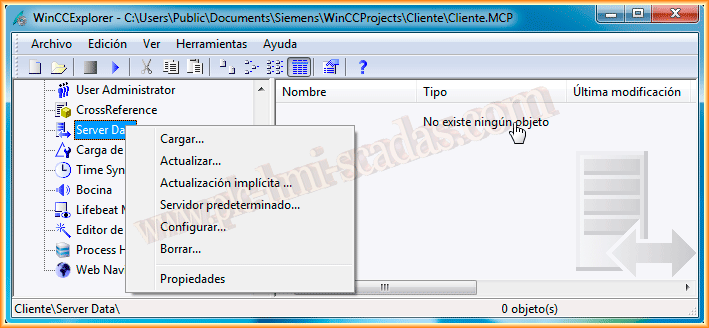
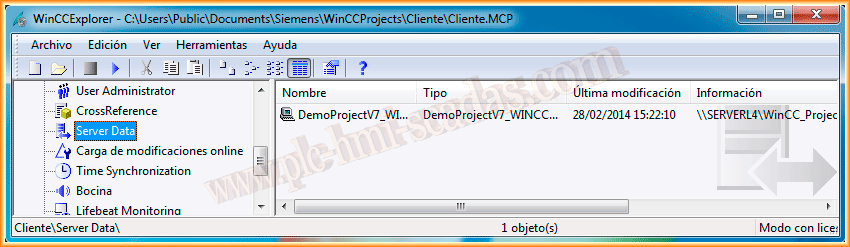
We navigate to the Server project directory; within the directory, we will find a folder with the name of the server machine, and inside this, we will find another folder Packages, here is the file we are interested in and that we will load, which if all goes well, will notify us with a pop-up window that the data has been loaded correctly.
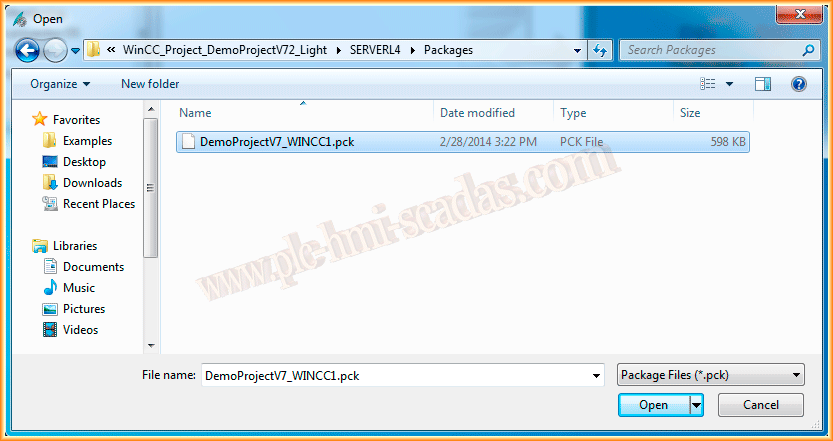
An example of what was described a paragraph earlier would be the following image; we can see that we are in the client machine directory and we have loaded the Server file SERVERL4.
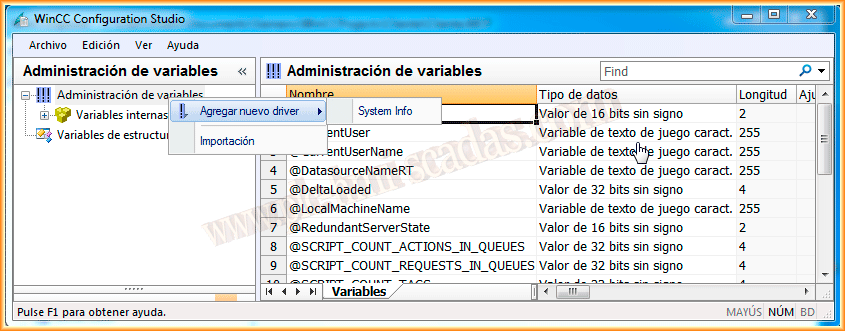
From this moment on, we can configure our interface screens according to our needs, and another characteristic that was missing to mention is that it is disabled to add a driver other than System Info; we can only create internal variables, as we assume that it is the Server that communicates with the PLCs.
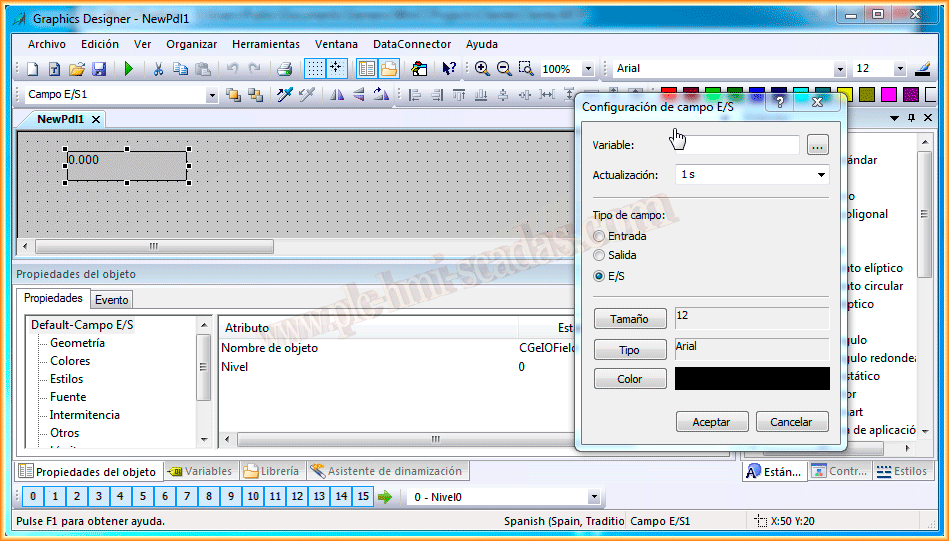
And if you were wondering how to access its variables, it is already done; at the moment we load the Server Data, we can access the Server variables. Let’s take an example; we will create a new *pdl with an Input/Output field object and link it with a variable from the PLC.
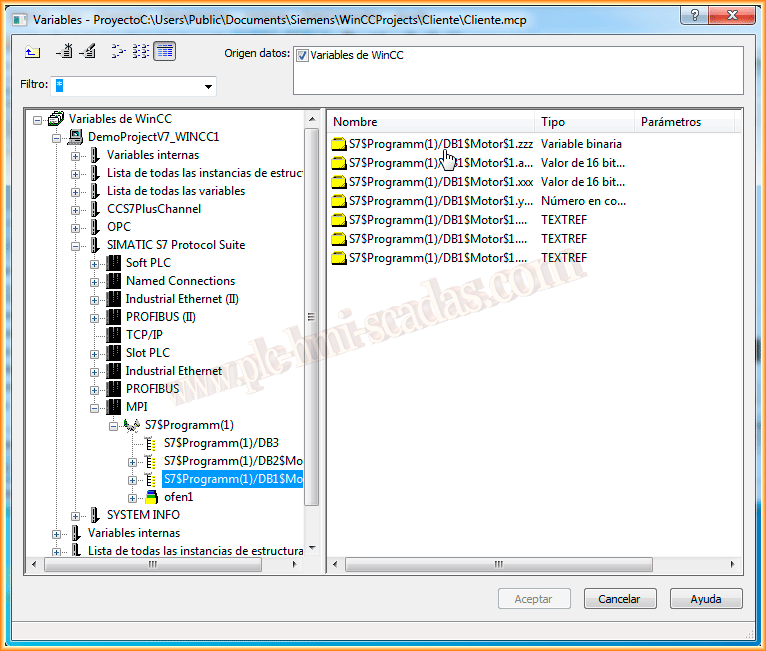
Once we have opened the variables screen, we can see that we have all the drivers configured on the Server, as well as all the created variables; we access the ones we need and that's it.
With these steps, we have seen the main features of the different projects we can create in WinCC.
And finally, if you found this useful or learned something new... you can help by sharing with your friends through social networks...
March 25, 2014