
WinCC Multi-User Project


The following animation shows the architecture of a WinCC project configured as Multi-User, where all events of TagLogging, AlarmLogging, and UserRegister are recorded on the same Server if configured.
It will also serve as the Web Server if the WebNavigator has been configured.
All clients interact only with the Server, without intervening in the communication with the different PLCs. As can be observed, there are two types of networks, one dedicated to the PLCs and another for the clients.
When creating this type of project, some details must be mentioned:
In the introduction, we saw that the default directory where the project is created is C:\Users\Public\Documents\Siemens\WinCCProjects. Once the project is created, its directory automatically becomes a shared folder, as all clients will load this project in WinCC.
That is, the project is unique for the Server and all clients, the exception is when we create a Client type project.
Another very important aspect is that in this type of project we will use the embedded Server Data application. Now we will see the entire procedure.
We will assume that we have already created our entire project and we will move on to the configuration part where we will register the clients and the necessary configurations.
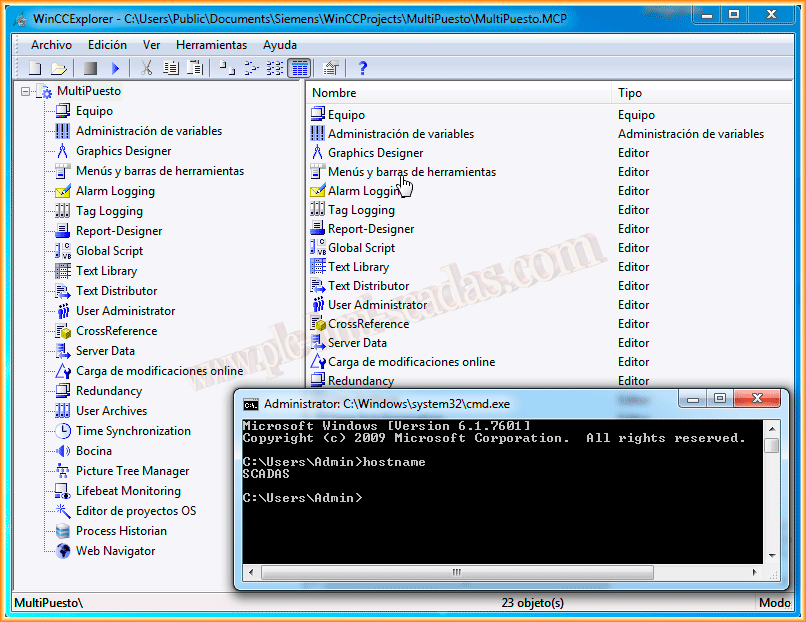
This is our project, which is running on the Server named SCADA.
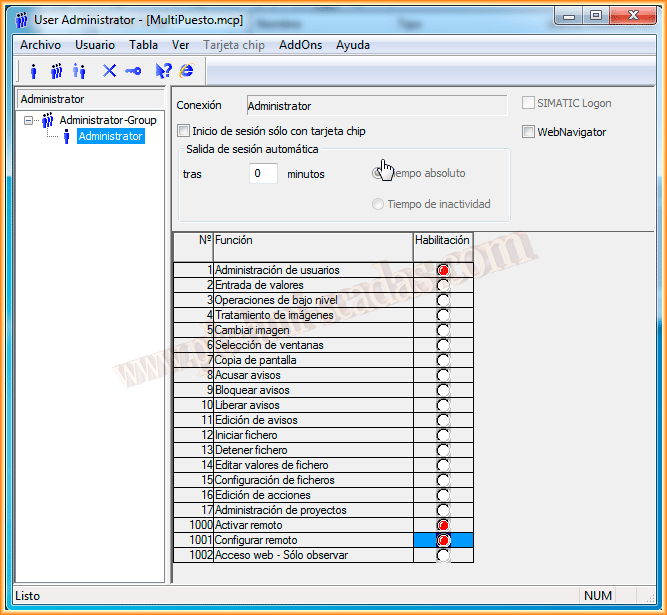
The first thing we will configure, in case we haven't done it previously throughout the project, is at least assign a password to the Administrator user, or create a new user, user group, and we will enable the options, Remote Activate and Remote Configure, with this we will be able to activate from our client.
The next step is to register all the clients that will connect to the Server, check the maximum number allowed, depending on the Operating System where the Server is running. For our test, we will configure only one client.


And finally, we will configure the Server Data, necessary for the client to access the Server's data and display them in their respective images.
We start the Server Data and what we are going to do is Create.

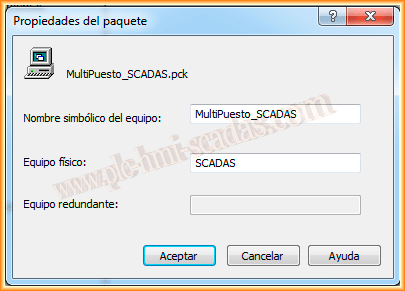
A pop-up window will appear, where we can change the symbolic name or leave it as default, we accept and if everything has gone correctly, a pop-up window will appear indicating it has been generated.
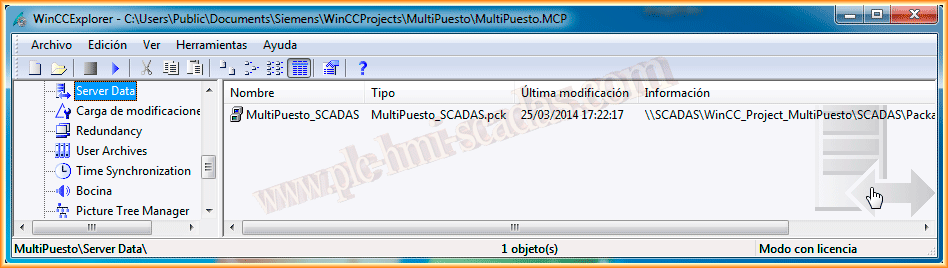
And now the generated *.pck file appears. If we later make changes to our system, we will have to update this file so that the clients are updated.
Up to this point, all the steps taken correspond to the Server and we will apply them in the same way to the creation of a Client Project, on the Server we will have performed the same steps.
Now we move to our Client Machine, which has WinCC installed, but we did not create any project here, we are going to open the project that is on the Server, for this, it goes without saying that both machines must be on the same subnet for it to be possible, since the communication between them is via Ethernet and we will use the Host name, not the IP address. We will have previously checked that we can ping between the machines and both respond.
We look for the directory on the Server Machine and we will have to log in to access it, it is almost essential for the proper functioning to create the same user and password on both machines to avoid future problems!!! And if we create users for this purpose, we must assign them to the SIMATIC HMI group.
Having logged in, we can now access the shared folders and select the project file.

When trying to open the project, a screen will appear to log in, here we must log in to the system with the user created on the Server who has permissions to activate the project as well as the remote, permissions 1000-1001.
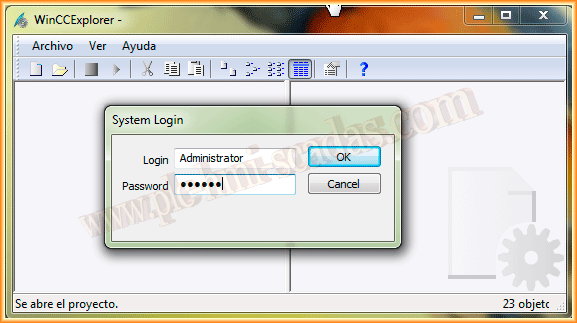
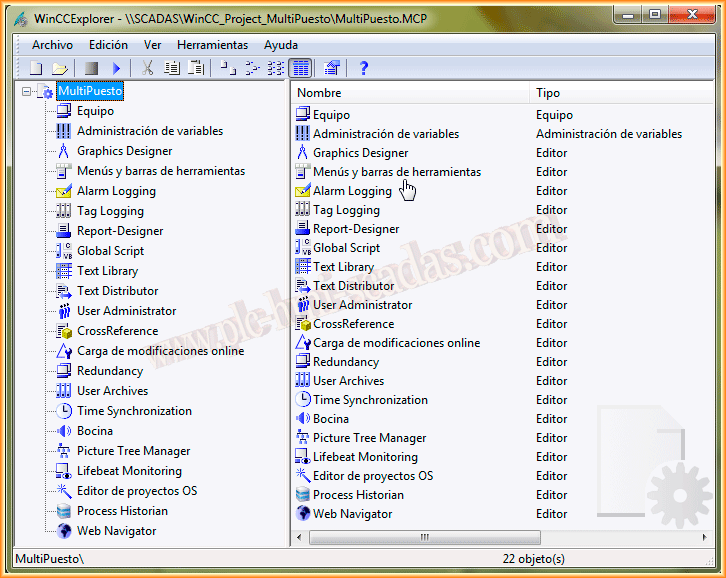
Once logged into the System, the project loads and as can be seen, we have loaded the project that is on the Server. One of the problems with this type of architecture is that if the Server goes down, all clients go down. For this, in the future, we will create a Redundant Server.
March 25, 2014