
OPC Driver Configuration WinCC
Last week we saw the example of the GetTagRaw function, in which we read a variable from a Beckhoff PLC with an OPC link to our WinCC. Today we will see how to configure this Driver.
The first thing we do is go to our variable manager and add a new driver.
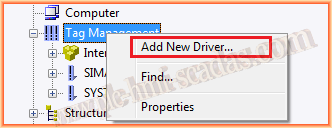
A pop-up window opens where we have all the available drivers. In our example, we select OPC.chn

Once added, the next thing we do is add a new connection, but this time we will go to System Parameters, as it will make it easier to create the new connection.

The following window appears where all the OPC Servers installed on our local machine will automatically appear. In my case, I configured it as shown in the image Beckhoff.TwinCATOPCServerDA and selected the Browse Server button.


A new window appears for filtering, we leave it by default, selecting the two Check Boxes (Read access and Write access).

Finally, we connect to the Server and can observe the variables we have linked. In my case, they are the following to illustrate this example. I select the 5 items and click the Add Items button.

As we did not have any connection created, a message will appear indicating that we do not have any connection. If we want to add one, we confirm that we do.

The next step will be to add the name we are interested in. Once we have entered the name or left the default one shown, we must add a prefix and suffix for our variables.

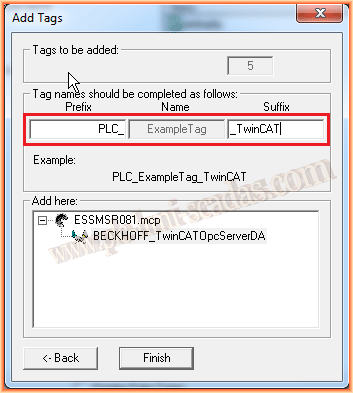
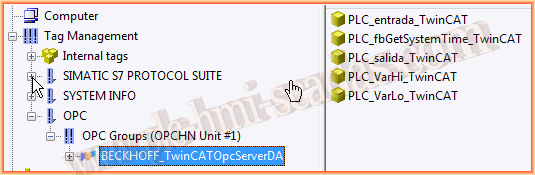
We finish the wizard by clicking finish and we have added our variables and completed the configuration of our connection.
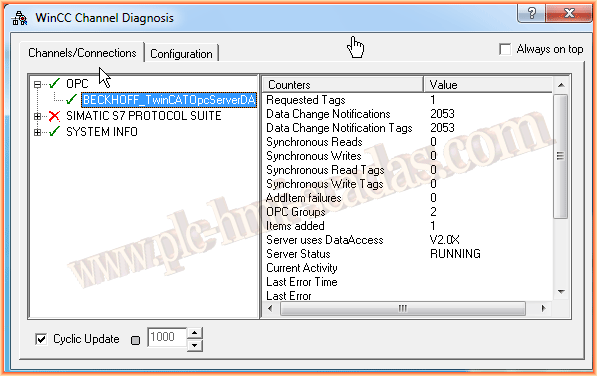
We can now put our project in Runtime and check its operation. The following image shows us that the communication is correct and works perfectly.
January 31, 2016
If you liked it or found it useful, share it :-)