
WinCC Show the KeyBoard
In the following example, we will see how to display the KeyBoard when we want to enter a value in an Input/Output field. Let’s assume we have several Warehouses and these are subdivided into zones, and in each zone we will enter a SetPoint.

In the default installation of WinCC, the Siemens KeyBoard is installed in the following path, assuming the Operating System is in English; if it is in Spanish, it will be C:\Program Files\...
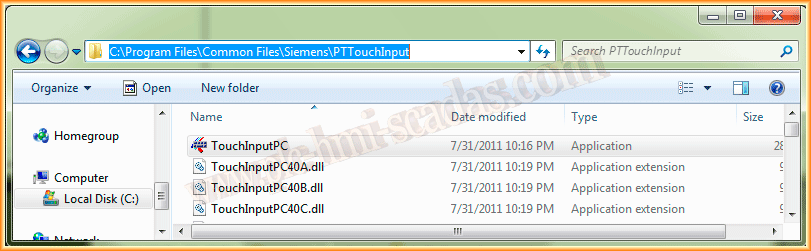
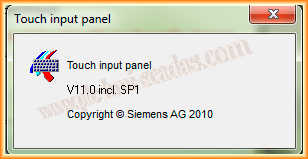
If we directly execute the application, it will show us a pop-up information window and the Keyboard, which by default appears as is observed.

Well, commenting on the above, we will create the mouse Click event on the I/O field and we will use the ProgramExecute function. As its name suggests, it is used to execute an application.
It is important to put a double '\\' between the different directories as observed; next, we will pass two parameters, the first one to show the Keyboard in numeric version and at the same time not to show the pop-up information window.
Thus, when we click, the keyboard will appear as follows:


Let’s assume we have entered the value and we no longer want to keep the on-screen keyboard active, so what we will do is implement in the event Others-->Modify Object.
We will use the same code, but this time we will pass the parameter -Close, so once the value is entered, the keyboard will close automatically.

Considering that we have several Input/Output fields, now it would be a matter of copying the code to all the objects where we are interested, but... if there are hundreds of them...
In the next practice, we will start creating Macros to automate repetitive tasks so that a few lines of code do the work for us...
If you liked it or found it useful, share it...