WinCC - MySQL DataBase


In this first article with MySQL, we will cover the essentials, such as how to communicate WinCC with a MySQL database, just as we did with Oracle.
By default, if we try to establish communication without having prepared the WinCC equipment, we will not be able to, so we need to follow some steps.
1.- Installation of MySQL Connector / ODBC Version, we will see this next.
2.- ODBC Data Source Configuration, this step is optional, although we will cover it.
We start with the first step and perform the complete installation of MySQL Connector/ODBC 8.0, which is the current version.
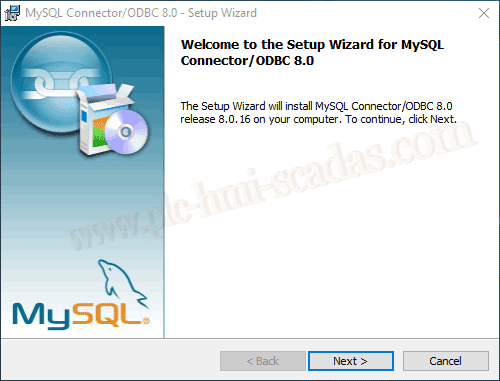
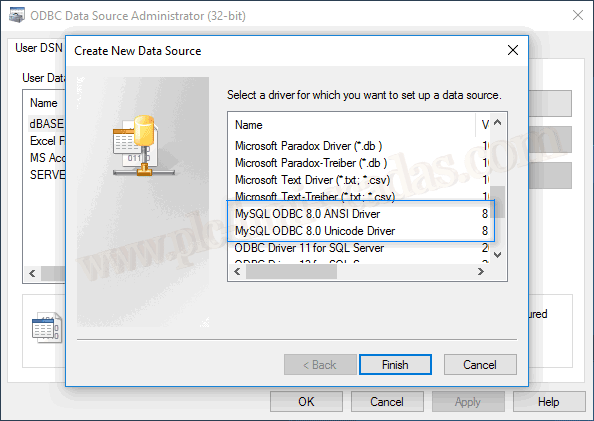
Once the installation is complete, and very importantly the 32-bit version, we can check that we have two new drivers available. We then proceed to configure its Data Source.
We have already seen the DataSource name, description, IP address or Server Name, by default port 3306, and I will use the root user, which is the administrator when we performed the installation.

If you encounter this error when checking connectivity, it is because the user you specified does not have the necessary permissions to connect. You need to use the query:
GRANT ALL PRIVILEGES ON *.* TO 'username'@'%' WITH GRANT OPTION;
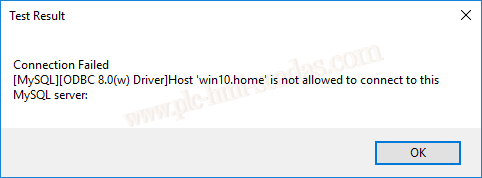
However, I have created a new user, to which I have configured all the necessary permissions.
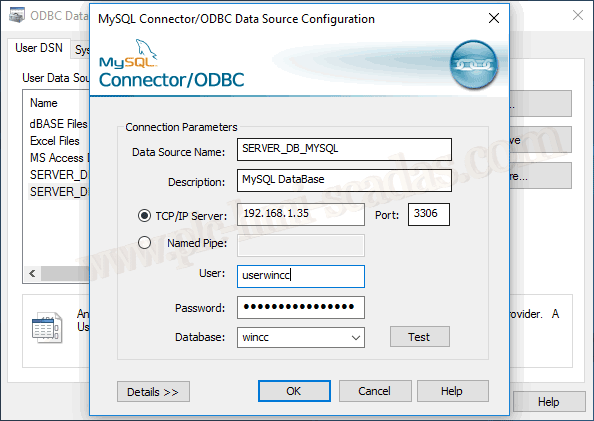
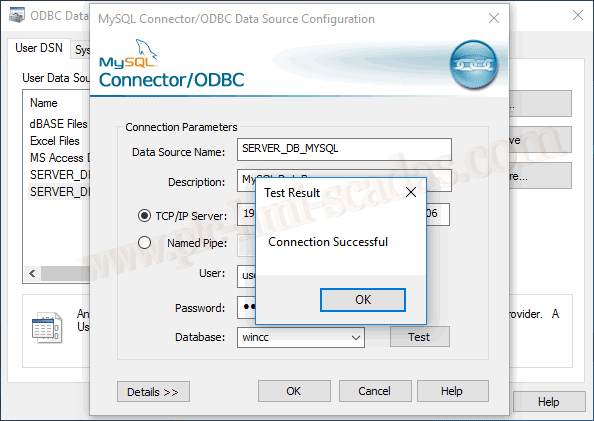
We have now configured our Data Source called SERVER_DB_MYSQL, which we will use in our script.

As we mentioned earlier, configuring the Data Source is not necessary, but if we encounter any modifications or migrations, we need to know where it comes from to review it and check which Database it refers to.

If we have not created any Data Source, the connection string would be as shown. IMPORTANT DRIVER={MySQL ODBC 8.0 UNICODE Driver} will vary depending on the installed version or the one we install.
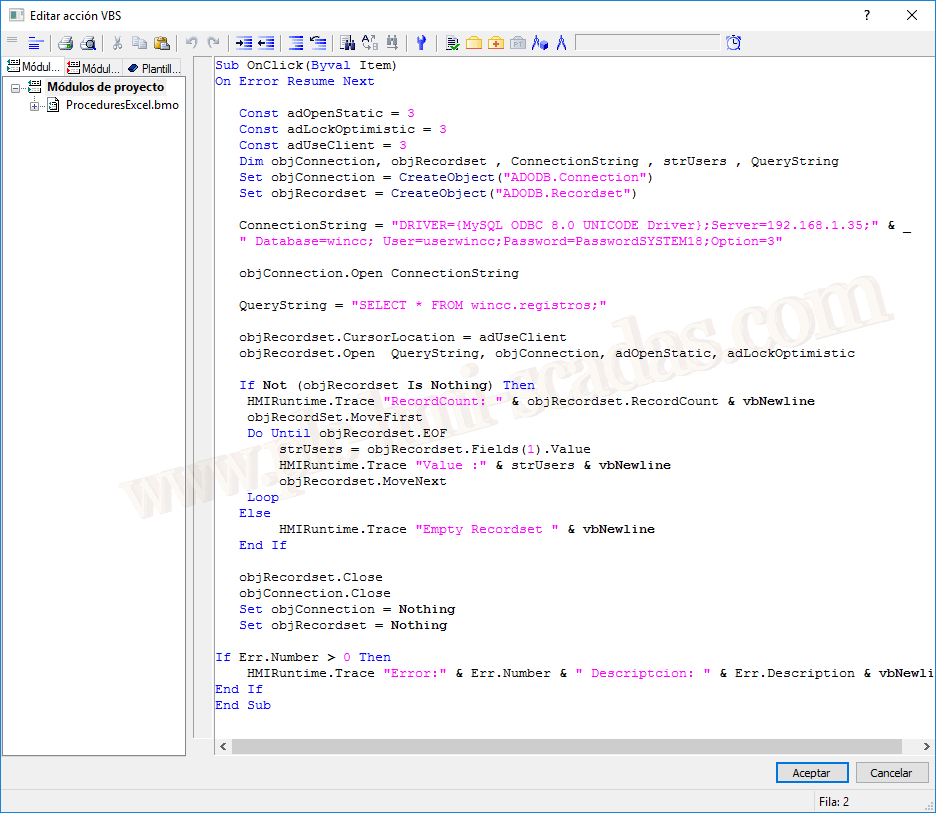
We associate the scripts with their corresponding buttons, and we need to test their functionality...

These are the values we are reading from our MySQL Database that is on the Server.

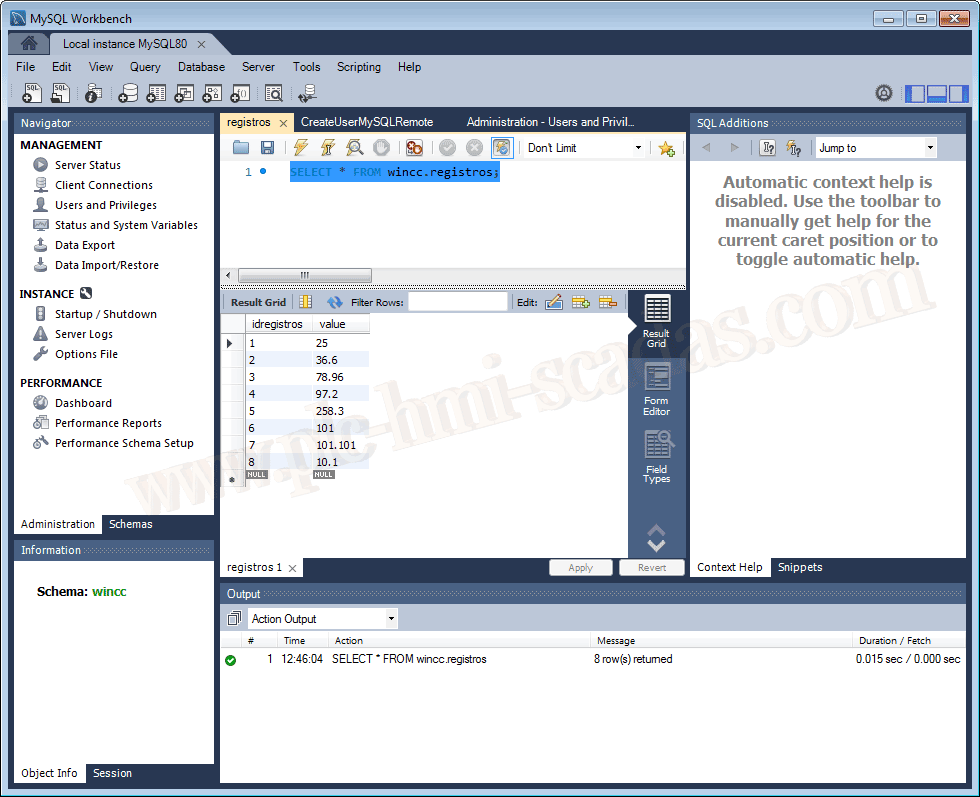
And the values that are in the Database.