WinCC - Oracle DataBase


In this first article, we will see the essentials of how to communicate WinCC with an Oracle database. If you are interested in MySQL instead, check MySQL.
By default, if we try to establish communication without preparing the WinCC equipment, we will not be able to do so, so we need to follow some steps.
1.- Installation of Oracle Data Access Components (ODAC) or alternatively, installation of Oracle Client, but since we only need the drivers, I opted for the former.
This second step is optional, but it is another method, so the more information, the better, in case we encounter any modifications and this method is used.
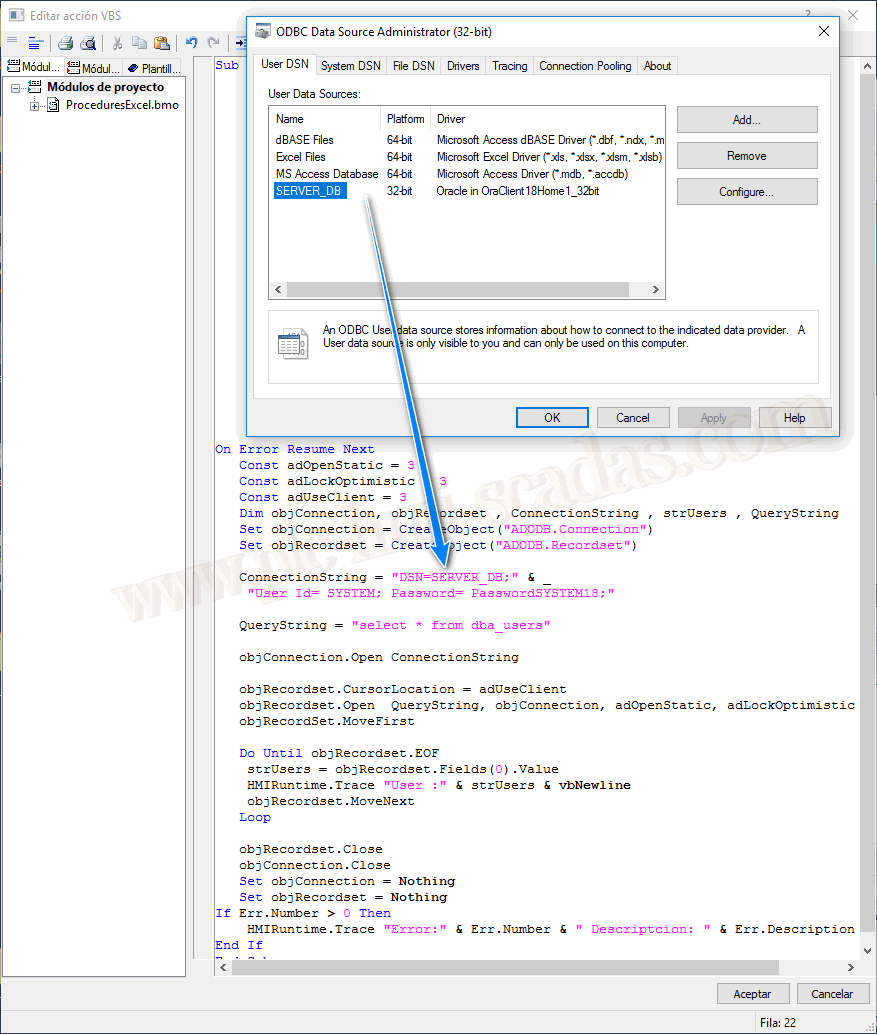
2.- Configuration of ODBC Data Source
If you have followed step two, we continue from there, and this is the ConnectionString we will use, utilizing the Data Sources we have created. It is important to specify the username and password.
For the example, we will perform a select of all users; here, adapt according to your needs.
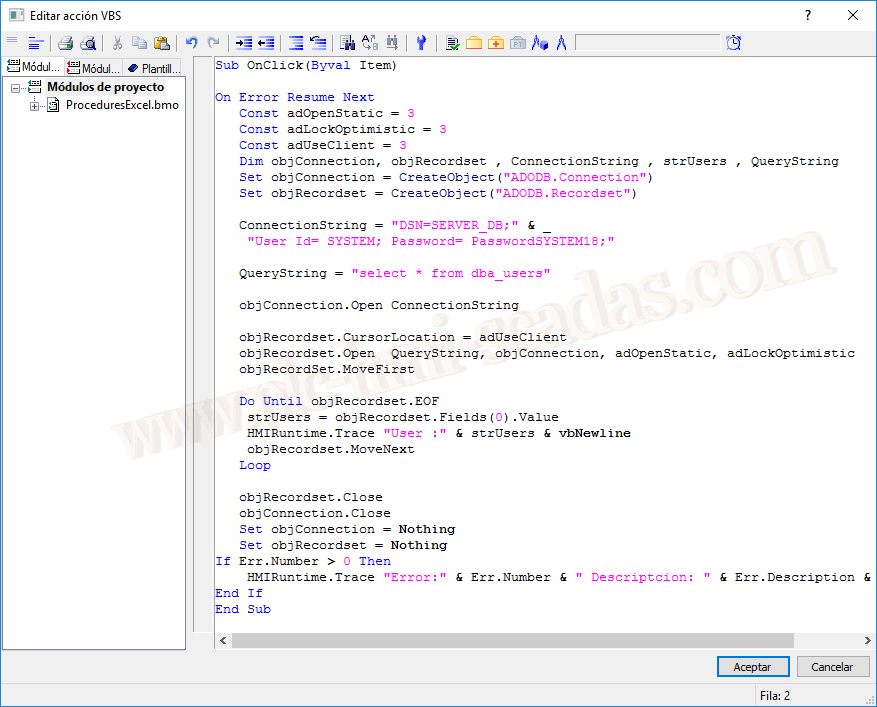
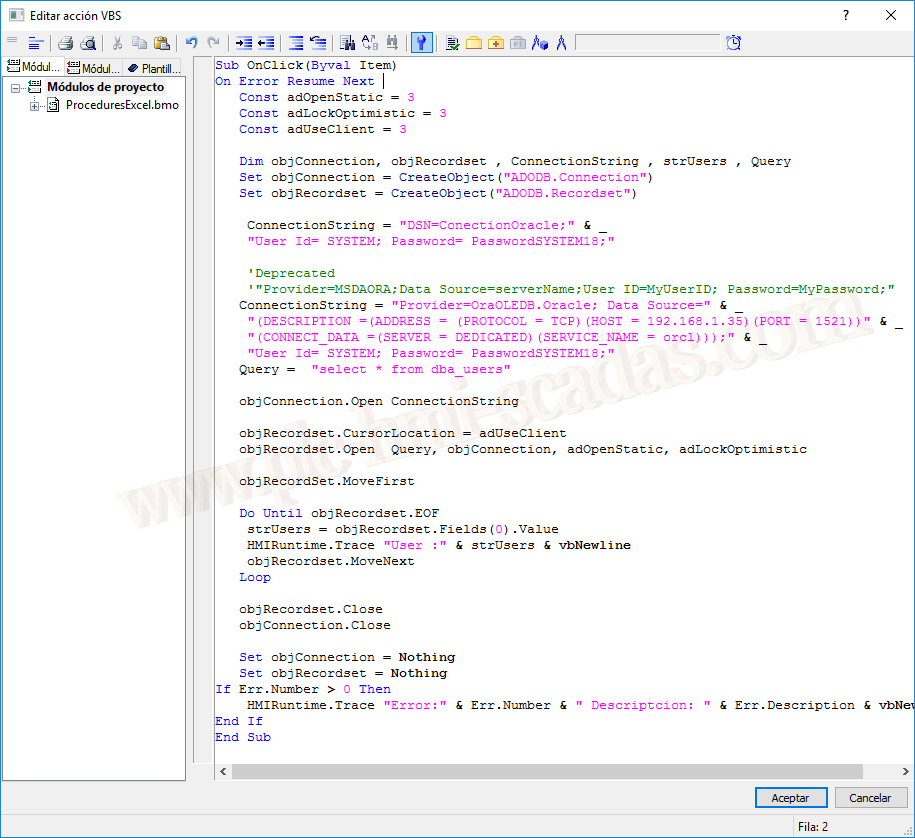
The script that I have assigned to a button to check its functionality
Step one is essential, so here you will understand the TNSNAME.ORA file we talked about and how to use it to define the Data Source with the provider OraOLEDB.Oracle.
As additional information, MSDAORA as a provider has become obsolete, although you can find it in older versions that are currently running.
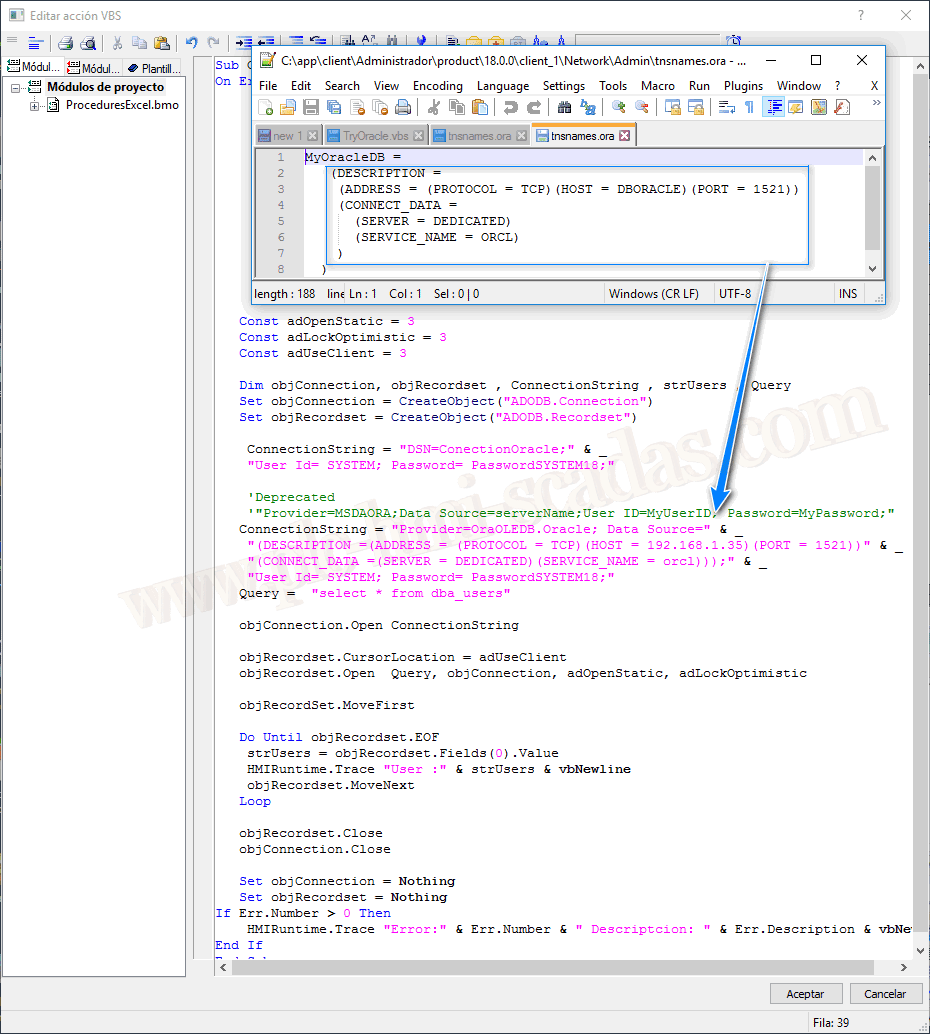
The script that I have assigned to a button to check its functionality
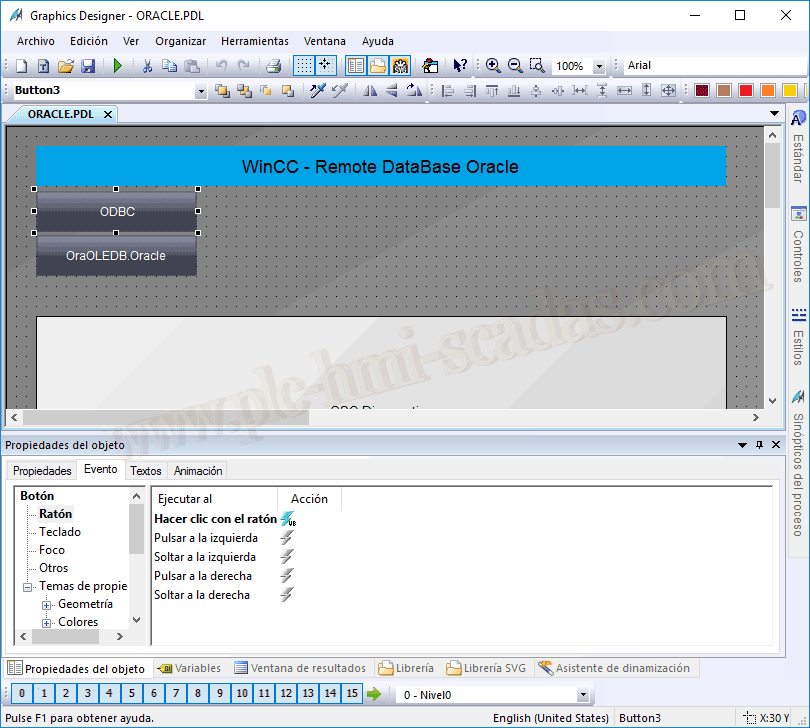
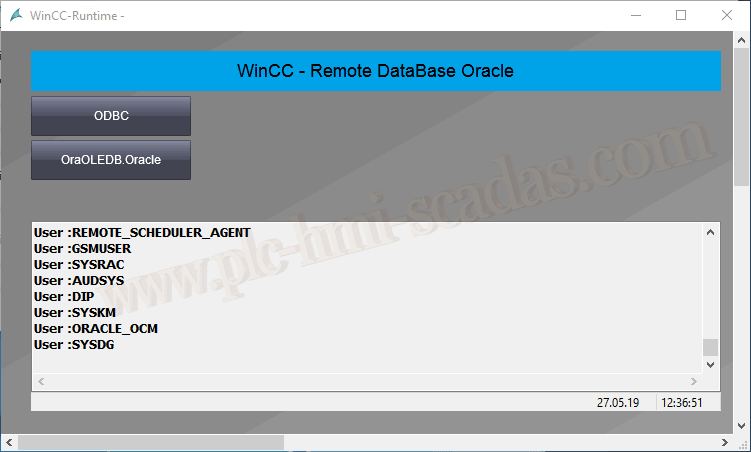
Here we have the two buttons, and now we move to Runtime to check it.