
WinCC - PM Quality (Reports)


In the previous article, we left off with the report of the Batch that we had produced missing.
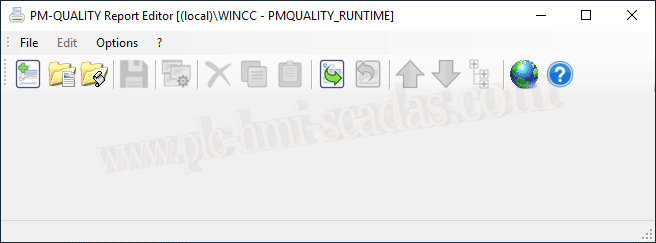
We open the PM-Quality Report Editor, and what we already know is that we will extract the data from the PMQUALITY_RUNTIME database, which is where it connects. This means that we can connect to a database that we have exported to generate the reports.
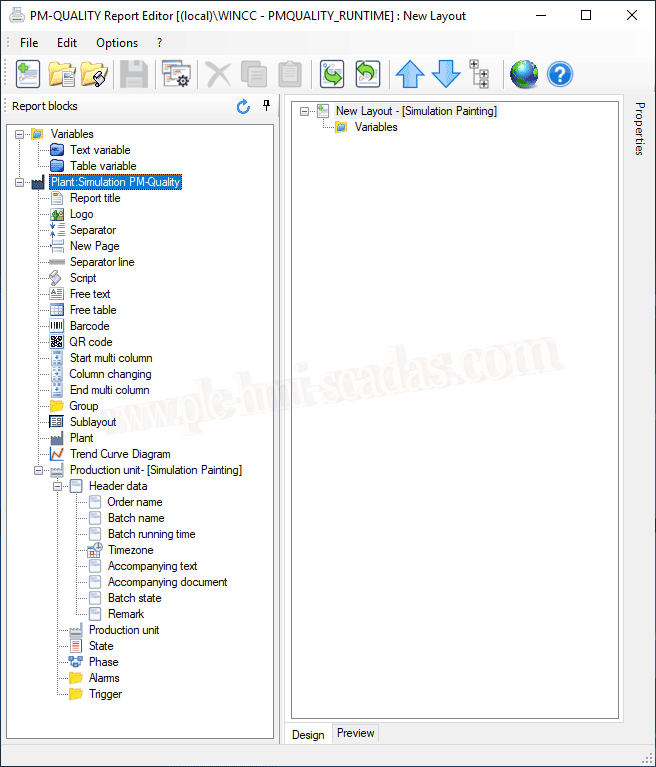
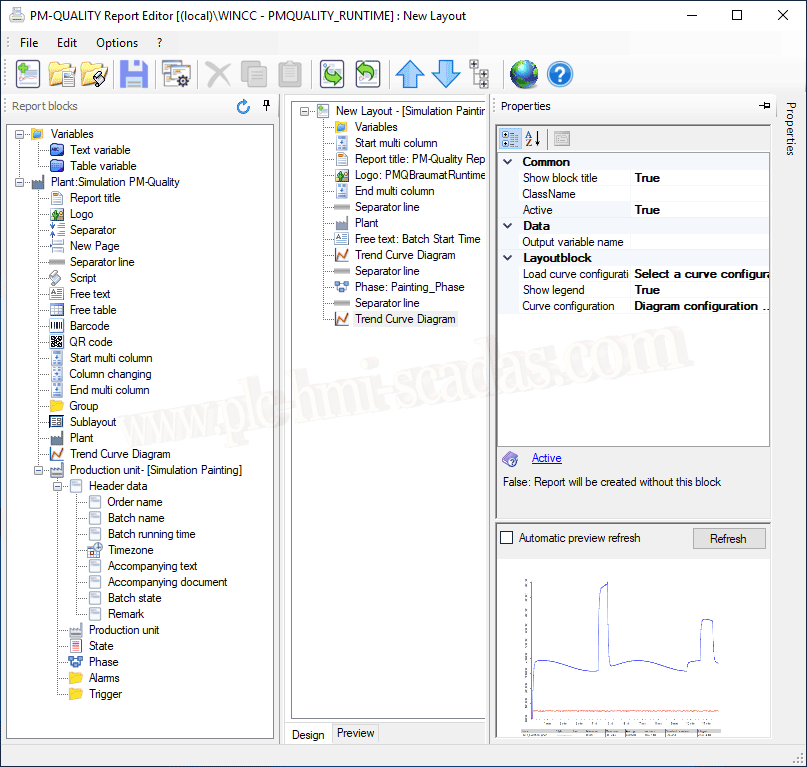
We create a new report, and following the same philosophy in the left tree we have the components that we can insert into our Layout for the generation of the Report
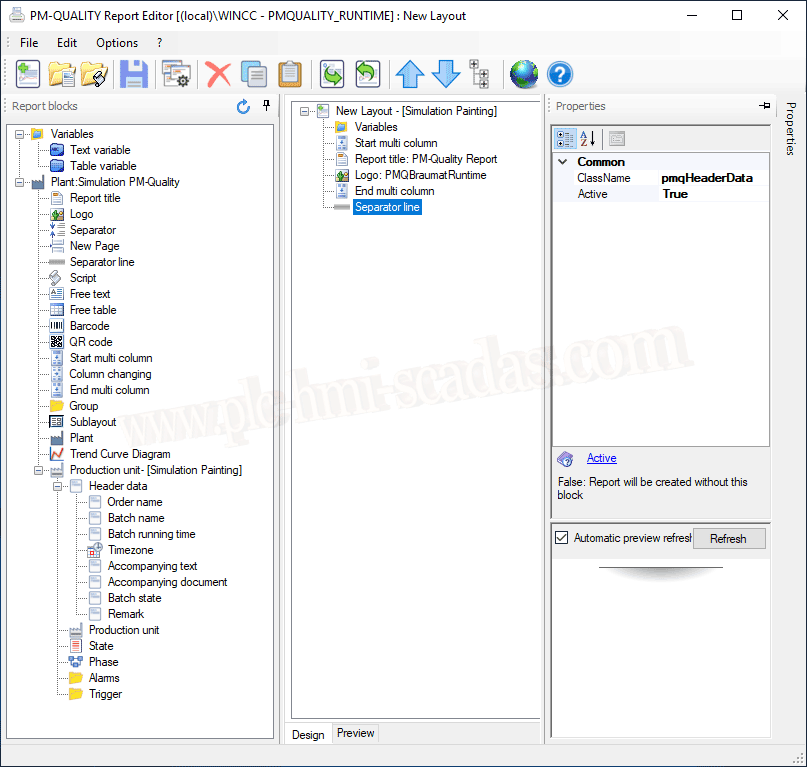
Honestly, now it’s about testing the different components to see how they behave and how we can adapt them to our needs.
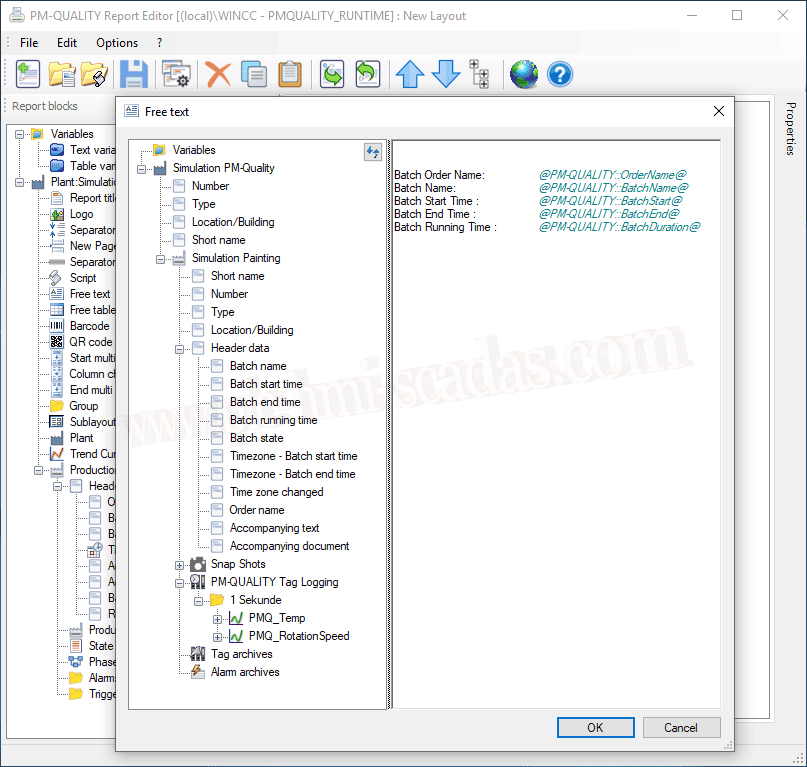
The FreeText component displays our entire topology, where we will be able to select the information that interests us.
We insert Graph objects and just like in WinCC, we select the curves that interest us, time axes, colors, etc...
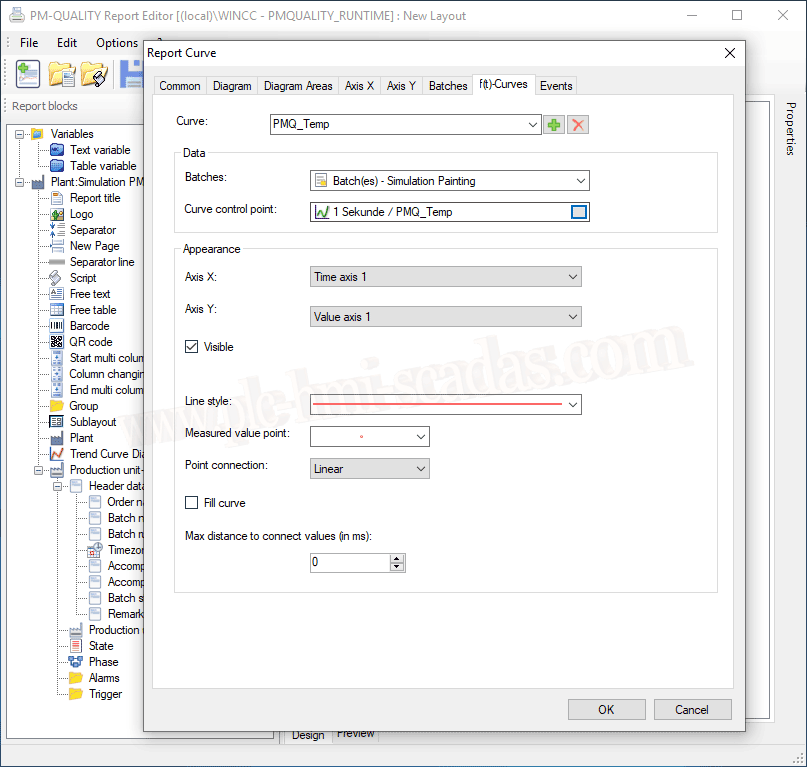
All the objects / Components that we insert have their properties that we can modify, and a preview of how the object will look. It also includes a preview of the overall report, simply by changing the tab.
Just like this template, we generate all the reports that interest us and save them.
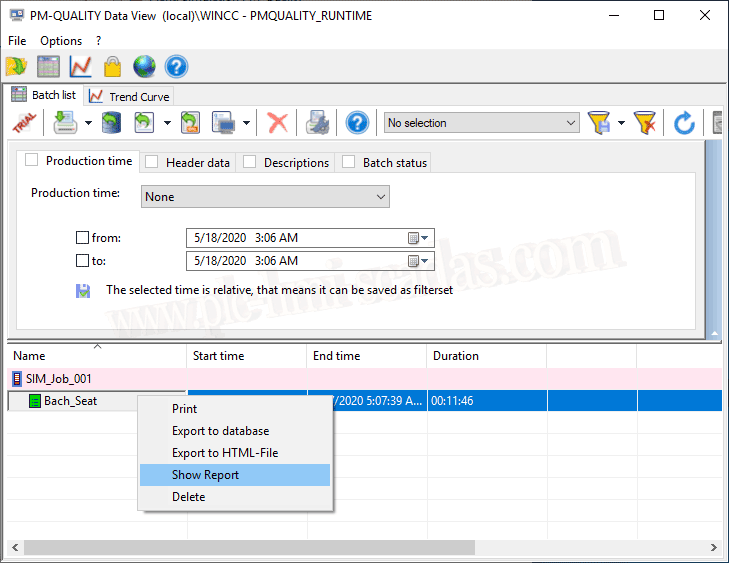
If we now return to the PM-Quality Data View, it will automatically connect to the PMQUALITY_RUNTIME database if we have not selected any other and will load all the Jobs and Batches that depend on it.
Either with the right button or with the icon, we can display the report
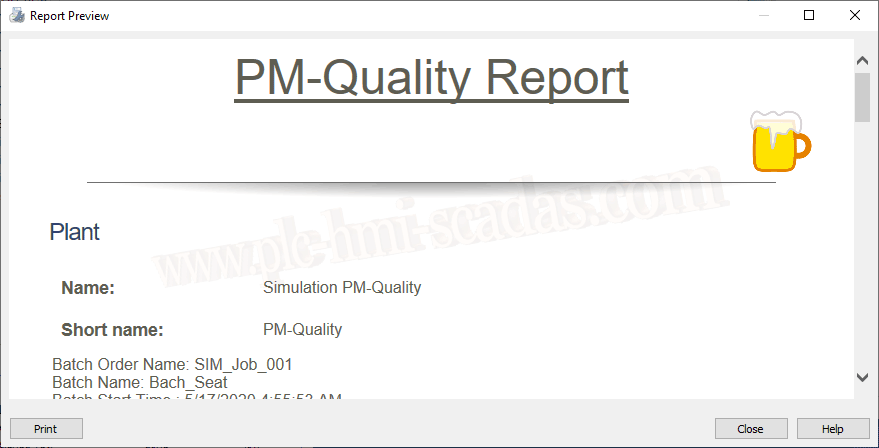
If there is only one report, it will automatically load this one; if there is more than one, it will give the option to select the one of interest and we can view it and print it later if needed.
At a minimum, we now have a more global concept of this Add-On.
18-05-2020