
WinCC - PM Quality (Topology - Phase - Trends)


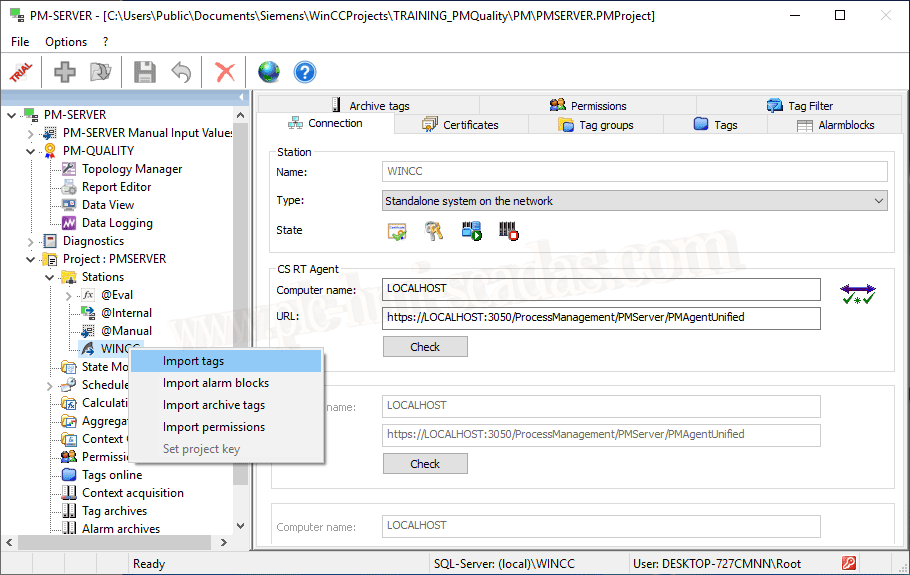
In the previous article, we configured our station. We are now ready to import all the necessary information from our WinCC project to our PM-Server.
The import options allow us to import permissions, which are the users defined in the WinCC project, TagLogging, AlarmLogging, and of course, the Tags.
To avoid extending too much with many images, we follow the Tag import wizard to filter the tags by the groups we are interested in and keep it well organized.
And the question is, which tags are necessary for us to use...
By default, PM-Quality requires certain tags for its operation, these tags will be seen in the topology configuration where we will use them.
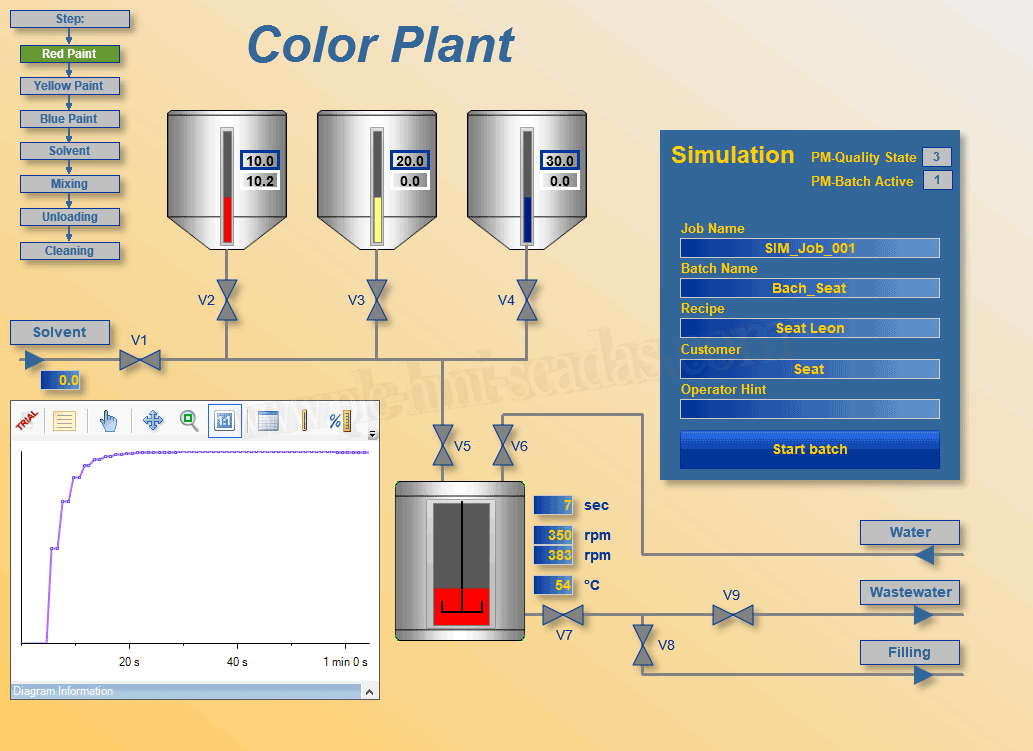
To answer that question, we need to know the process we are going to execute and the execution steps that we could translate as the flowchart of our Batch. Note that the steps are already defined and are what we base our process operation on.
The following image is from the demo project we are going to use, which already has the process simulation created with internal scripts in WinCC, so we will take advantage of this resource.
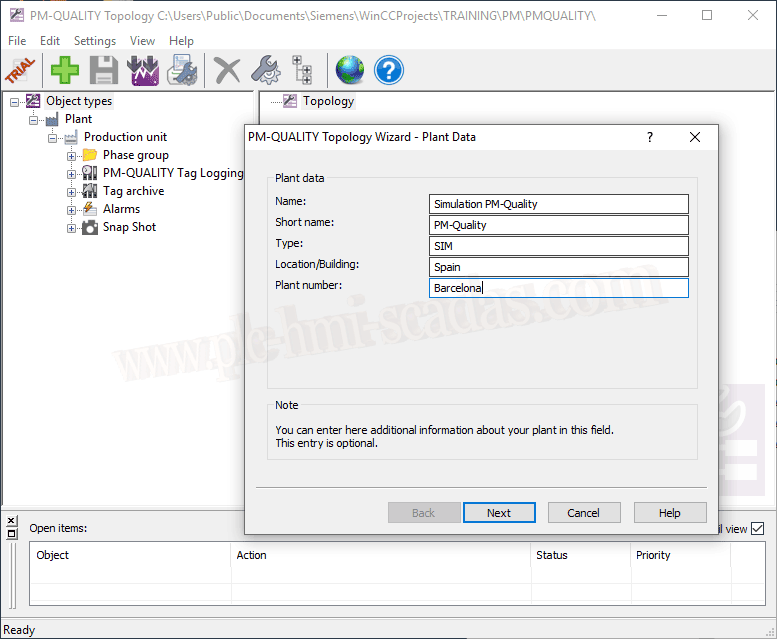
Continuing with the configuration, the next step we are going to take is the topology configuration.
The first step is to define a new plant, as we become familiar with the environment, we do this with the + sign or right-click and start the wizard, where we insert the necessary data.
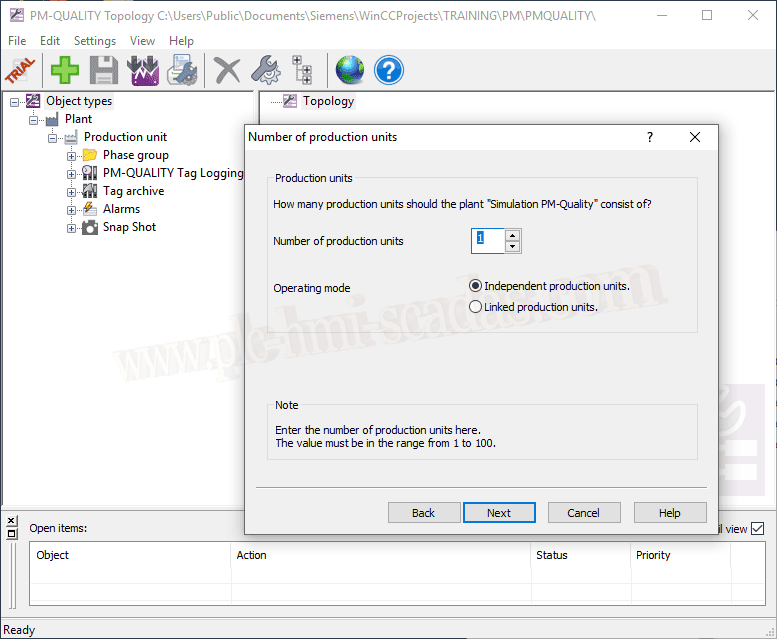
Continuing with the wizard, we define the number of units, with a maximum of 100.
And we define the names of the different Units that we defined in the previous step.
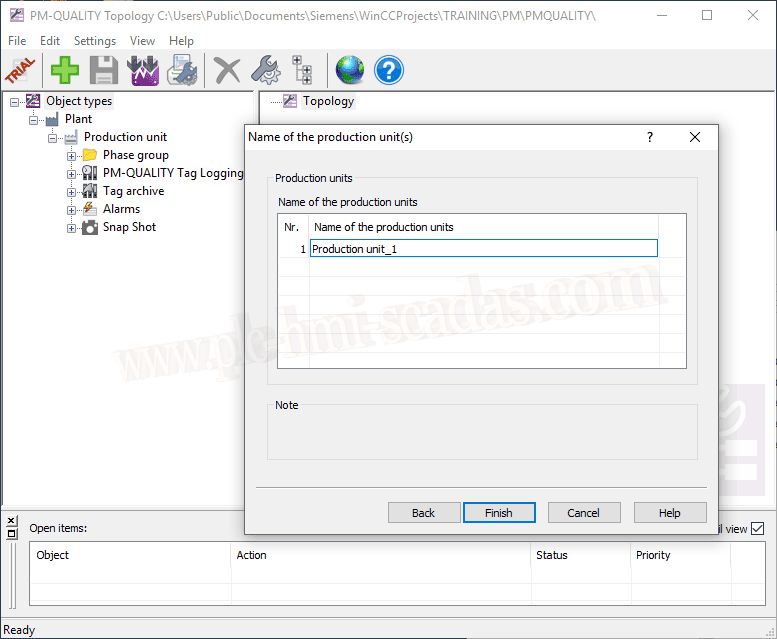
We already have the main base, clarifying a bit, we have only defined one unit because we only have the Painting plant; if we also had the packaging plant, it would be another unit and so on.
Each unit has an associated Control/Status, which here are the essential tags.
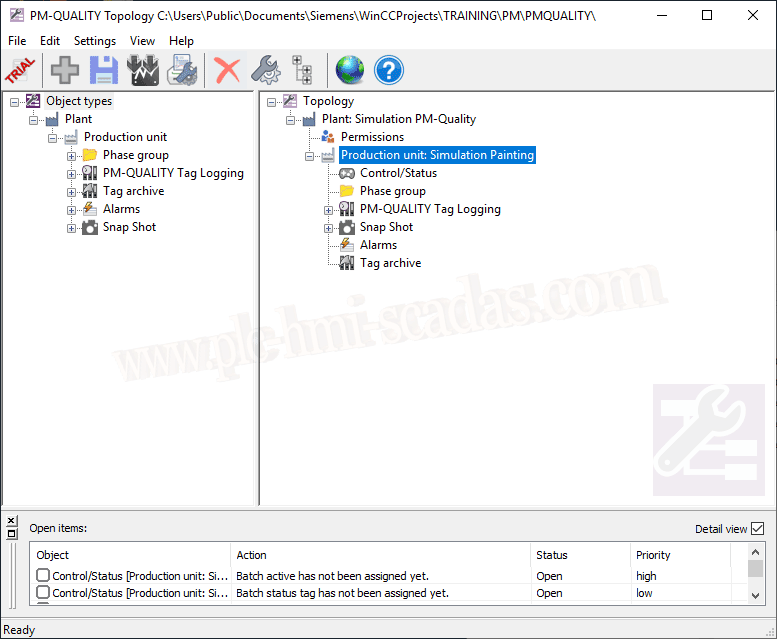
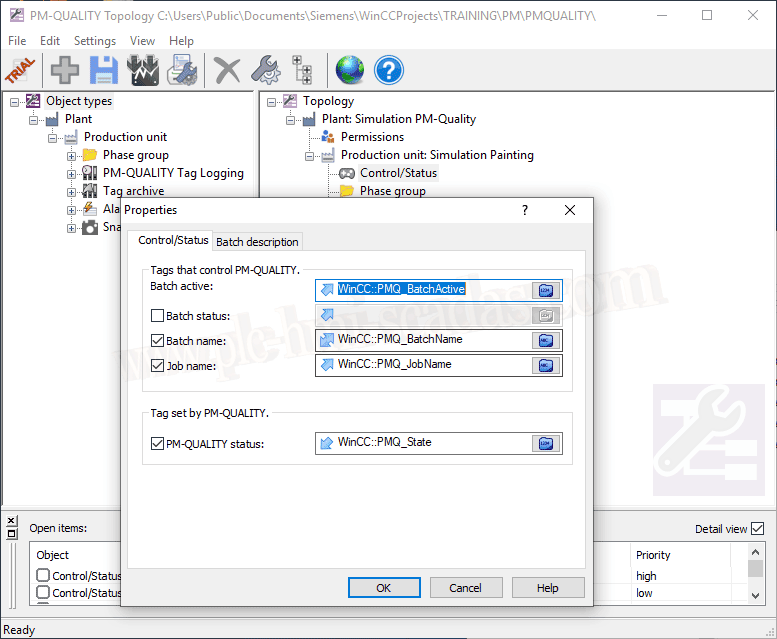
We are going to see the necessary tags; to start, if the Batch is active, this is a parameter that we send to the PM-Quality, and the Status we receive is obtained from the tag we have assigned. Other tags are the Batch Name and Job Name.
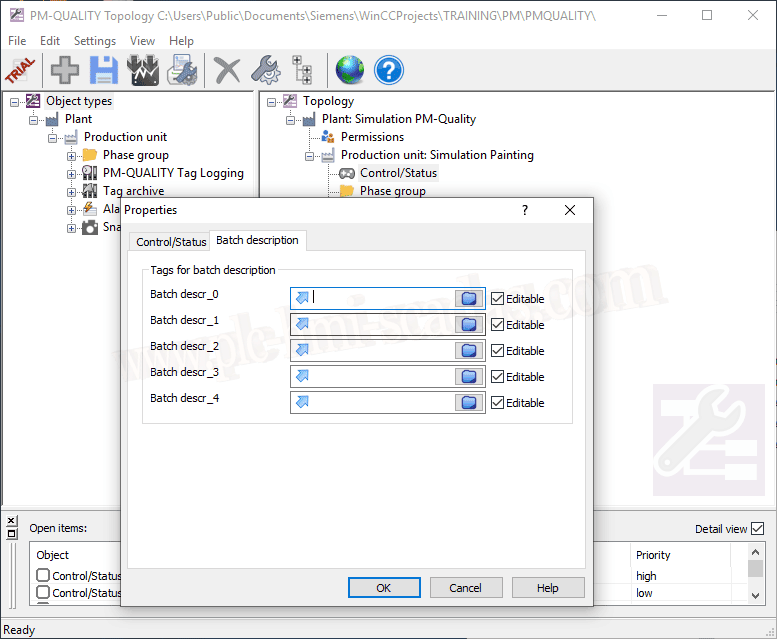
In the Batch description section, we have 5 tags to be defined by the user with the variables of interest; for now, I will leave it as is.
The next essential variable will be the tag corresponding to the Phase, just as we have already mentioned, either with the plus sign or right-click and insert a new Phase; until we define the tag, it will not be enabled to insert the different states.
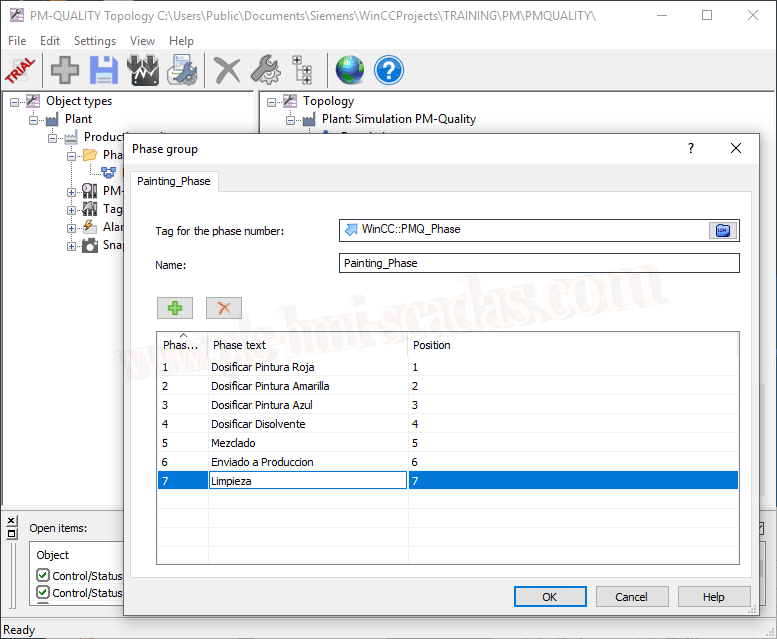
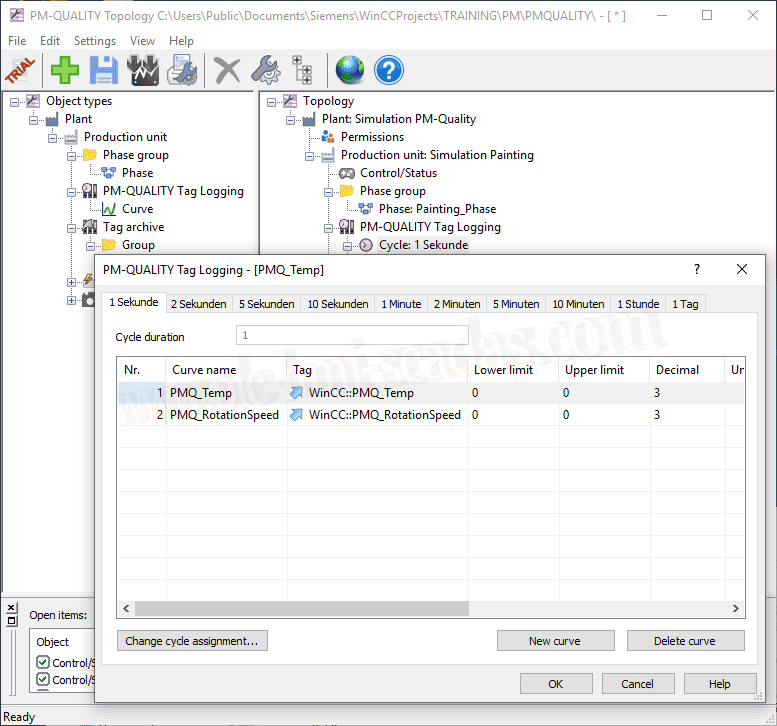
From here, the rest of the configuration will depend on our process and what we are interested in recording; I will register two variables in the PM-Quality tag Logging to test the operation.
Note that by default, the limits must be configured because they are 0 by default.
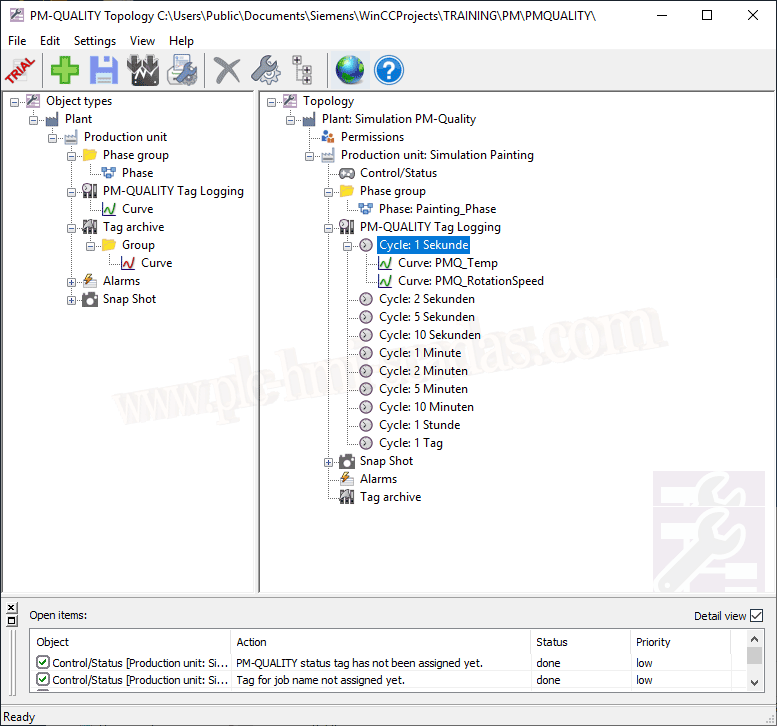
We have already defined the essentials.
- We have created the Plant
- We have defined the Control/Status variables
- We have defined the phases of our flowchart
- And additionally, we have configured a log of two variables
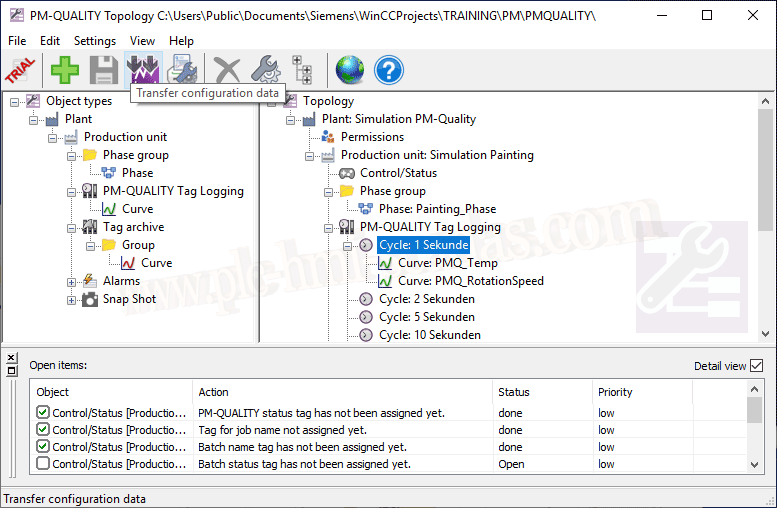
We can now save the configuration and transfer it; for this, we use the selected icon.
So let's try to start the Runtime and check this first stage we have completed.
If we start the Runtime and begin the simulation of our Batch, we will see that the Data Logging service must be started, and there we will see the different events through which our Batch evolves.
But before starting it, let's configure it so that when the Runtime starts, the Data Logging starts by default; we have two options to do this, either in the WinCC project where we select the services we are interested in, add a new one, or in the PM-Server configuration, in the Startup List section, we enable this service.
As additional information, I also add that the PM Agent Unified must be running; this service by default starts automatically when logging in.
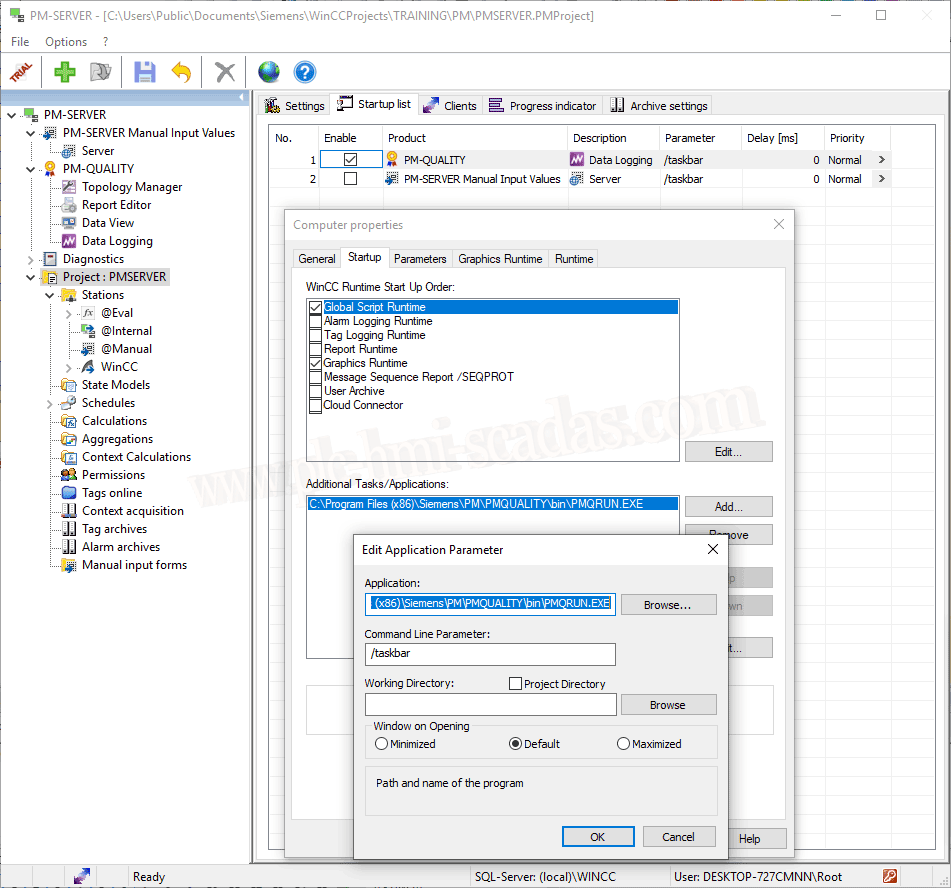
With this last step completed, we can now start the Runtime. I will simulate a new Job and Batch to perform, and we will observe how our Batch evolves in the Data Logging as we discussed earlier.
Here is a screenshot once it has finished, to observe all the information that has been generated and the evolution of our production.
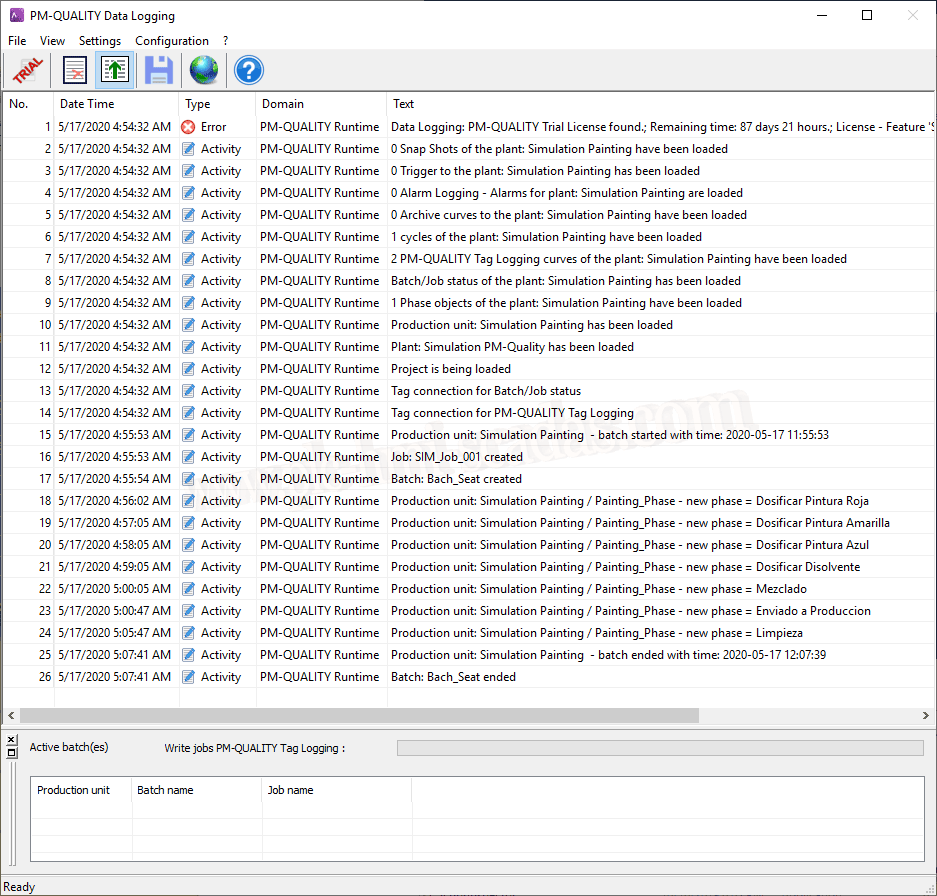
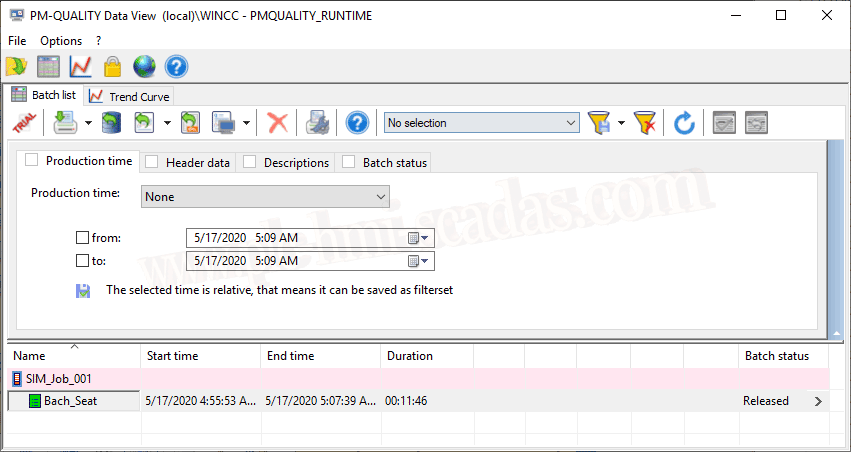
Now we are in a position to visualize this information in the PM-Quality complement -> Data View.
We have the Batch we have performed, and if you remember, there were some description tags that we did not configure; there were 5, that information corresponds to the 5 columns that are currently empty.
Additionally, we would need to go into more depth regarding this control, but for the Batch we are interested in, we can export it to an independent database that is generated, and I suppose that with the Excel complement, we could connect to it and visualize it.
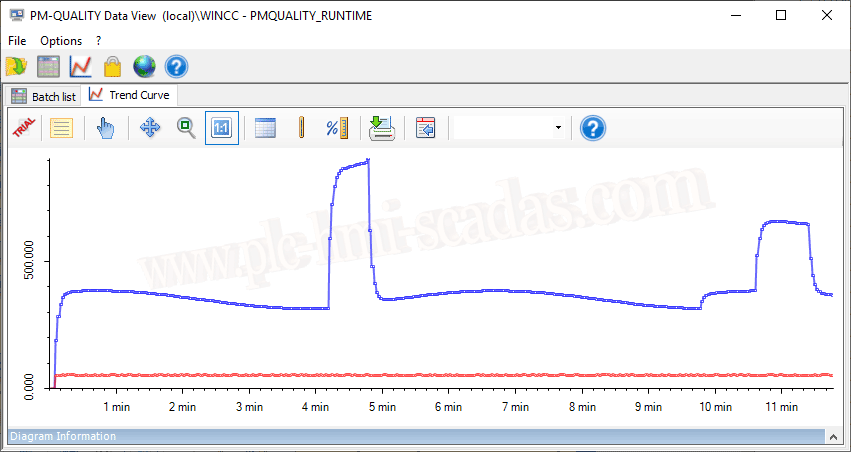
In the Trend Curve section, we will be able to visualize all the Tags that we have considered we need to register.
Now to finish, we would need to print the Report with all the necessary information and adapted to the needs, but since we have not yet completed that part, we do not have any report to print or visualize, so we will leave that for the next article.
17-05-2020