
ActiveFactory/Historian Client Trends Configuration
In one of the previous practices, we saw how to Configure the TrendClient Control where the data source was the Historian Server. This time we will look at one of the applications included in the ActiveFactory software in its older versions or Historian Client in its new version, the application is the Trend.
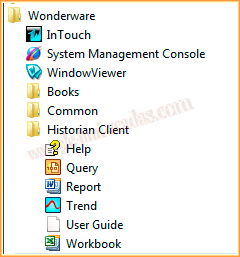
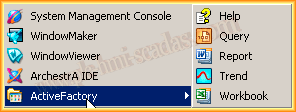
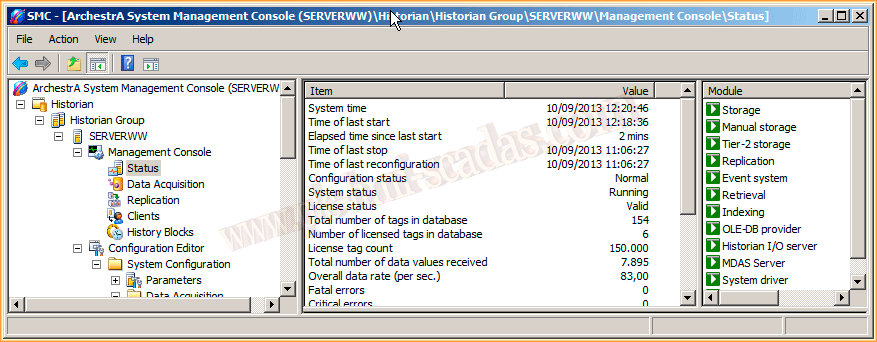
Here we can observe that on our server machine called SERVERWW, we are running the Historian, where it is assumed that we have configured the tags that interest us.
Regardless of the version we have, ActiveFactory or Historian Client, we run the Trend, as its configuration is the same, this is the interface it shows us.
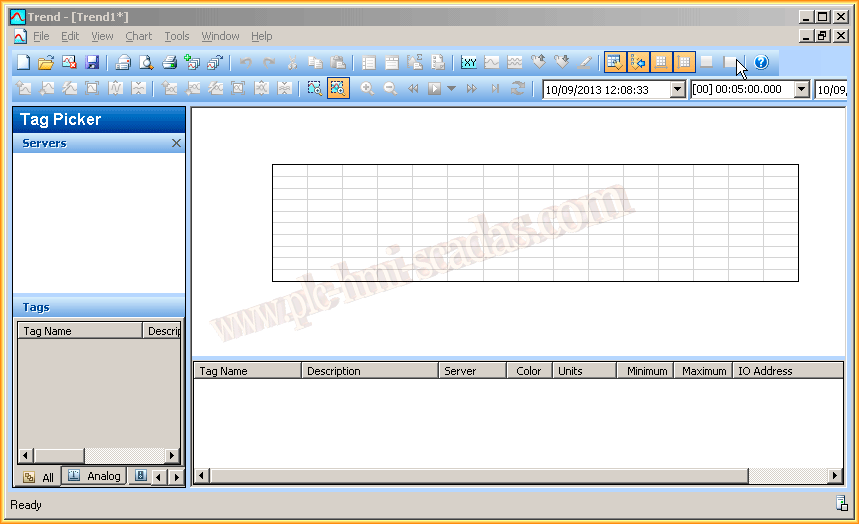
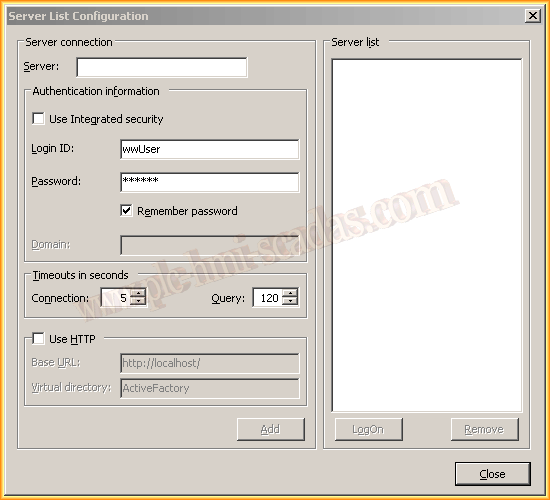
The first step is the server configuration. When the application is run for the first time, the server configuration wizard may appear; however, we can access it through Tools -> Servers..

And this is the wizard for server configuration. In the TextBox regarding Server, we specify the name of our Server, and by default, the user wwUser appears to log in with its password. For this, we return to the server where the Historian is running.
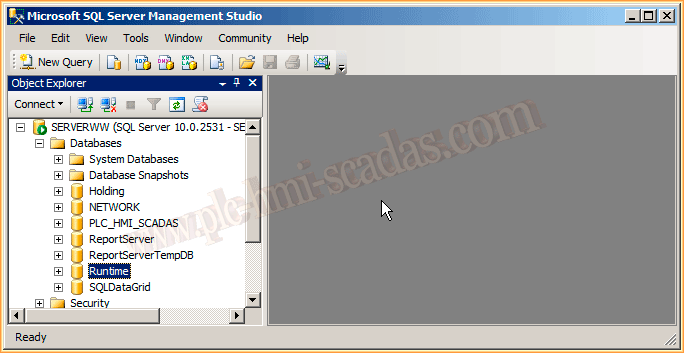
We log in with Management Studio to the SQL Server. By default, after installing the Historian, a database called Runtime is created, where we can observe the tables and more...
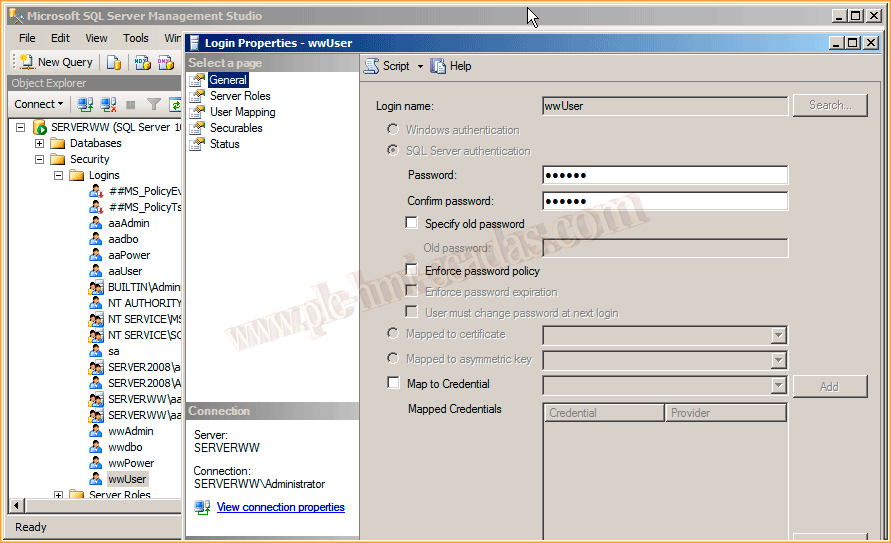
And in turn, if we go to Security -> Logins, we can observe the user wwUser, which we need for the server configuration. Here we can change its password and permissions on the database.
If we return to our configuration, we can now enter the password and add the server. It may happen that an error or warning occurs if the user wwUser does not have permissions. If it proceeds without incidents, we have now added the Server.
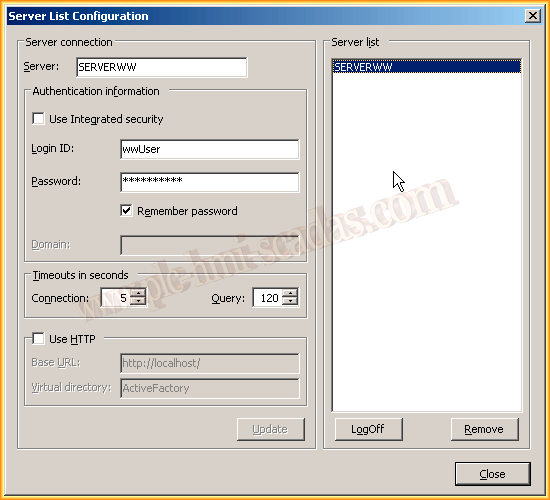
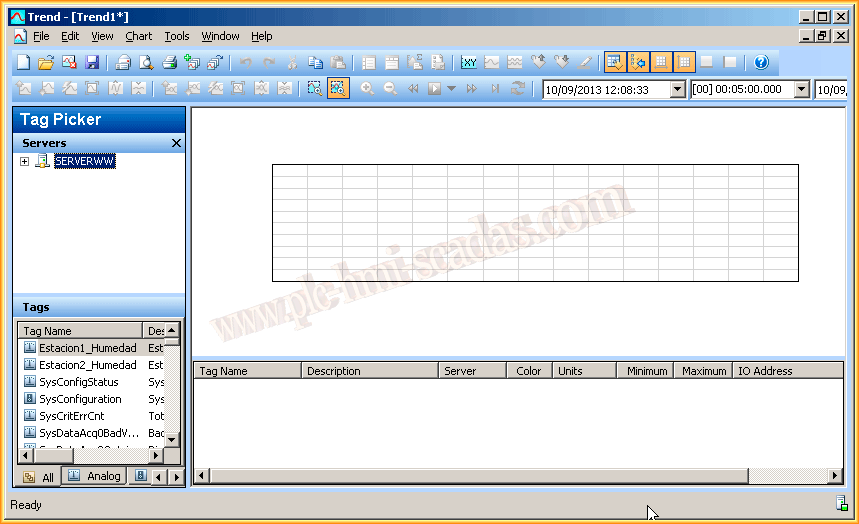
We can now observe our server correctly added in the TagPicker Section; we can expand the tree and observe all the subdirectories.
To observe a Tag, we simply search for it and drag it to the graph window. Once added, we can press Play and navigate to observe the values it had from day xxx to day xxx, and we observe a time of 5 minutes...
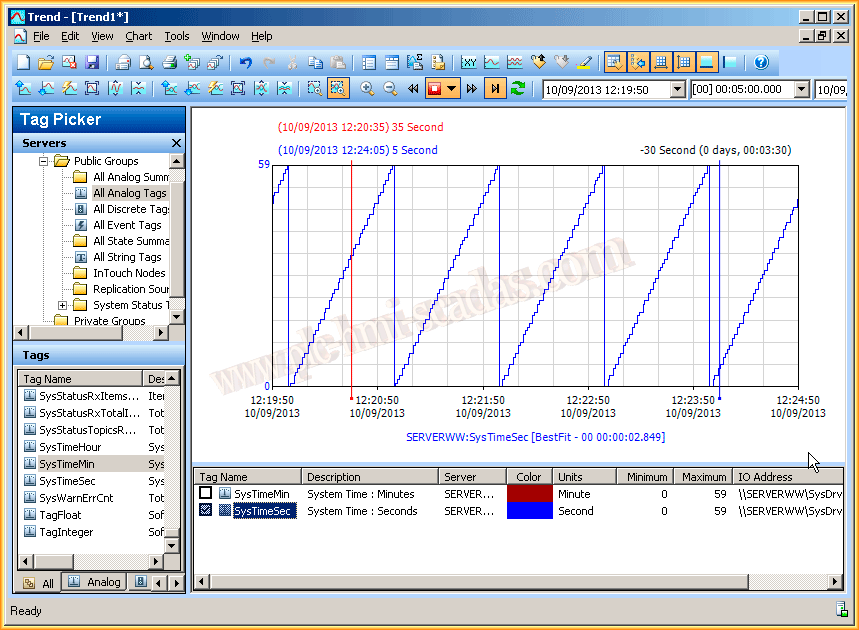
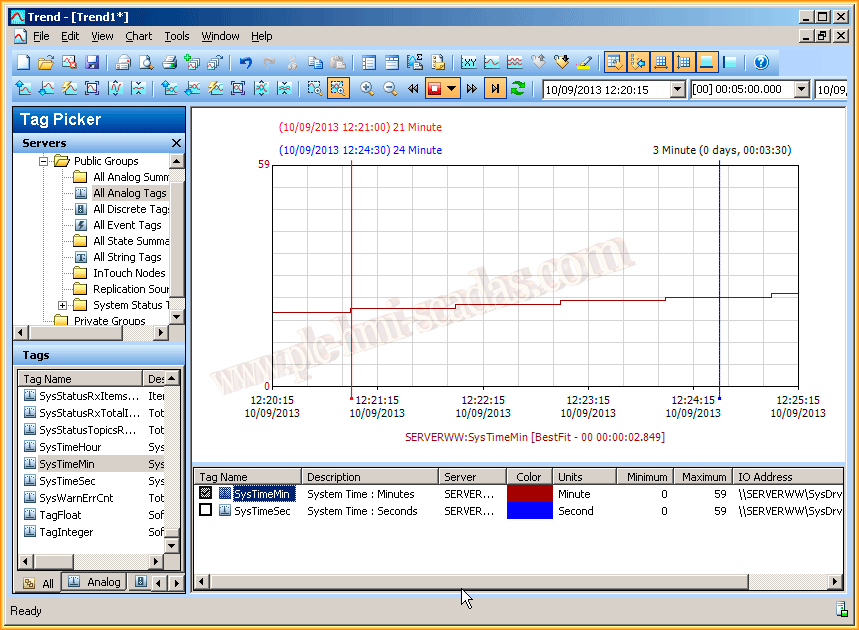
We can visualize independently by the tags we have added, delete them, add others, in short, it depends on what interests us, or we can save a specific Trend and load it later.
This has been an introduction to the functionality of the Trend in its ActiveFactory application. The next thing we will do is embed this control in our ArchestrA Application and observe it within our Intouch screen; this will be in the next practice.
September 10, 2013