
Historian Client Trend Control Symbol Configuration
In the previous practice, we saw the basic configuration to configure a Trend in the Historian Client or ActiveFactory. This time, as we mentioned, we will create the symbol to embed it within our Intouch application. The first thing we will do is import a new Control, just as we did with the .net controls, with the difference that this time the destination directory is the one shown in the image.

The main control we are interested in is aaHistClientTrendControl.dll, although I have added others for later use, but initially, the first one will be sufficient. Once imported, they can be observed in the Trend directory.

With this step completed, we can now create a new Symbol and embed our Control in it. The result will be as shown below.
The most interesting part follows, through programming, to add the Server or Servers of interest, as well as the tags. A proposed example will be to visualize all the tags that affect the example we were working on with the Stations. Each station has a series of associated Tags, when we select the station, its tags will be displayed, and as we change stations, the tags will be cleared to add the corresponding ones. For now, I will leave an image of how the basic functionality would look, and I will add the code for the proposed exercise later.
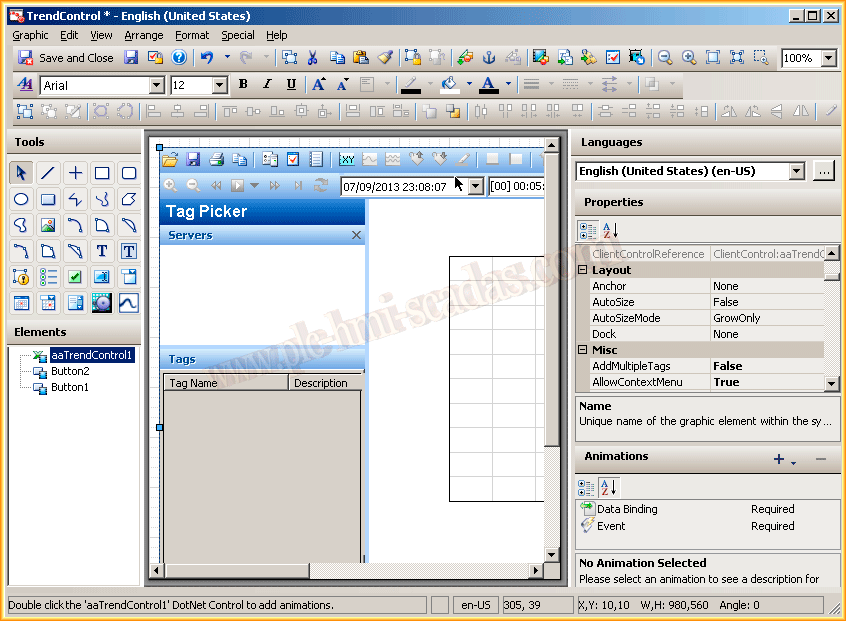
In this first image, we observe that the operation is the same as we had done previously. Our Historian Server is added, and the tags we are interested in are simply added to the display.

Note: It is possible that if the Historian Client or ActiveFactory is not installed in the ArchestrA folder, the controls mentioned above will not appear. To do this, we must install one of its versions so that they are available and we can carry out the practice.