
IndustrialSQL - Historian
In the following practice, we will see how to configure a new link in the Wonderware Historian to log the values of the variables that interest us. IndustrialSQL is the name in previous versions, Historian in the new versions since 2012, but the configuration can be applied in both cases. We start from the assumption that we already have the Historian installed, and we will focus on the configuration of a new I/O Server.
As seen in the image, the architecture would be as follows: a server where our Galaxy is, a server for the Historian, and a client for visualization.
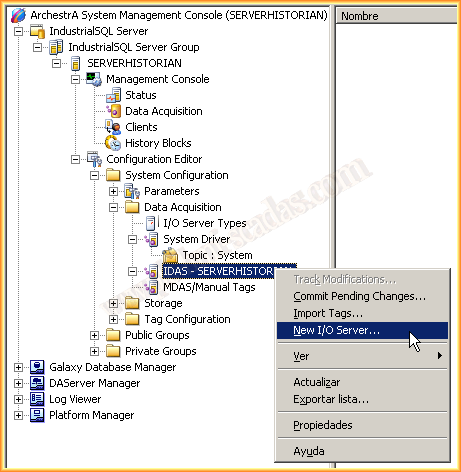
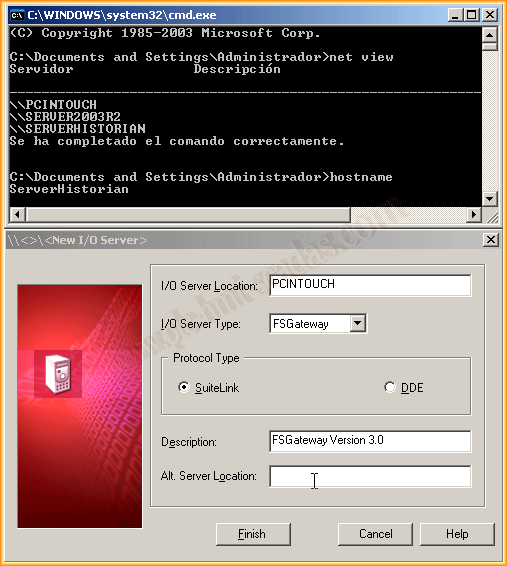
The first thing we do is expand the tree of the Configuration Editor, and we locate ourselves on IDAS, here with the right button, and we see the operations we can execute, the first of which will be to add a new I/O Server, followed by the configuration wizard, we add the location where our server is installed, in this case
on the PCINTOUCH, we select the type of Server and the protocol to use, in case the server is not in the list, we could add it in Data Acquisition -> I/O Server Types.
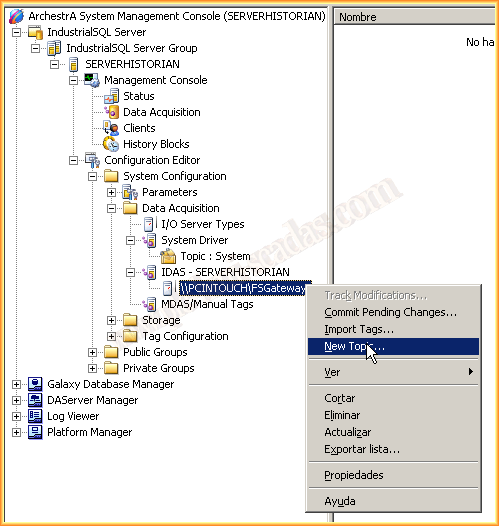
Once the Server is added, the next thing we do is add a new Topic
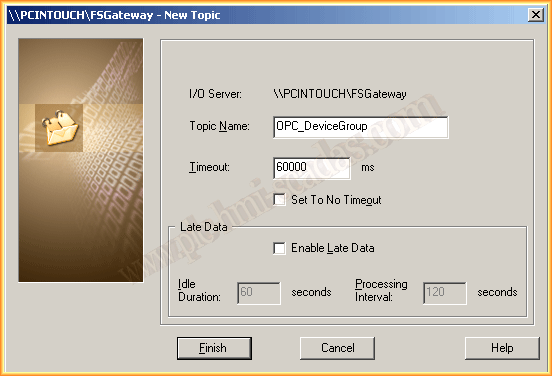
The wizard appears and we add the name of the new Topic, be careful, we have to add the topic that we already have defined in the DAServer FSGateway on the PC PCINTOUCH.
We have a default timeout of 60000 that we leave as is.
Having defined the Server and the Topic, the next thing we need to do is add the variables that interest us, just like before, with the right button and select the option that interests us
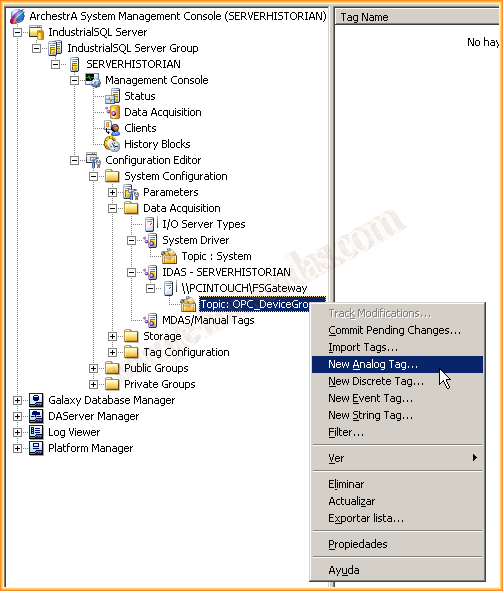
In this case, we are going to add a series of variables, to later check that it works correctly.
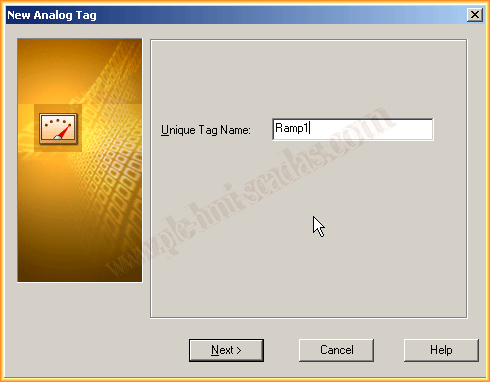
We define a name for the new variable to add and follow the wizard.
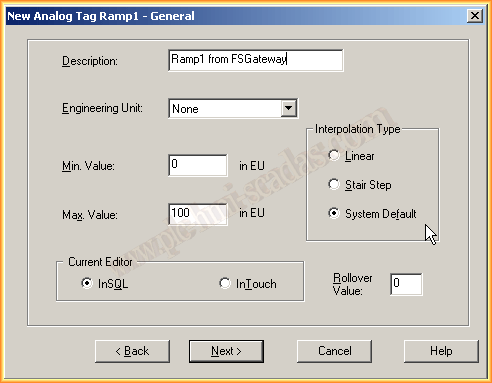
We add a description for the variable.
We select the engineering unit that corresponds to our variable, Kg, m/s, KWh, etc...
We define the limits of our variable, the minimum and maximum, type of interpolation. And we move on to the next screen.
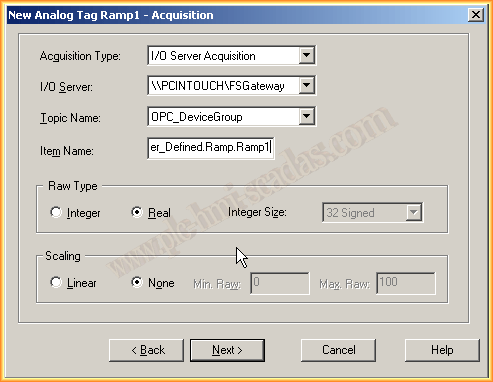
Here, as we only have one Server and one topic defined, we select this one, in case we have more, select the corresponding one and define the name of the Item.
Select the type Integer, Real, and if the variable is scaled, if so, define it. We move on to the next screen.
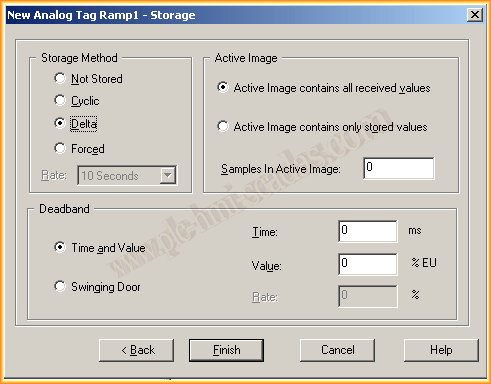
To finish adding the variable, we need to define the type of archiving we want to do, consult the help to clarify the differences between the different methods, by default Delta appears.
With this, we finish the wizard, and we repeat with the variables that interest us or we make an import.
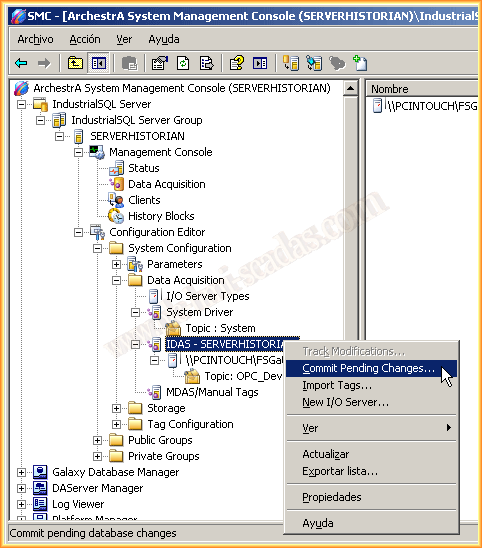
Once all the changes are made, to implement them we need to execute the Commit Pending Changes
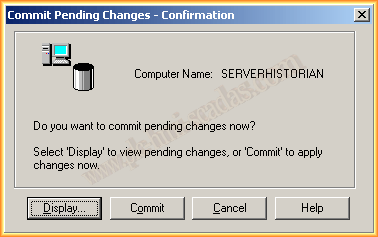
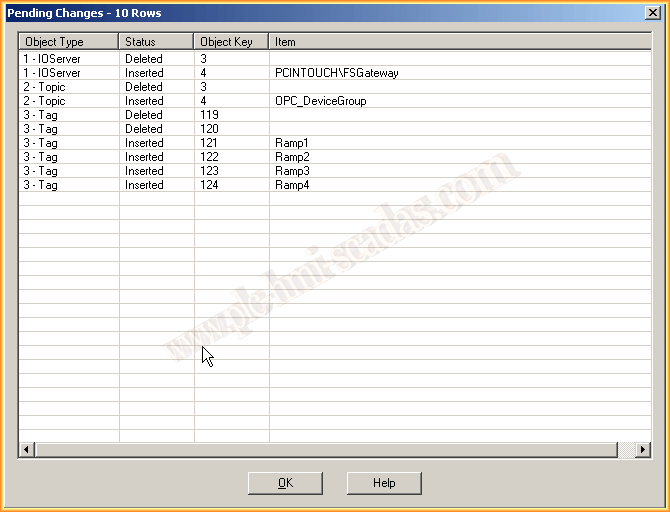
If we are interested in visualizing the changes we have made, we click Display and a pop-up window appears with the changes that will be made, we click OK, and when it finishes, it will be ready.
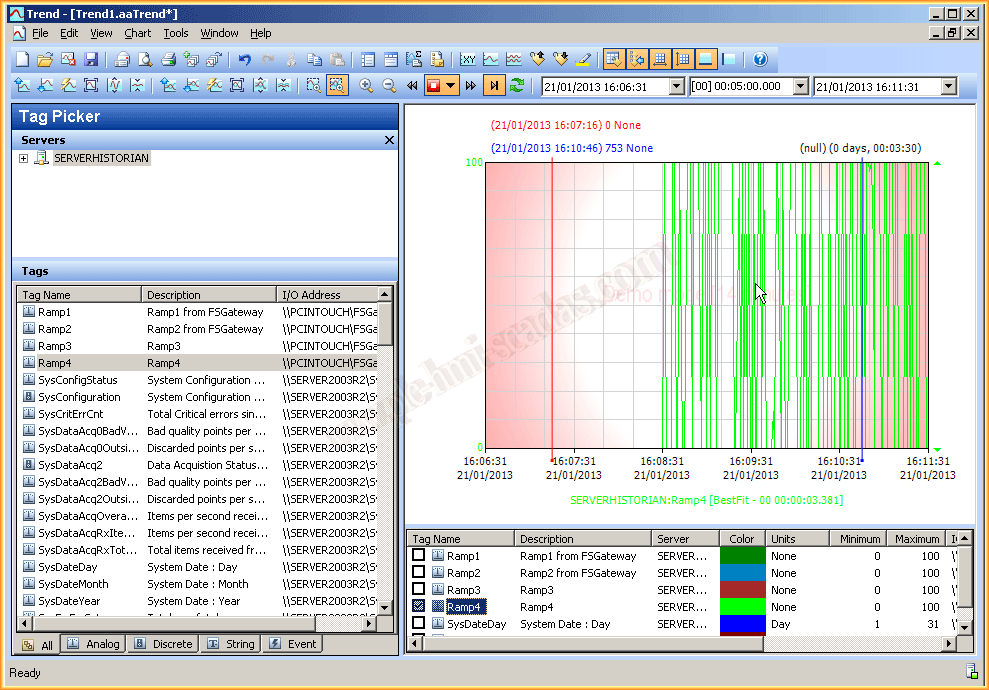
With our Historian Server up and running, with all its services, we can now check its operation, for this we use the Trend, where we have added the Server and we can observe the variables we have defined, as well as check if we want to visualize the Graph and ensure it works correctly.
Friday, February 27, 2015
If you liked it or found it useful, share it :-)