
DDE Server Configuration with Microsoft Excel
We have already seen an example of the configuration of Direct Driver and OPC Server, this time we will see how to configure a DDE (Dynamic Data Exchange) communication with RSView32 and Microsoft Excel.
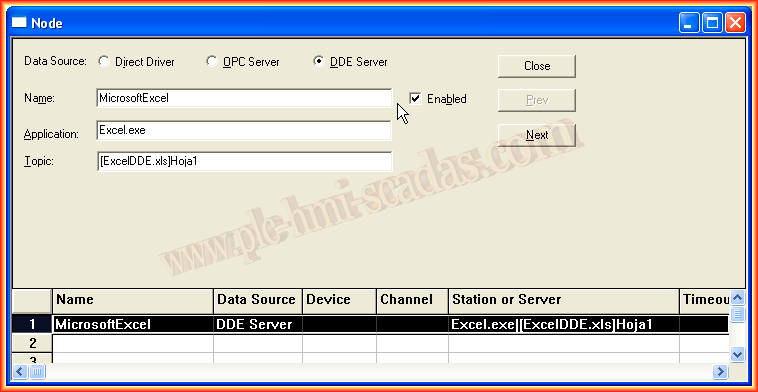
To do this, we go to the Node directory and create a new one, selecting the DDEServer RadioButton, we assign the name we are interested in the Name field, in the Application field, for Microsoft Excel it will be Excel.exe and the Topic name is the name of the file with its extension plus the name of the sheet.

This is how it will look once we have created it.
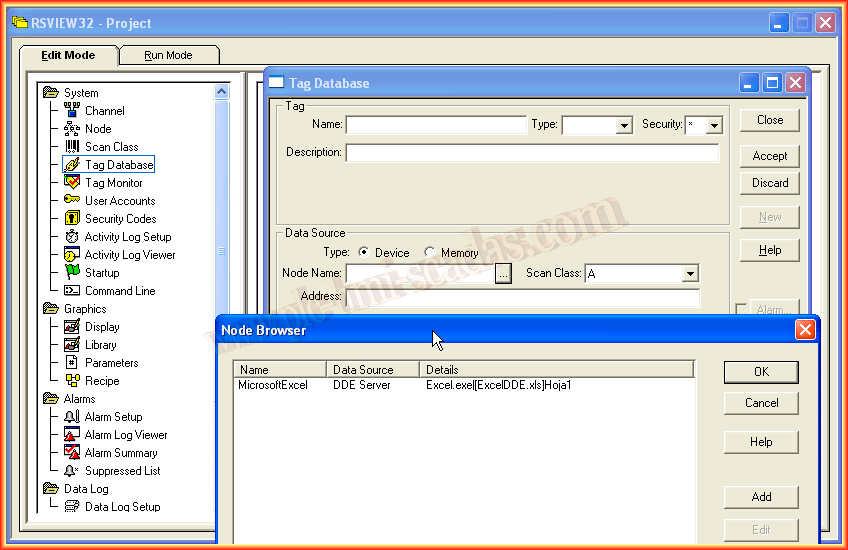
Once the link is created, the next thing we will do is create the Tags, we do this within TagDatabase, where in the Node Name field, we assign the Node we just created.
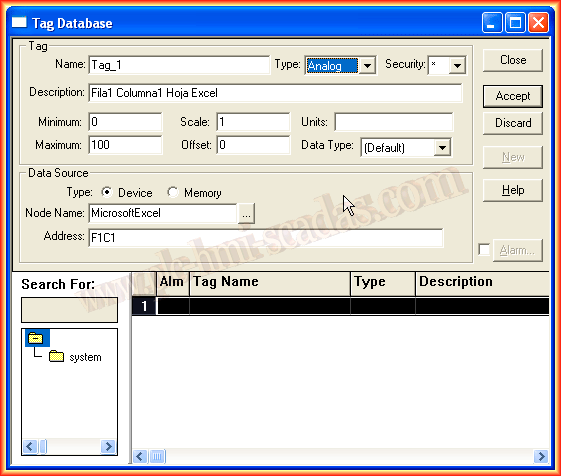
The addresses for Microsoft Excel are based on Rows and Columns, that is, to access row number 1 and column number 1, we address it as F1C1 and the same methodology applies for the cells we are interested in, in this case it is so because the language of Microsoft Excel is Spanish.

We have already created the node and the tags we are interested in, now we will create some Numeric Display type objects for the visualization and verification of our communication. We assign each Tag to each object.

Finally, to check its operation, we can now run the display, and we automatically see the result of our Excel Sheet in the objects we just created.


July 24, 2013