
Project in WinCC
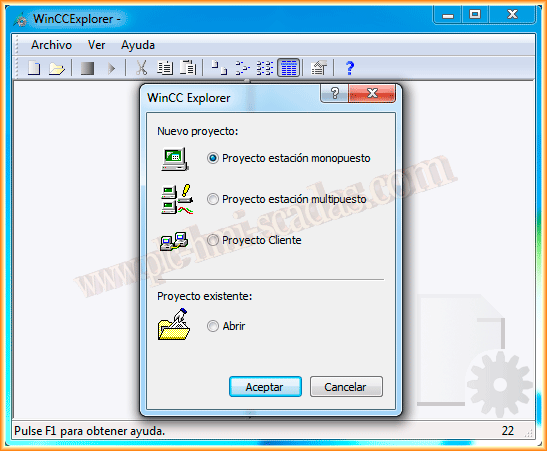
When creating a new project in WinCC, we have three possibilities: a Single-user Project, a Multi-user Project, and a Client Project. First, we will provide a brief definition and main characteristics of each one, as well as the common properties that we have in any project. We will start from the beginning and gradually cover the main topics.
Single-user Project, as the name suggests, is the typical project where the entire plant or installation is controlled by a single Server (One PC).
Multi-user Project, this type of project will be used when there is more than one Control Station; in that case, a Server will be configured and clients will access that Server to provide and display data.
Client Project, when we create a Multi-user project, clients can share the same project from the Server or a Client Project can be created, which is an independent project at the screen and directory level, but where the Servers reside on the Server, such as TagLogging, AlarmLogging, UserArchives if used, and the variables will also be provided by the Server.
By default, when creating a new project, its directory is as follows C:\Users\Public\Documents\Siemens\WinCCProjects. Now let's look at the main properties of a project.
We create a new Single-user Project, with that being its name.
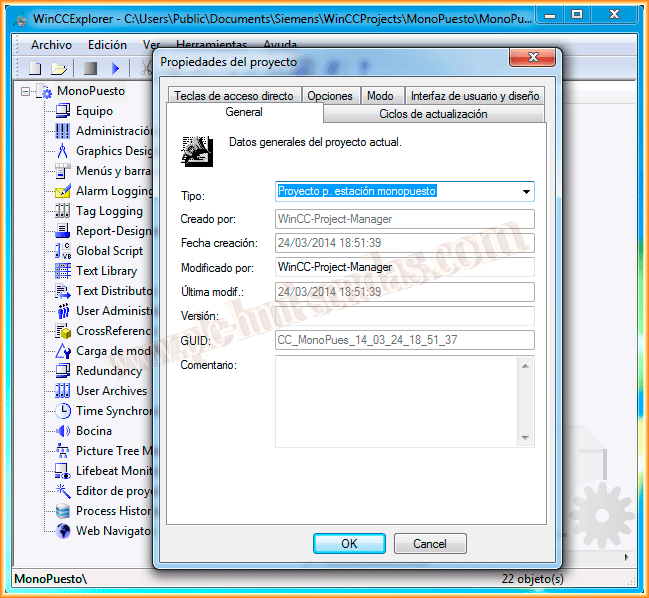
To access the properties of our project, we must right-click on the project name and select properties.
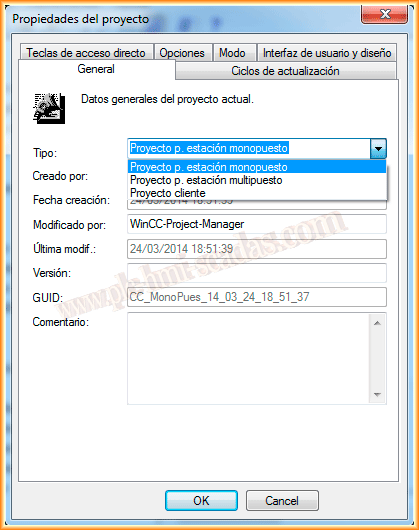
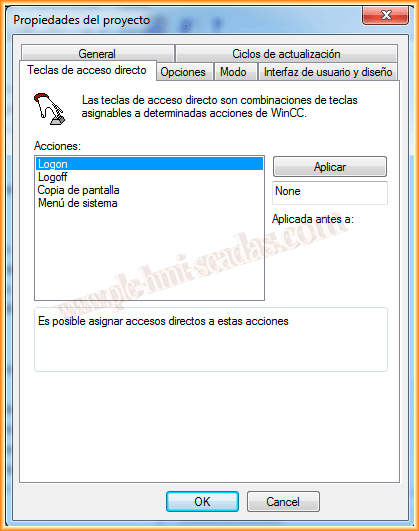
The following image illustrates the different configuration sections; in the General tab, we have the option to change the type of project at any time. Once we make such a change, it will ask us to close the project to apply the changes.
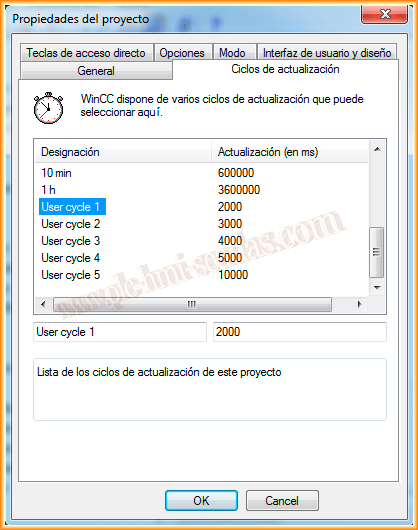
In the Update Cycles tab, we have the default defined cycles, and we have 5 cycles to define according to our needs, where we will assign a name and its corresponding time, and we can use it.
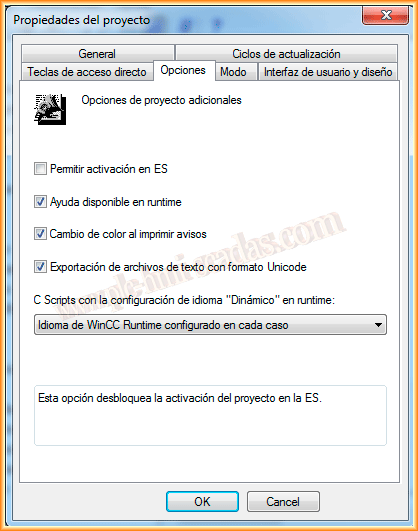
In the Shortcut tab, we will define the key or key combination to execute the following actions detailed. On the other hand, in the Options tab, we will configure according to our interest; by default, they come as shown in the image.
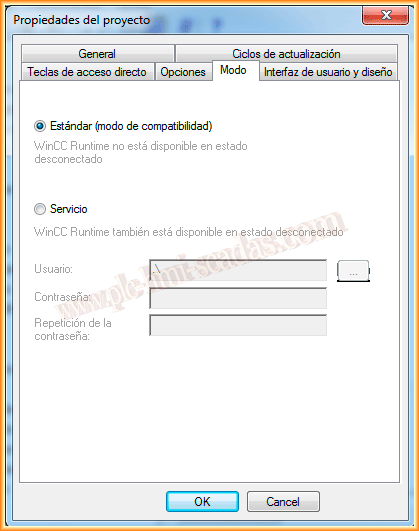
The Mode tab, by default, is set to Standard (compatibility mode), the Service mode
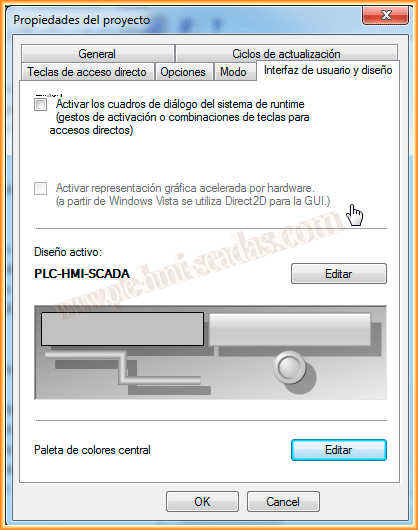
And finally, the User Interface and Design tab is where we can configure our custom design or switch between existing ones, as well as define a new color palette.
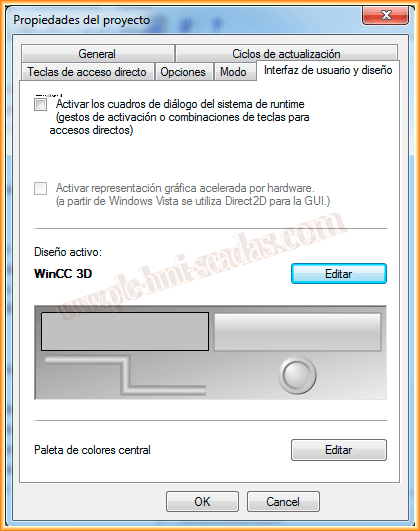
If we edit the Design mode, we can select from the existing ones, which cannot be modified, but we have the option to create our own design, where we will configure the properties of the objects we insert into our screens, such as colors, fill, font color, as well as selecting the checkbox to show a shadow for all our objects.
We will also define the font color and background color when configuring our menu and toolbar.
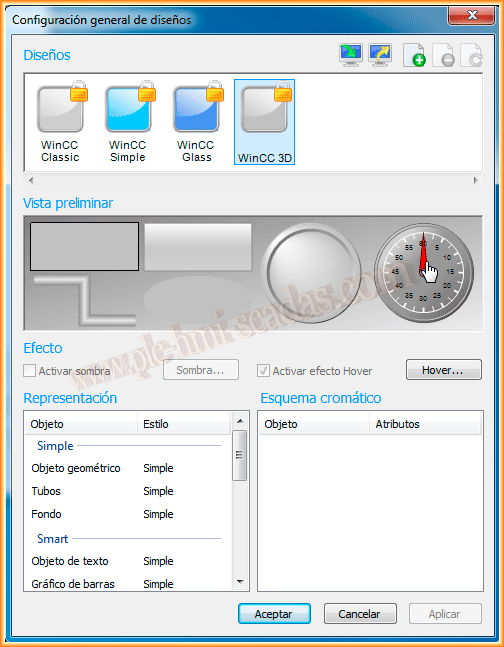
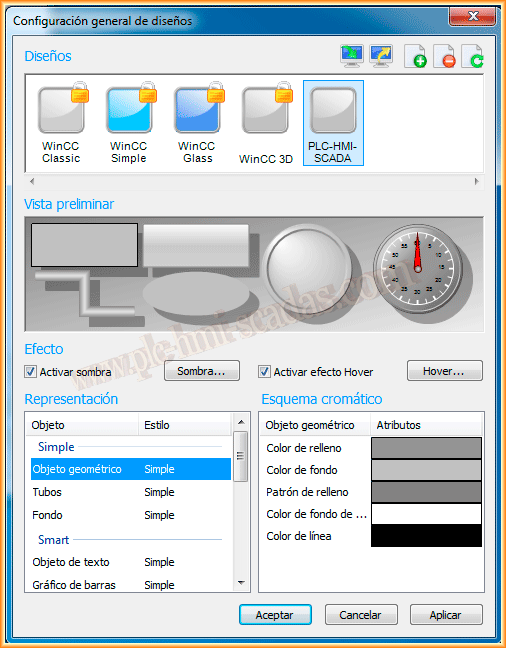
Similarly, we can configure a new color palette, as well as import or export it from other projects.
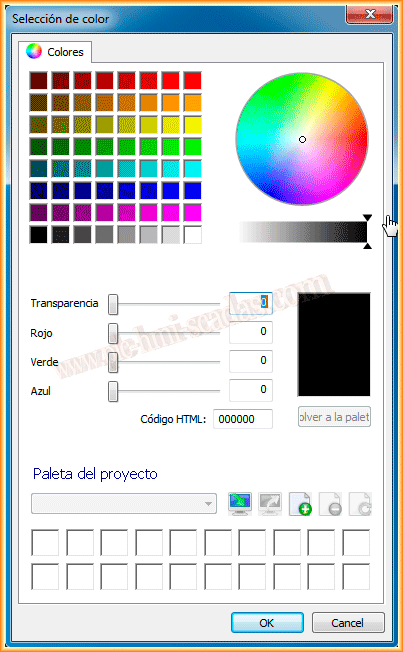
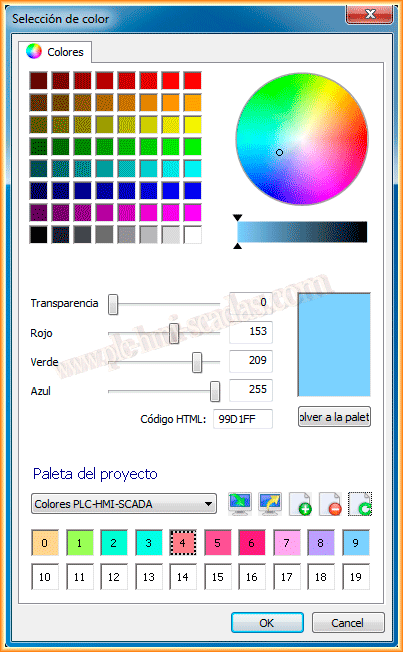
For the upcoming practices, we assign the new design style we have created to our application. And this has been a brief introduction and the main properties of a project.
March 25, 2014