
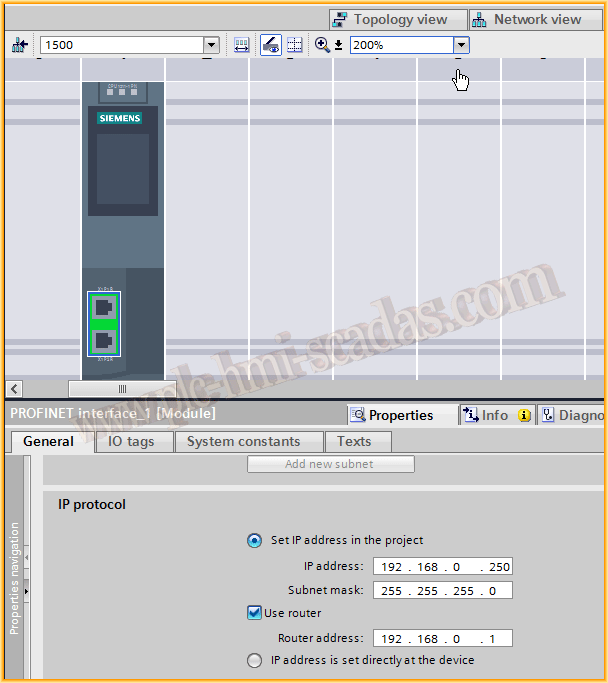
As mentioned in the last practice, we are going to configure the S7-1500 Driver in the WinCC v7.3 installation on Windows 10. To do this, the first thing we do in TIA Portal is configure or observe the IP address.
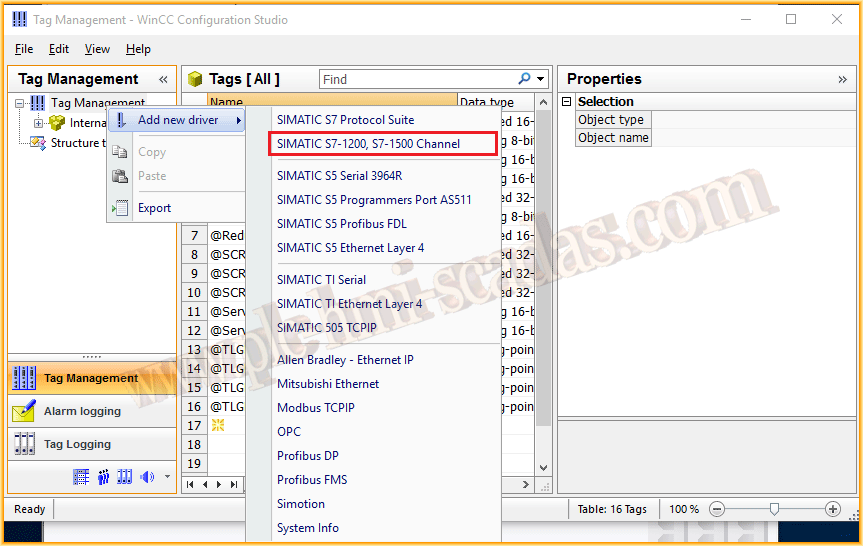
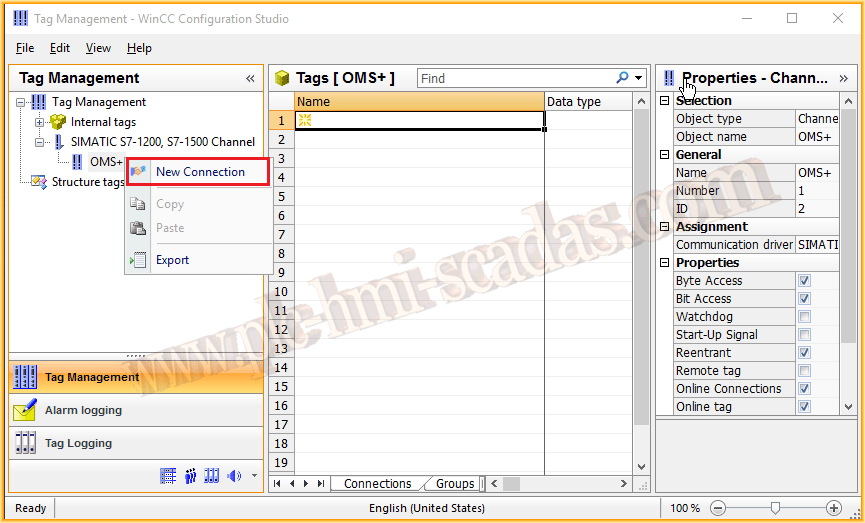
Once WinCC is started, we open the Variable Manager, and add a new Driver of type SIMATIC S-1200, S7-1500 Channel, and then we add a new link and give it a name of our choice, in my example S7-1500.
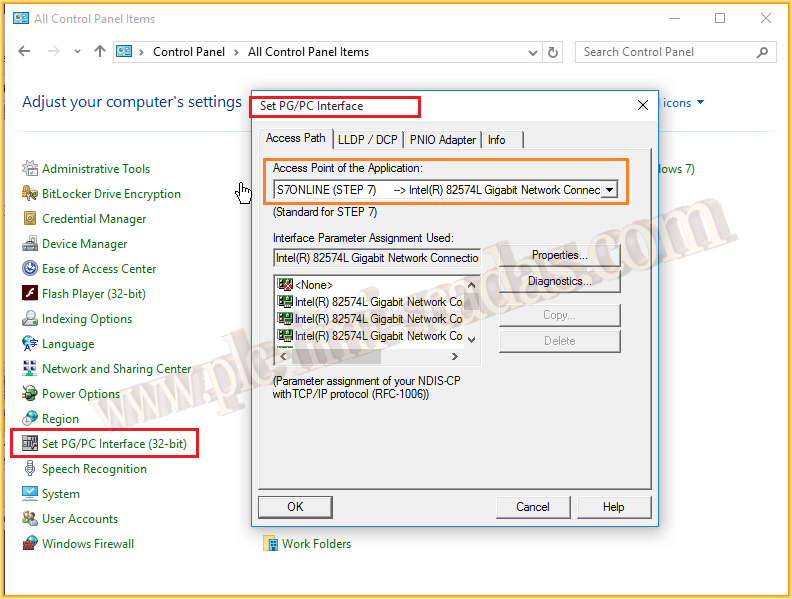
We can now configure the parameters of the created link, assigning the IP of our PLC and in Access Point the method we are going to use. If it appears blank, we will configure PG/PC Interface.
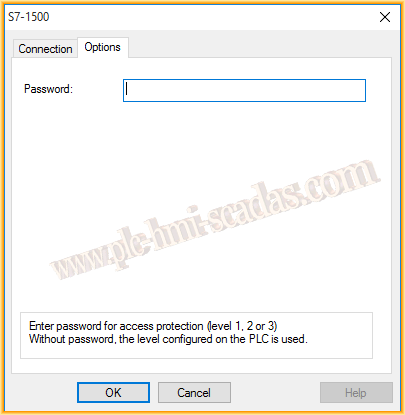
In Options, we have the option, redundancy intended, to configure a Password for the connection.
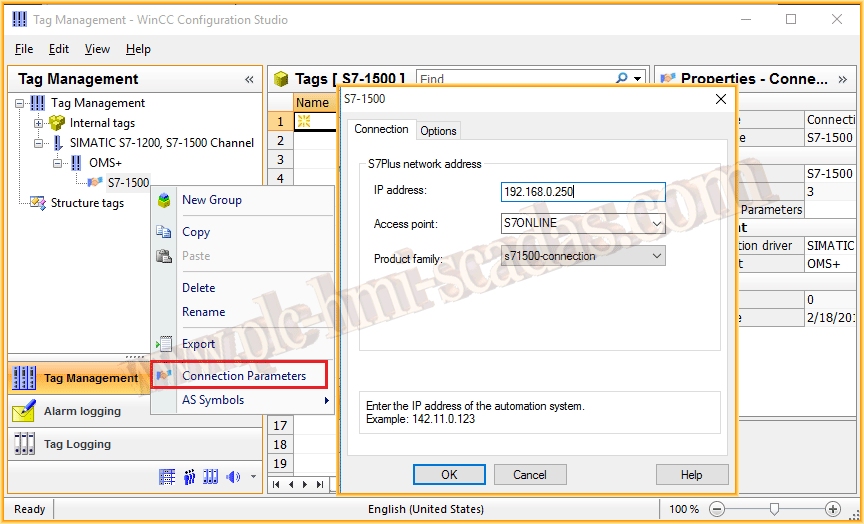
If we have no option in Access Point, as I mentioned, we execute the Set PG/PC Interface and configure our interface.
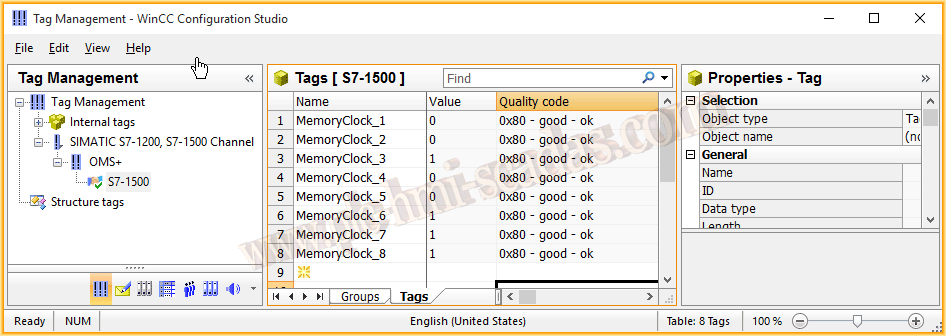
The next image shows that I have configured some PLC Tags to check their operation, in my case the Byte of the internal Clock mark.
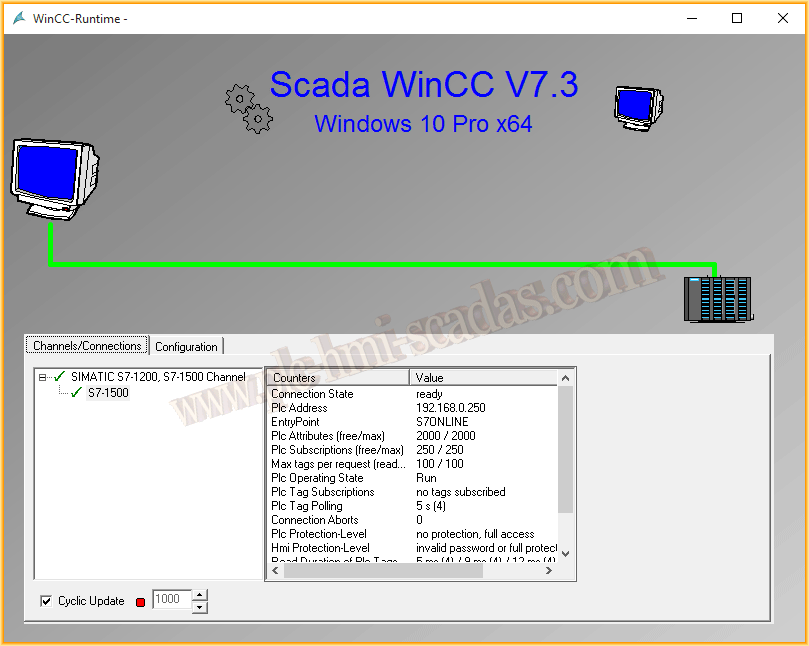
As of April 2016, WinCC v7.4 has been released to run on Windows 10 :-), however, the tests carried out have been satisfactory and its operation correct.
June 1, 2016