
WinCC - PM Quality (PM-Server & Stations)


In the previous article, we only discussed some basic concepts and continuing with the architecture we have proposed, we will proceed.
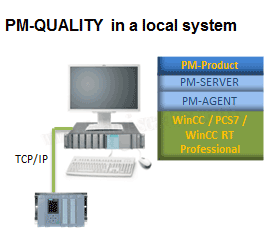
The first thing we are going to configure is a new station, to link it with our WinCC, and to define the data exchange between both.
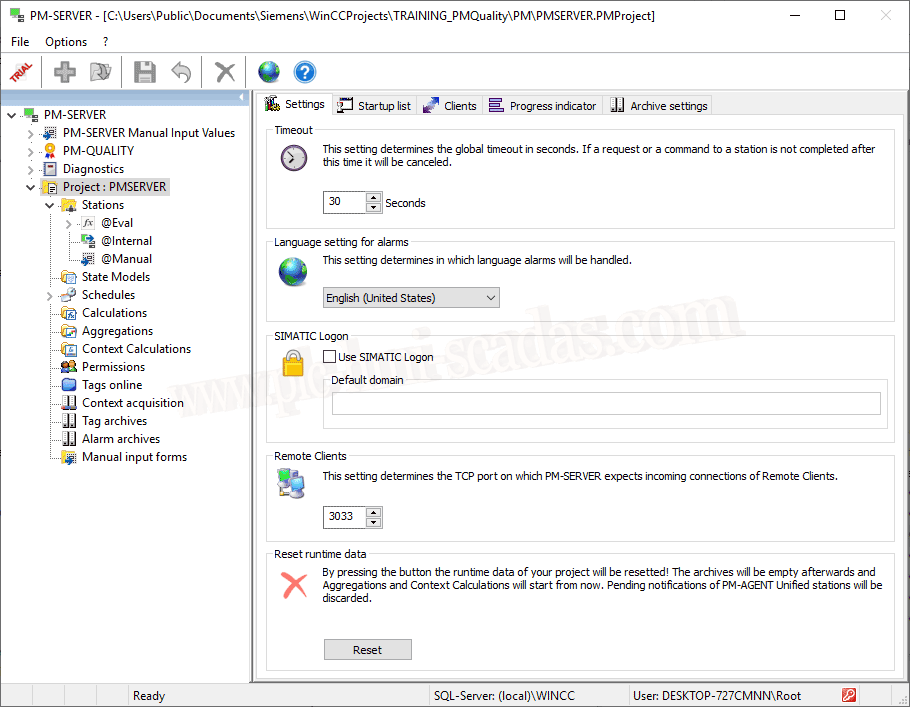
By default, if we select Project: PMSERVER, this is the main screen, for now we are not going to make any changes, except for the language, which we set to English and leave the default values. As we progress in practice, we will modify and adjust...
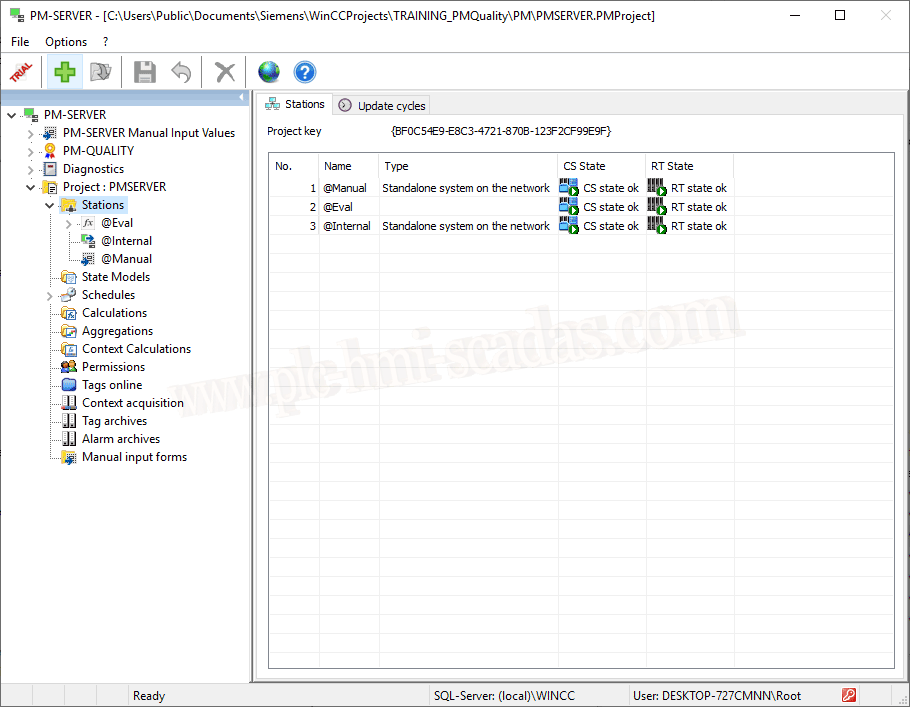
We start the process of adding a new station, we can do this with the + symbol or right-click new station
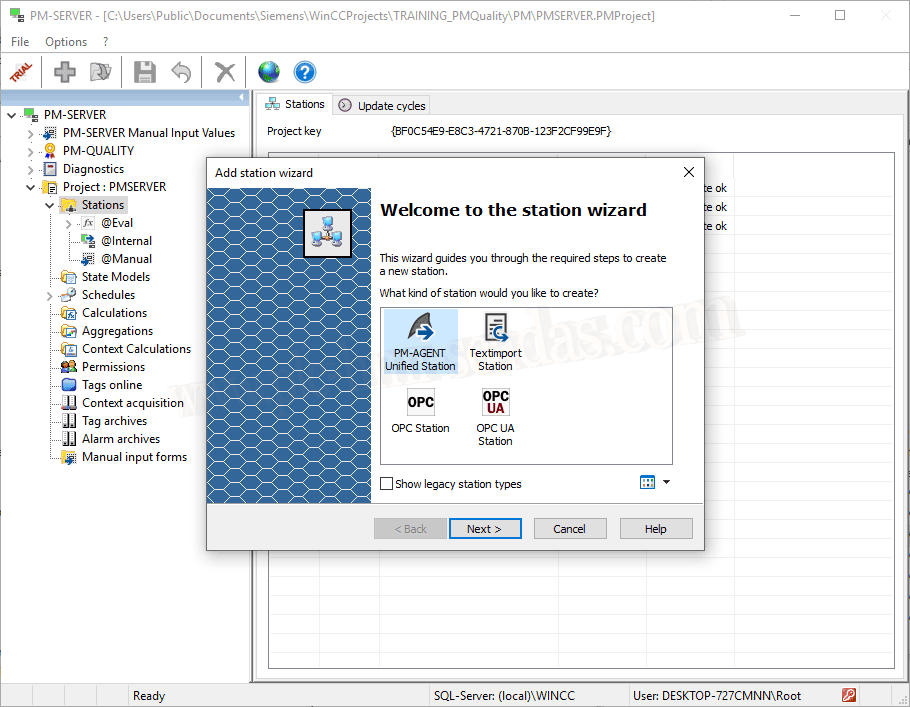
The wizard starts, and for our example, the one we are interested in is the PM-Agent Unified Station.
At this point, some basic concepts about this component:
There are two versions of PM-AGENT. I am using WinCC V7.5 SP1, so the PM-Agent used is the PM Agent Unified, for versions prior to V7.5 the PM-Agent is used, this is one of the novelties of the latest version of PM-Quality V.10, and this is because we can also use WinCC Unified, hence the name ;-)
And the first question I asked myself... What is this component for? Well, this is the one responsible for communication between WinCC and the PM-Quality plugins (PM-SERVER)
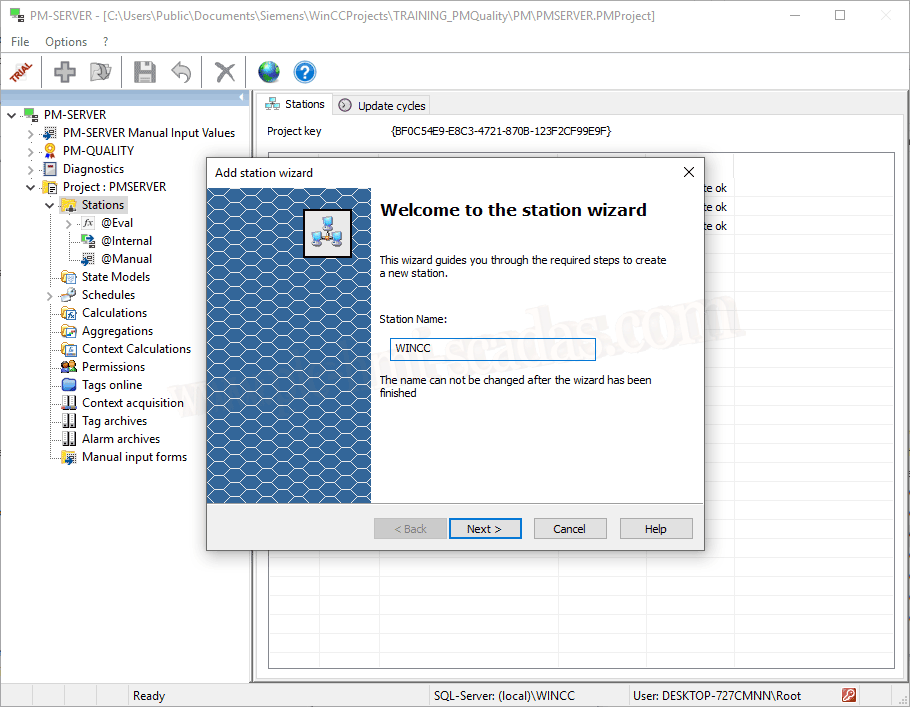
Continuing with the wizard, we assign the name we are interested in to our new station
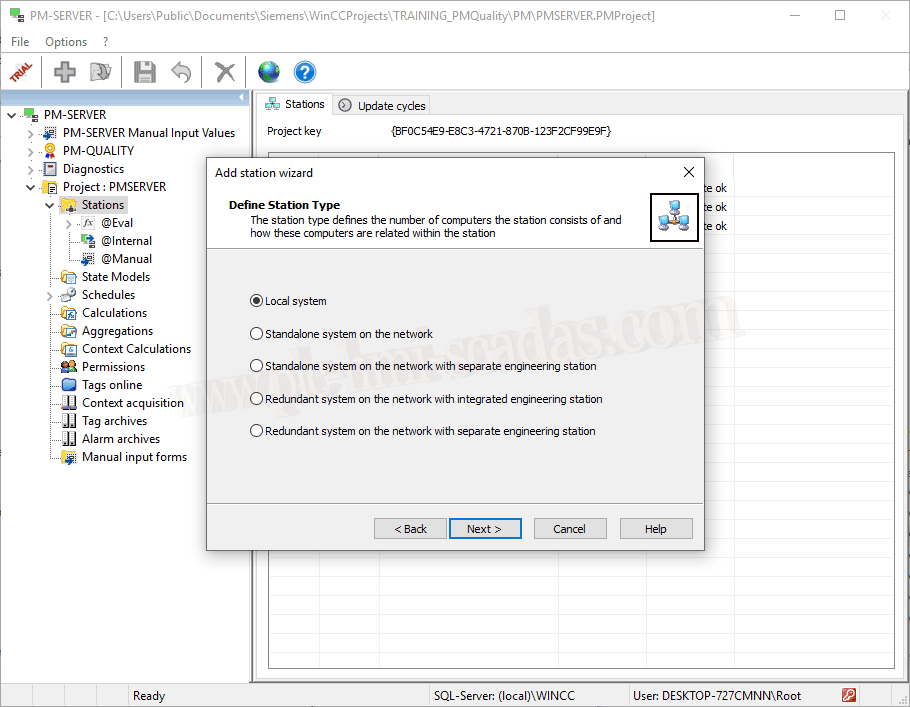
We are working in a Stand Alone architecture, so Local System, which will ultimately translate to Standalone system on the network
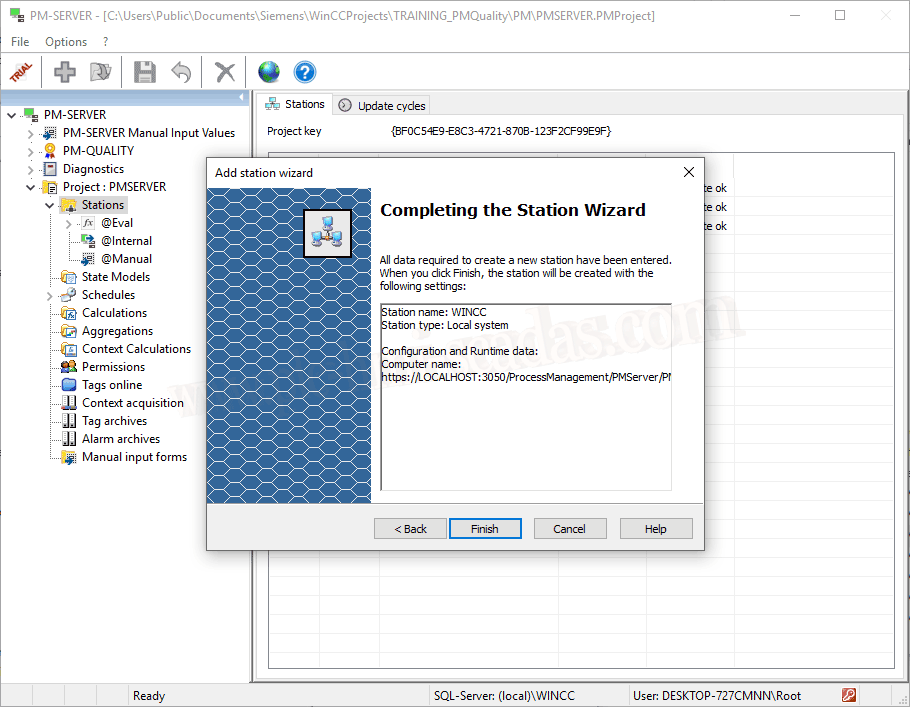
And we finish the wizard.
For now in the stations, we have already added it, but the configuration is not correct because it needs to be completed.
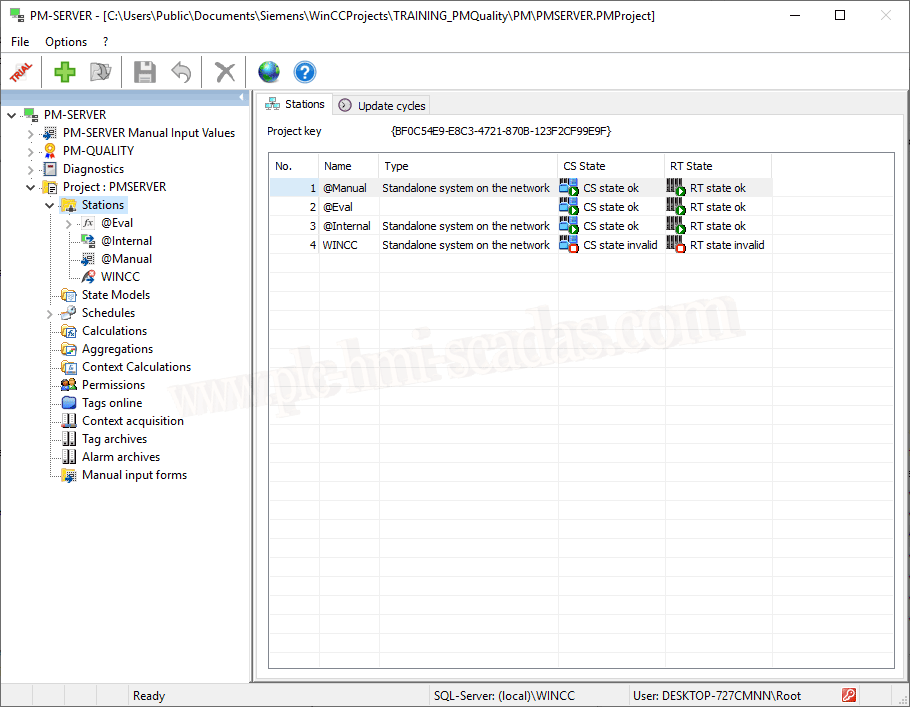
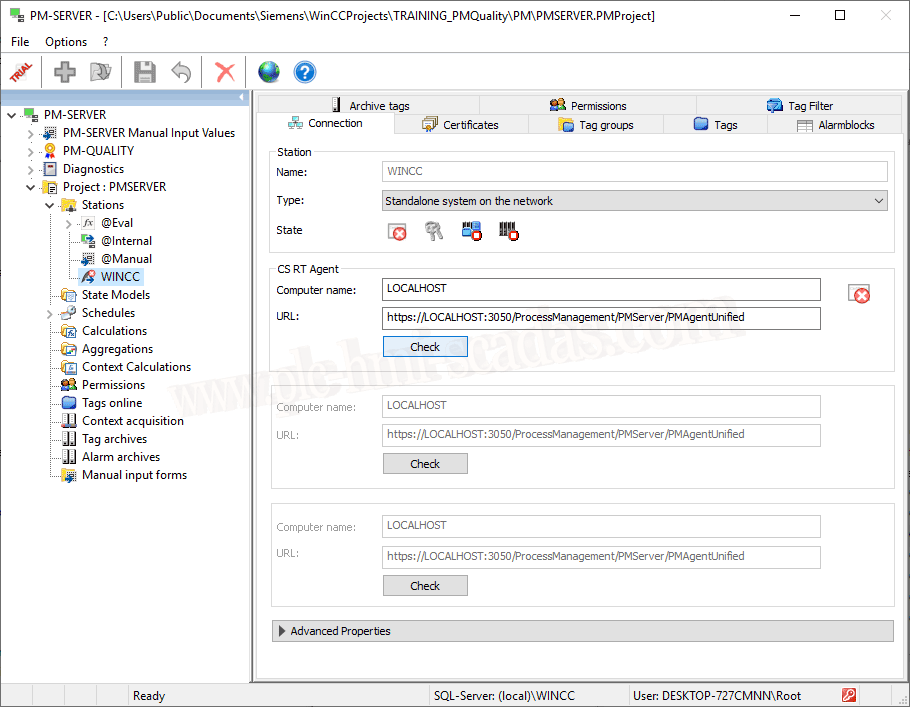
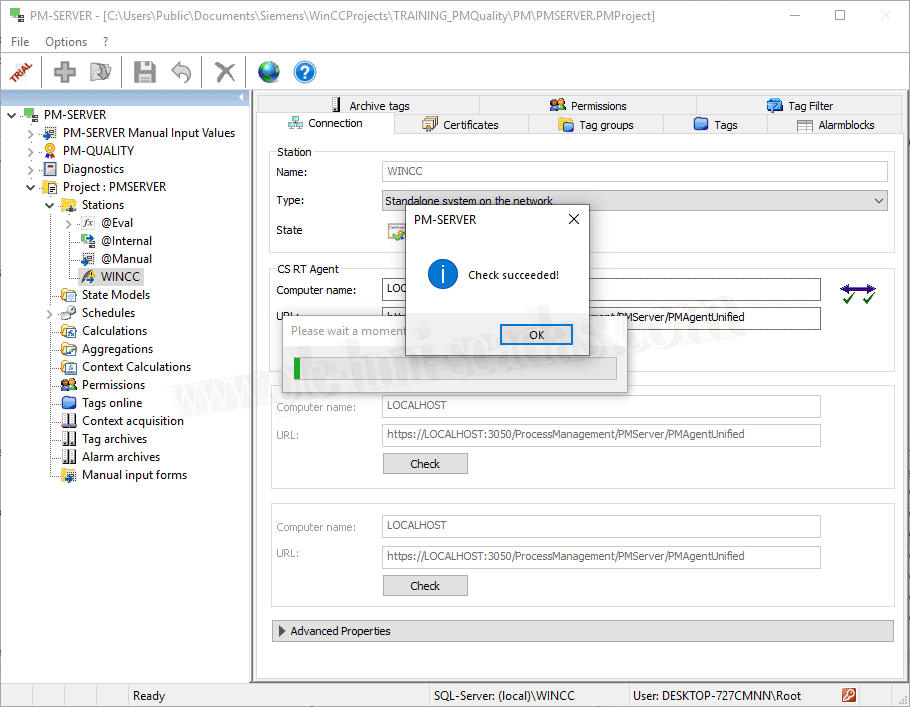
If we select the station we just added, we see an error symbol in the certificate, we can solve this simply with the check button and confirming the message
Certificate added and correct. You can verify this in the Certificates section.
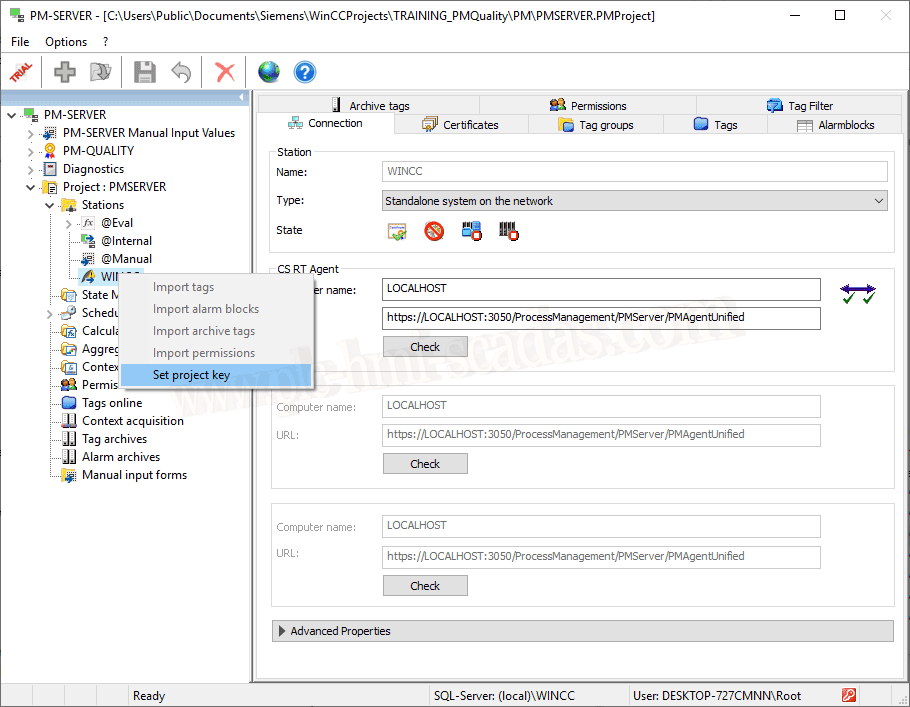
We only have a warning left in our station and we will solve this by adding Project Key, right-click on our station.
And the PM-Agent runs. We select WinCC 7 / RT Prof, which is the system we have, and of course if it were WinCC Unified what would be the option to select.
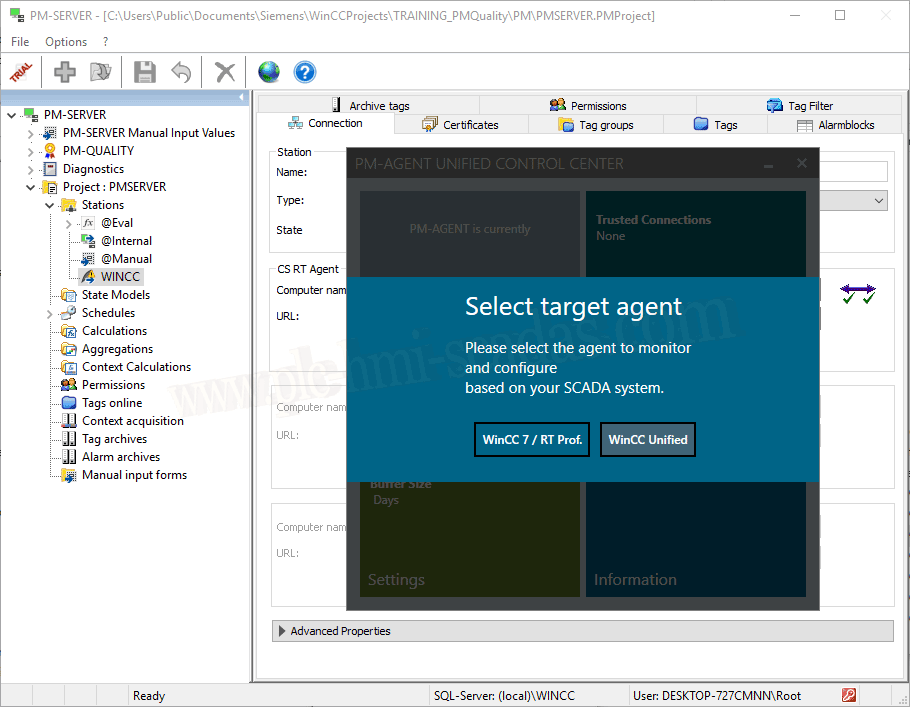
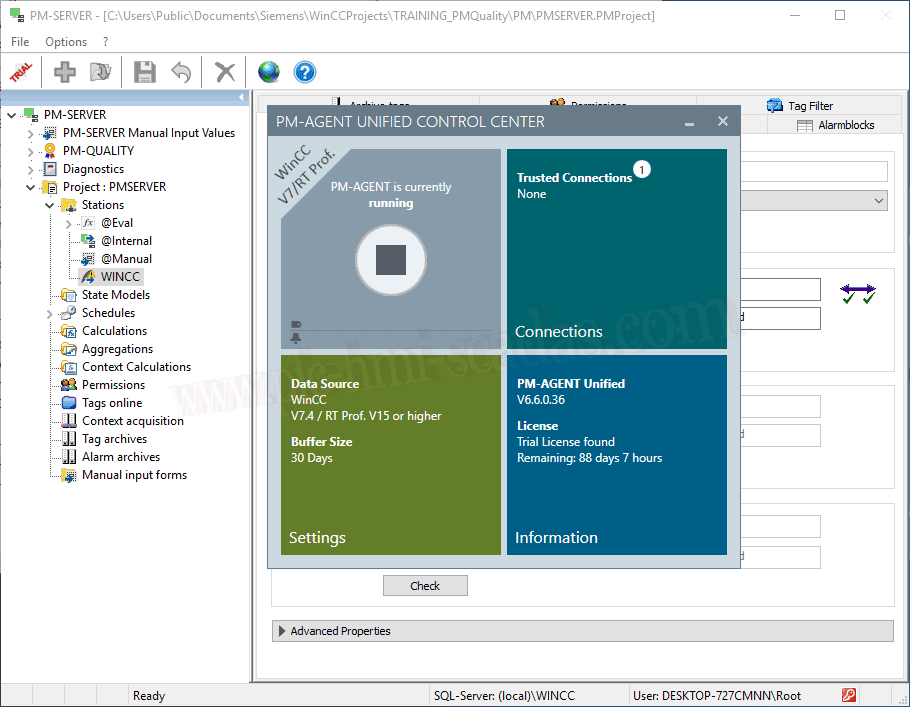
And now, we see a 1 in Trusted Connections, we click on that notification
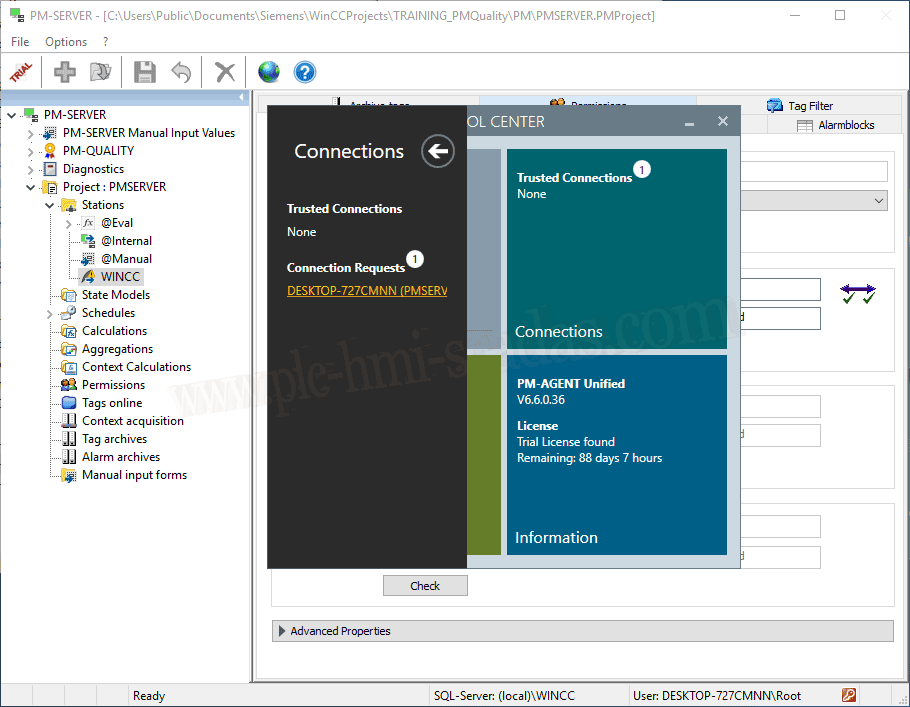
And we have a request that we will select to add it.
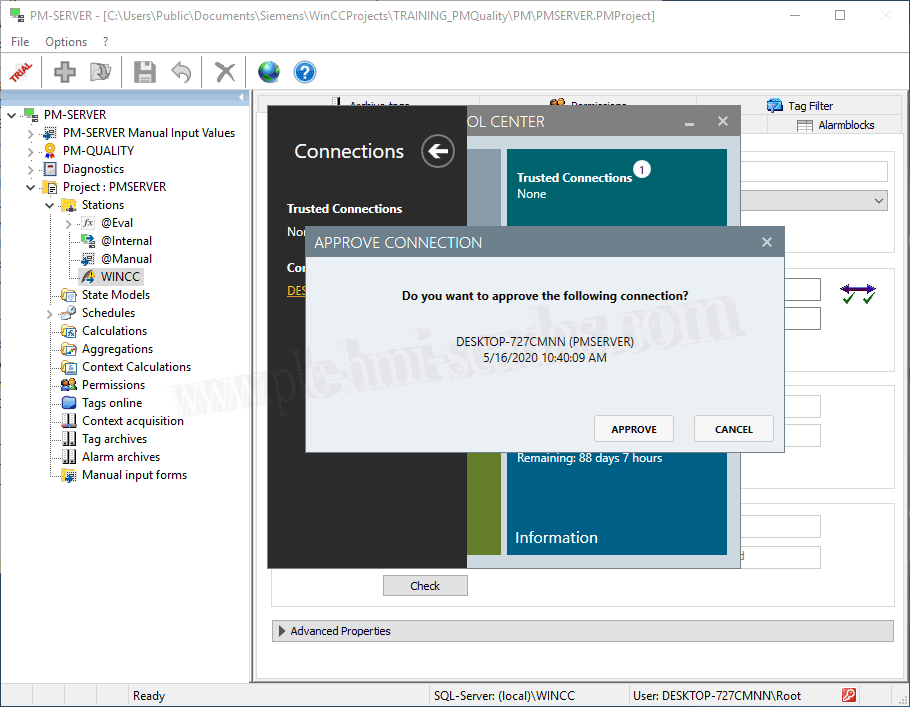
We confirm that yes.
And we have configured our connection.
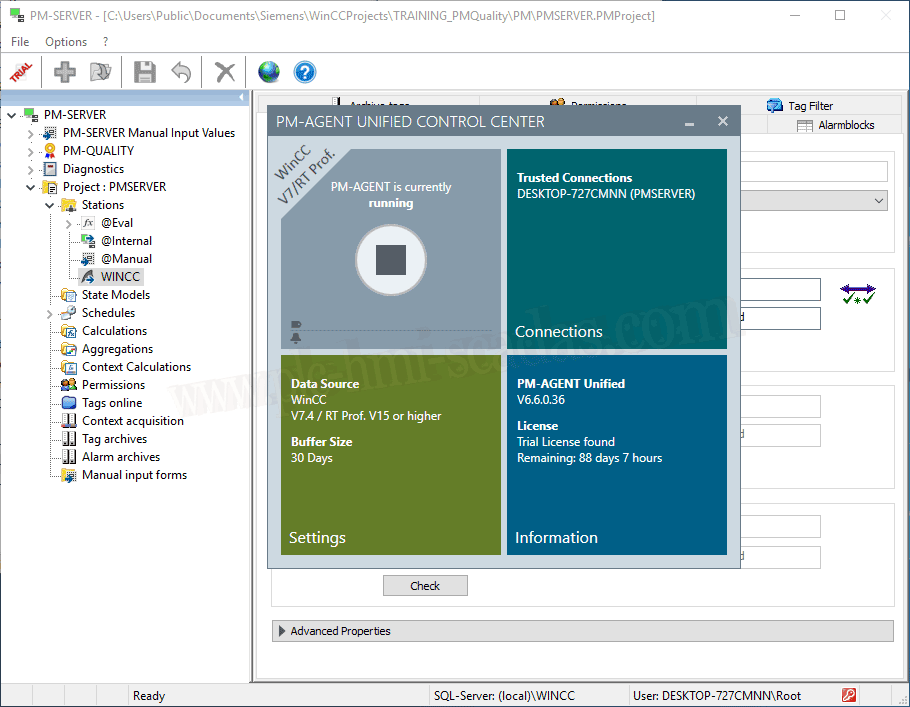
Now we have our station configured correctly.
At this step, we are ready to import Tags, Permissions, Alarm Logging, and Tag Logging.
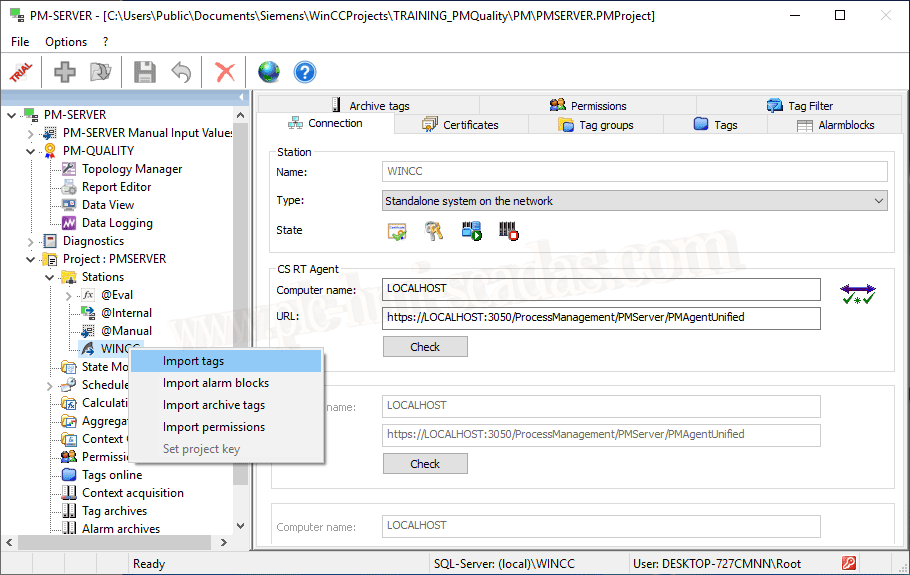
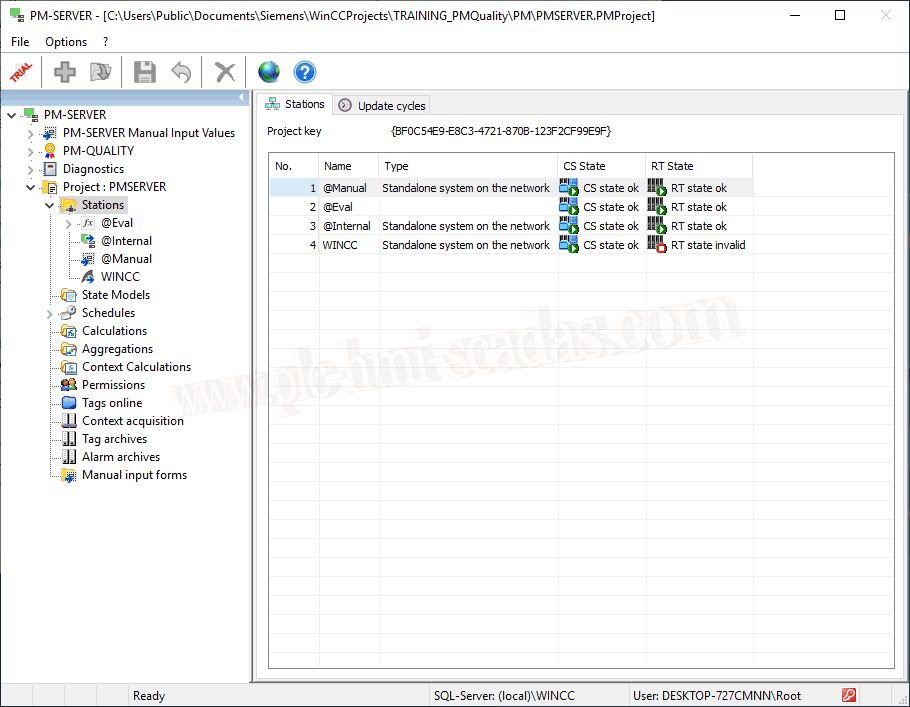
And to see that everything is correct, as the saying goes, a picture is worth a thousand words...
We do not have the Runtime started but for now, all the configuration is correct. And we continue in the next article.
16-05-2020