
WinCC Unified Transfer Project


If you are here, it is because you have previously run the WinCC Unified Configuration, if not, check this guide.
With the user we created the first time, which is the Administrator, we can now log in to manage and create other users. Here is another article dedicated to user administration.
The initial address is with https://ComputerName - https://Localhost - https://127.0.0.1
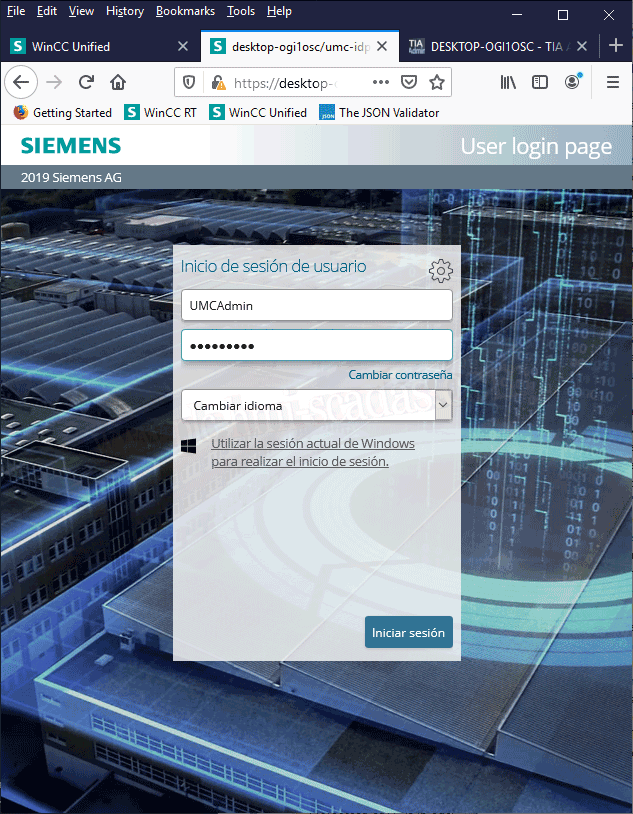
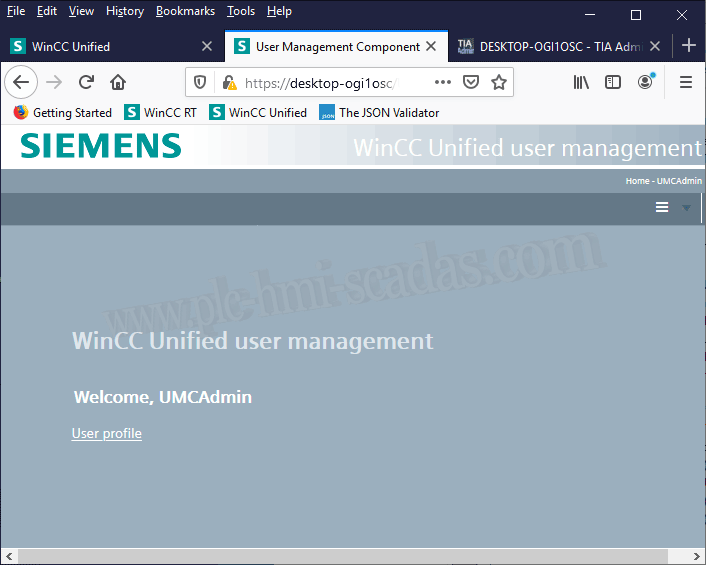
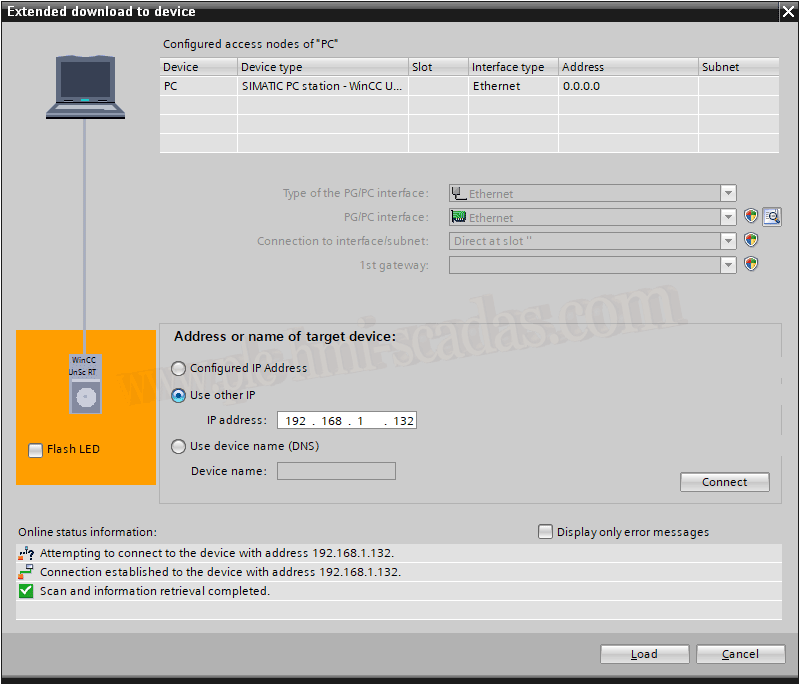
Assuming we are going to transfer our project, or that we are going to test and try our application, we start the transfer.
When compiling, we get the following error. The message is already indicating what we need to do; if we want to keep this configuration, otherwise, we have to run the Unified Configuration again and not define any password by disabling this option.
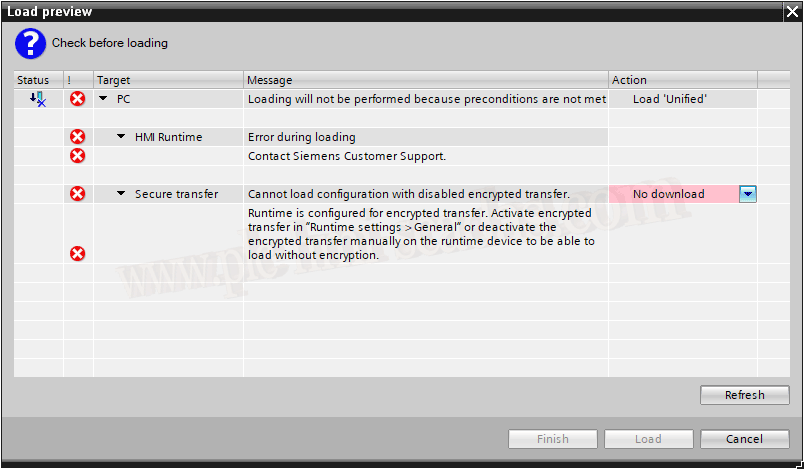
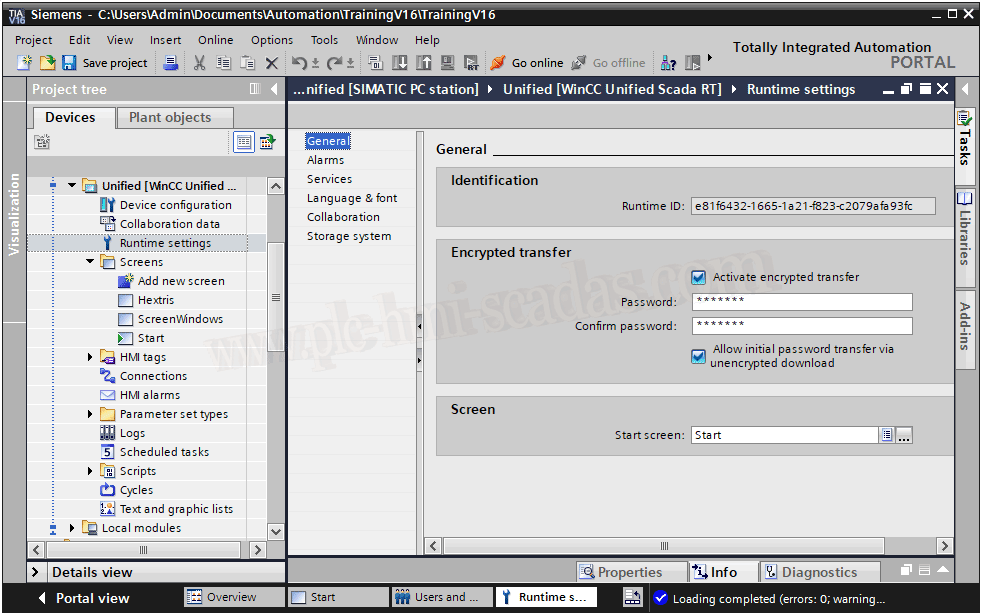
Within our project Runtime Settings -> General
We activate the checkbox (Activate encrypted transfer) and assign the password we created for the transfer.
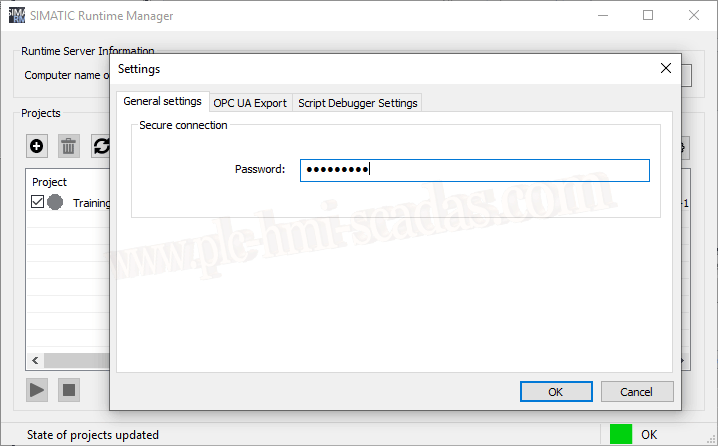
And later we also have to define it in the Simatic Runtime Manager, there is a small icon like a gear and we assign the same password.
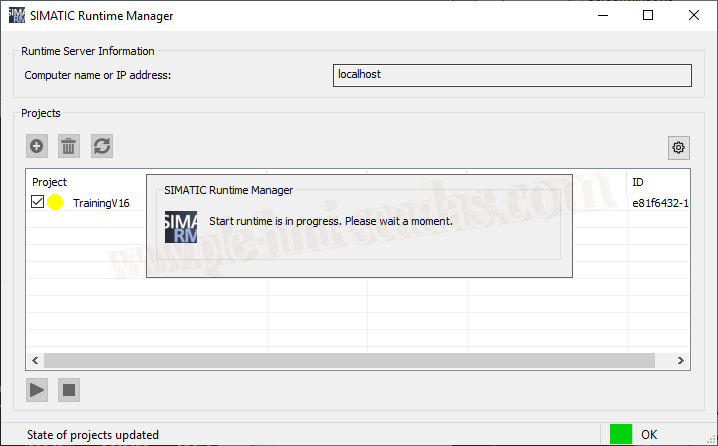
We can now transfer the project and observe how the server restarts to load the configuration or new configuration.
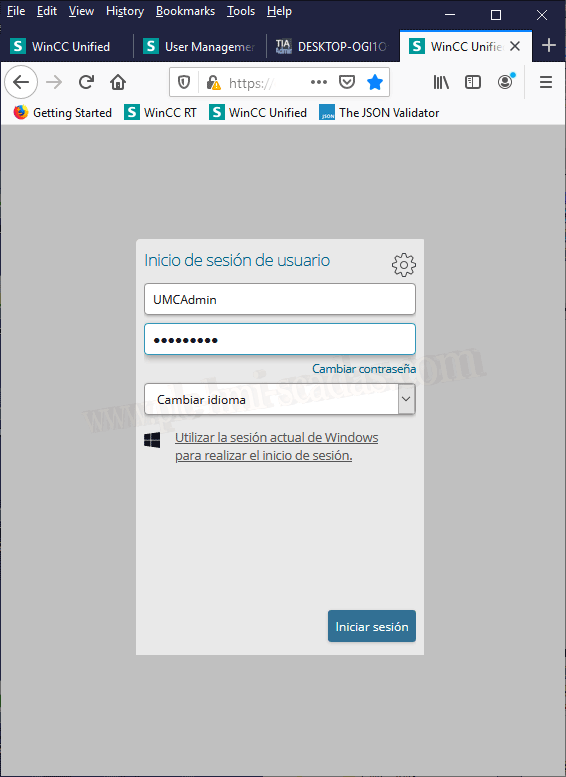
Once restarted and the server has started, we log in with the user we initially defined or if we created another one, and that's it.
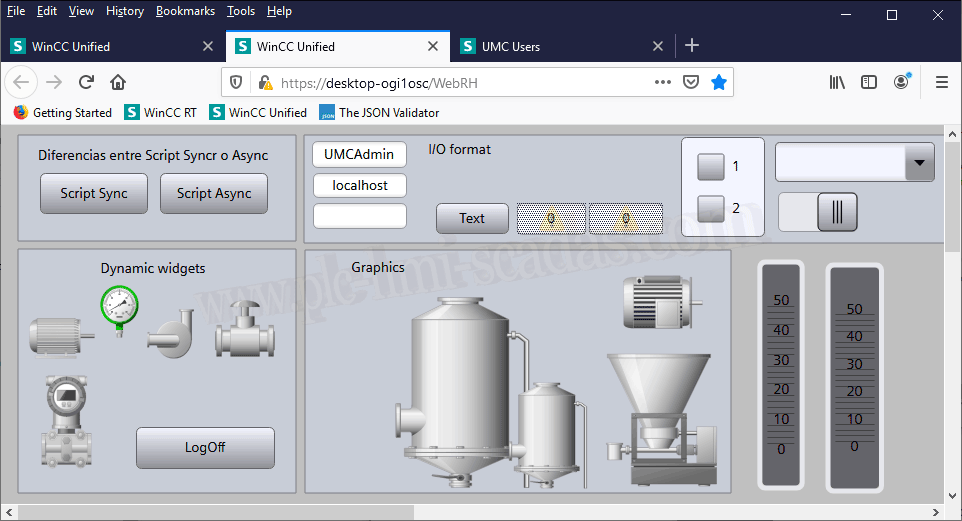
We can now observe our application.
The next thing we will see will be user administration, because if you have noticed when working with Unified, we do not have the user management as with other devices to create them and assign the permissions we are interested in.
Here we have another novelty, and we will have to work on it for better understanding.
03-13-2020