
Objective
This practice communicates InTouch with RSLogix Emulate 5000 through FSGateway. FSGateway links to RSLinx configured as an OPC server.
The same configuration could be used in a real system by replacing RSLogix Emulate 5000 with a physical PLC.
Create the Access Name in InTouch
Start the InTouch project and add a new Access Name. Application Name will be FSGateway and the topic will be the one configured in the FSGateway practice.
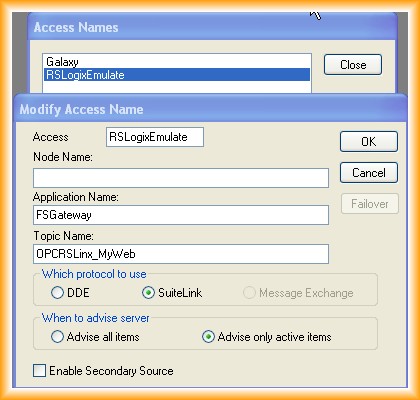
Add InTouch Variables
Once the Access Name is created, add the items or variables. Select the matching Access Name and use the tag name as the item name.
Use the same names defined when configuring the items in FSGateway.
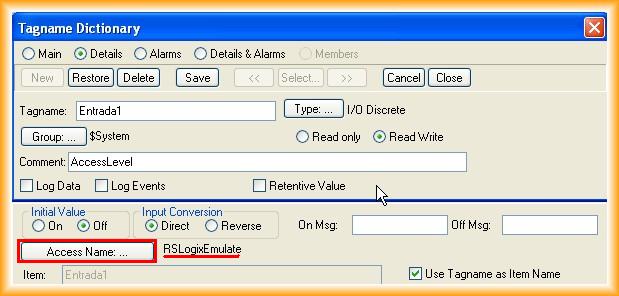
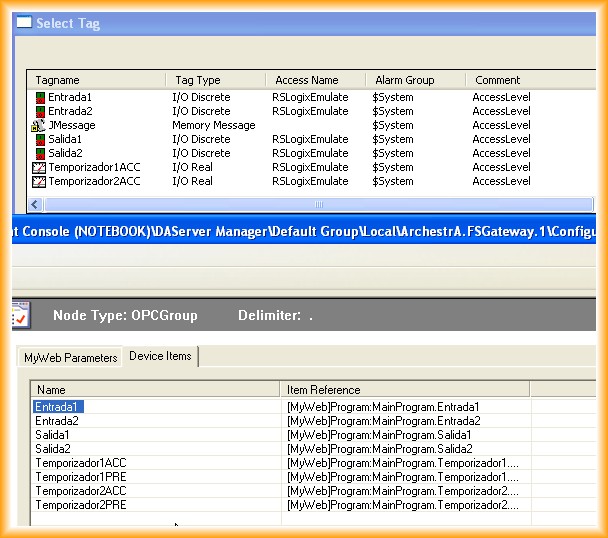
Prepare the Screens
Configure the InTouch screens to display variable values and a test push button.
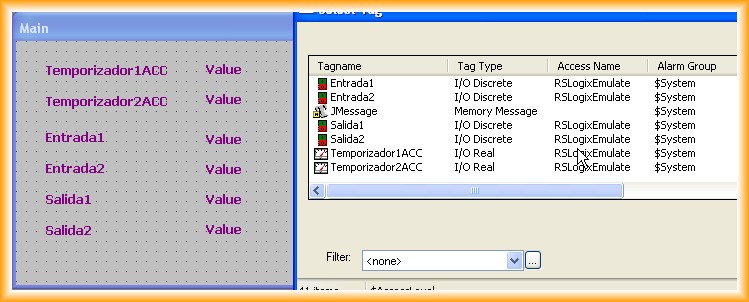
Run Runtime and Check Data
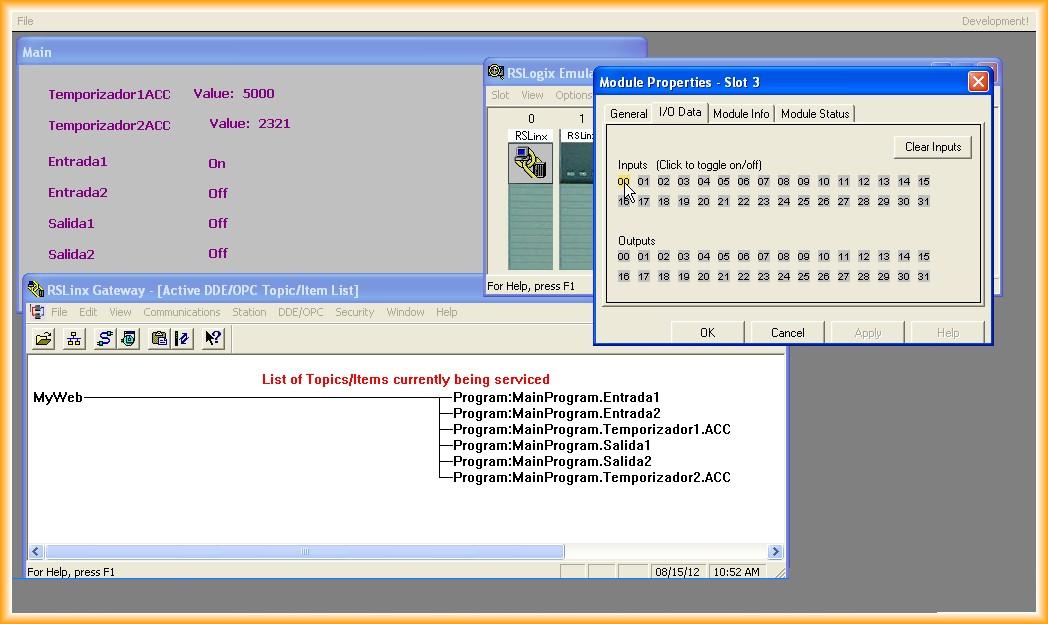
Run Runtime and observe the results. Use the simulator to force inputs and check that RSLinx is active and serving the items.
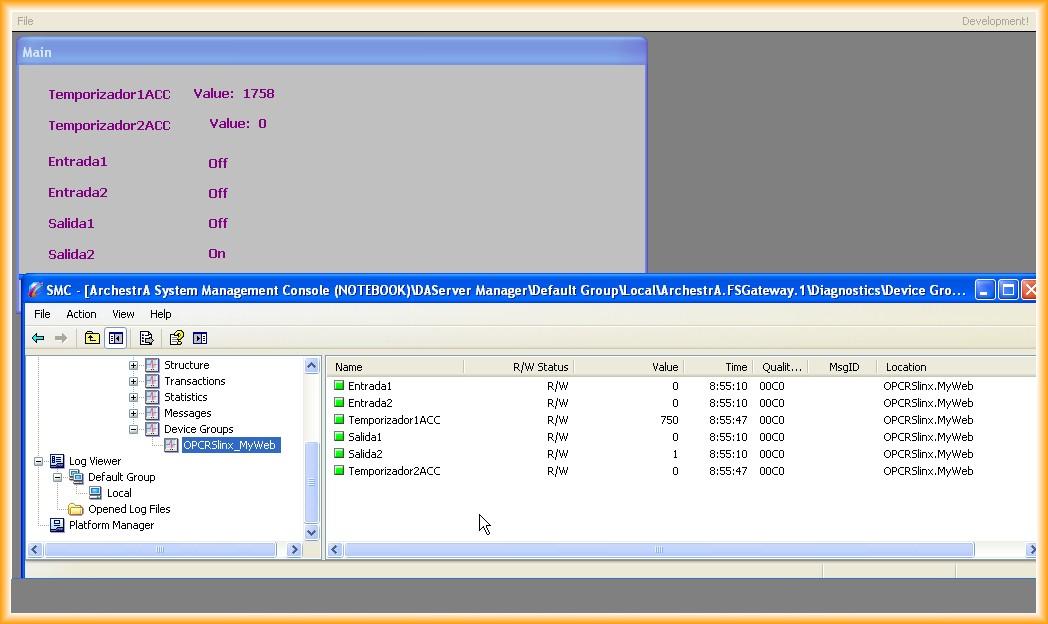
FSGateway can also be reviewed to confirm that it is running correctly with the configured items.
Test with the Simulator
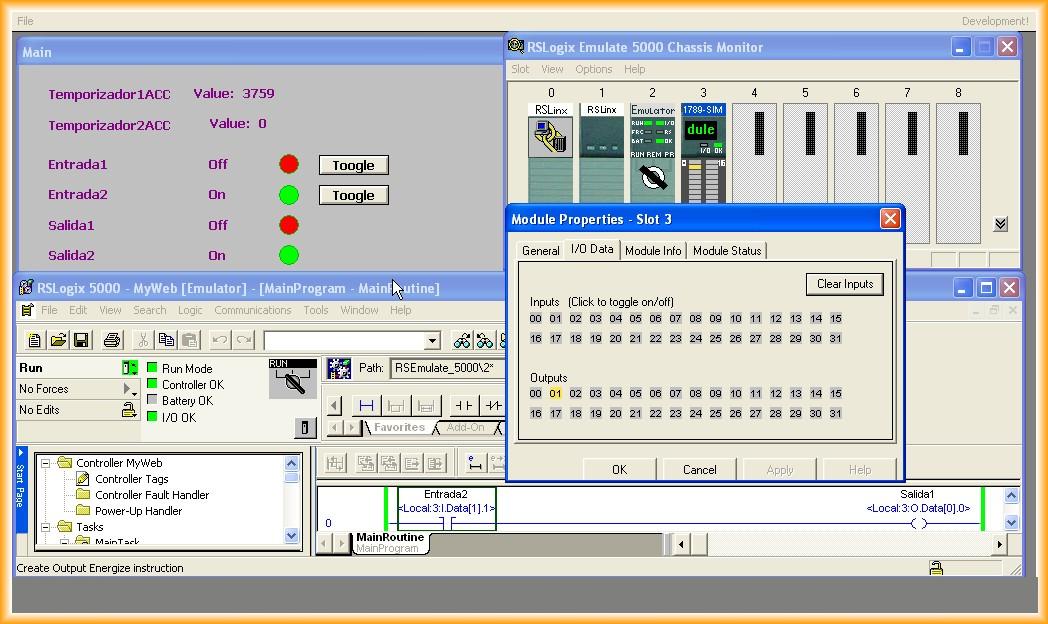
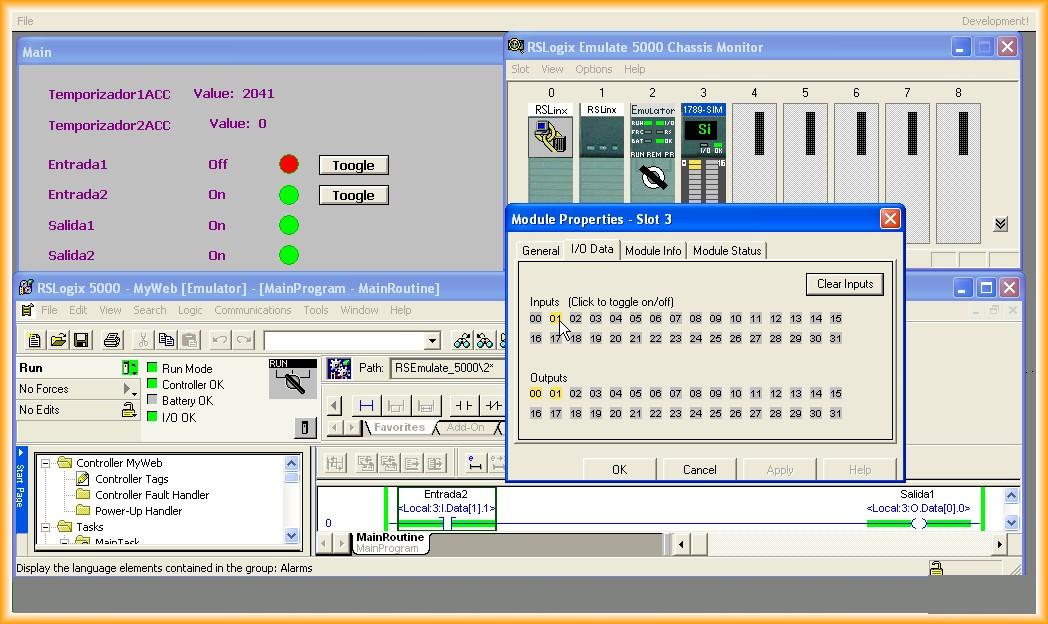
LEDs and a Toggle push button were added to the screen. If the input is triggered from SCADA, InTouch shows it as active, but the simulator and online program show that the real value is not forced.
The ideal approach is to use the simulator to force inputs while working with RSLogix for the PLC program and InTouch for SCADA visualization.
Original article published on August 23, 2012.