
ActiveX Control aaHistClientTrendControl
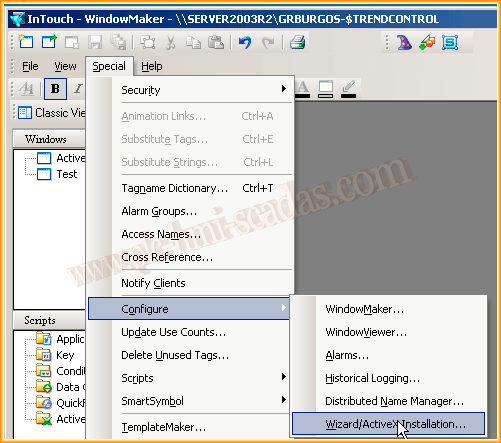
We have already seen how to configure the ActiveFactory or Historian Client, either through its own software, creating a symbol where this control is embedded, and in this case, in an Intouch application, through ActiveX controls; here it is required that ActiveFactory or Historian Client is installed on the PC itself. The first thing we are going to do is install our control, so that it is available, and as we have seen in other practices, Special -> Configure -> Wizard/ActiveX Installation
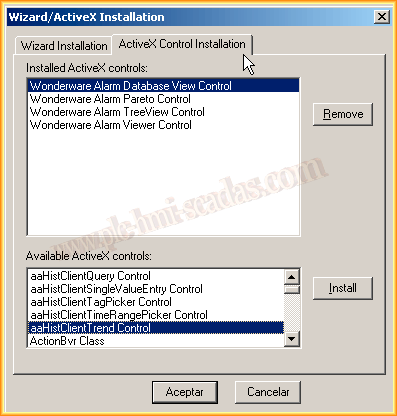
We select the Control that interests us, in this case the aaHistClientTrendControl and click install; with this step our control will be available.
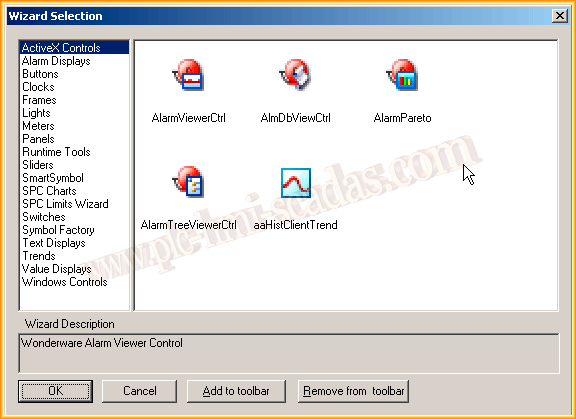
We assume that we have a window where we are going to insert our new control and select the wizard icon.

Here all available ActiveX controls appear, and among them we can already see the one we are interested in; we select it and insert it into our window.
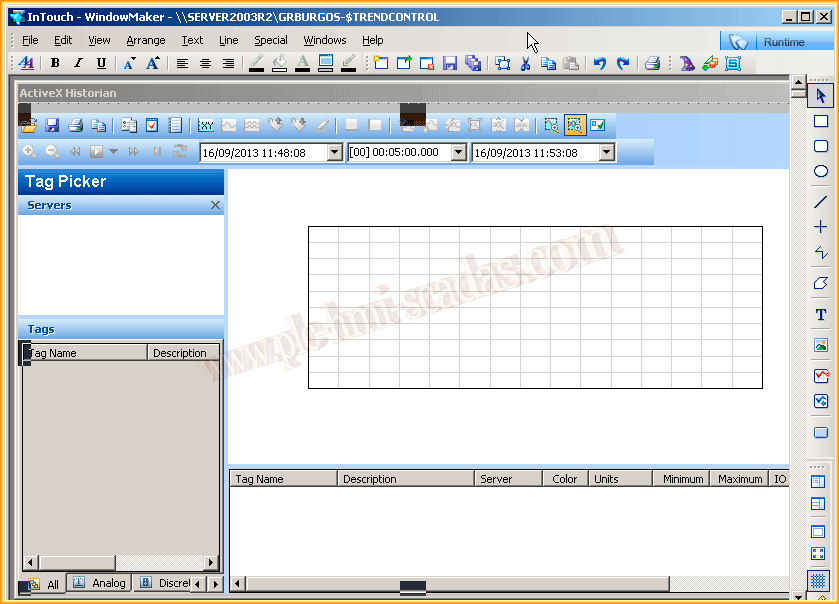
Once inserted into our window, we give it the dimensions we are interested in, and we could test it by clicking on runtime; the problem is that we have not configured any server and it would not be visible.
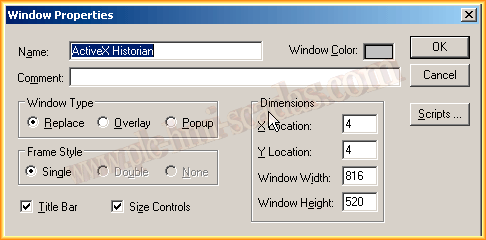
To do this, what we are going to do is that when the user goes to this window, through the Onshow script of the window itself, load the server that interests us; if we go to the properties of the window, we access the Scripts from its properties window.
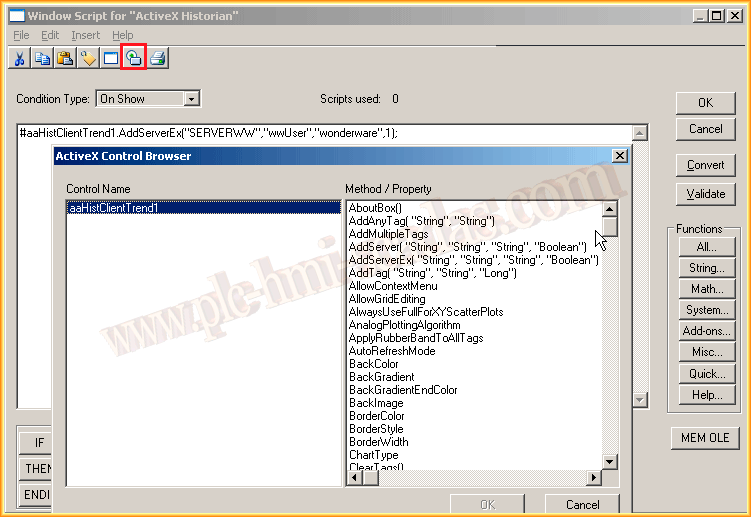
To see the properties and methods of our ActiveX controls, we click the selected icon in the image and we will be able to observe them. We choose the method AddServerEX(), with its corresponding parameters, and when this window is displayed, this Script will be executed and the server will be added to our Control. In the same way, we would add the Tags and modify the properties of the control, the visibility of the toolbar, PickServer, etc...
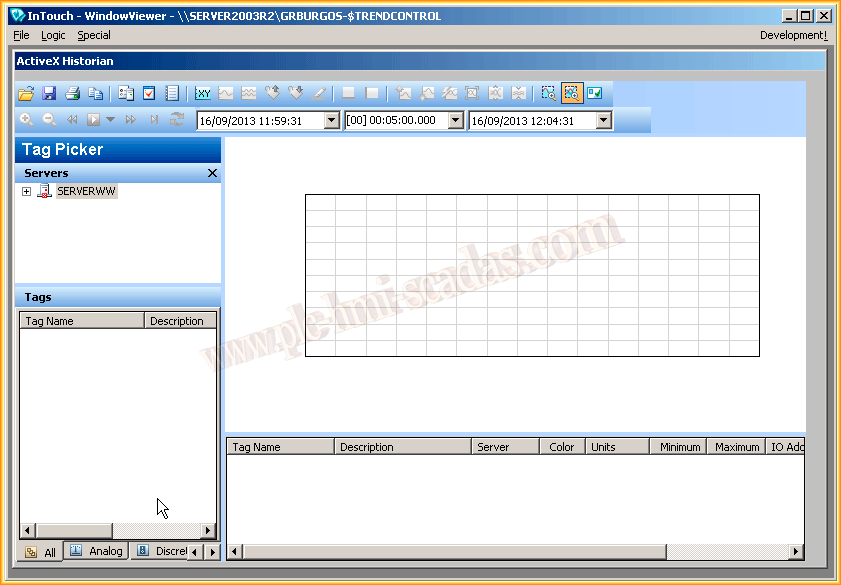
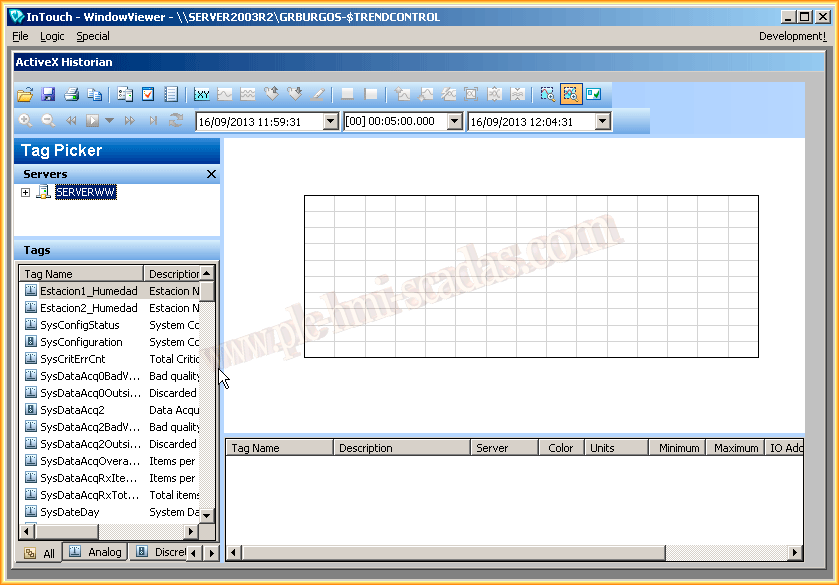
To test its operation, we click on Runtime and observe; in the first image, the Server appears but is disconnected, with the right button we click on Logon and the parameters we have configured in the Script will be passed; if we select the checkBox Remember Password, the next time Runtime is executed, it will connect automatically as in the second image.
September 16, 2013