
Context
In a previous practice, FactoryTalk View Site Edition was configured with RSLogix Emulate. This time the same idea is applied to FactoryTalk View Machine Edition, the environment used to program PanelView Plus HMI applications.
The main difference is the target of the application: Site Edition is SCADA-oriented, while Machine Edition is used for HMI. To communicate with RSLogix Emulate, the RSLinx Remote Device Linx Gateway driver is used.
Create the Application
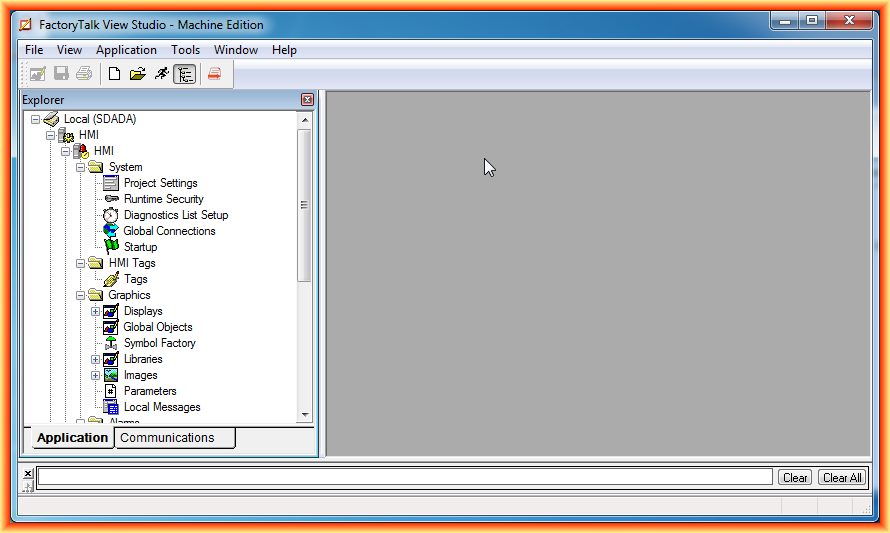
Create a new application in FactoryTalk View ME. The interface is very similar to FactoryTalk View SE, although the available functions change depending on the project type.
Configure the OPC Link
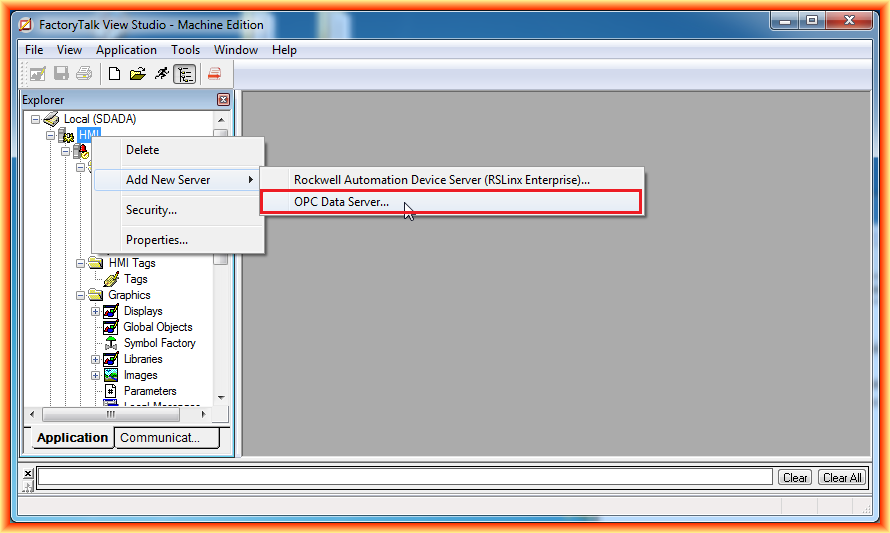
Since the PLC will be RSLogix Emulate 5000, configure an OPC Data Server link. Right-click the project name and follow the option to create the new server.
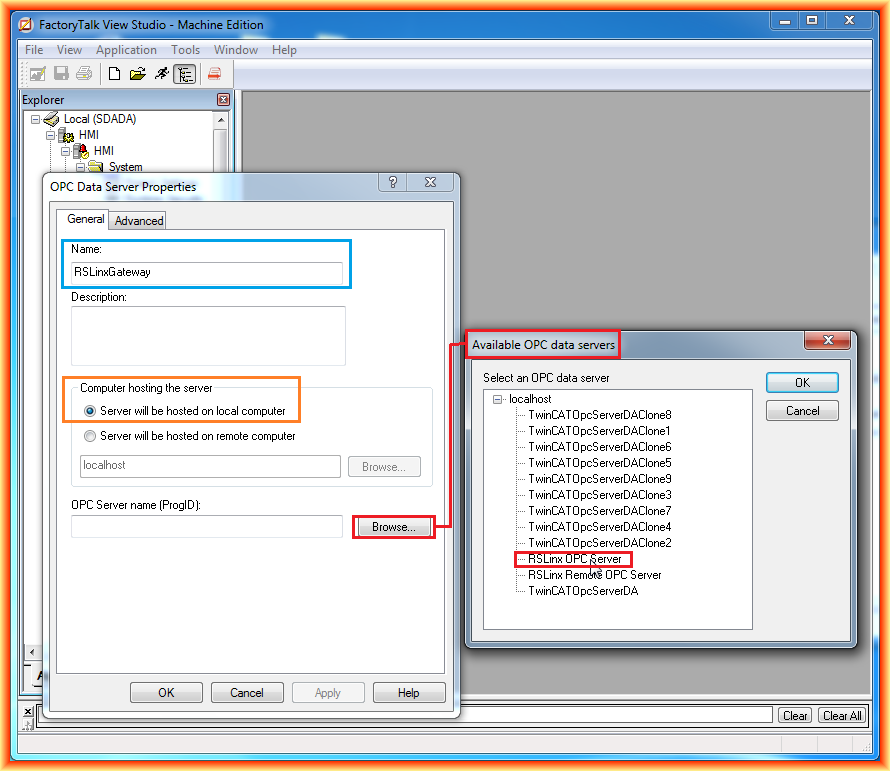
To configure the new link, assign a name, indicate where the OPC Server is located and finally select the OPC Server that communicates with RSLinx.
Assign Tags to a Numeric Display
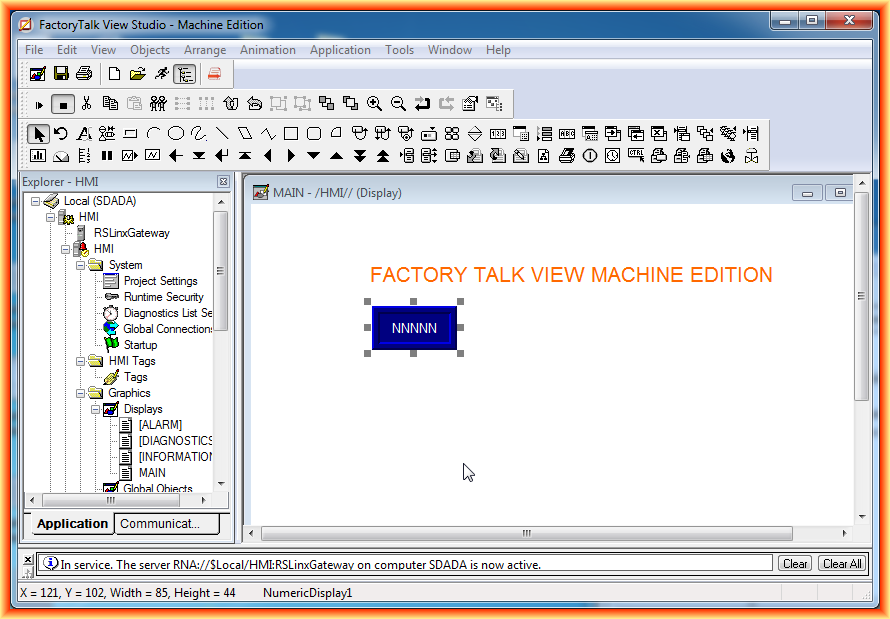
To check that the link is configured correctly, insert a Numeric Display object and configure a tag that belongs to the created link.
In the object properties, under the Connections tab, select Tags. A pop-up window with the Tag Browser will open.
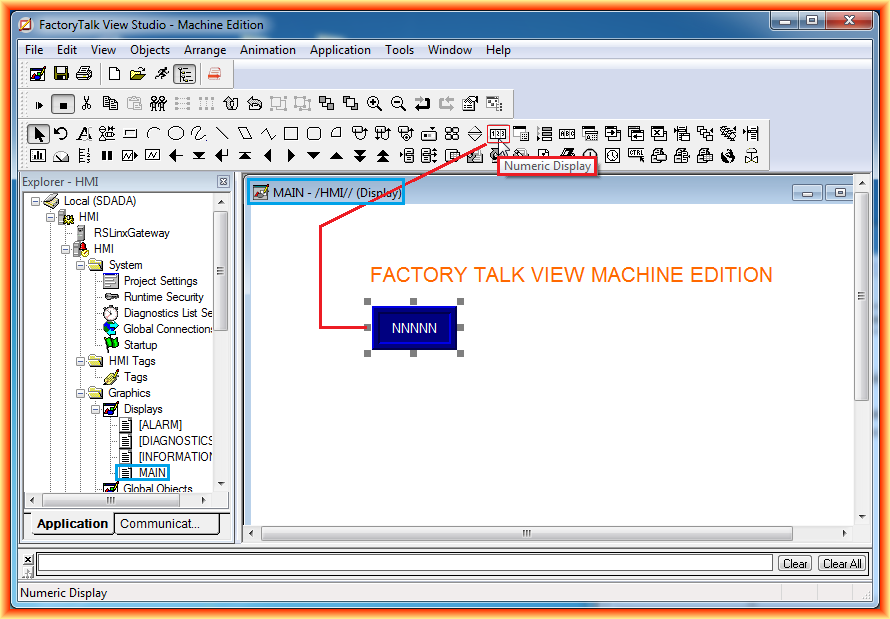
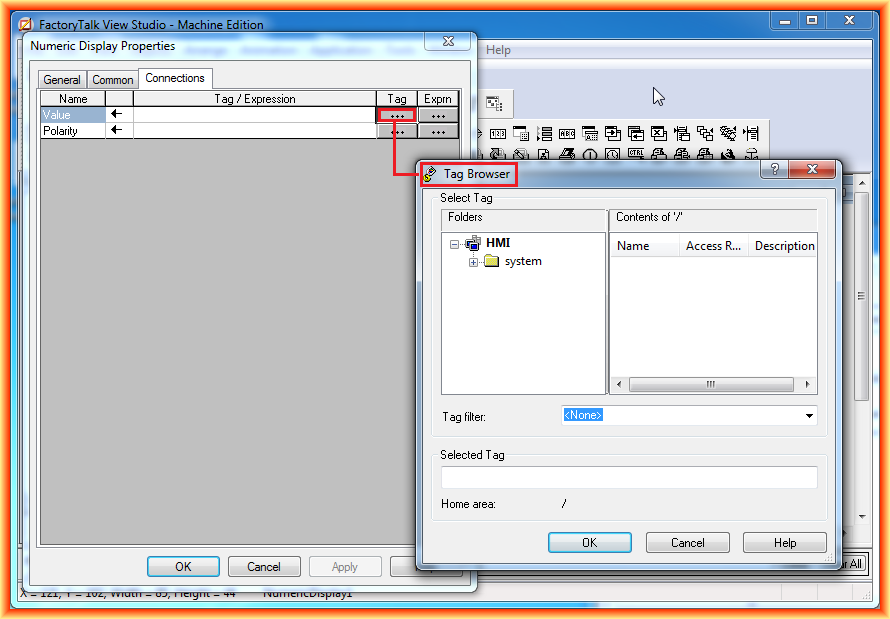
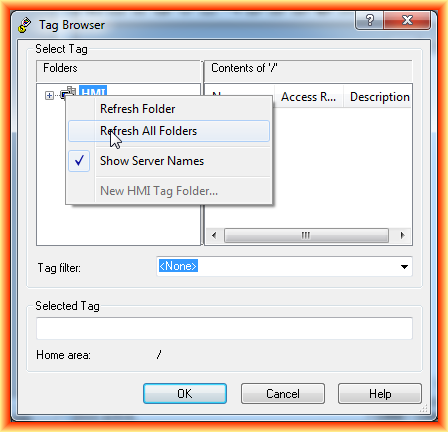
To refresh the available tags, use the right mouse button inside the browser. A tidy approach is to show the server names, especially when more than one link exists in the application.
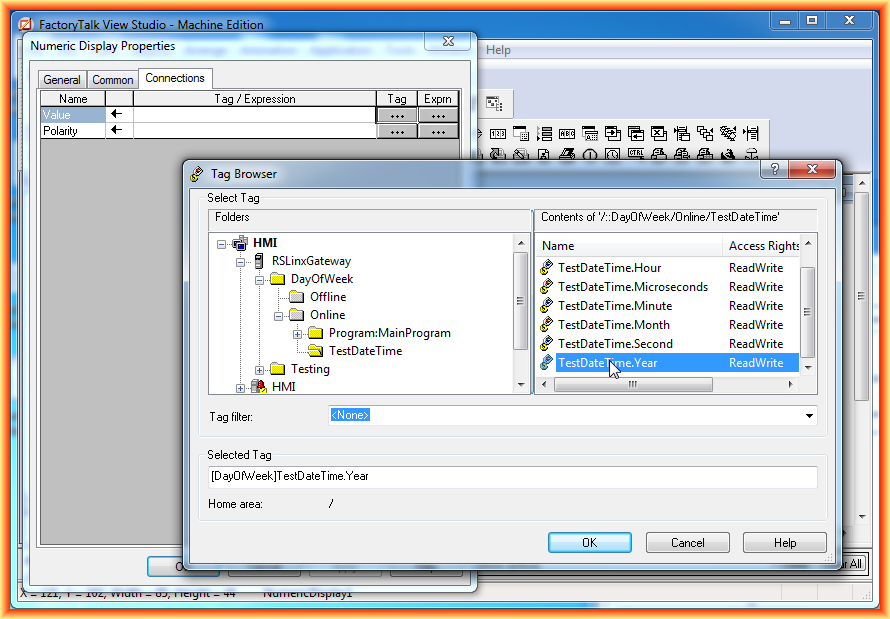
Test Display and Test Application
With these steps complete, the application can be tested. FactoryTalk View ME can run a quick screen test with Test Display, or execute the full application with Test Application.
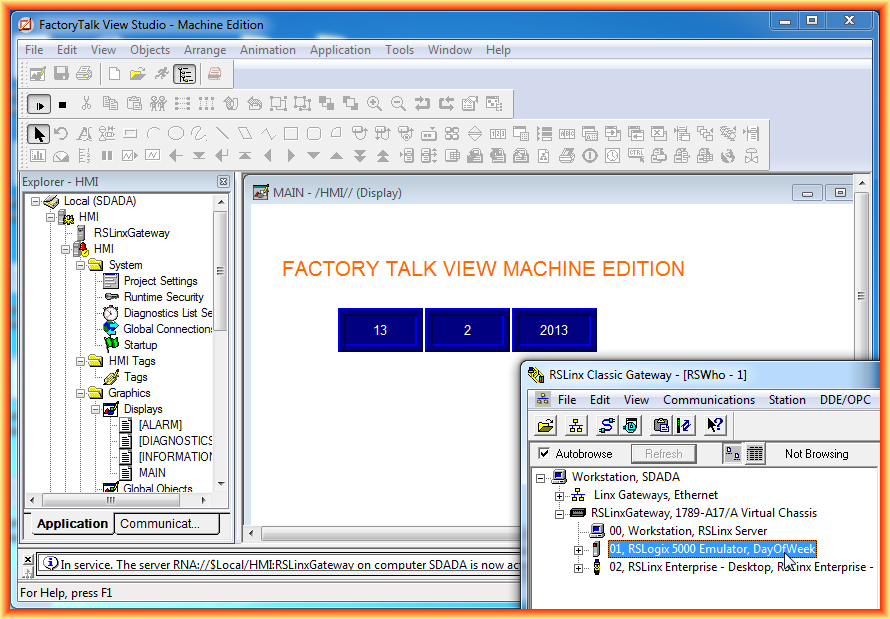
The next screenshot belongs to Test Application, once the application has been compiled.
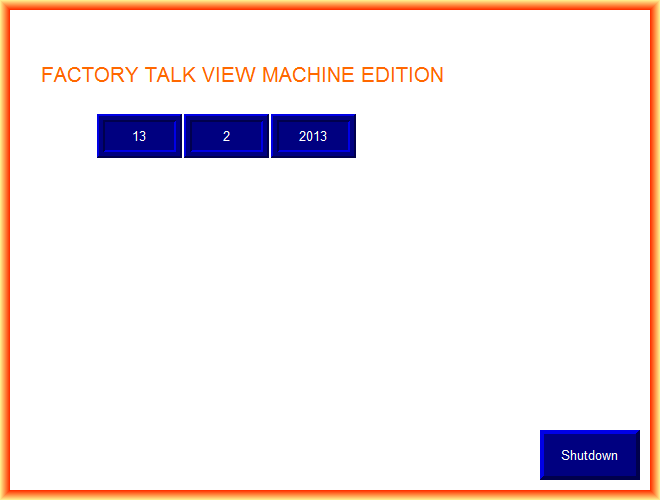
The final result is a FactoryTalk View ME HMI application reading tags from RSLogix Emulate 5000 through the configured OPC link.
Original article published on February 13, 2013.